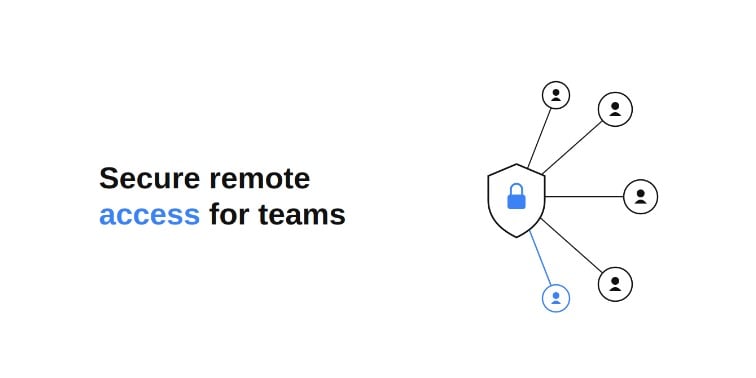
To set up secure remote access for a distributed team, give each person access only to the systems they actually need, verify identity with more than a password, and route connections through a controlled gateway instead of exposing servers to the open internet. The practical order is: list what needs protecting, choose a connection method, turn on multi-factor authentication, and keep a log of who is connected and when. Done well, remote staff reach internal tools as if they were sitting in the office, without leaving those tools open to anyone who finds the address.
Table of contents
- Why remote access has become a security risk for businesses
- How to give remote employees access to internal systems safely
- What is the difference between a VPN and Zero Trust access?
- How to choose the right remote access method for your team
- Why multi-factor authentication matters for remote logins
- Common mistakes when opening internal services to remote teams
- Best practices for managing access across a distributed team
Why remote access has become a security risk for businesses
When a team works from one office, the internal network is a closed space. Servers, file shares, and business apps sit behind the office firewall, and being in the building is itself a loose check on who gets in. Once people work from homes, cafes, and other countries, that boundary disappears. Someone has to connect the laptop in another city to the server in the office, and the usual quick fix is to open a port or publish an app to the internet so remote staff can reach it.
That shortcut is what attackers look for. An exposed remote-desktop port or a login page facing the open web can be scanned, guessed, and brute-forced within hours of going live. The company has effectively moved the front door of its network onto a public street, and every remote worker who needs to get in also widens the opening for everyone else.
How to give remote employees access to internal systems safely
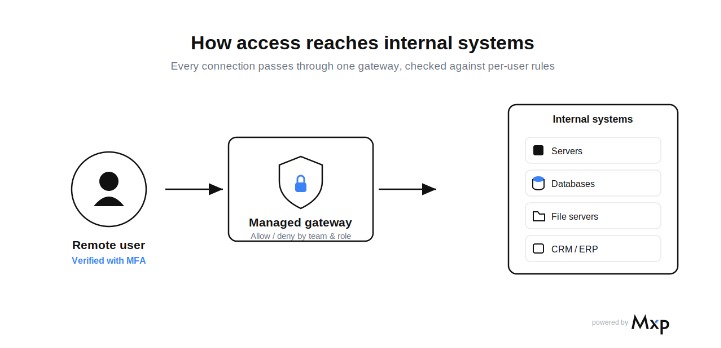
Safe remote access comes down to controlling who can reach what, and proving identity before any connection opens. A workable setup follows a few steps:
- Map what needs protecting. List every internal server, database, file share, and business app, and note which roles genuinely need each one. Most people need three or four systems, not the whole network.
- Choose how people will connect. For the connection itself, some teams run a traditional VPN, others hand it to a managed IT provider, and others use a dedicated corporate access platform such as MXP to stand up a protected network with a managed gateway and set per-user rules from one console. Each approach routes traffic through a controlled point instead of exposing services directly.
- Grant access by specific rules. Assign access by team or person to a specific address or service, so a support agent reaches the helpdesk system and nothing else. Opening the whole network to everyone removes this control and lets one compromised login reach everything.
- Require multi-factor authentication. A password alone is not enough for anything reachable from outside. Add a second factor, such as an authenticator app or an emailed code, for every remote sign-in.
- Log every connection. Keep a record of who signed in, from which IP, and when, so unusual access is visible and offboarding is clean.
What is the difference between a VPN and Zero Trust access?
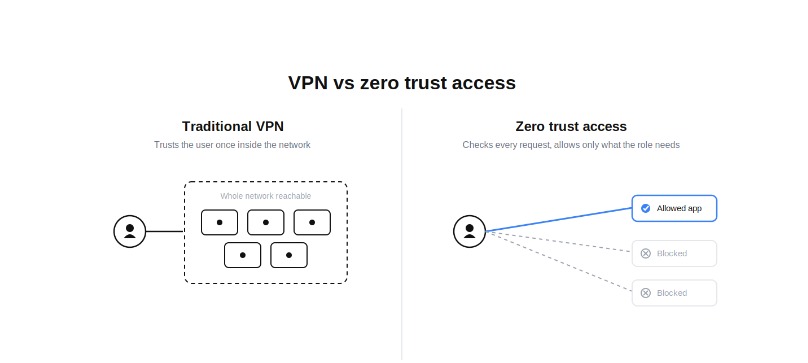
A traditional VPN puts a remote device onto the company network and, by default, lets it see whatever that network exposes. It answers “is this person allowed on the network,” then largely trusts them once they are in. That worked when the network itself was the boundary.
A Zero Trust approach checks access at the level of each system rather than the network as a whole. Identity is verified on every request, and a user only reaches the specific services their role allows, even after they connect. For a distributed team this matters because a stolen laptop or reused password grants access to one or two systems instead of the entire company. Many modern platforms combine both ideas: an encrypted tunnel for the connection, plus per-user rules deciding what that connection can actually touch.
How to choose the right remote access method for your team
The right method depends on three things: how many people need access, what they connect to, and whether you have in-house IT to run it. A five-person team reaching one file server has different needs than fifty people spread across ERP, CRM, and a code repository.
A traditional VPN is cheap and familiar, but it takes manual configuration and tends to grant broad network access unless you layer rules on top. A managed IT provider takes the setup off your hands, which suits companies with no technical staff, though you depend on their response times for every change. A dedicated corporate access platform sits between the two: you keep control from one console but skip the hardware and manual tunnel work.
If your team changes often, weigh how fast each option lets you add and remove people. Manual VPN configs are slow to update, while rule-based platforms let you grant or revoke access in minutes. For a growing distributed team, that speed usually matters more than the upfront price difference.
Why multi-factor authentication matters for remote logins
Multi-factor authentication matters because a password on its own is the single weakest point in any remote setup. Passwords get reused, phished, and leaked in breaches, and once one works from anywhere in the world, an attacker has the same access as the employee.
Adding a second factor breaks that chain. Even with the correct password, a login also needs a code from an authenticator app or an email, something the attacker usually cannot produce. For internal tools reachable from outside the office, this is the difference between one leaked credential being an inconvenience and being a full breach.
Turn MFA on for every externally reachable system, not just email or the main admin panel. People often assume a helpdesk tool or internal wiki is too minor to protect, but those accounts are exactly where attackers look for a quiet way in.
Common mistakes when opening internal services to remote teams
The most common mistake is exposing a service directly to the internet “just for now” and forgetting to close it. Temporary rules become permanent, and forgotten ports stay open for months. A second mistake is giving everyone the same broad access because it is faster to configure than per-role rules, which means one phished account can reach everything.
Skipping multi-factor authentication is another frequent gap, especially for internal tools people assume are low-risk. Many teams also never revoke access when someone leaves. Accounts stay live for weeks after an employee’s last day, and no one notices until there is a reason to look.
Best practices for managing access across a distributed team
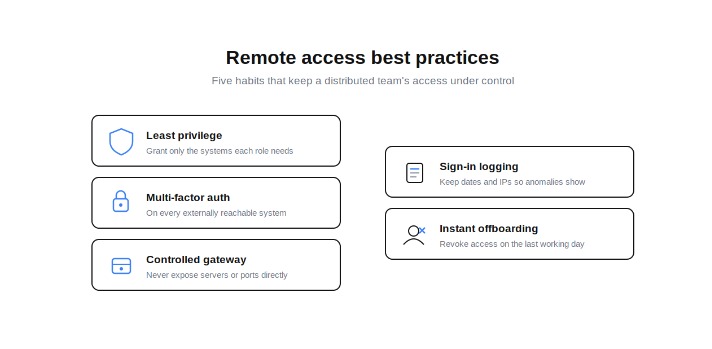
- Give each person the least access their job requires, and review those grants a few times a year.
- Require multi-factor authentication on every system reachable from outside the office.
- Route connections through a controlled gateway instead of exposing servers or ports directly.
- Keep a sign-in log with dates and IP addresses so unusual activity stands out.
- Revoke access on someone’s last day as a standard step in offboarding.
Frequently asked questions
What is secure remote access?
Secure remote access is a way for people outside the office to reach internal systems without exposing those systems to the open internet. It combines an encrypted connection, identity verification, and rules that limit each user to the resources they need.
What is the safest way to give remote employees access to internal servers?
The safest approach is to route access through a controlled gateway, require multi-factor authentication, and grant permissions by role so each person reaches only specific servers. Avoid publishing servers or opening ports directly to the internet.
Is a VPN enough for a remote team?
A VPN encrypts the connection, but on its own it often grants broad access to the whole network once someone is in. Pairing it with multi-factor authentication and per-user access rules closes most of the gap, which is why many teams move toward a Zero Trust style of access.
How do I control which systems a remote worker can reach?
Set access rules that tie a user or team to a specific address, subnet, or service, and deny everything else by default. This is called least-privilege access and it limits the damage if one account is compromised.
How quickly should access be removed when someone leaves?
Access should be revoked on the person’s final working day, ideally as a fixed step in your offboarding process. Leaving accounts active after departure is one of the most common and avoidable security gaps.
Do small companies need secure remote access tools?
Yes. Small teams are targeted because their setups are often looser, and a single exposed system can affect the whole business. The controls scale down well, so even a handful of remote staff benefit from access rules, MFA, and connection logging.
H2 keyword map:
- Why remote access has become a security risk for businesses → remote access security risk (context/informational)
- How to give remote employees access to internal systems safely → remote employees access to internal systems (how-to intent)
- What is the difference between a VPN and Zero Trust access? → VPN vs Zero Trust (comparison/informational)
- How to choose the right remote access method for your team → remote access method / choosing (decision intent)
- Why multi-factor authentication matters for remote logins → multi-factor authentication remote logins (informational)
- Common mistakes when opening internal services to remote teams → opening internal services to remote teams (mistakes/practical)
- Best practices for managing access across a distributed team → managing access distributed team (best-practices intent)