
DomainKeys Identified Mail (often shortened to DomainKeys Identified Mail) is a core email authentication standard defined in RFC 6376 that lets a sending domain attach a cryptographic signature to each message. This DKIM authentication adds a verifiable layer of trust on top of SMTP so receiving servers can confirm that specific parts of an email weren’t altered in transit and that the message is tied to the claimed signing domain.
Why it matters: attackers routinely rely on email spoofing to launch phishing attacks, initiate business email compromise, and deliver ransomware. Without strong email authentication, recipients have no reliable way to tell if the From address or content has been tampered with. By validating a DKIM signature using a public key published in DNS, receivers make it harder for adversaries to impersonate executives, suppliers, or brands. While DKIM doesn’t block all threats, it significantly raises the bar against email spoofing and reduces the success rate of phishing attacks and business email compromise that often end in ransomware.
How DKIM Works: Keys, Signatures, DNS Records, and Selectors
Keys and the cryptographic flow
At the heart of DKIM authentication are public-private key pairs:
- The sender signs selected header fields and the body hash with a private key, producing a digital signature.
- The recipient fetches the corresponding public key from DNS records and verifies the DKIM signature embedded in the message header.
The DKIM-Signature (often called the dkim-signture header in some documentation) includes parameters like the d= value (the signing domain), a selector, canonicalization choices, and hashes. Verifiers check that the DKIM signature matches the content and that the signing domain controls the public key in DNS.
Publishing keys in DNS
Senders expose their public key via TXT records under a selector namespace:
- Hostname pattern: selector._domainkey.signing-domain (for example, selector1._domainkey.contoso.com)
- Record type: TXT (or, in some ecosystems, CNAME records that redirect to a TXT target)
- Contents: dkim record format fields, including k=rsa and the p= public key
Selectors allow multiple keys per domain. In many hosted services, you publish a CNAME that “points to value” a provider’s DKIM TXT record. The _domainkey label isolates DKIM from other DNS zones and supports subdomain delegation. This DNS configuration lives at your Domain Registrar, alongside other TXT and CNAME entries for SPF and DMARC.
Selectors, rotation, and resilience
Selectors are identifiers that map a DKIM signature to the right public key. Using selector1._domainkey and selector2._domainkey enables safe key rotation, staged rollouts, and isolated testing for outbound messages without disrupting production outbound mail. If a private key is compromised, rotate immediately by switching the selector and revoking the old public key.
Standards and scope
Per RFC 6376, DomainKeys Identified Mail focuses on integrity and domain-level attribution. It doesn’t encrypt content or validate the SMTP envelope. Still, when combined with SPF and DMARC, DKIM materially improves mail reputation and protection against email spoofing and phishing attacks that lead to business email compromise and ransomware.
Implementing DKIM: Setup Steps, Key Rotation, and Alignment Considerations
Step-by-step setup
- Inventory domains: include every custom domain and relevant subdomain used for sending, including parked domains you may activate later.
- Create DKIM keys: generate public-private key pairs per signing domain. In hosted platforms, use built-in wizards to create DKIM keys.
- Publish DNS: add TXT records or CNAME records for each selector under _domainkey. Confirm that the points to value are accurate and follow the DKIM record format.
- Enable DKIM: turn on DKIM signing in your mail system’s email authentication settings for each signing domain.
- Validate: perform DKIM validation with test messages and confirm the message header shows a pass.
In Microsoft 365, you can create DKIM keys and enable DKIM either in the Defender portal or with Exchange Online PowerShell. Typical CNAME hostnames look like selector1._domainkey.contoso.com and selector2._domainkey.contoso.com, and often point to provider targets such as dkim.mail.microsoft and mail.microsoft endpoints. You may see variables like InitialDomainPrefix, onmicrosoft.com, CustomDomainWithDashes, and DynamicPartitionCharacter in examples that map your Microsoft Online email routing address (e.g., contoso.onmicrosoft.com) to each custom domain (e.g., contoso.com or marketing.contoso.com).
Microsoft-specific notes
- In Defender for Office 365, go to Security.microsoft.com > Policies & rules > Threat policies > Email & collaboration to review email authentication settings. The Defender portal surfaces whether there are no DKIM keys or misconfigurations.
- With Exchange Online PowerShell, you can script DKIM configuration and key rotation across multiple domains, including cohovineyardandwinery.onmicrosoft.com, cohovineyard.com, and cohowinery.com.
- Many tenants publish CNAMEs that point selector1._domainkey and selector2._domainkey to dkim.mail.microsoft targets managed by Microsoft.
Alignment for DMARC and delivery
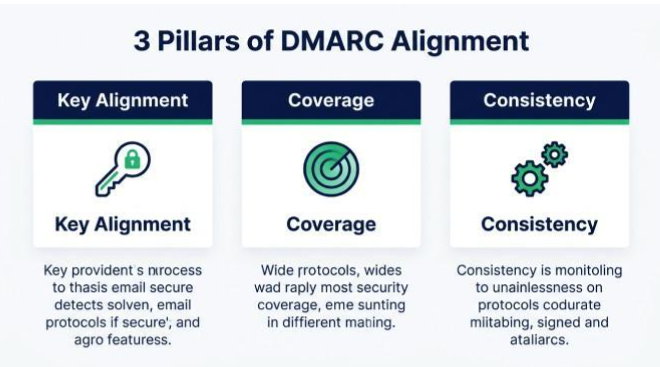
DMARC alignment ties the From address domain to authentication results. For the strongest policy, ensure:
- Key alignment: the d= value (signing domain) aligns with the visible From address domain, not just the mail from address used by SPF.
- Coverage: enable DKIM signing for all services sending on your behalf, so every DKIM signature can pass regardless of route.
- Consistency: Use the same aligned domain across transactional and marketing subdomain senders like marketing.contoso.com.
When alignment is correct, DMARC can enforce quarantine or reject, improving mail reputation and reducing exposure to email spoofing, phishing attacks, and ransomware payloads.
Selector management details
- Maintain two live selectors (e.g., selector1._domainkey and selector2._domainkey).
- Stagger key rotation, switching outbound messages to the new selector before removing the old public key.
- Document which systems use which selector per signing domain.
Verifying and Troubleshooting: Testing Tools, Common Failures, and Fixes
How to test and validate
Send test emails to external mailboxes and inspect the message header. Confirm the DKIM signature shows as pass, the d= value matches the intended signing domain, and the selector resolves in DNS. Use third-party analyzers to perform DKIM validation and check DNS records, TXT content, and CNAME chains.
Frequent failure modes
- DNS typos: wrong hostnames under _domainkey or malformed TXT records.
- Stale records: publishing a new public key but not switching the active selector for outbound mail, leading to verify failures.
- Propagation delays: DNS configuration not visible yet at resolvers.
- Key mismatch: signing with the wrong private key or incorrect d= value.
- Disabled signing: forgetting to enable DKIM after publishing.
- Provider specifics: Microsoft 365 tenants with no DKIM keys created yet, or CNAME targets mis-typed for dkim.mail.microsoft.
Remediation checklist
- Verify the points to value on each CNAME and that the TXT targets publish the correct public key.
- Confirm the private key in your MTA matches the DNS public key; regenerate and rotate if uncertain.
- Use Exchange Online PowerShell to check tenant-wide DKIM configuration and enable DKIM where needed.
- In the Defender portal (Security.microsoft.com), review Threat policies under Policies & rules > Email & collaboration for errors that may impact DKIM signing or mail reputation.
- If a private key may be exposed, perform immediate key rotation, flip selectors, and revoke the old public key.
DKIM in the Email Ecosystem: SPF, DMARC, Deliverability, and Best Practices
How DKIM complements SPF and DMARC
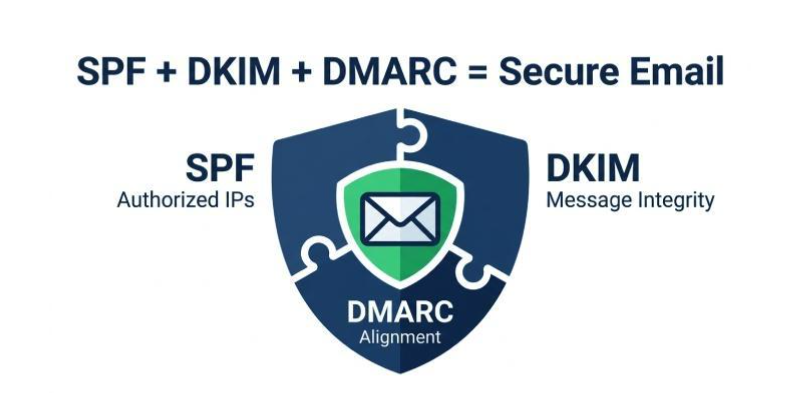
SPF authenticates the mail from address via authorized IPs, while DomainKeys Identified Mail (DKIM) authenticates message integrity with a DKIM signature tied to the d= value. DMARC evaluates both SPF and DKIM for alignment with the visible From address, enabling enforcement. Together, these email authentication controls reduce email spoofing, make phishing attacks less credible, and limit pathways for business email compromise and ransomware.
Best-practice checklist
- Use 2048-bit keys where supported and schedule key rotation every 3–12 months.
- Keep two selectors active to enable safe rotation and rollback.
- Sign all outbound messages from every system, including marketing subdomain senders and SaaS tools.
- Maintain coverage for parked domains to prevent abuse.
- Monitor DMARC reports and delivery metrics to improve mail reputation.
- Document DNS changes at the Domain Registrar and audit TXT and CNAME entries periodically.
- For Microsoft 365, validate that contoso.com, contoso.onmicrosoft.com, marketing.contoso.com, and related service domains are correctly published and that DKIM is enabled across workloads.
DKIM authentication is not a silver bullet, but when implemented with SPF and DMARC, consistently managed private key hygiene, proper public key DNS publication, and vigilant monitoring, DomainKeys Identified Mail materially strengthens email authentication against email spoofing, blunts many phishing attacks, and curtails the risk of business email compromise and ransomware across modern mail flows.