![Best Ways to Convert NotebookLM PDF to Editable PPT [Easy]](https://techbullion.com/wp-content/uploads/2026/01/unnamed-67-1.png)
NotebookLM is great for whipping up slick slide decks, but exporting them as PDFs?
- That’s where things get complicated.
- NotebookLM exports the entire slide deck as a single image.
- So, if you want to convert NotebookLM PDF slides to editable PowerPoint, you’re facing a lot of tedious rebuilding.
- But don’t worry, as there are some excellent methods to turn those NotebookLM PDF slides into fully editable PPT slides.
Here, we’ll show you the best ways to make the switch, depending on what you need. Let’s find the option that’s best for you!
Part 1: How to Convert NotebookLM PDF Slides to Editable PPT
The following are 3 ways to convert NotebookLM PDF as PPT slides. Each method targets a different need:
Method 1: Use PDF Editor (Easy)
The easiest way to convert a NotebookLM PDF file to PPT is through a PDF editor designed for OCR and reconstruction. Tenorshare PDNob is the best candidate for that. It offers 99% OCR accuracy in text extraction and intelligent document structure rebuilding without losing quality.
The tool can read printed text, handwriting, and older documents, and supports 20+ major languages. In addition, PDNob supports batch processing and includes built-in PDF editing, annotation, and AI summarization tools. Here are its core features:
- It has a clean and easy-to-use design, high performance, and low CPU/RAM consumption without freezing.
- With 100+ text/image editing functions, the tool can change fonts, size, and color as well as add, substitute, or resize images.
- With 200+ annotation features, the tool can add highlights, notes, and stamps.
- Accepts 30+ different formats, and can also merge, split, rearrange, insert, or remove pages.
- Summarize PDFs and chat with them to extract crucial insights.
- Secure PDFs by encrypting, redacting sensitive data, and adding watermarks.
- You can also take a screenshot of the editing process.
- Customers are assisted with responsive technical support.
Here’s how to edit notebookLM slides and convert them to PowerPoint slides with Tenorshare PDNob:
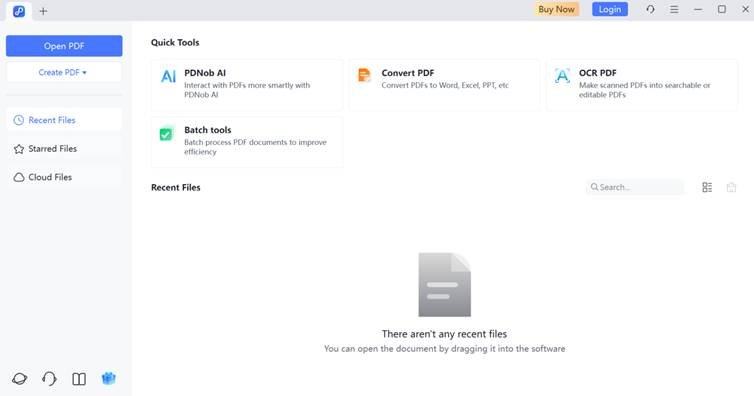
Step 1: Execute Tenorshare PDNob on your computer. Then, choose “OCR PDF.” Upload the NotebookLM PDF slide that you wish to convert to PPT.
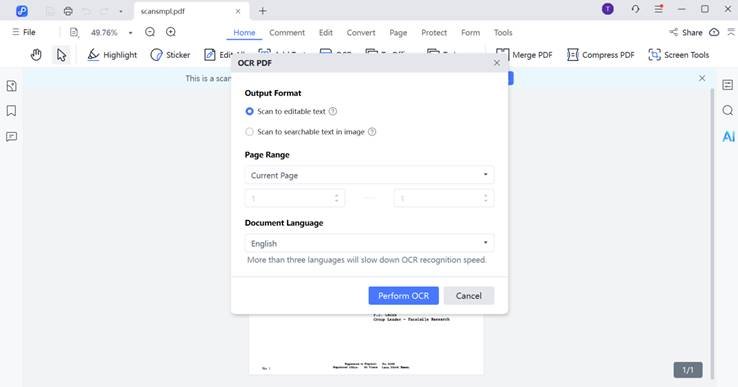
Step 2: Tap “Perform OCR.” If you want to edit the PDF, head to “Edit” in the above menu. Choose to edit the text or image. But if you want to annotate, then visit “Comment” in the menu above and choose a tool
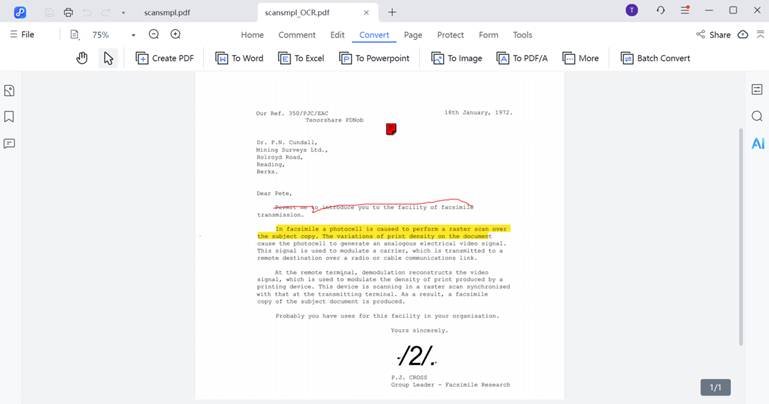
Step 3: Lastly, save the NotebookLM PDF. Then, to convert it into PPT, head to “Convert” in the menu. Pick “To PowerPoint.”
Check out details from video guide:
https://www.youtube.com/watch?v=ZeMiTW0rlQE
Method 2: Specialized AI Tool (Quick)
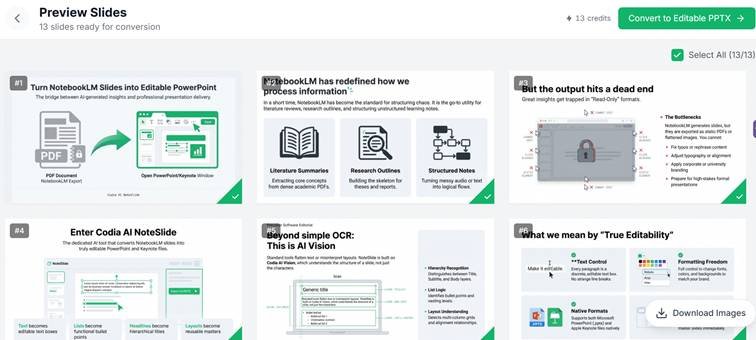
Another online NotebookLM convert PDF to PPT tool, like Codia AI NoteSlide, is a good option. It’s designed specifically to make presentation materials like NotebookLM editable slides by employing Codia AI Vision. The tool can detect text, images, and layout to closely match the original design. Here’s how to convert NotebookLM PDF slides to editable PowerPoint with Codia AI NoteSlide:
Step 1: In NotebookLM, download your slide deck as a PDF file. Then, head to the Codia AI NoteSlide website and upload your PDF.
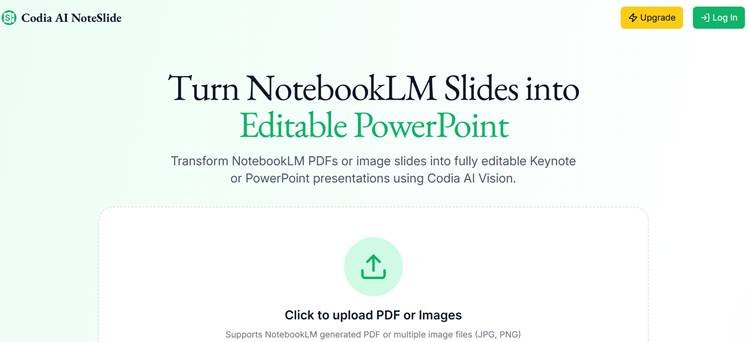
Step 2: Tap “Convert to Editable PPTX) on the top-right. The tool processes the file in seconds. You can then download a fully editable .PPTX (PowerPoint) or Keynote file.
| Pros | Cons |
| Specifically designed to convert NotebookLM PDFs.It converts the NotebookLM PDF to PPT by keeping the design very close to the original, and without losing quality. It offers high accuracy in converting slides. | The tool requires uploading your files to a third-party service.The tool doesn’t support editing.The layers and reusability can be inconsistent for complex designs.Uses a credit-based subscription, which may not suit occasional users. |
Method 3: Canva (Best for Free Editing)
You can convert a NotebookLM PDF to slides with the online Canva PDF to PPT converter. But if the text still appears as an image, you can use the “Grab Text” feature provided by Canva Pro to make it editable. You can further reformat, readjust, and rearrange text and objects, or change font styling for free as per your needs. Here’s how to convert a NotebookLM PDF as PPT in Canva:
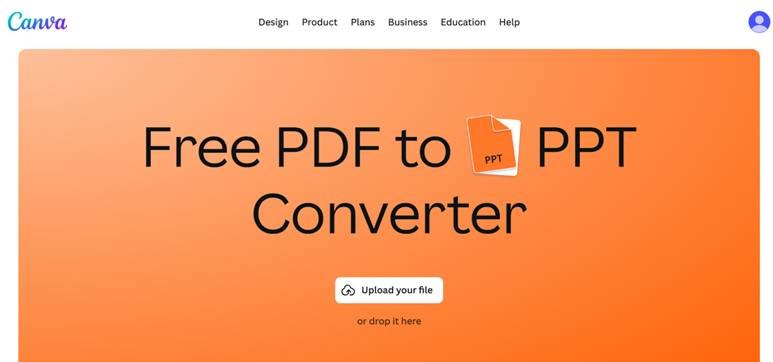
Step 1: In NotebookLM, download your slide deck as a PDF file. Then, visit “Canva PDF to PPT Converter.” Log in to your Canva account. Then, drag and drop or upload the PDF.
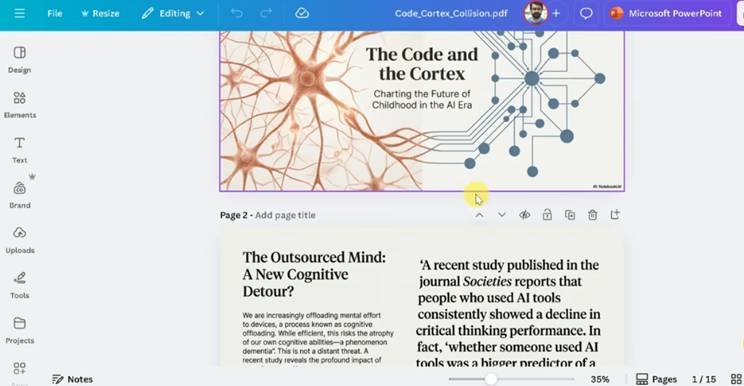
Step 2: The tool will convert the NotebookLM PDF into PPT. Pick the slide you wish to edit. Then, click “Edit” from the menu bar.
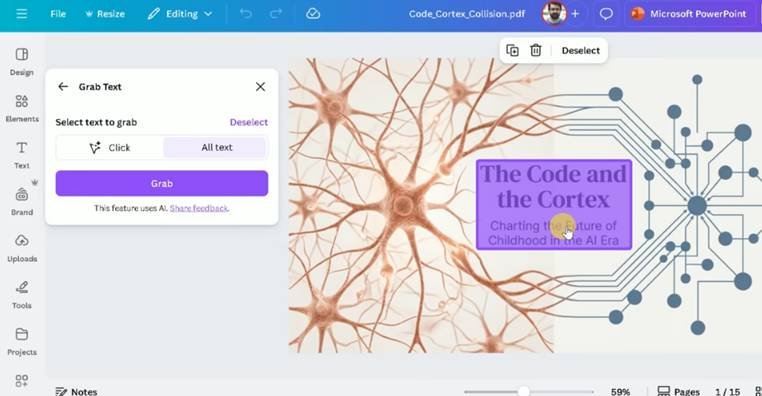
Step 3: From the “Magic Studio” menu, tap “Grab Text.” This feature turns image-based text into editable text.
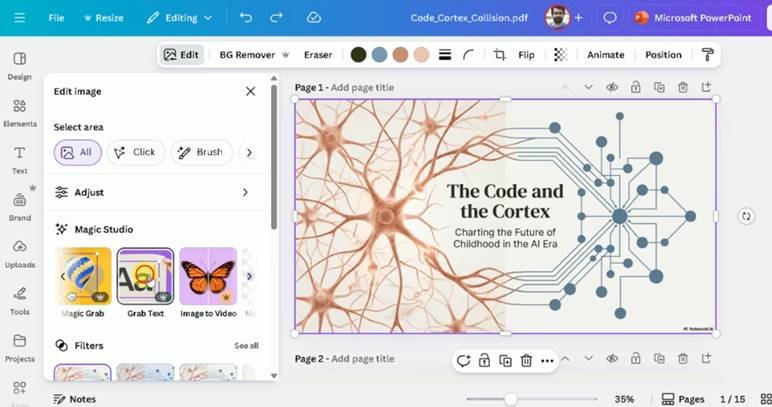
Step 4: Select the text, and hit “Grab.” Now, you can edit the text. You can repeat this process for each slide.
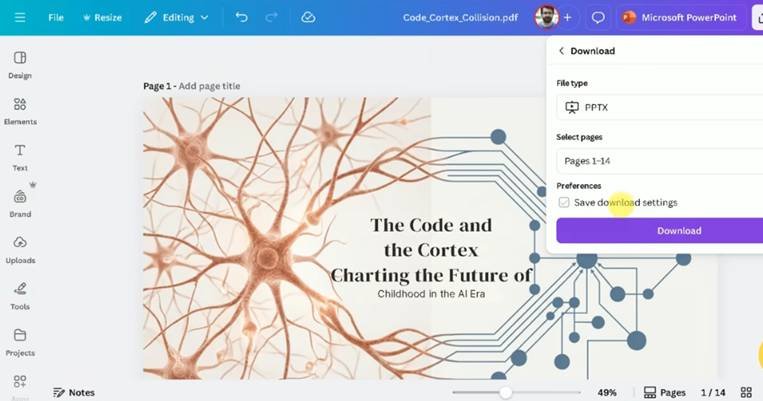
Step 5: Next, download the PPT from Canva as a PowerPoint slide.
| Pros | Cons |
| Easy to use in a browser with no installation.Free to start and a familiar interface.Quickly turns PDFs into slides with the layout intact.Powerful editor with templates and design elements.Easy to share and collaborate with others.Can export directly as a PPTX file. | Most of the text isn’t editable.The “Grab Text” feature is not free to use.Some slides have multiple layers, making them invisible to Canva. Editing can be manual and awkward, especially without Pro.Fonts may be replaced, causing spacing or alignment issues.Slides aren’t an exact replica of the original.Complex graphics may not convert well.Better for rough drafts than pixel-perfect results. |
Part 2: Key Tips for Success to Convert NotebookLM PDF to Editable PPT
Regardless of which tool you choose to convert NotebookLM PDF to PPT, the following tips can make the process smoother:
- Simplify before exporting: Use common fonts and simple backgrounds in NotebookLM to help OCR tools read and rebuild text accurately.
- Batch large decks: Convert long presentations into smaller sections to catch and fix repeated problems early.
- Keep the design simple: Use high-contrast layouts and standard fonts like Arial, Calibri, or Helvetica to edit slides in NotebookLM. Also, avoid overlapping text and busy backgrounds.
- Design for editing: Converters treat slides like images, so use clear, sharp text and keep body text at 18 pt or larger when possible in NotebookLM.
- Preview and adjust: Plan to spend a few minutes in PowerPoint fixing alignment, font changes, and small graphic issues.
Conclusion
There are a few ways to convert NotebookLM PDF slides to editable PowerPoint, which we’ve shared earlier, but each one fits a different use case. Canva is good for quick visual edits, but it often needs manual fixes and paid features to edit text.
Whereas AI tools like Codia AI NoteSlide are fast and keep the design close to the original, but offer limited editing and use credit-based pricing. But Tenorshare PDNob gives the best results with high OCR accuracy, good layout recovery, and full editing control. It’s the best choice for accurate, flexible, and fully editable PPT conversions.