While testing the Seed Audio AI music generator, I approached it less like a finished audio studio and more like a practical drafting surface for creators who already work with scripts, short ads, product demos, and storyboards. The page opens with a direct promise: turn a script into a polished voiceover or a character dialogue, using an Eleven v3 voice engine and a Seedance-style workflow. I did not spend the visible 1 credit required to generate the final MP3, so this review focuses on what I could verify safely: the live interface, the two creation modes, the preview state, and the way the page guides someone from written copy to audio-ready direction.
Testing the voiceover panel without spending credits
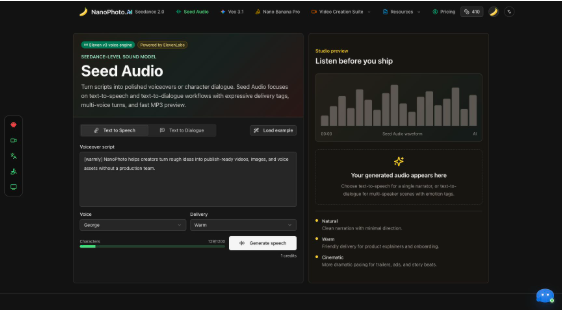
The first thing I liked about Seed Audio is that the main writing space does not hide the basics behind several steps. The Text to Speech tab shows a large script box, a voice selector, a delivery selector, a character counter, and a Generate speech button in one view. The default sample is written in the same style people would use for a product voiceover: “[warmly] NanoPhoto helps creators turn rough ideas into publish-ready videos, images, and voice assets without a production team.” That sample matters because it demonstrates the intended input format. The page is not asking for a technical prompt. It is asking for spoken copy, with optional direction wrapped in square brackets.
The credit cost is also visible before the risky action. The Generate speech button shows 1 credit, which made the boundary clear during testing. I stopped before clicking it because a real generation would spend account credits. For an SEO review, that is still useful evidence: the interface is transparent enough that a user can prepare the script, choose a voice, check the character count, and understand the cost before committing.
The preview side gives the page a more complete feel. It displays a studio-style waveform placeholder, a timer, and the message that the generated audio will appear there. Under the empty state, the page explains three delivery styles: Natural for minimal direction, Warm for explainers and onboarding, and Cinematic for ads or story beats. This makes the text-to-speech and text-to-dialogue workflow feel like a small production desk rather than a single prompt box.
Dialogue mode makes rough scenes easier to review
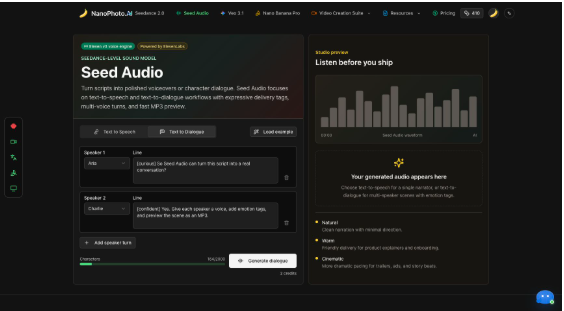
The second tab is the feature that makes Seed Audio more interesting than a plain voiceover generator. Text to Dialogue is built for multi-speaker scenes, which is useful when a creator needs to hear a short exchange before producing a video, ad, podcast intro, game moment, or storyboard pitch. In practice, this kind of tool is not only about final audio. It is about checking rhythm. A line that reads well in a document may feel too long once spoken. A call-and-response scene may need a shorter setup, a clearer punchline, or a different emotional beat. Dialogue mode gives the writer a place to structure that early.
The page also encourages performance tags. It mentions tags such as [laughing], [whispering], [sighs], and [short pause]. Those tags are small, but they are important because voice generation often fails when the input is just plain informational copy. Audio needs timing and intention. A tag before a phrase can tell the model whether a line should sound warm, curious, quiet, amused, or dramatic. That makes the tool more useful for creative review, especially when the creator is trying to sell a mood rather than simply convert text to speech.
One caveat is that I would still treat the first render as a draft, not the final deliverable. The best workflow is likely to write short, natural lines, listen to the first MP3, then revise the script based on what feels too dense or too flat. The page’s own guidance points in that direction by emphasizing compact dialogue, natural punctuation, and tags placed close to the phrase they should affect. Used that way, Seed Audio becomes a practical AI voiceover generator for iteration, not just a button for producing one file.
Where Seed Audio fits in a creator stack
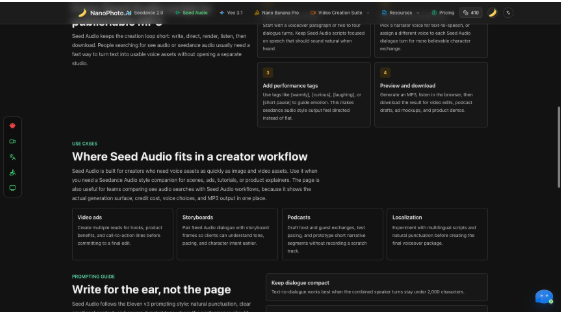
The workflow section is clear about the larger use case: write, direct, render, listen, then download. That short loop is the real value. Many creators already use AI tools for images, video clips, thumbnails, and prompt drafts, but audio can still slow a project down because it usually requires recording, editing, or finding a separate text-to-speech service. Seed Audio puts voice creation inside the same kind of lightweight browser flow that NanoPhoto uses for visual tools.
I can see it helping in three common situations. First, a marketer can draft several versions of a short ad read before deciding which hook deserves a real video edit. Second, a storyboard writer can create temporary character voices so a client understands the rhythm of a scene. Third, a product team can create quick explainer narration for onboarding, tutorials, and internal demos without waiting on a full production pass. In each case, the output does not need to be perfect on the first try. It needs to be fast enough to help the team make a better decision.
The page also sets expectations around rights and commercial use. Its FAQ notes that audio rights depend on the upstream service plan and the user’s input content rights. That is a good warning for teams using generated voices in public work. The safest practice is to use scripts you own, confirm the plan terms, and avoid creating audio that imitates real people or copyrighted characters without permission.
Another detail I would keep in mind is how close the audio step sits to the rest of a creative pipeline. A short voice draft can change the direction of a video edit, the pacing of a product walkthrough, or the tone of a campaign page before a team spends time on final media. That makes Seed Audio useful even when the generated MP3 is only temporary. It gives the team something to hear, discuss, revise, and replace with a final pass if needed.
Overall, Seed Audio feels strongest as a creator’s audio draft layer. The tested interface gives enough control to write a voiceover, choose a voice and delivery, switch into dialogue, and understand the credit cost before generation. I would use it when I need to hear a script before committing to a final edit, especially for product explainers, video ads, short dialogue scenes, and early podcast concepts.
Read More From Techbullion