You have an IPTV subscription and your credentials are sitting in your inbox. The hard part is supposed to be over. But then comes the setup, and most guides cover one device while ignoring the rest. If you are on Android, an iPhone, or a Samsung Smart TV, you usually have to piece together instructions from multiple sources.
This guide covers every major platform from a single starting point: what IPTV Smarters actually is, what you need before you begin, and exact steps for each device. No prior technical knowledge required.
What Is IPTV Smarters?
IPTV Smarters is a free media player application, not an IPTV provider. It does not come with channels, subscriptions, or on-demand libraries built in. What it does is connect to your existing IPTV service and present your live TV, video-on-demand content, catch-up TV, and electronic program guide (EPG) inside a clean, navigable interface.
The app supports two connection methods: Xtream Codes API and M3U playlist URL. Xtream Codes uses a server URL, a username, and a password. M3U relies on a single long link that your provider generates. Both methods connect you to the same content, but Xtream Codes loads your EPG automatically, which means fewer setup steps.
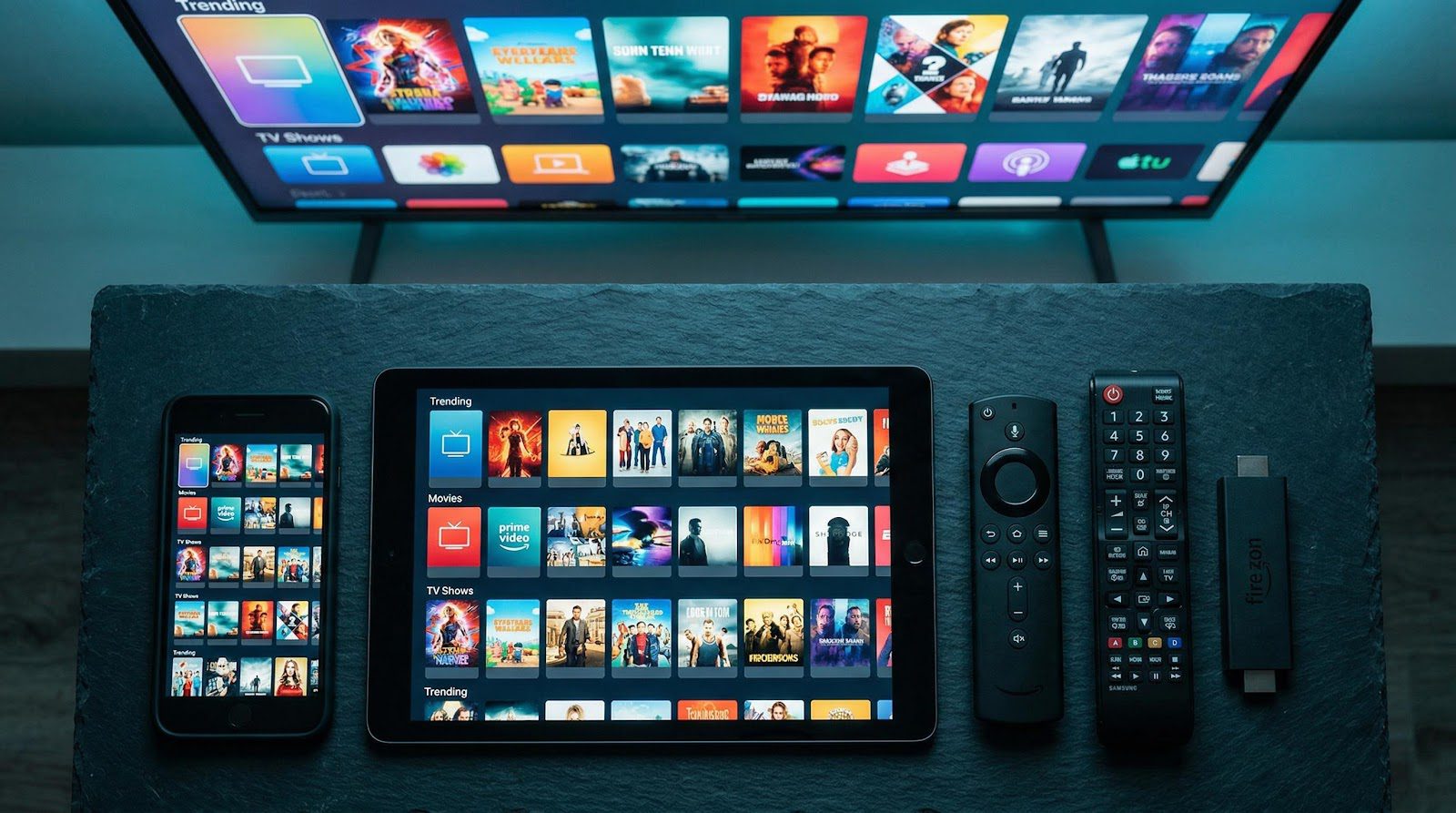
Platform support is broad. IPTV Smarters runs on Android phones and tablets, Android TV boxes, Amazon Fire Stick, iPhone, iPad, Apple TV, Windows, macOS, and select Samsung Smart TVs. This range of device compatibility is a core reason IPTV adoption has accelerated so quickly in recent years.
What You Need Before You Start
Three things before you open any app store:
- An active IPTV subscription from a provider that supplies Xtream Codes credentials or an M3U URL
- A compatible device (covered device by device below)
- A stable internet connection: at least 20 Mbps for smooth HD streaming, or 50 Mbps for 4K content
Getting the credentials right is where most first-time setups fail. Your provider sends a server address, a username, and a password. These are case-sensitive. Keep them somewhere accessible before you start.
Many providers deliver credentials within minutes of signup. IPTV Smarters NL sends subscription details within 10 minutes of purchase and gives access to more than 30,500 live channels in FHD and 4K quality across every device on this list, which makes it a straightforward starting point if you are still choosing a provider. Wherever your subscription comes from, confirm your credentials are ready before moving to the steps below.
How to Set Up IPTV Smarters on Android
Android is the simplest platform to start with. The app is listed on the Google Play Store under the name Smarters Pro (not “IPTV Smarters Pro,” which matters when searching).
Step 1: Open the Google Play Store and search for “Smarters Pro.”
Step 2: Download and install the app.
Step 3: Open Smarters Pro and tap “Add New User.”
Step 4: Select “Login with Xtream Codes API.”
Step 5: Enter your server URL, username, and password, then tap “Add User.”
Step 6: Your live channel list, VOD library, and EPG will load automatically.
If your provider uses M3U instead, select “Load Your Playlist / M3U URL” at Step 4 and paste the link your provider sent you.
Setup on Android TV boxes and Google TV devices follows the same steps. The Play Store version installs without any workaround. If your Android TV box does not have the Play Store, the APK is available for direct download from iptvsmarters.com and installs in a few taps.

How to Set Up IPTV Smarters on iPhone or iPad
The iOS version of IPTV Smarters is called Smarters Player Lite. The name differs from the Android version, which catches a lot of first-time users off guard.
Step 1: Open the App Store and search for “IPTV Smarters.”
Step 2: Install “Smarters Player Lite,” the official app published by IPTV Smarters.
Step 3: Open the app and tap “Add New User.”
Step 4: Choose “Login with Xtream Codes API.”
Step 5: Enter your server URL, username, and password, then tap “Add User.”
Step 6: Your channels and on-demand content load automatically.
Apple TV follows the same process. Install Smarters Player Lite from the App Store on your Apple TV and use the same Xtream Codes credentials. The interface adapts to the larger screen with remote-friendly navigation.
Keep parental controls in mind if the device is shared. Smarters Player Lite includes a parental control option inside the app settings, which you can enable with a PIN immediately after setup.
How to Install IPTV Smarters on Amazon Fire Stick
Fire Stick setup is different from every other device on this list. Amazon does not carry IPTV Smarters Pro in its app store, so the installation requires sideloading through a free tool called Downloader.
Before you start: Navigate to Settings, select My Fire TV, open Developer Options, and enable “Apps from Unknown Sources.” This step is required before any sideloaded app will install.
Step 1: From the Fire Stick home screen, search for “Downloader” and install it. It is a free app by AFTVnews.
Step 2: Open Downloader and enter the code 224877 in the URL field, then tap Go.
Step 3: The IPTV Smarters Pro APK downloads automatically. Tap Install when the prompt appears.
Step 4: Once installation completes, open IPTV Smarters Pro.
Step 5: Select “Login with Xtream Codes API,” enter your credentials, and tap “Add User.”
The whole process takes roughly 5 to 10 minutes, including the download. Once your credentials are confirmed, the channel list loads immediately and the setup is done.

How to Set Up IPTV Smarters on Smart TV
Samsung Smart TV
Samsung Smart TVs running Tizen OS have access to the Samsung App Store, and IPTV Smarters Pro is available there for compatible models.
Step 1: Open Smart Hub on your Samsung TV.
Step 2: Go to the Apps section and search for “IPTV Smarters Pro.”
Step 3: Download and install the app.
Step 4: Open the app, select “Add New User,” and enter your Xtream Codes credentials.
Step 5: Your live channels and VOD content load and the setup is complete.
Not every Samsung model includes the app in its regional store. If the search returns no results, the reliable workaround is connecting an Amazon Fire Stick or Android TV box to your TV’s HDMI port and following the steps for that device instead.
LG Smart TV
LG Smart TVs do not have a native IPTV Smarters application. On newer LG models running webOS with Google Play access, you can install Smarters Pro from the Play Store using the same Android steps.
Older LG Netcast TVs are not supported at the app level. The practical solution is the same as for unsupported Samsung models: plug a Fire Stick or Android TV box into the HDMI port and set up IPTV Smarters on that device. The LG TV becomes the screen; the streaming device handles everything else.
Xtream Codes API vs M3U URL: Which Should You Use?
Your IPTV provider gives you either Xtream Codes credentials, an M3U URL, or both. Here is the difference in practice.
Xtream Codes API uses three pieces of information: a server URL, a username, and a password. Enter them in IPTV Smarters and the app automatically loads your live channels, VOD library, and electronic program guide. Nothing else required.
M3U playlist URL is a single link. It loads your channel list, but the EPG does not populate automatically. You have to add a separate EPG source URL manually inside the app settings to get program guide data.
For most users, Xtream Codes is the better choice. Setup is faster and EPG access is immediate. Use M3U only if your provider does not support Xtream Codes, or if you need to combine multiple providers into one playlist file on a single device.
Common Problems and How to Fix Them
Buffering is the most frequent complaint. Start by checking your internet speed: smooth HD streaming needs at least 20 Mbps, and 4K needs 50 Mbps or more. If your connection is fine, the issue is usually with the provider’s server. Try switching to a lower stream quality temporarily, or contact your provider to see if there is an alternate server available.
Login errors most often come from one of two sources: a typo in the credentials, or a server overload. Check your server URL, username, and password carefully (they are case-sensitive). If everything is correct, wait two to three minutes and try again. IPTV servers can hit capacity during peak viewing hours.
App crashes on Fire Stick typically happen when the device is low on memory. Clear the IPTV Smarters cache from Settings, close any background apps, and restart the app.
Stuck on “please wait” after opening? Clear the app data entirely, delete the saved user profile, and re-enter your credentials from scratch. This forces the app to rebuild its connection to the server.
Account bans happen when the same subscription is active on too many devices at once. Most IPTV plans restrict each account to one or two concurrent streams. Log out of unused devices first. For a full troubleshooting walkthrough organized by platform, the IPTV installation guide covers each device in detail, including less common errors that standard resets do not solve.
Frequently Asked Questions
Is IPTV Smarters free to download?
Yes. IPTV Smarters is free to download on every platform: Android, iOS, Fire Stick, and Samsung Smart TV. You need a paid IPTV subscription to stream live channels and on-demand content. The app itself has no subscription fee or in-app purchases.
What is the difference between Xtream Codes API and M3U URL?
Xtream Codes uses a server URL, username, and password, and automatically loads your full channel list and EPG guide. M3U is a single playlist URL that loads channels but requires a separate EPG URL for program guide data. Xtream Codes is faster to configure and the preferred option for most users.
Why is IPTV Smarters buffering?
Buffering usually points to an internet connection below the recommended threshold: 20 Mbps for smooth HD and 50 Mbps for 4K. If your speeds are sufficient, the provider’s server may be overloaded. Try a different stream quality, switch to a wired Ethernet connection, or contact your provider for an alternate server.
Can I use IPTV Smarters on more than one device at the same time?
That depends on your subscription plan. Some plans include multi-screen access and allow simultaneous streaming on two or more devices. Single-connection plans will ban or log out other sessions when a second device connects. Check with your provider before setting up on multiple devices.
How do I install IPTV Smarters on Fire Stick?
Enable “Apps from Unknown Sources” in Developer Options, then install the Downloader app from the Amazon App Store. Open Downloader, enter the code 224877, and the IPTV Smarters APK downloads and installs automatically.
Does IPTV Smarters work on Samsung Smart TV?
Yes, on Samsung Smart TVs with Tizen OS. Search for “IPTV Smarters Pro” in the Samsung App Store and install it directly. If the app is not available for your model, use an Amazon Fire Stick or Android TV box connected to your TV’s HDMI port.
What internet speed do I need for IPTV Smarters?
For smooth HD streaming, 20 Mbps is the recommended minimum. For 4K content, aim for 50 Mbps or above. A stable connection matters more than raw speed: a wired Ethernet connection significantly reduces buffering compared to Wi-Fi, particularly during live sports or peak viewing hours.
IPTV Smarters works on virtually every screen you already own. The setup path varies by device, but the steps above take you from credentials to live TV in a few minutes regardless of which platform you are on. Pick your device from the sections above and follow the steps exactly as listed.