Can’t Open Files on Mac? Fix Error Code 43 and Get Your Data Back
Introduction: Why Error Code 43 on Mac Matters
“Error code 43” on Mac can prevent you from opening, moving, or deleting files. It often accompanies the message “The operation can’t be completed because one or more required items can’t be found.” Error 43 usually affects external USB drives and SD cards, but can also happen on internal drives, blocking access to important files.
But don’t worry. Your files might not be lost permanently. This guide explains 5 ways to resolve error 43 on Mac, and recover your files successfully. You’ll also learn some prevention tips to reduce the chances of this issue recurring.
Part 1: What Causes Error Code 43 on Mac
According to system diagnostics and user reports, the causes of external drive error code 43 on Mac generally fall into these categories:
- File name issues: Special characters (like “é” and “à”) may not work properly between Mac, Windows, or network drives, causing Finder to lose track of the file.
- Folder/directory damage: The system information that points to the file may be corrupted.
- File is locked or busy: The file is locked or currently being used by another app or process.
- Invalid or long file path: The file name contains unsupported characters, or the full path exceeds the system’s maximum length.
Part 2: When You’re Likely to See This Error
You are most likely to see this pop-up during specific workflows:
- Copying photos or videos from an exFAT-formatted external drive.
- Trying to empty the “Trash” bin.
- Moving files between a NAS (network drive) and your “Desktop.”
- Accessing old backups from a Time Machine drive.
Part 3: How to Fix Error Code 43 on Mac
Before trying any repairs, make sure your data is backed up. If the drive is failing, continued use could lead to more data loss. In such a case, employ a recovery tool such as 4DDiG Mac Data Recovery. It can safely retrieve your data from an error-prone, unreadable, or inaccessible storage before you attempt repairs.
Why 4DDiG is recommended for this specific error:
- Bypasses System Errors: It can read raw data even when Finder refuses to acknowledge the file structure.
- Manages Corrupted Drives: Scans and recovers data from drives with damaged directory structures (the primary cause of Code 43).
- Wide Compatibility: Supports APFS, HFS+, exFAT, and FAT32, which is crucial since Code 43 often occurs on exFAT drives swapped between Mac and PC.
- Selective Recovery: Allows you to preview and recover only the files you need without fixing the whole drive first.
Next, are the 5 ways to fix the “error 43” on your Mac:
Fix 1: Restart Finder or Your Mac
Sometimes minor Finder glitches can result in error code 43 on Mac. This is usually caused by heavy system load, very complex folders, damaged cache files, or file system problems. As a Finder “error code 43” solution, you can relaunch Finder, which refreshes it, and restores access to your files. To do so:
Step 1: Press “Command + Option + Esc” (or click the “Apple logo” > “Force Quit”).
Step 2: Select “Finder” from the list. Tap “Relaunch.”
Fix 2: Check File Names and Paths
If you can’t rename the file because it throws the “43 error” immediately, bypass Finder entirely. Rename the file with Terminal, as it handles names differently. Here’s what to do:
Step 1: Open “Applications.” Choose “Utilities.” Execute “Terminal.” Type the following commands. Hit “Return” after each one:
- cd documents/”Your Folder”/ [Replace “Your Folder” with the path of the folder where your file is].
- mv “oldname.file” “newname.file” [Rename the file].
Fix 3: Reconnect External Drive
In case “error 43” happens because of a connection issue with an external drive, the quickest fix is to reset the connection. This can happen due to a bad cable, a weak USB port, or power issues, which may disconnect the drive and confuse Finder. Here’s what to do:
Step 1: First, safely eject the drive, then unplug it and wait about 10 seconds.
Step 2: Plug it back in using a different USB or Thunderbolt port, and if possible, try a different cable.
Step 3: Then check if your files open again. If the problem keeps coming back, the drive or its power connection may be failing.
Fix 4: Run Disk Utility First Aid
The “error code 43” can be caused by file system errors or damaged disk data. To fix it, run First Aid in Disk Utility, which scans the drive and repairs frequent disk issues, including problems with the disk’s directory structure. Here’s what to do:
Step 1: Head to “Applications.” Choose “Utilities.” Tap “Disk Utility.”
Step 2: Select the affected drive in the sidebar. Hit “First Aid.” Tap “Run.”
Fix 5: Unlock or Delete Problem Files
Error 43 can also materialize if a file is locked or if you don’t have permission to access it. Using Terminal, you can unlock the file and update its permissions, which may restore normal access or delete it. To do so:
Unlock the file:
Step 1: Open “Applications.” Choose “Utilities.” Execute “Terminal.”
Step 2: Type the following commands one by one to check the file’s current permissions. Hit “Return” after each one:
- ls -l documents/”Sample Files”/”samplefile.rtf”
[Replace documents/”Sample Files”/samplefile.rtf” with your file’s exact path].
- sudo chown lex:admin documents/”Sample Files”/”samplefile.rtf”
[Replace lex with your username and admin with your user group. Enter your password if prompted. This command transfers ownership of the file to your account].
- sudo chmod 755 documents/”Sample Files”/”samplefile.rtf” [This command will update the file’s permissions].
- chflags nouchg documents/”Sample Files”/”samplefile.rtf” [This command will remove the file’s lock protection (immutable flag)].
Delete the locked file:
Step 1: Enter the following command in the Terminal. Hit “Return.”
- chflags -R nouchg documents/”Sample Files”/”samplefile.rtf”
Step 7: Drag the locked file into the Terminal window. Hit “Enter.” Remove the file from the Trash.
Fix 6: Recover Data from Inaccessible Drive (Best Solution)
If no Mac “error code 43” fix seems to work and the files are still inaccessible, it’s wise to retrieve the data with 4DDiG Mac Data Recovery. The disk might be corrupted, which might be the reason for this error. 4DDiG can retrieve them successfully, even if the disk or files are severely corrupted. Here’s how:
Step 1: Install 4DDiG
Download 4DDiG and install it on your PC. Connect the external drive to your computer. Execute 4DDiG.
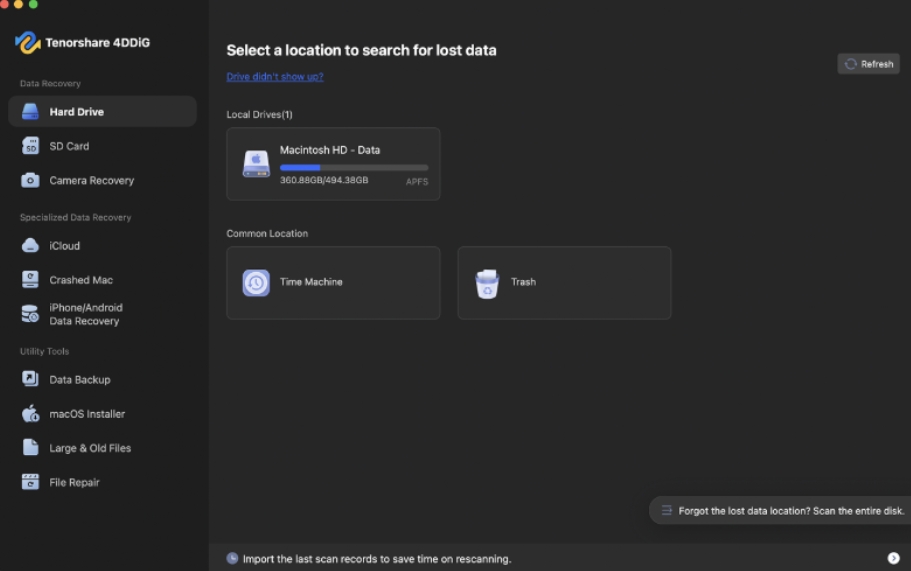
Step 2: Choose the Drive
Select the external drive, and pick the file types you wish to retrieve.
Step 3: Start scanning
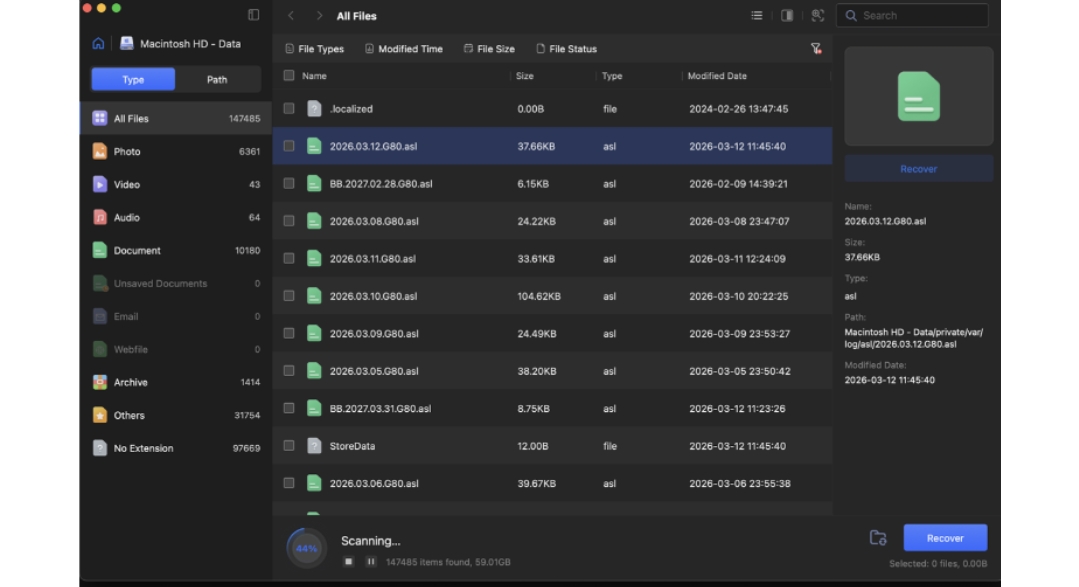
Click “Scan.” Pick a deep scan to find stubborn files. You can pause/resume the scan anytime.
Step 4: Preview files
After scanning, you can view recoverable files. Use the preview to check what can actually be restored.
Step 5: Select what to recover
Choose the files you want by ticking them, or select all if needed.
Step 6: Recover files safely
Click “Recover” and save files to your computer or another drive. Don’t save them back to the external drive, as this could overwrite other recoverable data.
Part 4: How to Prevent Error Code 43 on Mac
After a successful recovery, you can take steps to reduce the likelihood of “error code 43” recurring. Here’s what to do:
1. Safely Eject Always: Never unplug a drive without ejecting. Sudden disconnects are a primary cause of the directory damage that leads to Code 43.
2. Use the Same USB Port: Some Macs assign different drive identifiers to different ports. Switching ports can confuse Finder. If you must switch, eject first.
3. Avoid Special Characters: Stick to letters, numbers, hyphens, and underscores, especially on drives formatted as exFAT.
4. Don’t Put Drives to Sleep: Go to System Settings → Battery → Options and disable “Put hard disks to sleep when possible” for external drives.
5. Regular Backups: Use Time Machine. If a directory corrupts, you can delete the bad file and restore a clean copy from backup.
Final Words
You can fix the “error code 43” on Mac by restarting Finder, reconnecting the drive, or running First Aid. But these can resolve minor issues. When the error keeps appearing, it may indicate file corruption or disk damage.
If you still can’t access your files, avoid making further changes to the drive and recover your data as soon as possible. A tool like 4DDiG Mac Data Recovery can help you successfully retrieve your inaccessible files. It also allows selective recovery and preview for recoverable files.
FAQs
Q1: What does Error Code 43 mean on Mac?
It means the file path is broken. The Finder knows a file exists, but the address pointing to its location on the drive is lost or corrupted.
Q2: How do I fix Error Code 43 on Mac quickly?
The quickest fixes are to relaunch Finder, reconnect your external drive using a different port or cable, or rename the file via Terminal to bypass Finder’s restrictions.
Q3: Can Error Code 43 cause data loss?
Yes. It indicates the system cannot read the file metadata. In many cases, the data is still on the disk, but if the directory structure is damaged, the system may lose the file permanently without recovery software.
Q4: How can I recover files affected by Error Code 43?
Use a data recovery tool like 4DDiG Mac Data Recovery to scan the raw drive and extract data, bypassing the broken file system.
Q5: Is Error Code 43 related to external drives?
Frequently, yes. It often happens with exFAT drives that have been used on both Windows and Mac, leading to filename encoding mismatches, improper ejection, or simple connection instability.