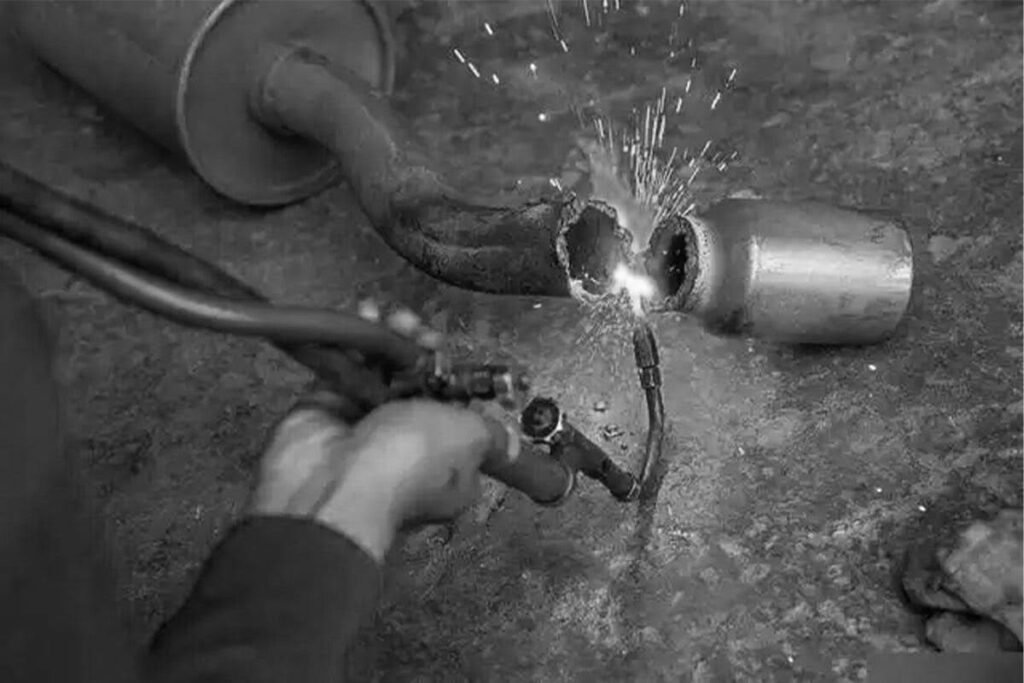
Traditional welding is now being supported and partly replaced by laser welding in many fields. In terms of weld quality, welding speed, and labor cost, laser welding machines have clear advantages in many applications. Laser welding machines are used in more and more industries. Handheld laser welding machines are especially popular in factories, sheet metal shops, hardware plants, and repair workshops.
Compared with TIG welding and MIG welding, handheld laser welding machines is more flexible. It can make cleaner welds, create a smaller heat-affected area, reduce polishing work, and make training easier.
Choosing the right welding machine is very important. There are many models, power levels, configurations, and price ranges on the market. If you only look at the price, you may buy a machine with poor stability or weak after-sales service. If you only choose high power, you may waste money. High power can also burn through or deform thin metal sheets.
Before buying a welding machine, you should look at your material type, welding thickness, production needs, safety needs, and future maintenance cost.
Handheld Laser Welding Machine vs. Traditional Welding
| Comparison Item | Handheld Laser Welding Machine | TIG Welding / MIG Welding |
| Welding speed | Faster | Slower |
| Heat-affected area | Small | Larger |
| Weld appearance | Cleaner | Depends on the welder’s skill |
| Polishing after welding | Less | Usually more |
| Learning cost | Lower | Needs more welding experience |
| Machine cost | Higher | Lower |
| Best for | Thin sheet metal, sheet metal work, hardware, continuous welding | Thick plates, complex jobs, traditional welding work |
From this table, we can see that a handheld laser welding machine does not replace traditional welding in every case. But it has clear advantages in thin sheet welding, sheet metal work, hardware production, and jobs that need a clean weld surface.
1. Know Your Welding Material and Thickness First
Different materials and thicknesses need different machine power. Before buying, you should first answer these questions:
What material do you need to weld?
What is the thickest and most common sheet thickness?
Do you need continuous welding, spot welding, or fine repair welding?
How many parts do you weld each day?
Different materials absorb laser energy in different ways. They also need different welding settings. Stainless steel and carbon steel are usually easier to weld. Aluminum, copper, and brass reflect more light. These materials need a more stable laser source and better process settings.
To make selection easier, the HANTENCNC team made this simple guide:
| Application | Common Material | Thickness Range | Suggested Power | Main Concern |
| Kitchenware, cabinets, metal shells | Stainless steel | 0.8-2mm | 1000W-1500W | Clean weld, less polishing |
| Sheet metal work | Carbon steel, stainless steel | 1-4mm | 1500W-2000W | Speed and welding stability |
| Advertising letters, decoration parts | Stainless steel, galvanized sheet | 0.8-2mm | 1000W-1500W | Fine welding and less deformation |
| Machine repair, structural parts | Carbon steel, stainless steel | 3-6mm | 2000W-3000W | Welding depth and strength |
| Aluminum products | Aluminum alloy | 1-4mm | 1500W-2000W or higher | Stable welding on reflective metal |
| Mold repair, jewelry repair | Mold steel, precious metals | Small parts | Pulse laser / QCW laser welder | Fine spot welding and low heat input |
The power levels above are only for reference. The final choice also depends on welding method, weld quality needs, material condition, wire feeding needs, and production speed.
2. Does a higher power laser welding machine always result in better welding results?
When choosing a laser welding machine, do not think that higher power is always better.
For thick carbon steel or stainless steel parts, high power can give deeper welding depth and higher speed. But if you mainly weld 0.8mm, 1mm, or 1.5mm stainless steel sheets, too much power may cause burn-through, deformation, and harder setting adjustment.
In general:
1000W laser welding machines are good for thin sheet welding, small hardware, kitchenware, advertising letters, and light sheet metal work.
1500W laser welding machines are more widely used. They are suitable for many stainless steel, carbon steel, and medium-thickness sheet metal jobs. Many factories choose this power level.
2000W laser welding machines are good for faster continuous welding. They can also work on thicker materials and some aluminum parts.
3000W laser welding machines are better for heavy-duty work, thick plates, machine manufacturing, and jobs that need deeper welding depth.
If your product thickness changes a lot, send your sample material, thickness, weld position, and weld requirements to the laser welding machine supplier before buying. Ask them to test the sample or provide a welding video for a similar job.
3. How to Choose Between Pulse Laser Welding and Continuous Laser Welding?
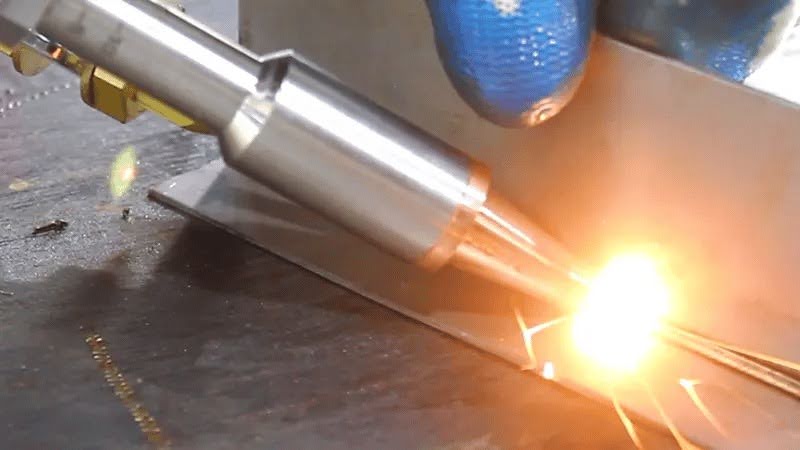
Laser welding machines are usually divided into pulse laser welding machines and continuous fiber laser welding machines. They are made for different jobs.
1. Pulse Laser Welding
Pulse laser welding is better for fine welding, spot welding, and small parts, such as:
Jewelry welding, mold repair, precision part repair, small metal spot welding, and small parts that need low heat input.
Its main advantage is better heat control. It is less likely to cause large heat deformation on small or precise parts.
2. Continuous Fiber Laser Welding
Continuous fiber laser welding is better for continuous welds in industrial production, such as:
Stainless steel kitchenware, sheet metal boxes, metal doors and windows, machine parts, auto parts, metal tubes, frames, and supports.
Handheld laser welding machines usually use continuous laser output. They weld fast, make narrow welds, and create a small heat-affected area. They are suitable for daily welding needs in most factories.
If you need mass sheet metal welding, metal structure welding, or regular stainless steel and carbon steel welding, a handheld fiber laser welding machine is usually the better choice. If you work on jewelry, molds, or precision repair, a pulse laser welding machine, a QCW spot welding machine, or a QCW laser welder may be a better choice.
4. Machine Stability and Cooling System
A laser welding machine does not stay stable only because of its power. Stability also depends on the laser source, cooling system, control system, optical path design, and whole machine structure.
Before buying, you should check whether the machine can meet these needs:
laser source brand and output stability, cooling system for long working hours, use in hot, dusty, or wet workshops, fiber cable length for your work area, lightweight welding gun, easy replacement of consumable parts, and simple parameter adjustment.
If the machine cannot run well for a long time, it may cause downtime, rework, maintenance trouble, and delivery delays. These are hidden costs.
For the cooling system, air cooling and water cooling are common on the market.
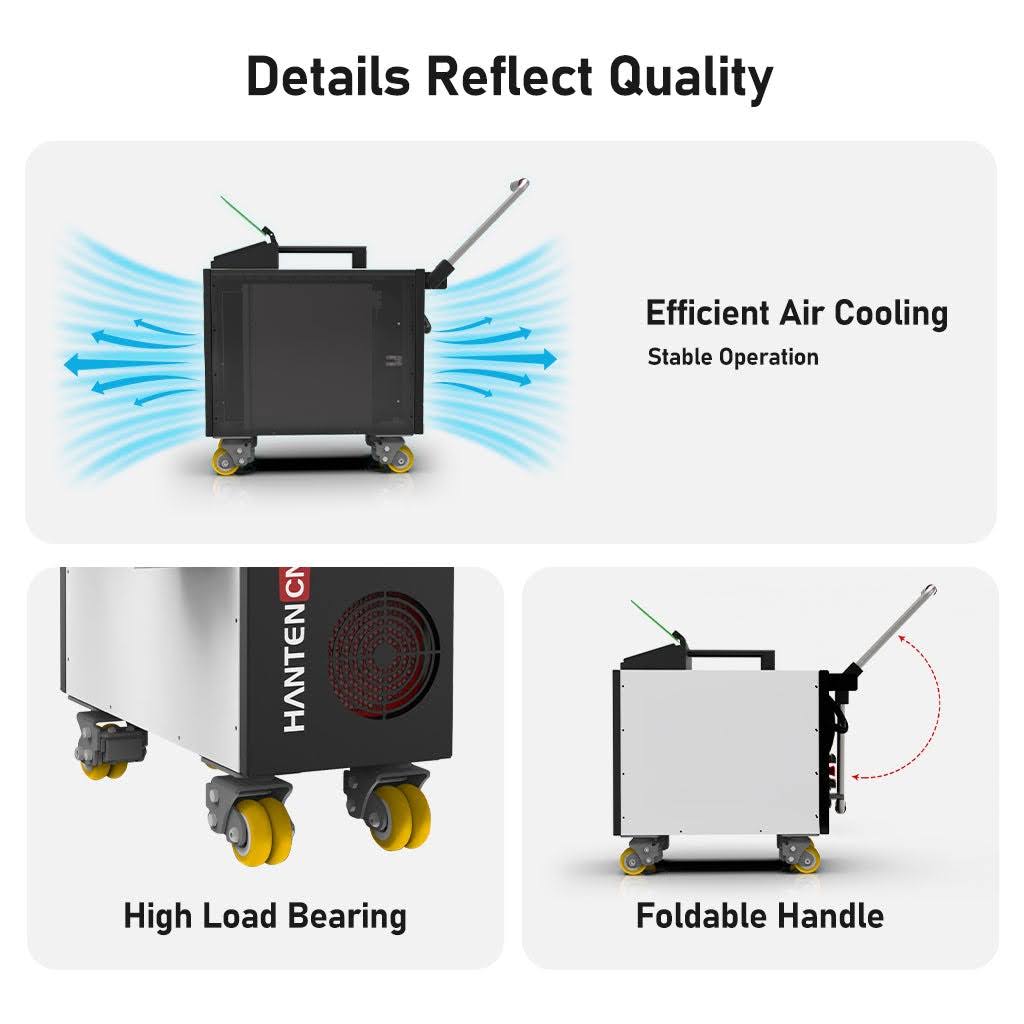
In general, air-cooled laser welders are smaller, easier to move, and easier to maintain. They are more suitable for medium and low power, mobile work, or flexible working hours.
Water-cooled laser welders usually have stronger cooling. They are better for high power, long-time continuous welding, or heavy production. But they are often larger, need more maintenance, and cost more.
The choice between air cooling and water cooling should depend on machine power, working time, workshop temperature, site conditions, and budget.
5. Pay Attention to Ease of Use and Maintenance Cost
Handheld laser welding machines are easier to learn than traditional welding methods. But operators still need basic operation training and laser safety training. They need to understand parameter settings, welding posture, safety protection, and process differences for different materials.
Different operators may get different welding results with the same machine. So, before buying, you should check:
Does the machine have preset welding parameters?
Is it easy to switch settings for different materials?
Is the welding gun light enough for long use?
Are the protective lens and focusing lens easy to replace?
Does the machine support wire feeding?
Is it single wire feeding or double wire feeding?
Is the control screen clear and easy to use?
Does the supplier provide training and parameter guidance?
For maintenance, common costs include protective lenses, nozzles, shielding gas, wire feeder parts, cooling system maintenance, and other consumable parts.
If the laser welding machine supplier cannot provide parts in time, or if their service response is slow, your long-term cost will increase.
Before buying, ask these questions:
How much do consumable parts cost?
Are common parts in stock?
Do you provide remote technical support?
Do you provide operation training?
How fast do you respond when the machine has a problem?
How long is the warranty?
Which parts are covered by the warranty?
6. Attention to Safety Configuration
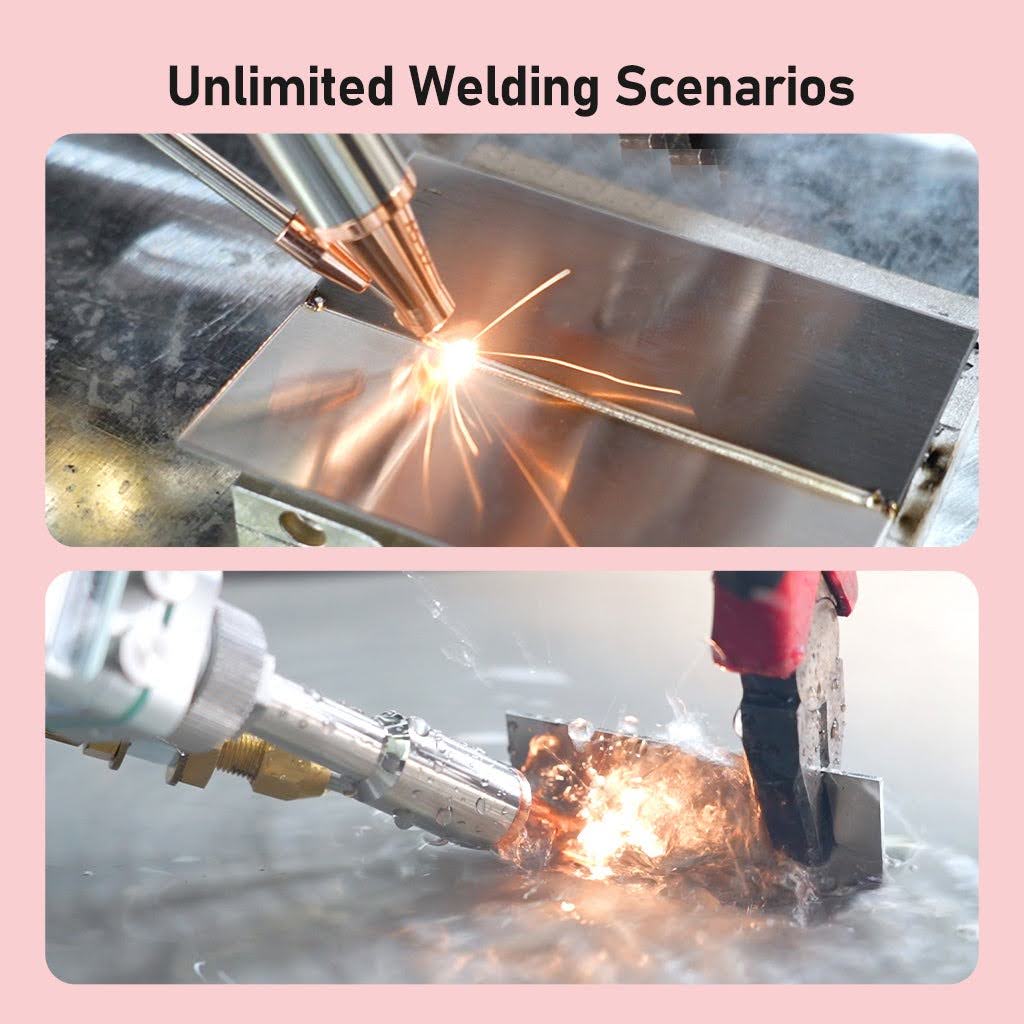
A handheld laser welding machine is a high-power laser device,especially with three-in-one and four-in-one laser welding machines, extra caution is required when operating them.. Safety should not be ignored. During operation, the machine can produce high heat and metal fumes. It can also hurt the eyes and skin.
Be especially careful when welding reflective materials. Always wear proper laser safety glasses.
Common laser welding machine manufacturers usually provide or suggest these safety items before delivery:
laser safety glasses, face shield, flame-resistant work clothes and gloves, laser safety curtain or safety room, emergency stop button, safety interlock, grounding protection, fume extraction or ventilation system, and operator training manual.
If several workers use the welding machine in the same factory, set up a special welding area. Keep other people away from the area. Also make sure the area has good ventilation and proper protection.
The better the safety setup is, the lower the hidden cost and safety risk will be later.
7. Check Power Supply and Site Compatibility
The machine model is important, but the power supply at your site is also important. You should also check the plug type. Some machines use European plugs, and some use American plugs. The power supply may be 220V or 380V.
You should choose the right power supply and plug based on your location and working site.
If your power supply is not stable, ask whether you need a voltage stabilizer. You should also check whether you need compressed air or shielding gas, whether you need a wire feeder, whether the fiber cable length fits your work area, and whether the machine size and moving method fit your workshop layout.
Lower-power machines may be suitable for small workshops. Higher-power machines usually have higher requirements for power supply and cooling systems.
8. Choose the Right Machine Configuration for Your Application
Different working conditions need different laser welding machine configurations.
1. Handheld Laser Welding Machine
This type is suitable for most sheet metal work, hardware products, metal doors and windows, kitchenware, cabinets, machine cases, and repair work. Its main advantage is flexibility. It can weld large, irregular, or hard-to-move workpieces.
2. Automatic Laser Welding Machine
This type is suitable for mass production and standard parts, such as auto parts, battery parts, and precision hardware. Its main advantage is stable weld quality. It is a good choice for automated production lines.
3. Mold Repair Laser Welding Machine
This type is suitable for mold repair, precision part repair, and small-area repair welding. Its main advantage is low heat input, which is better for high-precision parts.
4. Multifunctional Laser Welding Machine
Some machines can combine welding, cleaning, and cutting. They are suitable for small and medium factories with limited budget, limited space, or different processing needs.
9. Choose a Reliable Laser Welding Machine Supplier
A laser welding machine is a long-term production tool. Choosing the right supplier can reduce many hidden costs later.
When choosing a laser welding machine supplier, check these points:
Do they have a real factory and production ability?
Do they have customer cases in your industry?
Can they provide sample testing?
Can they suggest the right power based on your material and thickness?
Do they provide operation training?
Do they have a good after-sales service system?
Can they provide consumable parts and spare parts?
Do they support remote guidance or local service?
Can they provide a clear warranty policy?
A good supplier can be more valuable than the machine itself.
10. Common Mistakes When Buying a Laser Welding Machine
1. Only Looking at Price, Not Configuration
Low-cost machines may have weaker laser sources, cooling systems, control systems, safety features, or after-sales service. They may save money at first, but later they can increase repair and downtime costs.
2. Choosing High Power Blindly
High power is good for thick plates and fast production. But it is not always good for thin sheet or fine welding. Too much power may cause burn-through, deformation, and harder adjustment.
3. Ignoring Material Differences
Stainless steel, carbon steel, aluminum alloy, galvanized sheet, and copper have different welding difficulty. Aluminum and copper are reflective materials. They need better machine stability and process settings.
4. Not Testing Samples
Buying only based on the parameter sheet is risky. Ask the supplier to test your real material and thickness, or ask for a welding case with similar material.
5. Ignoring Safety Protection
Laser welding equipment must use proper safety glasses, a safe work area, and operator training. Poor safety awareness can cause serious risk.
6. Ignoring After-Sales Service
During use, you may need help with parameter settings, consumable replacement, and troubleshooting. Fast after-sales response is very important.