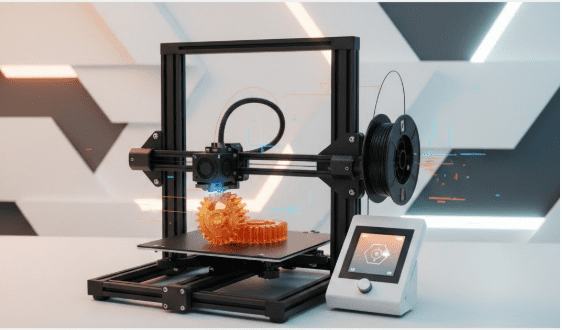
Prusa users often get confused about what to download and from where. Firmware is the printer’s internal software; drivers are for computer connectivity; slicer profiles configure print settings; and STL files are the actual 3D models you print. Each serves a different purpose, and mixing them up is one of the most common causes of failed prints or printer errors.
Using the correct files from trusted sources is not optional. Incorrect firmware, mismatched profiles, or low-quality STL files can cause print failures, calibration issues, or even prevent the printer from booting properly. This guide explains exactly where to download Prusa 3D printer files safely and how to avoid the most common mistakes.
Official Prusa Download Sources
The safest and most reliable place to download Prusa files is directly from Prusa’s official ecosystem. Prusa maintains a structured download system that separates firmware, software, and printer resources by model and purpose.
From Prusa’s official website and support portal, you can download:
- Firmware specific to each printer model
- The PrusaSlicer software for Windows, macOS, and Linux
- Printer configuration and filament profiles
- Official 3D models optimized for Prusa printers
Official sources matter because they ensure:
- Firmware is digitally signed and verified
- Software is compatible with current hardware revisions
- Profiles are calibrated for Prusa printers
- Updates do not break existing workflows
Unofficial mirrors and third-party sites often host outdated or modified files, which introduces unnecessary risk.
Where to Download Prusa Firmware (Model-Specific)
Firmware controls how your Prusa printer moves, heats, calibrates, and reads G-code. Each Prusa printer model uses a different firmware build, and even small mismatches can trigger errors.
When downloading firmware:
- Always select the exact printer model (MK3S+, MK4, MINI+, etc.)
- Match the firmware to the correct electronics version
- Use only officially released firmware builds
Installing the wrong firmware can lead to:
- “Printer type mismatch” errors
- Failed self-tests
- Incorrect temperature readings
- Inability to start prints
You should update firmware when Prusa releases stability fixes, material support updates, or hardware compatibility improvements. If your printer is working flawlessly and no critical changes are included, updating is optional rather than mandatory.
PrusaSlicer & Profile Downloads
PrusaSlicer is Prusa’s official slicing software and is essential for preparing files for printing. It converts STL models into printer-readable G-code while applying printer-specific logic.
PrusaSlicer includes:
- Default printer profiles for each Prusa model
- Filament profiles tuned for Prusament and common materials
- Built-in safety checks and print previews
Profiles control layer height, extrusion width, speed, cooling, and temperature. In real-world use, correct profiles have a greater impact on print quality than most hardware upgrades.
Profiles are automatically updated when you install a new PrusaSlicer version. For manual setups or offline systems, profiles can also be imported directly. If print quality suddenly degrades after an update, re-running the configuration wizard often resolves profile conflicts.
Where to Download STL Models for Prusa Printers
STL files define the shape of the object you want to print. While any STL can technically be printed on a Prusa printer, not all models are designed with Prusa hardware in mind.
You can obtain STL files from:
- Prusa’s official model repository
- Community-driven 3D model platforms
- Designer-curated marketplaces
Prusa-optimized STL files typically:
- Fit within Prusa build volumes
- Print without excessive supports
- Work well with default PrusaSlicer profiles
Before printing any STL file:
- Open it in PrusaSlicer
- Verify scale and orientation
- Check for mesh errors
- Preview supports and first layer adhesion
This step prevents wasted filament and failed prints.
Drivers & Connectivity Files
Most modern Prusa printers do not require manual driver installation. Current operating systems recognize Prusa printers automatically when connected via USB.
Drivers may only be needed when:
- Using older operating systems
- Connecting legacy hardware
- Troubleshooting rare USB communication issues
Common workflows include:
- Printing from USB flash drive
- Sending files directly from PrusaSlicer
- Network-based printing on supported models
For network printing, newer Prusa printers support built-in connectivity options, while older models can be upgraded using external solutions. In most cases, additional drivers are unnecessary.
How to Verify Downloads Are Safe & Authentic
Prusa firmware is digitally signed. If a firmware file is not authentic, the printer will refuse to install it. This is a built-in protection mechanism designed to prevent unauthorized or modified firmware from running.
To ensure safety:
- Download files only from official Prusa domains
- Avoid third-party firmware bundles
- Do not install modified slicer builds
- Be cautious of files shared through forums or file-hosting sites
If your printer reports a signature verification error, stop immediately and re-download the correct file from an official source.
Common Download Mistakes
Based on real-world usage, the most frequent mistakes include:
- Installing firmware for the wrong printer model
- Mixing slicer profiles across different Prusa generations
- Using outdated versions of PrusaSlicer
- Assuming all STL files are printer-agnostic
- Ignoring slicer warnings during G-code export
These issues are almost always resolved by returning to official downloads and reapplying correct profiles.
Quick Reference Summary
Firmware:
Download only from Prusa’s official site and match it to your exact printer model.
PrusaSlicer & Profiles:
Use the latest stable PrusaSlicer release with built-in profiles.
STL Models:
Prefer Prusa-optimized models and verify all files in PrusaSlicer before printing.
Avoid:
Third-party firmware, mismatched profiles, outdated slicer versions, and unverified downloads.
Conclusion
Downloading the correct files is one of the most important steps in owning a Prusa 3D printer. Firmware, slicer software, profiles, and STL models all serve distinct roles, and using the wrong source for any of them introduces avoidable risk.
By relying on official Prusa downloads, verifying files before installation, and understanding how each component fits into the printing workflow, you protect your printer, improve print quality, and ensure long-term reliability. Informed downloads save time, filament, and frustration—and keep your Prusa performing the way it was designed to.