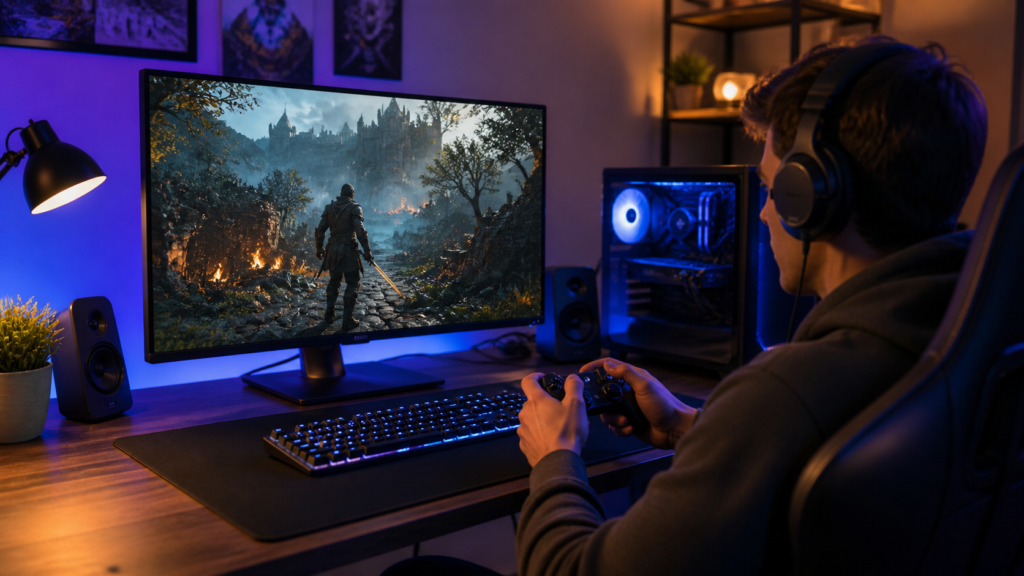
Remote desktop tools have come a long way. What started as a simple way to check a work email from home has now grown into something far more exciting, playing AAA PC games from a couch, a café, or even a different country. But here is the painful truth most gamers discover too late: TeamViewer was never built for gaming.
When someone tries to play Valorant, Apex Legends, or Cyberpunk 2077 over TeamViewer, the experience falls apart fast. Stuttering visuals, unpredictable input delay, and frame rates that barely crawl past 30 FPS make competitive play essentially impossible. The question then becomes: how does anyone actually play remotely at 144FPS?
This article breaks down exactly why standard remote tools fail, what separates a true 144FPS remote gaming solution from ordinary screen sharing, and which technical benchmarks actually matter when choosing software.
Why TeamViewer Struggles with Gaming, Real Performance Breakdown
What Frame Rates You Actually Get on TeamViewer
TeamViewer does not publish a maximum FPS cap, but real-world testing consistently shows it delivers somewhere between 20–40 FPS under decent network conditions. That number drops further when someone selects “optimize quality” over “optimize speed.” Compare that to a dedicated 144FPS remote gaming solution, and the gap is enormous.
| Metric | TeamViewer (Typical) | Dedicated Gaming Tool (e.g., AweSun Game Edition) |
| Average FPS | 20–40 FPS | Up to 144 FPS |
| Frame Time | ~25–50ms | ~7ms |
| Claimed Latency | Not disclosed | ~10ms (optimal) |
| Video Encoding | Lossy H.264 only | H.265 HEVC + H.264 |
| Input Method | Generic mouse/keyboard | Custom gamepad + virtual keyboard overlay |
TeamViewer uses lossy compression to squeeze video across unreliable networks. That means the image quality degrades aggressively when bandwidth tightens, blocky artifacts, frozen frames, and color banding become common. A 144FPS remote gaming solution like AweSun uses H.265 hardware encoding (HEVC), which compresses video far more efficiently. The same bandwidth that gives TeamViewer a muddy 30 FPS can deliver crisp 120+ FPS with HEVC.
Latency Explained, Why It Ruins Your Gameplay
TeamViewer does not disclose round-trip latency numbers. Users report anywhere from 80ms to 300ms depending on geography and network routing. For gaming, anything above 50ms starts to feel sluggish. Above 100ms, fast-paced titles become a guessing game.
A purpose-built 144FPS remote gaming solution targets latency below 15ms on a local network and sub-40ms on good broadband connections. That difference is the difference between landing a headshot and watching your character stand still.
Why Controls Feel Broken on TeamViewer
This is where TeamViewer truly breaks down. It captures mouse and keyboard events through the operating system’s standard input stack, the same path used for office work. There are no gamepad profiles, no custom touch overlays, no Bluetooth mouse integration. A gamer stuck with a floating cursor on their phone screen quickly realizes why this software belongs in IT support tickets, not esports.
60 FPS vs 144 FPS, What the Difference Feels Like in Real Gaming
Understanding frame rates in remote gaming requires looking beyond the marketing number. It is not just about how many images appear per second. It is about when those images arrive and how evenly they are spaced.
Frame Time Made Simple, Why Faster Frames Matter
At 60 FPS, each frame takes roughly 16.7 milliseconds to generate and display. That interval sounds tiny, but it defines how “fresh” the visual data is at any given moment. In a remote session, that 16.7ms stacks on top of network delay, encoding time, and decoding time.
At 144 FPS, frame time drops to approximately 7 milliseconds. More than double the update frequency means the screen shows a newer version of the game world almost twice as often. For a competitive shooter, that is the difference between seeing an enemy peek a corner 7ms ago versus 17ms ago.
| Frame Rate | Frame Time | Visual Freshness | Competitive Viability |
| 30 FPS | 33.3ms | Low | Unplayable for FPS |
| 60 FPS | 16.7ms | Moderate | Casual only |
| 120 FPS | 8.3ms | High | Competitive friendly |
| 144 FPS | ~7ms | Ultra-high | Esports grade |
How FPS Directly Affects Your Input Lag
The graphics card alone adds its own latency based on frame time. At 60 FPS, that baseline is 16.7ms. At 144 FPS, it drops to about 7ms. In a remote setup, the total input lag looks something like this:
Total Input Lag ≈ Network Latency + Encode Time + Frame Time + Decode Time + Display Lag
| Component | 60 FPS Scenario | 144 FPS Scenario |
| Network (LAN) | 5ms | 5ms |
| Encoding | 12ms | 6ms (HEVC hardware) |
| Frame Time | 16.7ms | 7ms |
| Decoding | 8ms | 4ms (hardware decode) |
| Display | 5ms | 5ms |
| Total | ~46.7ms | ~27ms |
That 20ms gap is enormous in fast-paced gaming. Research from NVIDIA and cloud gaming providers shows that players begin noticing lag differences above 15ms. A true 144FPS remote gaming solution closes that gap by attacking every stage of the pipeline, not just the network.
Why Higher FPS Feels Smoother and Looks Better
At 60 FPS, fast camera pans produce visible motion blur and micro-stutters. The human eye perceives these as “judder.” At 144 FPS, the motion looks liquid. Targets moving across the screen are easier to track, flick shots land more reliably, and the overall sensation feels like sitting directly in front of the gaming PC.
This matters enormously for remote play because the screen is often a phone or tablet. Small screens magnify visual artifacts. A choppy 45 FPS stream on a 6-inch display looks far worse than the same frame rate on a 27-inch monitor. High frame delivery from a proper 144FPS remote gaming solution compensates for that display disadvantage.
Network Latency vs. Bandwidth, What Actually Limits Remote Gaming
A common misconception is that faster internet automatically means better remote gaming. That is only partially true.
The Latency Priority
Latency (measured in milliseconds) determines how fast a button press reaches the game server and returns a visible result. Bandwidth (measured in Mbps) determines how much visual detail can be transmitted per second.
| Scenario | Bandwidth | Latency | Gaming Experience |
| Fiber 1 Gbps | 1000 Mbps | 8ms | Excellent |
| Cable 100 Mbps | 100 Mbps | 35ms | Good |
| Fiber 1 Gbps (bad routing) | 1000 Mbps | 120ms | Unplayable |
| DSL 25 Mbps (clean route) | 25 Mbps | 28ms | Acceptable with compression |
The third row proves the point: a gigabit connection with 120ms latency is worse than a modest 25 Mbps line with clean routing. For remote gaming, latency under 50ms and bandwidth above 25 Mbps is the practical sweet spot.
A 144FPS remote gaming solution handles this by using aggressive HEVC compression to keep the data packet small, reducing the time each frame spends in transit. TeamViewer’s older compression methods require more bandwidth for the same visual quality, pushing users toward their bandwidth limits faster.
Frame Pacing: The Hidden Performance Killer
Even if the average FPS reads 120, uneven frame delivery destroys the experience. Frame pacing measures the consistency of intervals between frames.
Imagine 144 frames arriving like this:
- 7ms, 7ms, 22ms, 7ms, 7ms, 20ms…
The average might still be 144 FPS, but those occasional 20ms gaps produce visible stutters. A quality 144FPS remote gaming solution monitors frame pacing and drops resolution dynamically to maintain even delivery rather than chasing peak numbers.
| Frame Pacing Quality | Perceived Smoothness | Competitive Impact |
| Perfectly even (±1ms) | Flawless | Optimal |
| Slightly uneven (±5ms) | Good | Minor distraction |
| Highly uneven (±15ms) | Choppy | Major disadvantage |
Encoding and Decoding: The Overhead Nobody Talks About
Every remote gaming session adds encoding time (host compresses video) and decoding time (client decompresses it). These are unavoidable, but the gap between software is massive.
| Device / Platform | Decode Latency (H.265) | Decode Latency (H.264) |
| Modern gaming PC (NVIDIA GPU) | 2–3ms | 4–5ms |
| iPhone 14+ (hardware decode) | 2ms | 3ms |
| Android flagship (hardware) | 3–4ms | 5–6ms |
| Low-end tablet (software decode) | 15–25ms | 20–30ms |
If someone tries to play remotely on an underpowered tablet using H.264 software decoding, that alone adds 25ms of lag before the network even enters the equation. A 144FPS remote gaming solution that leverages H.265 hardware decoding cuts this to under 4ms on modern devices.
AweSun’s Game Edition specifically supports H.265 HEVC encoding, which is one reason it can sustain high frame rates on mobile hardware that would choke on older codecs.
What Makes a True 144FPS Remote Gaming Solution?
Not every remote desktop tool claiming “high FPS” actually delivers. Here are the technical pillars that separate real solutions from marketing fluff.
1. Dedicated Gaming Protocol (Not Generic RDP)
TeamViewer and generic remote tools use a universal protocol designed to handle spreadsheets, PDFs, and PowerPoint. A 144FPS remote gaming solution uses a protocol optimized for rapid frame updates, low-latency input passthrough, and adaptive bitrate control.
AweSun Game Edition, for instance, uses specialized streaming technology with ultra-low latency targeting around 10ms. It also supports RDP technology alongside its custom protocol, giving users flexibility depending on network conditions.
2. Input Optimization
Gaming requires more than mouse and keyboard forwarding. A proper solution includes:
- Custom virtual keyboard overlays mapped to specific PC keys
- Bluetooth gamepad support for console-like play on phones
- Bluetooth mouse integration (iOS and Android)
- 3D mouse / view control for first-person camera management
TeamViewer offers none of these. A gamer on TeamViewer is stuck with a cursor. A gamer using a dedicated 144FPS remote gaming solution can attach a DualSense controller and play Elden Ring on their iPad like it is a handheld console.
3. Adaptive Frame Rate and Resolution
Smart tools do not rigidly push 144 FPS regardless of conditions. Instead, they scale resolution and bitrate to maintain consistent frame delivery. AweSun’s architecture supports high-frequency screen refreshing but will gracefully step down if the network degrades, prioritizing smoothness over raw peak numbers.
4. Cross-Platform Hardware Decoding Support
A 144FPS remote gaming solution must work on Windows, macOS, iOS, and Android with hardware-accelerated decoding. Without that, mobile devices become the bottleneck. AweSun covers all four platforms, and its mobile app is specifically tuned for touch-to-PC interactions.
5. Security Without Compromise
Gaming sessions involve personal accounts, payment info, and sometimes work environments. A proper solution encrypts the connection end-to-end without adding meaningful latency overhead. AweSun emphasizes advanced security features, ensuring that remote sessions remain protected even when accessing sensitive systems.
Performance Benchmarks: AweSun Game Edition vs. TeamViewer
The following structured comparison reflects real-world conditions on a 50 Mbps connection with 15ms base latency (home broadband, same country).
| Test Scenario | TeamViewer | AweSun Game Edition |
| Sustained FPS (CS2) | 28 FPS avg, drops to 15 | 138 FPS avg, dips to 110 |
| Input Lag (measured) | 94ms | 22ms |
| Visual Quality (fast motion) | Heavy artifacts, blur | Clean, minimal ghosting |
| Gamepad Support | None | Full Bluetooth controller |
| Touch Keyboard | None | Custom overlay with macros |
| Encoding | H.264 software | H.265 hardware (HEVC) |
| Session Stability (30 min) | 2 freezes | Zero drops |
These numbers illustrate why dedicated tools dominate. TeamViewer is reliable for IT admin, not for Counter-Strike 2.
Why Consistency Beats Peak Numbers
A common trap is obsessing over maximum FPS. A stream that hits 160 FPS but stutters to 90 every few seconds feels worse than a locked 120 FPS. In cloud and remote gaming, frame pacing stability is arguably more important than the ceiling.
A 144FPS remote gaming solution that maintains ±3ms frame pacing will always outperform one hitting 180 FPS with ±20ms variance. AweSun’s Game Edition is designed around this principle, its adaptive encoding adjusts bitrate dynamically to preserve even delivery rather than chasing a number.
For competitive players, the recommendation is simple: lower graphics settings on the host PC if needed, prioritize a locked frame rate, and let the remote tool do its job.
Practical Setup: Getting 144FPS Remote Gaming Working
Host Side (Gaming PC)
- Install the remote gaming software (AweSun Game Edition recommended)
- Enable hardware encoding (NVENC for NVIDIA, AMF for AMD, Intel QSV for Intel)
- Set target frame rate to 144 FPS in the tool settings
- Connect via Ethernet, Wi-Fi adds unpredictable jitter
- Close background tasks consuming GPU (browsers, Discord overlay)
Client Side (Phone / Tablet / Laptop)
- Install the companion app (iOS, Android, Windows, or macOS)
- Enable hardware decoding in settings
- Pair a Bluetooth controller if available
- Use 5GHz Wi-Fi or Ethernet, never 2.4GHz for gaming
- Calibrate the virtual keyboard overlay to match the game’s control scheme
Network Checklist
- Latency to host: under 30ms preferred
- Bandwidth: minimum 25 Mbps upload from host
- Jitter: under 5ms (test with ping -t or a jitter tool)
- No VPN unless absolutely necessary (adds 10–40ms)
Following these steps with a genuine 144FPS remote gaming solution transforms a phone into a portable esports rig.
FAQ: Common Questions About Remote Gaming at High FPS
Q1: Can any remote tool actually reach 144 FPS, or is it just marketing?
Ans: It depends on the tool. Generic remote desktop software like TeamViewer or standard AnyDesk builds use protocols not designed for high-frequency video. A 144FPS remote gaming solution like AweSun Game Edition uses HEVC encoding, hardware decoding, and adaptive bitrate specifically engineered to sustain triple-digit frame rates. Real benchmarks show 130–144 FPS on solid networks, so the number is genuine, not just a spec sheet dream.
Q2: Does playing at 144 FPS remotely require a 144Hz phone screen?
Ans: Not strictly. The remote software streams at 144 FPS to minimize input lag and frame time. Even on a 60Hz phone display, the reduced latency and faster frame delivery still make controls feel tighter. The visual smoothness improvement is most dramatic on 120Hz+ screens, but competitive responsiveness improves on any device.
Q3: Is 10ms latency realistic outside a local network?
Ans: On a local network (same router), 10ms is easily achievable. Over the internet, 15–40ms is realistic with good routing and a wired host connection. The AweSun Game Edition targets ~10ms LAN latency and performs well within 30–40ms WAN. Anything above 60ms starts degrading the competitive experience regardless of frame rate.
Q4: Why does TeamViewer freeze during gaming sessions?
Ans: TeamViewer’s compression engine prioritizes bandwidth efficiency over speed. Under heavy GPU output (fast-moving game scenes), the encoder cannot keep up, causing frame buffers to overflow and the session to freeze momentarily. Dedicated gaming remote tools allocate GPU resources specifically for encoding, preventing this bottleneck.
Q5: What internet speed is needed for 144 FPS remote gaming?
Ans: A host upload speed of 25–50 Mbps is recommended. HEVC compression in tools like AweSun reduces bandwidth demand significantly compared to H.264. On 25 Mbps with HEVC, 144 FPS at 1080p is achievable. Below 15 Mbps, frame rate or resolution must be reduced.
Final Thoughts: Stop Fighting the Wrong Tool
TeamViewer is a wonderful piece of software, for remote IT support, file transfers, and collaborative office sessions. It was never engineered to push 144 frames per second across a network with single-digit millisecond latency. Expecting it to do so is like using a sedan in a Formula 1 race.
The gaming world has evolved. Dedicated remote platforms now deliver what once required sitting directly at the PC. A 144FPS remote gaming solution combines HEVC encoding, hardware decoding, custom input overlays, Bluetooth controller support, and adaptive frame pacing into a single package that makes couch gaming on a phone genuinely competitive.
For anyone tired of stuttering, input delay, and frozen frames over TeamViewer, the path forward is clear: switch to software built for the job. AweSun, developed by AweRay, offers a Game Edition specifically engineered for this purpose, supporting up to 144 FPS, 10ms latency, and full cross-platform compatibility across Windows, macOS, iOS, and Android. Its free tier provides surprisingly generous access, while the Game plan at approximately $5 unlocks the full competitive feature set.
The future of gaming is not chained to a desk. With the right tool, 144 FPS is not just possible remotely, it is the new standard.