Connecting to a WebDAV server on Mac can feel confusing at first, especially if you rely only on Finder. Fortunately, there are many easier ways to manage remote files. WebDAV is one of the most widely used protocols for accessing and managing files on remote servers, yet many Mac users struggle to set it up properly. The good news is that it does not have to be complicated, especially when you have the right tool at hand.
What Is WebDAV and Why Does It Matter?
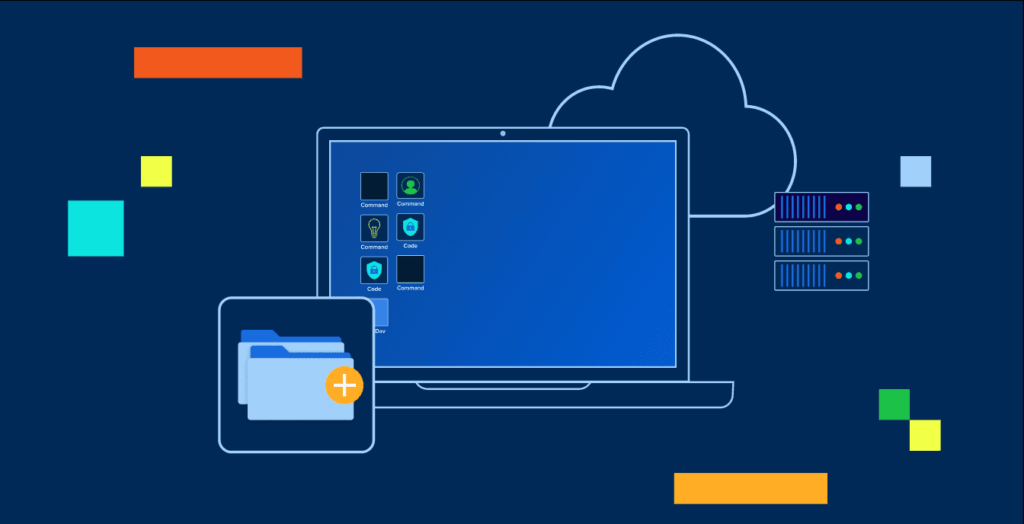
WebDAV stands for Web Distributed Authoring and Versioning. In simple terms, it is an extension of the HTTP protocol that allows users to read, write, and manage files stored on a remote web server just as if those files were sitting on their local hard drive. Whether you are a developer managing project files, a photographer storing high-resolution images on a remote server, or a business professional who needs constant access to shared documents, WebDAV makes remote file access feel seamless and intuitive.
The real appeal of WebDAV lies in how it removes the need to download files to your local machine before editing them. You connect to the server, work on the files directly, and changes are saved back to the server automatically. It is clean, efficient, and saves a lot of time.
Connecting to WebDAV Using Mac’s Built-in Finder
macOS does offer a basic method to connect to a WebDAV server through Finder. Here is how it works:
This method works fine for casual use. However, it comes with limitations. The native Finder connection can feel sluggish, lacks advanced file management features, and does not support multiple simultaneous server connections. For anyone who relies on WebDAV as a core part of their workflow, the built-in method quickly shows its shortcomings.
A Better Way: Using a Dedicated WebDAV Client for Mac
For a more powerful and reliable experience, using a dedicated app is the smarter choice. The Commander One WebDAV client for Mac is a feature-rich file manager built specifically for macOS users who need full control over their remote files.
Commander One offers a dual-pane interface — a layout borrowed from classic professional file managers — which lets you see your local Mac files on one side and your remote WebDAV server on the other. This side-by-side view makes file transfers incredibly straightforward. Just drag and drop, or use keyboard shortcuts, and your files move exactly where you need them.
Setting up a WebDAV connection in Commander One takes only a moment:
Once connected, the remote server appears just like a local drive. You can browse folders, open files, rename items, move things around, and even edit documents directly without ever downloading them to your Mac first. It makes working with WebDAV much easier.
Why Commander One Stands Out
Beyond WebDAV, Commander One supports a wide range of protocols and cloud services, including FTP, SFTP, Amazon S3, Google Drive, Dropbox, OneDrive, and more. This makes it a single destination for all your remote connections, rather than juggling multiple apps for different services.
One particularly useful feature is built-in file encryption. If you are storing sensitive documents on a WebDAV server, you can enable encryption directly within Commander One to ensure your files stay protected. Passwords are stored securely in macOS Keychain, so you never have to worry about credentials being exposed.
The app also handles multiple simultaneous WebDAV connections without breaking a sweat, which is something Finder simply cannot do.
Get Started Today
If you are ready to take control of your WebDAV workflow on Mac, you can download it here directly from the Mac App Store. The Pro Pack features are available free for 15 days, giving you plenty of time to explore everything the app has to offer before committing.
Whether you are a power user or someone just getting started with remote file management, Commander One makes connecting to WebDAV on Mac faster, simpler, and far more enjoyable than the default Finder approach.