
How On-Device AI Removes Backgrounds From Animated GIFs Without Uploading a Single Frame

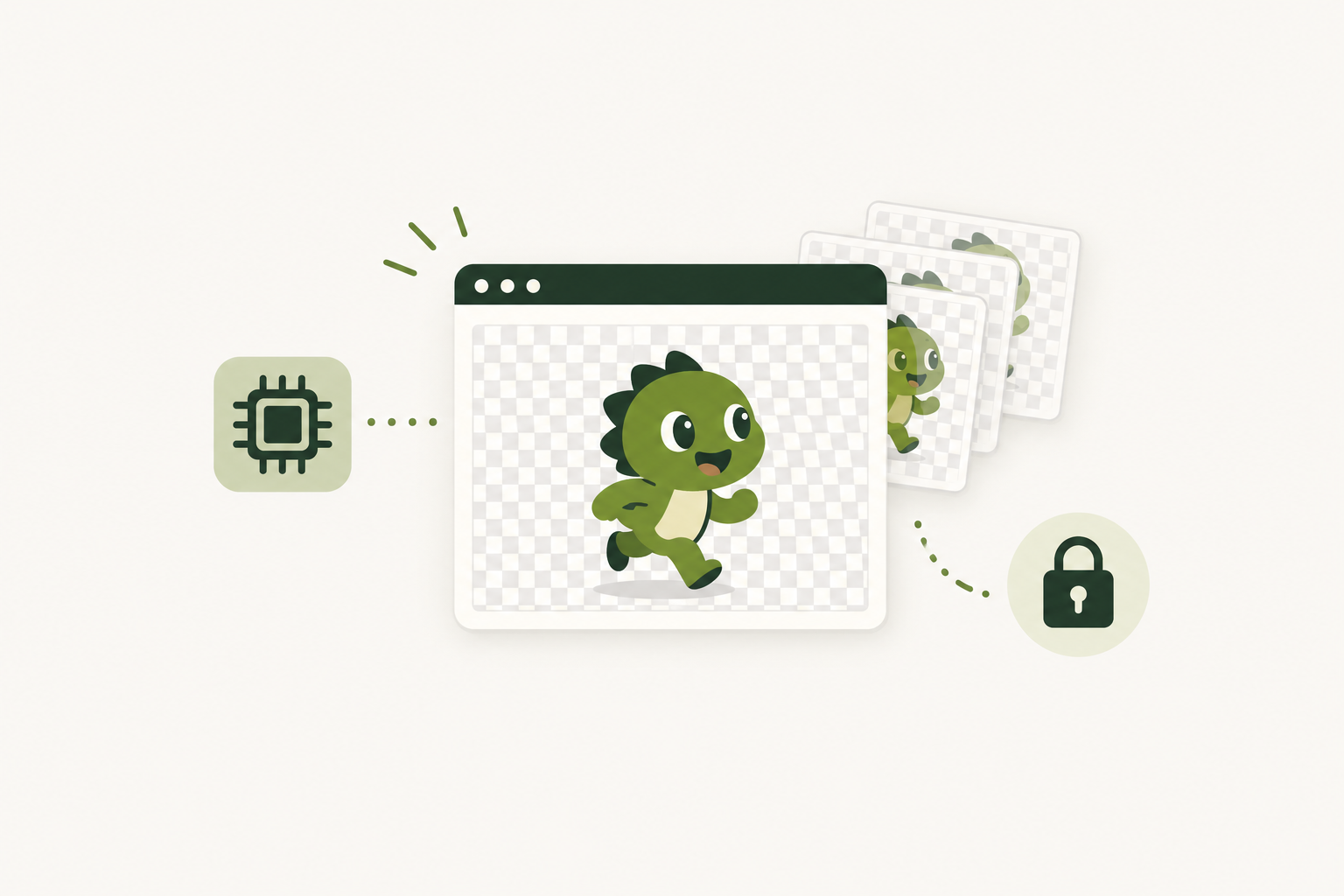
GIFs are everywhere. They fill chat apps, stickers, product demos and social feeds. Taking the background out of one used to mean opening a professional editor and cutting out every frame by hand, which could take an hour for a short clip. Small AI models now do the same job in seconds, and increasingly they run inside your browser, so the file never has to reach a server.
This article explains why animated GIFs are harder than photos, how in-browser AI handles them, how to make a GIF transparent, and how to get a clean result.
Why it is harder to remove a GIF background than a photo background
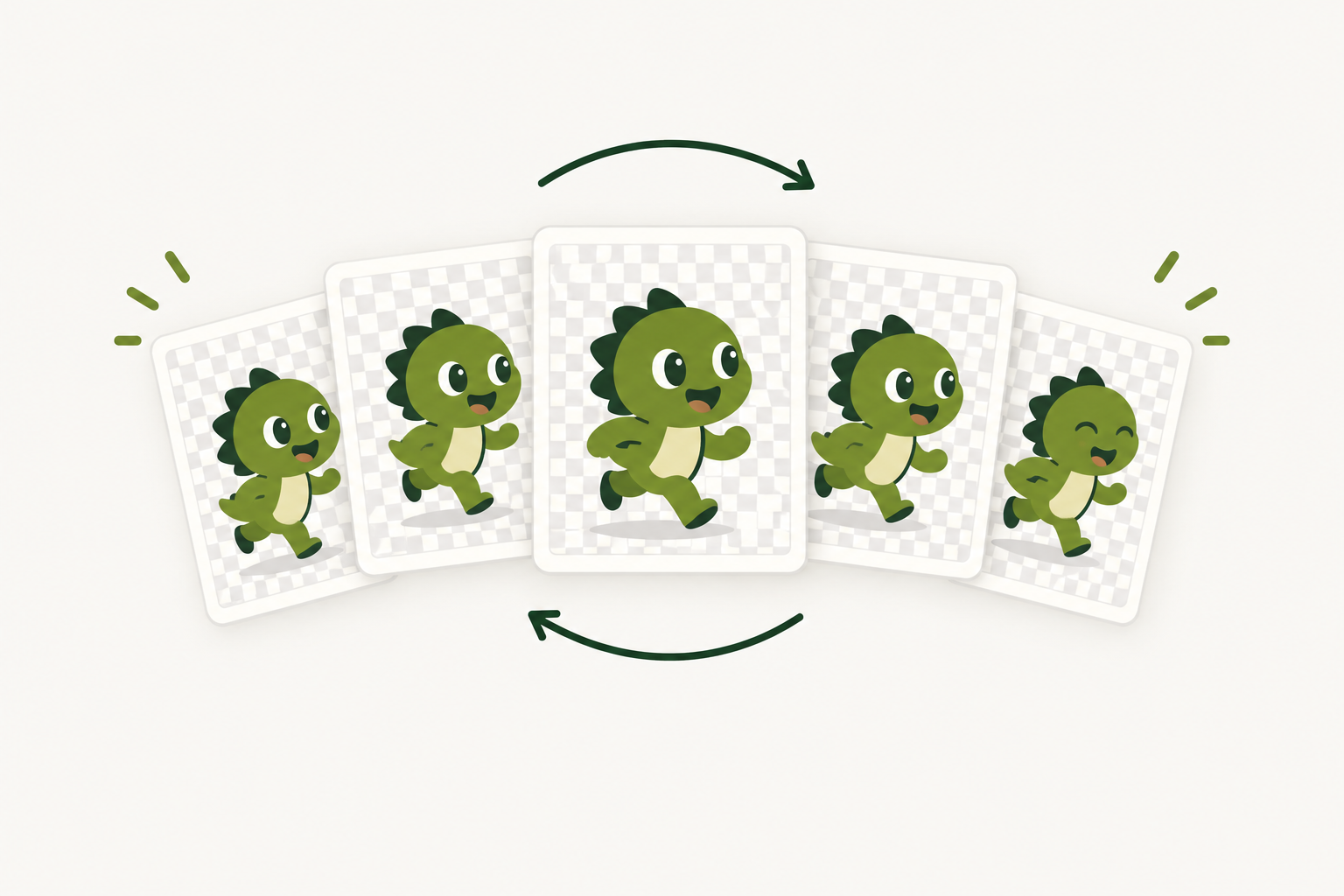
A photo is one picture. A GIF is a stack of frames, so a 40-frame animation needs 40 separate cut-outs. Three problems follow from that.
The cut-outs must agree with each other. If the outline of the subject shifts slightly between frames, the edge flickers when the GIF loops. A good tool keeps the result consistent from frame to frame.
GIF transparency is all or nothing. The GIF format stores each pixel as either fully visible or fully transparent. It has no partial transparency like PNG or WebP, so the soft, semi-transparent edges you see around hair or fur cannot be saved directly. This is why GIF cut-outs often look jagged, and why edge smoothing matters.
The colour palette is limited. A GIF frame uses at most 256 colours. A tool must remove the background and still produce a palette that looks right.
To remove the background from a GIF well, a tool has to solve all three problems at once.
Colour-key tools versus AI segmentation
Older “transparent GIF maker” tools work by deleting one colour. You pick the background colour, and every pixel close to it becomes transparent. That works on flat, single-colour backgrounds, and it fails on almost everything else: rooms, streets, gradients, shadows, or a subject that wears the same colour as the background.
AI segmentation takes a different approach. A trained image segmentation model looks at each frame and decides which pixels belong to the main subject, regardless of colour. That lets it handle busy backgrounds, and it can find the outline of a person, an animal or an object without any manual selection.
A well-known example is U²-Net, a salient-object segmentation model. Smaller versions of it are widely used for background removal because they are fast and compact.
Why AI is moving onto your device
Until recently, running a segmentation model meant sending the image to a server with a powerful graphics card. That created queues, costs for the provider, and a requirement to upload your file. Three developments changed this.
Browsers can run compiled code at near-native speed. WebAssembly lets a browser run code compiled from languages such as C++ much faster than JavaScript alone.
Model runtimes exist for the web. Libraries such as ONNX Runtime Web run trained models directly in the browser.
Models have become small. The full-size U²-Net model is well over 100 MB, while the compact U²-Net-P variant is under 5 MB, small enough to download once and run on an ordinary laptop or phone.
With no server involved, there is no waiting in a queue, no per-image cost and no watermark added to push you towards a paid plan. That is what makes a genuinely free tool possible. The next step is WebGPU, a newer browser feature that lets the page use the device’s graphics hardware, which should make this kind of processing faster still where it is supported.
The privacy case: GIFs are often people
Think about which GIFs people actually edit: reaction clips, selfie loops, snippets of video calls, screen recordings of private work. These are files you may not want to hand to a stranger’s server.
With a cloud tool, the file is uploaded, processed elsewhere and, depending on the provider’s policy, stored for some time. With an on-device tool, the processing happens in your browser tab. The file never leaves your computer or phone, so there is nothing to leak, retain or misuse. For personal clips, client material, and anything confidential, that difference matters more than speed.
How to make a GIF transparent
Making a GIF transparent means removing the background from every frame and saving the result with transparency switched on. There are two ways to do it:
- Colour removal: quick, but only suitable for plain backgrounds.
- AI background removal: works on any background and handles the whole animation in one go.
For most clips, the AI route gives a better result with less manual work.
How to remove the background from a GIF, step by step
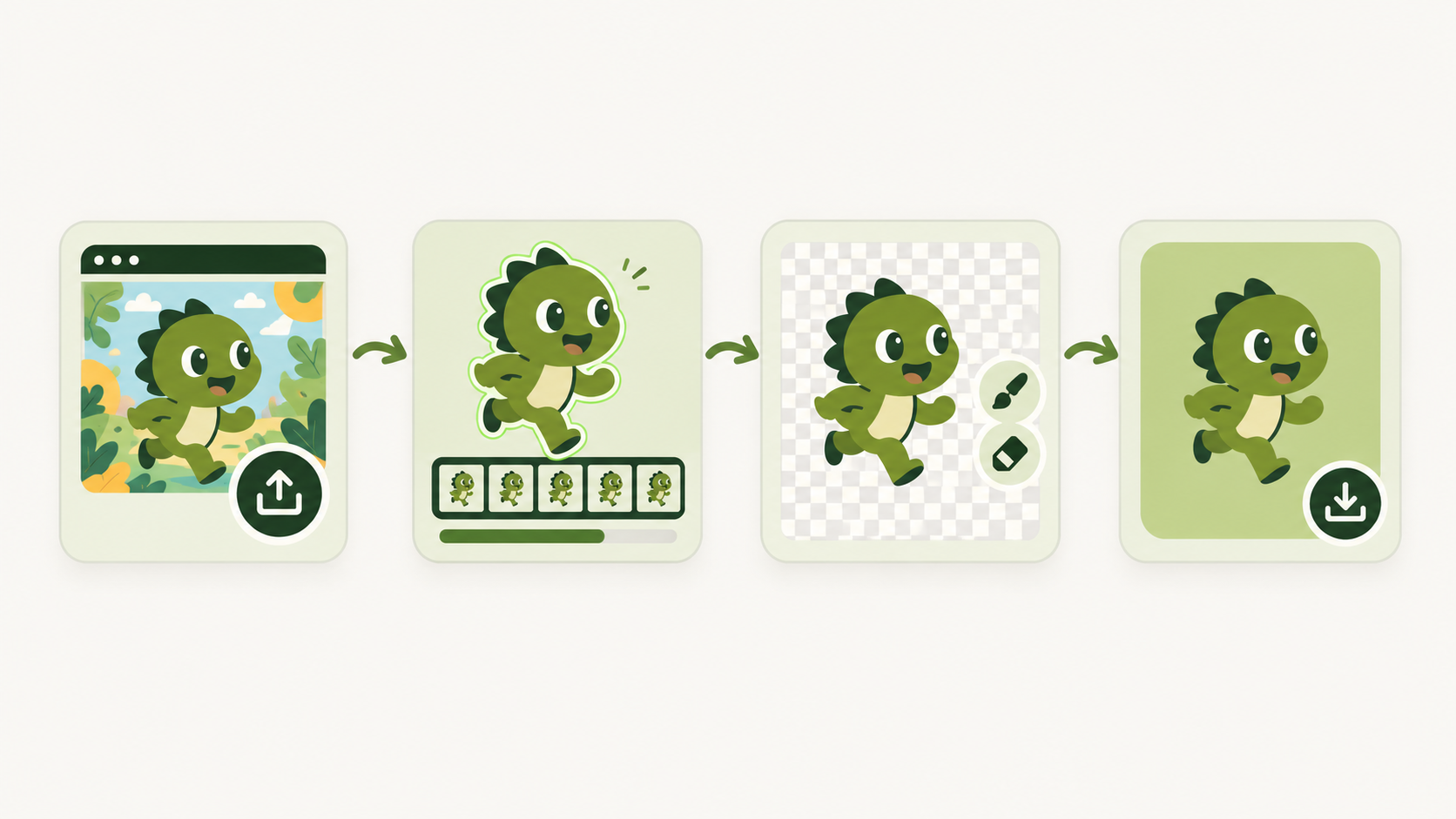
You can remove the background from a GIF in a browser in four steps:
- Add the GIF. The animation plays in the browser before anything happens, so you can confirm it is the right file.
- Press the remove-background button. A counter shows each frame as it is processed.
- Check the result on the checkerboard. The checkerboard pattern shows which areas are transparent. Turn on smooth edges if the outline looks rough, or fix individual frames with the erase and restore brushes.
- Choose the output. Keep the background transparent, or pick white, black or a custom colour, which is applied to every frame. Then download the GIF.
Tips for a cleaner transparent GIF background
- Start with a clear subject. Strong contrast between the subject and the background gives the model the easiest job.
- Watch for green-screen rims.** Green light can leave a thin green outline on the edge. Use the erase brush to remove it.
- Watch for white-on-white. A subject in white clothing against a white wall can lose parts of itself. Use the restore brush to bring them back.
- Expect limits on long GIFs. The device processes as many frames as it can in roughly a minute, between 60 and 600 frames. The frames it keeps are spread evenly across the clip, so the GIF still plays for its full length.
- Match the output to where you will post it. Use a transparent background for chat apps, websites and overlays. Use a solid colour when you know exactly what background it will sit on.

Where this is heading
Browser-based AI is likely to grow in three directions. First, video background removal, since a short video clip is just a longer stack of frames. Second, faster processing as WebGPU becomes available on more devices. Third, a wider range of editing tools that never need an upload step, from noise removal to upscaling. As models keep shrinking, the line between a desktop app and a web page gets thinner.
Frequently asked questions
Can you make a GIF transparent for free?
Yes. In-browser tools can remove the background and export a transparent GIF at no cost, because the processing uses your own device and not a paid server.
Does the animation keep its timing?
A good tool preserves the frame timing, so the GIF plays at the same pace. On very long GIFs some frames may be dropped to keep processing fast, but they are spread evenly, so the total length stays the same.
Is it safe to use on personal clips?
It is safest when the tool runs on your device and does not upload the file. Check the tool’s description, and look at your browser’s network activity if you want to confirm that nothing is sent.
Why do GIF edges look jagged?
GIF supports only fully transparent or fully opaque pixels, with no soft transparency. Edge smoothing helps, and a format such as WebP or PNG avoids the issue where you do not need a GIF specifically.
Conclusion
Removing a GIF background is harder than editing a photo because every frame needs a consistent, clean cut-out, and the GIF format cannot store soft edges. In-browser AI now handles that work in seconds, keeps the animation intact, and keeps your file on your own device. If you want to try it, you can find free online image tools for GIFs, photos and more in one place.






Comment