A scan can look great on screen and still fail the moment it reaches the printer. That is one of the biggest surprises for beginners. Fine texture, realistic color, and lots of detail do not automatically mean a model is ready to print. What matters most is whether the geometry is solid, complete, and usable by slicing software. Guidance used across print workflows consistently points to watertight, manifold meshes as a core requirement for printability.
That is why choosing a 3d scanner for 3d printer work is only part of the process. The scanner helps capture shape, but the output still has to pass a few practical checks before it becomes a successful print. For beginners, learning those checks early can save time, material, and frustration.
This guide explains what makes a 3D scan suitable for printing, what common problems to look for, and how to fix them before pressing start.
Why a good-looking scan is not always a printable scan
Most 3D printers do not care whether a model looks realistic in a viewer. They care whether the object forms a closed surface that can be sliced into layers. A printable model usually needs to be:
- Watertight, with no holes or open gaps
- Manifold, meaning every edge belongs to the correct number of faces
- Consistently oriented, with normals facing the right direction
- Thick enough to survive printing
- Reasonably clean, without floating fragments or intersecting surfaces
When these conditions are missing, slicers may warn that the model is not watertight or not manifold, and the print can fail or produce weak, missing, or distorted sections.
In simple terms, a printable scan is not just a picture of an object in 3D. It is a clean digital shell that a printer can build layer by layer.
The 5 checks beginners should make first
1. Check whether the mesh is watertight
A watertight mesh has no cracks, missing patches, or open boundaries. This is one of the first things to verify because an open mesh can confuse the slicer about what is inside and outside the model. Mesh repair guidance commonly describes this as essential for 3D printing success.
Common causes include:
- Dark or shiny surfaces that scan poorly
- Hidden areas the scanner could not see
- Incomplete passes around the object
- Bad alignment between multiple scan passes
A beginner can often spot this by importing the file into repair software or a slicer and looking for warnings, holes, or odd missing surfaces.
2. Check for non-manifold geometry
Non-manifold geometry means the mesh has ambiguous or broken structure. For example, two shells may overlap, an edge may belong to too many faces, or the model may contain internal surfaces that do not make physical sense for printing. These issues are widely flagged as common STL problems that affect printability.
Typical symptoms include:
- Slicer error messages
- Strange missing layers in preview mode
- Random surfaces inside the part
- Failed automatic supports
This is one reason a beginner should not judge a model by appearance alone.
3. Check wall thickness
Even a perfect scan can be unprintable if thin areas are below what the printer can reliably produce. Thin walls, sharp edges, and delicate tips often appear when scanning decorative objects, figurines, or worn parts. Practical print design guidance stresses that geometry and wall thickness strongly affect strength and success.
Look closely at:
- Handles
- Corners
- Thin rims
- Hollow sections
- Fine ornament details
If a part looks paper-thin in the mesh, it may need thickening before printing.
4. Check scale and units
Many beginner prints fail for a much simpler reason: the object imports at the wrong size. A scan may come in too small, too large, or without clear unit information. Before printing, confirm the model matches the intended real-world dimensions.
This matters even more for replacement parts, wearable items, and objects that must fit another component.
5. Check the slicer preview
The slicer preview is one of the easiest ways to tell whether a 3D scan can be printed. It shows whether layers form properly, whether shells are missing, and whether supports or infill look sensible. If the preview looks broken, the printed object usually will be too. Sources that discuss mesh errors repeatedly point to slicer diagnostics as an important final check.
What usually makes a scan fail in real life
Beginners often run into the same set of problems. Here are the most common ones.
| Problem | What it means | Likely result |
| Holes in the mesh | Missing surface data | Gaps, failed slicing, weak print |
| Non-manifold edges | Broken or ambiguous geometry | Slicer errors, missing layers |
| Flipped normals | Surface direction is inconsistent | Strange internal or invisible areas |
| Thin walls | Geometry is too fine for the printer | Fragile or incomplete parts |
| Floating artifacts | Extra fragments captured during scanning | Random blobs or unwanted structures |
| Overlapping shells | Multiple surfaces intersect improperly | Print defects or confusing toolpaths |
These issues are not rare. Repair-focused guidance on STL preparation repeatedly highlights holes, non-manifold edges, degenerate faces, and normal problems as leading causes of print trouble.
How to improve scan quality before repair
The easiest fix is the one avoided early. A stronger scan usually leads to less cleanup later.
Helpful habits include:
- Scan all sides of the object
Missed undersides and recesses often create holes. - Keep movement steady
Sudden shifts can reduce alignment quality. - Avoid reflective or transparent surfaces
These are harder for many scanners to capture cleanly. - Use the right object size for the scanner
Different scanners perform best in different size ranges and detail levels. - Review the scan before export
It is easier to rescan than to rebuild missing geometry by hand.
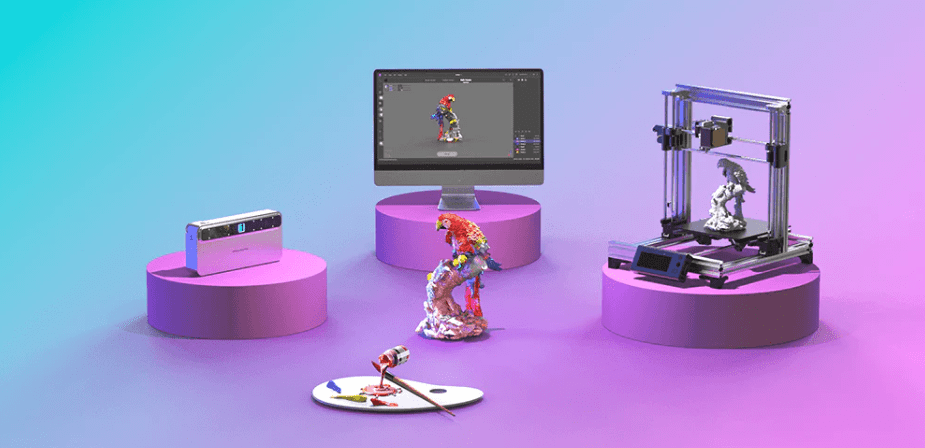
For beginners shopping in this category, 3DMakerpro offers Moose, which is positioned for hobby and creator use and lists 0.05 mm accuracy, markerless tracking, and a portable format on its current product page. That kind of balance can be useful when the goal is capturing everyday objects cleanly enough for print preparation without moving into a more complex workflow.
A simple beginner workflow from scan to print
Step 1: Capture the object carefully
Aim for full coverage and stable tracking. If the object has deep recesses or hidden surfaces, plan extra angles.
Step 2: Clean the scan
Remove stray fragments, background noise, and unwanted floating pieces.
Step 3: Repair the mesh
Patch holes, fix non-manifold edges, and correct normals. Repair documentation and workflow guides consistently describe these as essential pre-print tasks.
Step 4: Check thickness
Inspect fragile areas and reinforce them where needed.
Step 5: Export to a print-friendly format
STL remains one of the most common formats used for 3D printing workflows.
Step 6: Open in a slicer and inspect the preview
This is the final proof step. A model that slices cleanly is much closer to print-ready.
A quick rule of thumb for beginners
A scan is usually printable when the answer to these questions is yes:
- Is it a closed surface with no obvious holes?
- Does the slicer accept it without major warnings?
- Are the walls thick enough for the chosen printer and material?
- Is the scale correct?
- Does the layer preview look complete from bottom to top?
If the answer is no to any of these, the file probably needs more work.
Conclusion
For beginners, the biggest lesson is simple: printable scans are built on geometry, not just appearance. A usable file needs to be watertight, manifold, properly scaled, and thick enough to survive the print process. Just as important, it should pass a slicer preview without obvious errors.
That is why choosing a 3d scanner for 3d printer workflow should always include more than the scanning step itself. The best results come from combining a solid capture, a quick repair pass, and a final slicing check. For anyone starting out, that approach turns 3D scanning from a trial-and-error process into a repeatable path toward better prints.