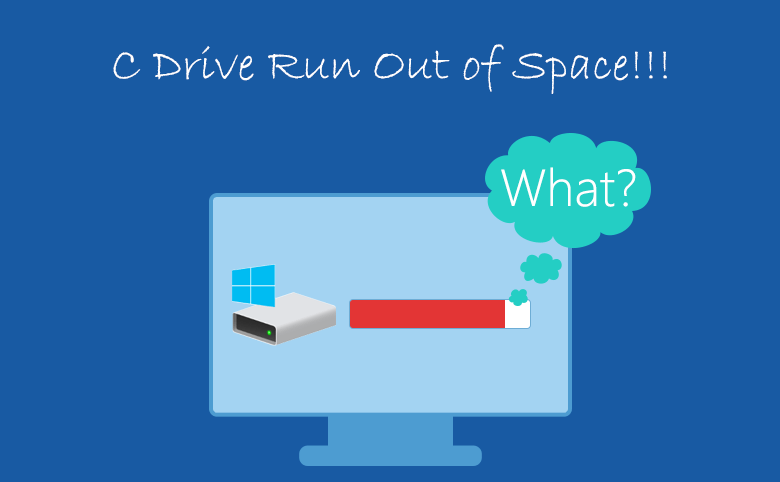
A nearly full C drive can cause Windows to display low-storage warnings, prevent updates, and make everyday tasks feel slower. Installed applications, temporary files, Windows updates, and large personal folders can gradually consume available space. Before deleting important files or reinstalling Windows, learning how to extend C drive can provide another solution.
If another partition has unused capacity, some of that space may be allocated to the system drive.
Check What Is Taking Up C Drive Space
Before learning how to extend C drive or change partition sizes, find out why the C drive is full. You may be able to recover enough space without modifying the disk layout.
- Open “Settings,” then “System,” and go to “Storage” to see how Windows categorizes your disk usage. Check temporary files, installed applications, documents, pictures, and other categories using significant space.
- You can also open “File Explorer”, right-click the C drive, and select “Properties” to check its total capacity and remaining free space.
- If a few large applications or temporary files are responsible, remove data you no longer need first. For applications, open “Settings,” then “Apps,” and choose “Installed apps” and review programs by size. Avoid deleting system folders manually because doing so can cause Windows or installed applications to malfunction.
If the C drive remains too small after cleanup, extending the partition may be the better option.
Method 1: Extend C Drive Using Windows Disk Management
Windows includes Disk Management for basic partition operations. It can extend a partition when suitable unallocated space is available in the required position.
- Press “Windows + X” and select “Disk Management”. Find the C drive in the list of volumes and look immediately to its right for unallocated space.
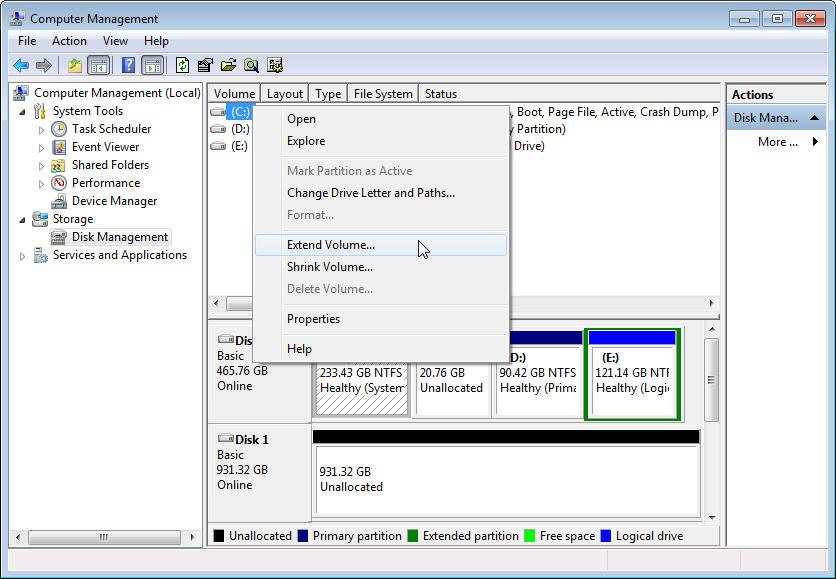
- If suitable unallocated space is directly next to the C partition, right-click the C drive and select “Extend Volume”.
- Follow the Extend Volume Wizard, choose how much unallocated space you want to add, and confirm the operation.
Windows will then increase the size of the C partition using the selected unallocated space.
Limitation:
The main limitation is the location of the unallocated space. Disk Management generally cannot extend C into free space located behind another partition. For example, if a D partition sits between C and the unallocated space, the Extend Volume option may not be available for C. This limitation is one reason users may need another partition management method.
Method 2: Move Space From Other Partitions
If another partition contains plenty of unused capacity, you may want to reduce that partition and give the released space to C. This can be more complicated than simply extending a partition into existing unallocated space.
For example, suppose the C drive is almost full while the D drive has substantial unused capacity. You can shrink D to create unallocated space, but Windows may place that new space after D rather than directly beside C. To make the space usable by C, the partition between C and the unallocated space may need to be moved.
Windows Disk Management does not provide a simple option for moving partitions. Manual partition management can therefore become confusing, especially for beginners. Selecting the wrong partition or performing operations without a backup can also create unnecessary risks. Before resizing any partition, back up important files stored on the affected drives.
Method 3: Extend C Drive With Partition Software
A dedicated partition manager can simplify situations where Windows Disk Management cannot directly extend the C drive. 4DDiG Partition Manager provides tools for resizing and managing partitions, including the ability to reorganize available space and extend the system partition.
This can be useful when you need to extend C drive without losing data and the available free space is separated from C by another partition. However, no partition operation should be considered completely risk-free, so creating a backup remains essential.
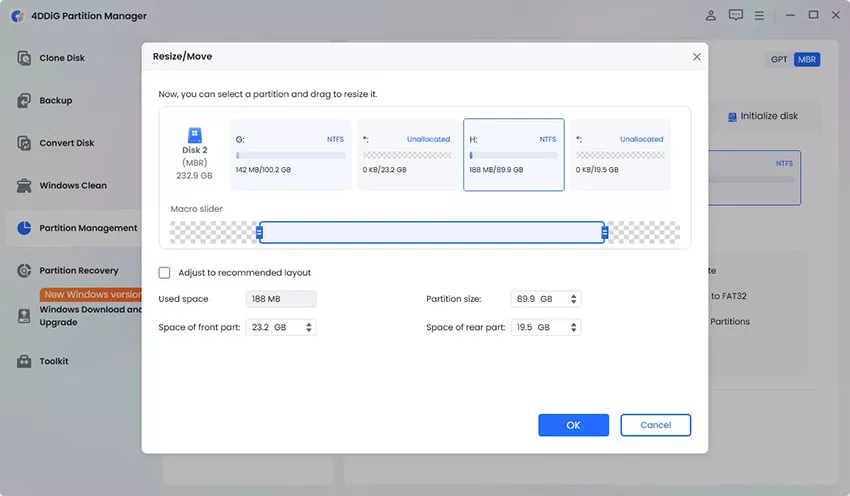
- Open 4DDiG Partition Manager and review the graphical disk layout in “Partition Management”. Identify the C drive and the partition containing available space. Select the partition that has unused capacity and choose the resize option. Reduce its size to create the amount of unallocated space you want to use for C. Review the new disk layout before confirming the operation.
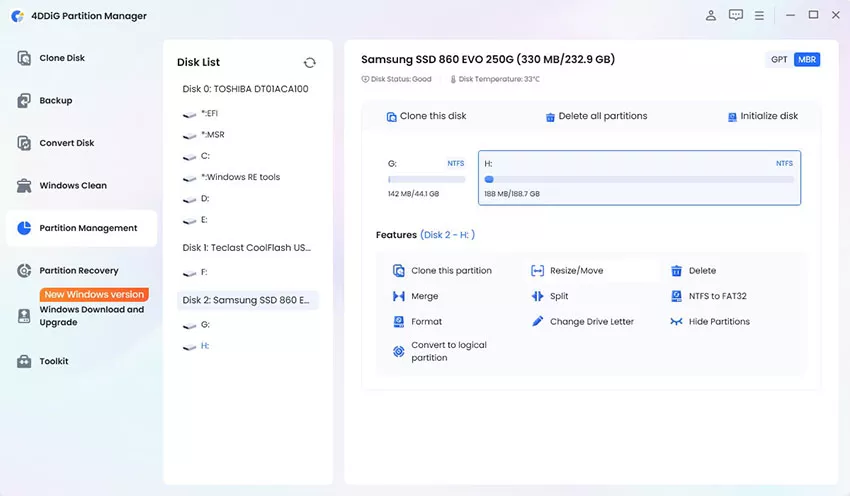
- If another partition needs to be moved so the unallocated space can sit next to C, use the available move or resize controls to arrange the partitions appropriately. Check the preview carefully before applying the changes.

- Once the unallocated space is positioned beside the C drive, select C and choose the option to resize or extend it. Allocate the available space as needed, review the planned operation, and apply the changes.
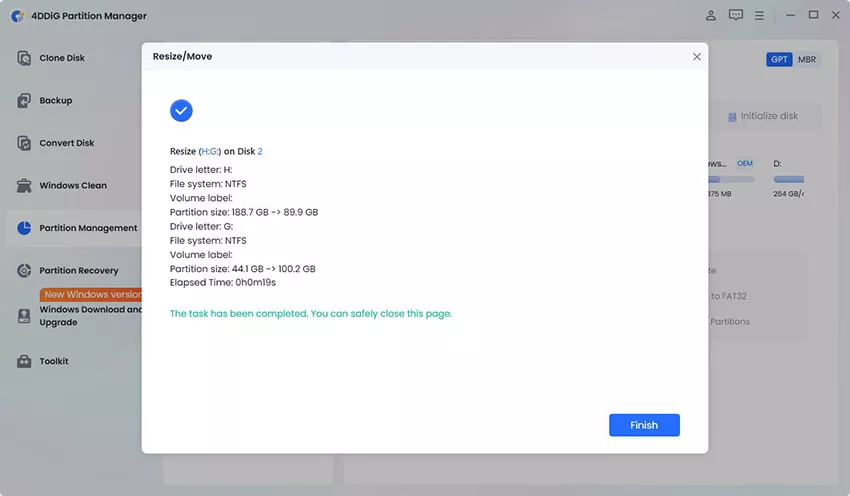
- Allow the software to finish without shutting down the computer or disconnecting the storage device. When the operation is complete, click “Finish”, open “File Explorer,” and check the C drive properties to confirm that its capacity has increased.
Tips To Keep C Drive Healthy
Extending the C drive solves a space limitation, but regular storage management can prevent the problem from returning.
- Remove unnecessary temporary files regularly.
- Uninstall applications you no longer use.
- Move large videos and other personal files to another drive.
- Store large media collections on separate storage when practical.
- Keep adequate free space for Windows updates.
- Review the Storage settings periodically.
Avoid filling the C drive to its maximum capacity. Leaving reasonable free space gives Windows room for temporary operations and updates.
Conclusion
Knowing how to extend C drive can help when Windows repeatedly reports insufficient storage. Start by checking what is consuming space and remove unnecessary data. If the problem is caused by a small system partition, Windows Disk Management can extend C when adjacent unallocated space is available.
When free space is separated by another partition, dedicated partition software can provide more flexibility. Always back up important data before changing your disk layout.