What Is a USB-C Cable?

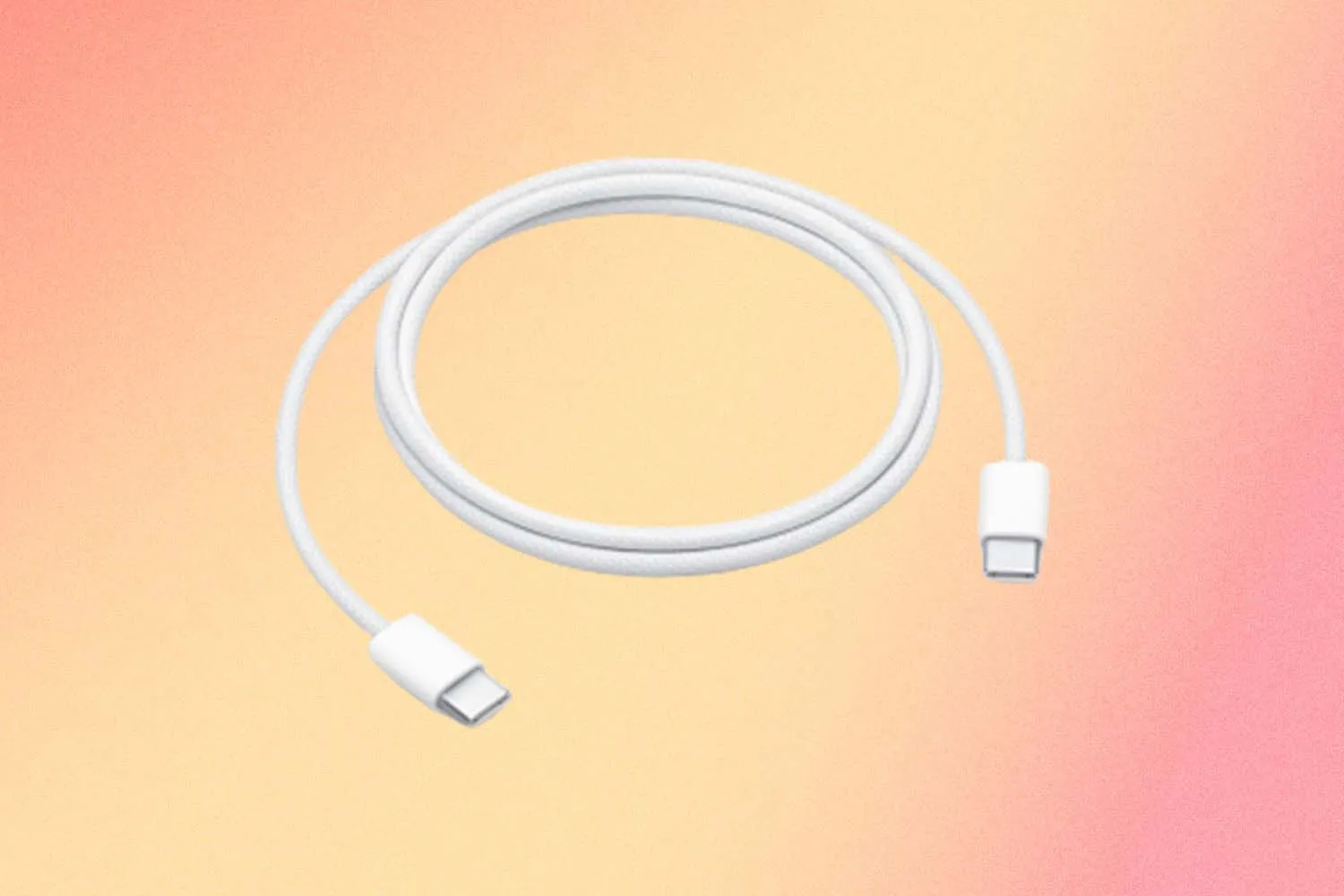
A USB-C cable can look simple: one small oval plug, reversible in either direction, often used to charge a phone, tablet, or laptop. The problem is that the plug shape does not tell you everything the cable can do.
A USB-C cable is a cable that uses a USB Type-C connector on one or both ends. It can be used for charging, data transfer, accessories, and sometimes display or docking workflows. But USB-C describes the connector shape, not a guaranteed charging speed, data speed, display function, or Thunderbolt/USB4 capability.
This is why two USB-C cables can look almost identical but behave very differently. A cable that works for basic phone charging may not be the right cable for a laptop charger, external SSD, monitor, dock, or Thunderbolt device.
What a USB-C Cable Means in Practice
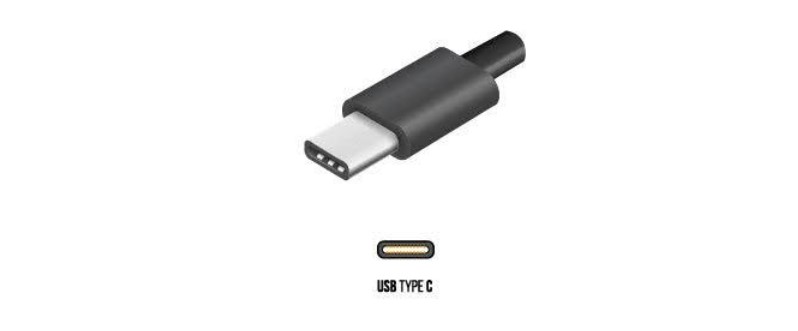
USB-C refers to the small, rounded-rectangle connector used on many modern devices. Unlike older USB plugs, it is reversible, so you do not need to check which side is facing up before plugging it in. You will find it on phones, tablets, laptops, power banks, wall chargers, hubs, monitors, external drives, cameras, controllers, headphones, and card readers.
In shopping terms, a USB-C cable may mean USB-C to USB-C, USB-A to USB-C, or USB-C to another connector. This detail matters because the cable has to match the ports on both sides. A USB-C to USB-C laptop charging cable and a USB-A to USB-C phone cable are both commonly called USB-C cables, but they are not interchangeable in every setup.
The cable is also only one part of the connection. The charger, phone, laptop, dock, display, adapter, or accessory must support the same function. When something does not work, the cable may be the problem, but the port or device may be the limit instead.
The Connector Is Only the Starting Point
The most common USB-C mistake is judging the cable only by the plug. The connector tells you whether the cable can physically fit the port. It does not automatically tell you how much power the cable can carry, how fast it can transfer data, whether it can connect to a monitor, or whether it supports Thunderbolt or USB4.
A practical USB-C setup has several layers. First, the plug must fit the port. Second, the cable must be built for the job. Third, the connected devices must support the same function. Finally, the standard or mode being used must be supported across the whole connection, whether that is USB Power Delivery, USB 3.x, USB4, Thunderbolt, or DisplayPort Alt Mode.
This is why a charging cable from a pair of earbuds may not be the cable you want for an external SSD. It may fit the same USB-C port, but it may not support the data speed you expect. The same idea applies to laptops and monitors. A stronger cable cannot add display output to a USB-C port that was never designed to output video.
What a USB-C Cable Can Do
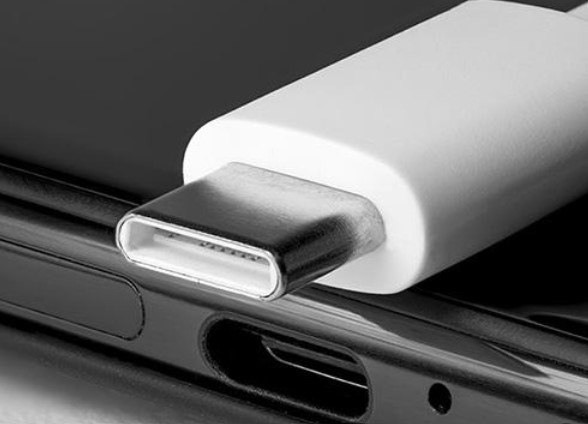
Charging is the most common use. Many phones, tablets, laptops, power banks, earbuds, and accessories charge through USB-C. Charging speed depends on the cable wattage, charger output, device charging limit, and charging standard supported by both sides. USB Power Delivery can support high-power charging, but only when the full setup is designed for it.
The USB-IF USB Charger guidance explains that USB Power Delivery can support up to 240W with compatible devices and cables. This does not mean every USB-C cable or charger can deliver 240W. It means the standard allows it when the cable, charger, and device all support the required power level.
Data transfer is another common use, but this is where many USB-C listings become unclear. Some USB-C cables are made mainly for charging and may only support basic data. Others are built for faster transfer between computers, phones, cameras, external drives, and docks. If you move large video files, use an external SSD, or connect professional accessories, look for a clear data rating instead of only a charging claim.
USB-C can also be used in display and docking setups, but not every USB-C cable or port supports video. Display output requires the device port, cable, adapter or dock, and monitor to support the same display path. VESA’s DisplayPort Alt Mode over USB Type-C is one example of how video signals can run through USB-C when the setup supports it.
Thunderbolt and USB4 workflows need even more checking. Modern Thunderbolt uses the USB-C connector shape, but Thunderbolt is a higher-capability connection standard, not just a plug. Thunderbolt’s official technology overview makes this distinction clear: the cable, ports, and accessories all need to support the standard.
How to Read USB-C Cable Specs
The safest way to choose a USB-C cable is to start with the job, not the connector. For a bedside phone charger, a simple cable may be enough. For a laptop, check the wattage rating. For an external SSD, check the data speed. For a monitor or dock, check display, Thunderbolt, or USB4 support.
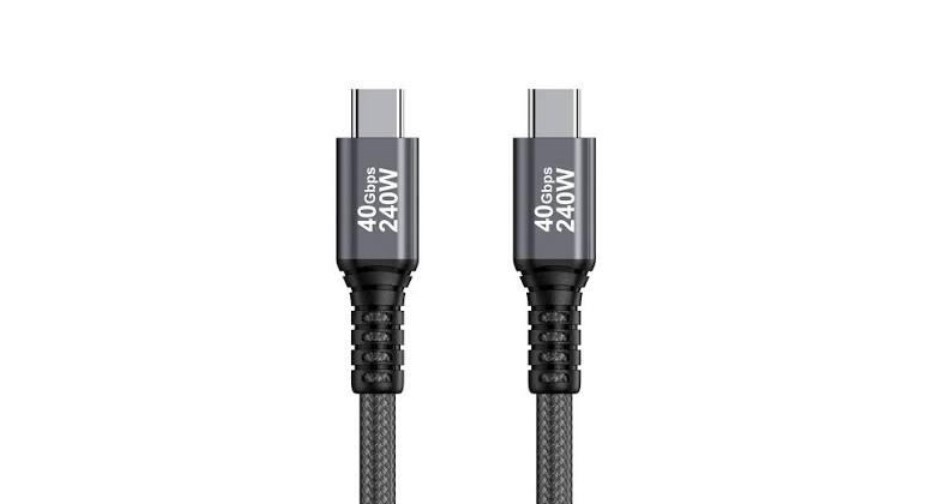
The USB-IF cable and connector guidance notes that certified USB Type-C cables use logos and markings to identify power and data capability. Clear markings are more useful than vague product-page language such as “high speed,” “fast charging,” or “premium USB-C cable.”
For fast charging, check the cable wattage, charger output, and device charging limit. For fast data transfer, check the cable data rating and both device ports. For display or docking, confirm that the host device, cable, dock or adapter, and monitor all support the required mode.
The main rule is simple: a higher-rated cable can be useful, but it cannot make the rest of the setup more capable than it is. A 240W-rated cable will not make a low-power charger stronger. A high-speed cable will not make a slow port faster. A Thunderbolt cable will not turn a non-Thunderbolt port into Thunderbolt.
When a Basic USB-C Cable Is Enough
Not every user needs an advanced cable. A basic USB-C cable may be perfectly fine for charging a phone overnight, connecting small accessories, or using an older charger for low-demand devices. In these cases, cable length, durability, and connector fit may matter more than maximum speed.
The risk starts when a basic cable is used for a higher-demand setup. Laptop charging often needs a higher wattage rating. External SSDs need the right data capability. Monitor and dock setups need display or Thunderbolt/USB4 support. Long cables also need more attention because high power and high data speed become harder to maintain over distance.
Overbuying is possible too. A premium Thunderbolt or USB4 cable may not improve basic phone charging if the phone and charger cannot use those extra features. The better cable is not always the most expensive one. It is the one that clearly supports the job you need.
For Brands, Distributors, and Bulk Buyers
For retail and wholesale cable sourcing, USB-C product information should be specific. A product page should not only say “USB-C cable.” It should identify the connector type, such as USB-C to USB-C or USB-A to USB-C, and then show the key performance details: wattage, data speed, cable length, jacket material, connector housing, certification claims, and intended use.
This matters because buyers often use the same USB-C search term for very different products. One buyer may need a basic phone charging cable. Another may need a laptop charging cable. Another may need a short high-speed cable for an external SSD. Another may need a cable for a dock or monitor. Clear specs reduce returns, support questions, and wrong orders.
For OEM or ODM projects, ask the manufacturer to confirm the cable structure, supported charging power, data capability, chip or E-Marker requirements when relevant, test standards, packaging requirements, and sample approval process before placing a bulk order. ByteCable is a professional USB-C cable manufacturer. Whether you need bulk orders or custom cable solutions, you can find high-quality USB-C cables at www.bytecable.com/category/usb-c-cables/.
USB-C Terms Worth Knowing
You do not need to memorize every USB standard, but a few terms make product pages easier to understand. USB Type-C or USB-C refers to the connector shape. USB Power Delivery, often called USB PD, is a charging technology used for negotiated power delivery. A 60W, 100W, or 240W marking refers to the cable’s power capability when the rest of the setup also supports it.
USB 2.0, USB 3.x, and USB4 relate to data and protocol capability. Thunderbolt is a separate high-capability connection standard that uses USB-C-shaped connectors in modern versions. DisplayPort Alt Mode allows supported USB-C setups to carry display signals. An E-Marker is an electronic marker used in certain higher-capability USB-C cables to communicate cable information to connected devices.
These terms do not matter equally for every buyer. For simple charging, you may only need the right connector and enough power. For laptops, SSDs, displays, and docks, these labels become much more important.
Bottom Line
A USB-C cable is defined by its connector shape: the small, reversible USB Type-C plug. It may be used for charging, data transfer, accessories, monitors, docks, and high-performance connections, but the connector alone does not guarantee all of those functions.
Before buying or reusing a USB-C cable, check what you need the cable to do. For basic charging, a simple cable may be enough. For laptop power, external storage, monitor output, docking, USB4, or Thunderbolt, choose by specs rather than by the USB-C plug alone.
FAQ About USB-C Cables
Is a USB-C cable the same as a USB-C charger?
No. A USB-C cable connects devices. A USB-C charger supplies power. Charging speed depends on the cable, charger, device, and supported charging standard.
Are all USB-C cables fast charging?
No. Some USB-C cables support higher-power charging, while others are made for basic charging or lower-power devices. Check the cable wattage, charger output, and device charging limit.
Do all USB-C cables transfer data?
Do not assume high-speed data transfer from the connector alone. Many USB-C cables can handle basic data, but data capability varies widely. If data matters, check the stated data rating.
Can a USB-C cable connect to a monitor?
Sometimes. The device port, cable, adapter or dock, and monitor all need to support the required display mode. A cable that charges a phone does not automatically support monitor output.
Is USB-C the same as Thunderbolt?
No. USB-C is the connector shape. Thunderbolt is a connection standard that uses USB-C-shaped connectors in modern versions. Both the cable and ports need to support Thunderbolt for a Thunderbolt setup to work.
Are expensive USB-C cables always better?
No. A more expensive cable is not automatically the right cable. The best cable is the one that clearly supports your required power, data, display, or Thunderbolt/USB4 function and matches your devices.