Downloading APK files outside of official app stores can open your Android device up to some serious trouble. It’s like leaving your front door unlocked in a busy city – you never know who might walk in or what they might do.
Malware and Virus Threats
One of the biggest worries with unofficial APK downloads is the chance of getting malware or viruses. These aren’t just annoying pop-ups; they can be nasty programs designed to mess with your phone. They might steal your personal information, lock up your device and demand money (that’s ransomware), or just generally make your phone unstable and slow. It’s easy for these malicious apps to look like the real deal, making it hard to spot the danger until it’s too late.
Potential for Device Control Loss
Beyond just stealing data, some bad APKs can try to take over your device. Imagine someone else having the keys to your phone – they could access your bank accounts, send messages from your account, or even use your device for their own illegal activities. This loss of control is a scary thought, turning a tool you rely on into a potential liability.
Sensitive Data Theft Risks
Your phone holds a lot of personal information, from photos and contacts to passwords and financial details. When you download a risky APK, you’re essentially giving a potential attacker a way to access this sensitive data. This theft can lead to identity fraud, financial loss, and a whole lot of personal stress. Always think about what information is on your device before you decide to download an APK from an unverified source.
Prioritizing Safe APK Download Sources
When looking for applications outside the usual app store, it’s important to know where you’re getting them from. Not all sources are created equal, and some can put your device at risk. Thinking about where you download your APK files is the first step in keeping your phone secure.
Sticking to the Google Play Store
The Google Play Store is generally the safest place to get your apps. Google scans apps before they go live, and its Play Protect feature keeps an eye on your device for bad actors. This built-in security makes it the go-to for most users. Downloading from the Play Store means you’re getting apps that have already passed through several checks.
Exploring Reputable Third-Party Repositories
Sometimes, you might need an app that isn’t on the Play Store. In these cases, look for well-known, trusted sites that specialize in APKs. Sites like APKMirror are often mentioned as safer alternatives because they focus on providing clean files. Always do a quick search to see if a third-party site has a good reputation before you download anything.
Verifying Official Developer Websites
If you know the specific app developer you want to use, checking their official website is another good option. Many developers offer direct downloads of their APK files. This method is usually quite safe, as you’re getting the app straight from the source. Just make sure you’re on the actual official site and not a fake one designed to trick you. Verifying the developer’s identity is key here.
Essential Verification Steps Before Installation
Before you hit that install button on any downloaded APK file, taking a few moments to verify its legitimacy can save a lot of trouble. It’s like checking the ingredients before you cook something new; you want to know what you’re working with.
Checking User Reviews and Ratings
One of the quickest ways to gauge an app’s trustworthiness is by looking at what other users are saying. While not foolproof, a pattern of negative reviews mentioning suspicious behavior or malware is a big red flag. Pay attention to recurring complaints about unexpected behavior or excessive permission requests. This step helps you avoid apps that might seem fine on the surface but have underlying issues. It’s a good practice to check reviews on the source website if available, or even do a quick search for the app name plus “malware” or “review” to see if any major issues have been reported elsewhere.
Verifying Application Signatures
Every legitimate app has a digital signature, like a unique fingerprint, from its developer. When you download an APK, the Android system uses this signature to confirm that the app hasn’t been tampered with since it was released. If an APK’s signature doesn’t match what’s expected, it means the file might have been altered, potentially with malicious code. You can often find tools or instructions online to help you check an APK’s signature, which is a more technical but very reliable verification step. This verification process is key to ensuring the integrity of the APK file you’re about to install.
Scanning APK Files for Malware
Even after checking reviews and signatures, it’s wise to run a scan on the APK file itself. Many reputable antivirus programs and online services offer APK scanning capabilities. Uploading the file to a service like VirusTotal, for example, allows it to be checked against dozens of different antivirus engines simultaneously. This provides a robust layer of security, helping to detect any hidden threats that might have slipped through other checks. Always scan APK files for malware before proceeding with installation.
Managing App Permissions for Security
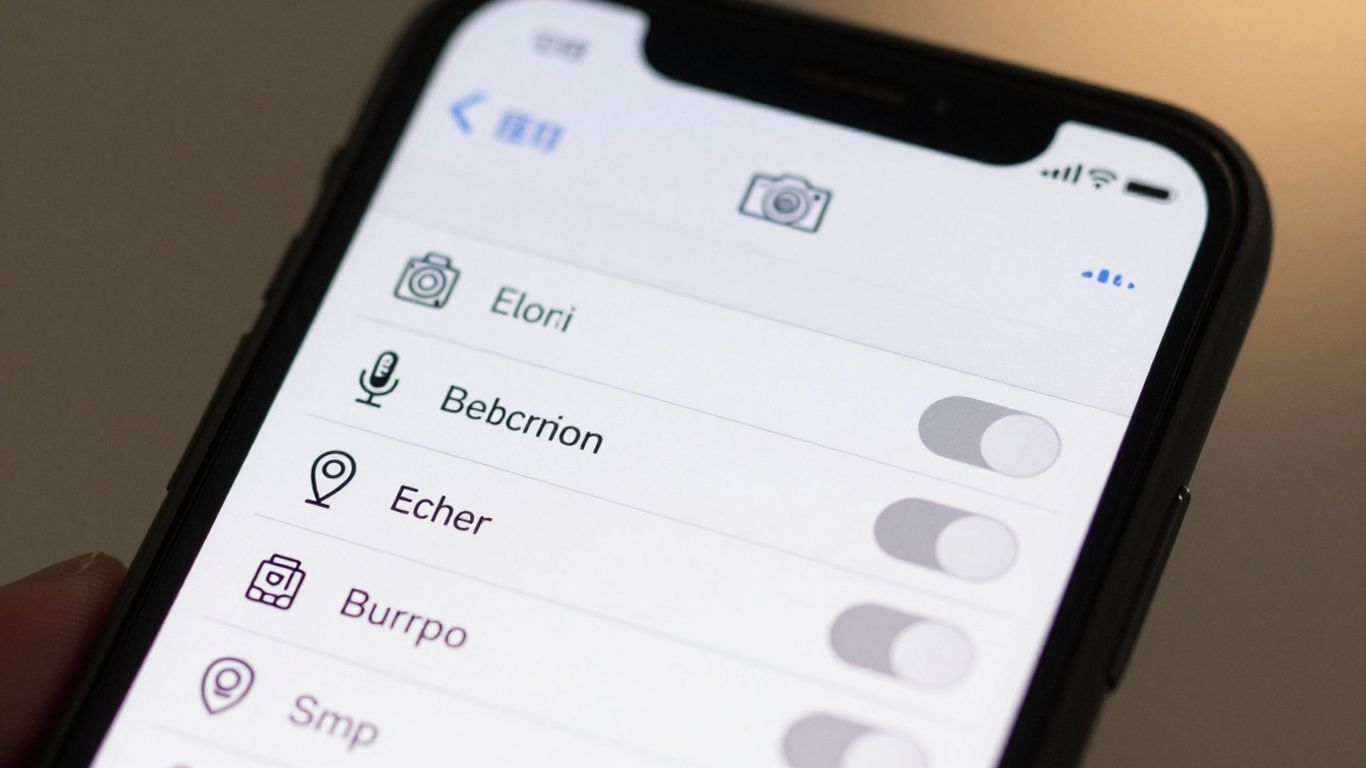
Reviewing Requested Permissions Carefully
When you install an app, it often asks for access to various parts of your phone. This includes things like your contacts, location, camera, or even your microphone. It’s really important to look at what each app wants before you just hit ‘accept’ on everything. Some apps might need certain permissions to work correctly, like a map app needing your location. But if a simple game asks for access to your contacts, that’s a big red flag. Always question why an app needs a specific permission.
Understanding Permission Reset Features
Newer versions of Android have a neat feature that helps manage permissions automatically. If you don’t use an app for a while, say three months, Android can automatically turn off its permissions. This is a good safety net, but it’s not a complete solution. You still need to be proactive. It’s a good idea to periodically check your apps, especially those you don’t use often, and see what permissions they still have. This automatic reset is helpful, but it doesn’t replace your own vigilance.
Disabling Unnecessary Permissions
This is where you take direct control. Go through your installed apps and look at their permissions. If an app has a permission that doesn’t seem necessary for its function, turn it off. For example, a flashlight app doesn’t need access to your SMS messages. Disabling unnecessary permissions is a straightforward way to limit what an app can do and protect your personal information. It’s a simple step that significantly boosts your device’s security. Remember, the fewer permissions an app has, the less it can potentially do if it were ever compromised.
Maintaining Device Security Post-Download
Regularly Updating Your Android OS
Keeping your Android operating system up-to-date is a big deal for security. Think of it like patching holes in a fence. Developers release updates to fix security weaknesses that bad actors might try to use. When you skip an OS update, you’re leaving those doors unlocked. It’s a simple step, but it really helps keep your device safe from new threats. Make sure you check for and install these updates when they come out.
Keeping Installed Applications Updated
Just like the OS, the apps you use need updates too. Developers often fix bugs and add new features, but more importantly, they patch up security holes. If an app has a vulnerability, hackers can exploit it. Regularly checking for and installing app updates closes these security gaps. This is especially true for apps you use a lot. Keeping your apps updated is a key part of maintaining device security.
Utilizing Malware Protection Solutions
Even with all the precautions, sometimes unwanted software can still find its way onto your device. That’s where malware protection comes in. Having a good antivirus or security app running can scan your device for suspicious files and programs. These tools can detect and remove threats before they cause damage. It’s like having a security guard for your phone. Using these solutions adds another layer of defense, making your device more secure overall.
Navigating Manual APK Installations
Sometimes, the app you want isn’t on the Google Play Store. In these cases, you might need to install an application directly using an APK file. This process, often called sideloading, gives you more control but also requires extra care. It’s important to know how to do this safely.
Enabling Installation from Unknown Sources
To install an APK file, your Android device needs permission to install apps from sources other than the Play Store. You’ll find this setting in your device’s main settings menu. Look for ‘Apps & notifications,’ then ‘Special app access,’ and finally ‘Install unknown apps.’ Here, you select the app you’ll use to open the APK file, like your browser or file manager, and toggle on the option to ‘Allow from this source.’ This step is key for any manual APK installation.
Understanding the Lack of Automatic Updates
One significant difference when you install an APK manually is that these apps won’t update automatically through the Google Play Store. You’ll need to keep an eye out for new versions yourself and manually download and install them. Forgetting to update can leave your device open to security risks, as older versions might have unpatched vulnerabilities. Staying on top of updates is part of managing apps installed this way. APK Portal’s install guides, error fixes, and update support can help users manage an apk download more carefully, especially when manual installation means they must handle updates themselves.
Considering Installation via ADB
For those who are more technically inclined, installing an APK file can also be done using the Android Debug Bridge (ADB). This method involves connecting your Android device to a computer via USB and enabling USB debugging. Then, you can use a command-line tool to install the APK. While this might seem more complex, it’s a reliable way for developers or advanced users to install applications, especially when testing or managing multiple devices. It’s another method for handling an APK file outside the usual app store.
Wrapping Up Your APK Download Habits
So, when it comes to downloading APK files outside of the usual app store, it’s really about being smart and careful. Sticking to trusted sources, like official developer sites or well-known repositories, is a big step. Always take a moment to check what other users are saying in reviews and look at the app’s star rating. Don’t forget to keep your phone’s operating system and any security software up-to-date, as these updates often patch up security holes. By taking these simple steps, users can significantly lower the chances of running into trouble with malicious apps and keep their devices running smoothly and safely.