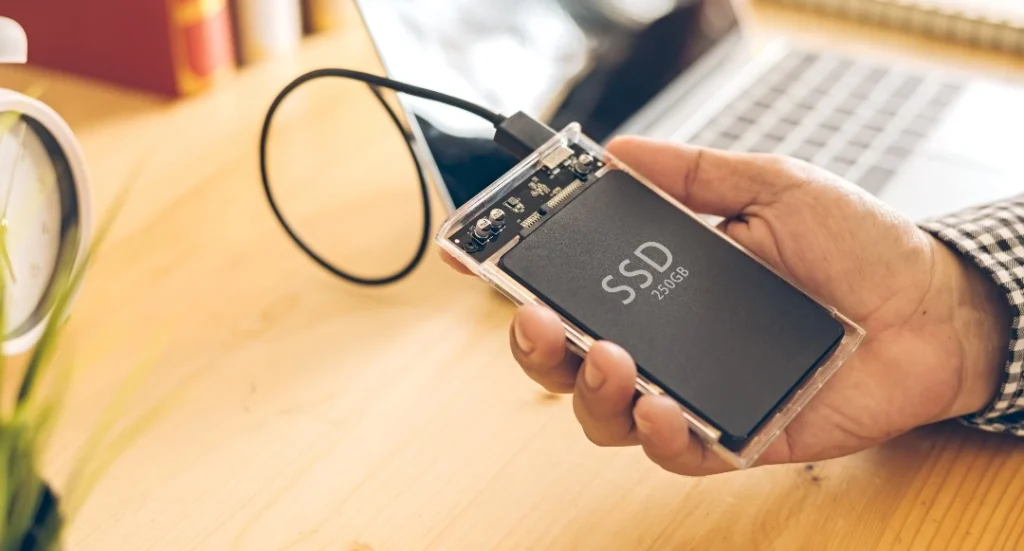
An SSD can fail with little or no warning. One day everything functions normally. The next, Windows won’t boot, files disappear, or the drive isn’t detected. Without moving parts, SSD failure can feel sudden and leave users searching for SSD data recovery.
But fixes like reinstalling Windows, formatting the drive, or copying new files can overwrite data you’re trying to recover. Thus, first, take a few minutes to identify the type of failure. This guide explains the warning signs. You’ll also learn what to do and avoid after an SSD failure, how to recover accessible files, and when professional data recovery is the safer option.
Key Takeaways
- SSD failures can happen suddenly, so identify the cause before attempting repairs.
- Stop using the affected drive and avoid formatting, reinstalling Windows, or writing new data.
- Check BIOS/UEFI, Disk Management, or another computer to confirm whether the SSD is detected.
- Use an SSD data recovery tool to scan, preview, and recover accessible data from logical failures such as RAW partitions or deleted files.
- If the SSD isn’t detected or shows signs of physical failure, stop DIY attempts and seek professional recovery.
Identify the Signs of a Failed SSD
It’s crucial to distinguish common SSD failure symptoms from problems caused by Windows or other system components. So, you can understand what to fix:
Common Symptoms of SSD Failure
SSD failure doesn’t always look the same twice. The symptoms people report most often include:
- Frequent Crashes or Freezes: Especially when opening large files or launching programs.
- Missing Partitions: Partitions disappear from File Explorer or Disk Management.
- Inaccessible Files: Files or folders show “corrupted,” “unreadable,” or “access denied” errors.
- Boot Errors: Windows hangs at the manufacturer logo, enters a repair loop, or shows “boot device not found.”
- Slower Performance: File access becomes noticeably slower, even for basic tasks.
- SSD Not Detected: The drive no longer appears in Windows or BIOS/UEFI.
Not every symptom means the SSD is failing. “Unreadable file” errors may come from a damaged file system, while loose cables, faulty USB-to-SATA bridges, or outdated drivers can cause similar problems.
Before assuming the worst, check whether the SSD appears in BIOS/UEFI, Disk Management, or on another computer. If it appears as RAW or unallocated, the data may still be intact but inaccessible.
Failed SSD vs. Windows Startup Problem
A Windows startup failure doesn’t necessarily mean the SSD has failed. Corrupted boot files caused by updates, power loss, or interrupted writes can prevent Windows from starting even when the drive is healthy. Before repairing Windows, check whether the SSD is detected:
- BIOS/UEFI: Confirm the SSD appears in the storage or boot device list.
- Detected but Windows won’t boot: The issue may be corrupted boot files, Windows Boot Manager, or system files.
- Not detected in BIOS/UEFI: This suggests a connection or hardware problem.
| SSD Condition | What It May Indicate | Recommended Next Step |
| SSD appears in Windows, but files are missing | File system or logical data loss | Scan the drive for recoverable files |
| SSD appears as RAW or inaccessible | Partition or file-system damage | Recover data before formatting |
| Windows cannot boot from the SSD | System or boot-record problem | Check drive detection first |
| SSD is not detected anywhere | Possible connection or hardware failure | Stop repeated repair attempts |
Note: If you haven’t backed up important data, avoid reinstalling Windows, running Startup Repair, or using bootrec commands, as repairs can overwrite recoverable data. Recover or secure your files first.
What to Do Immediately After an SSD Failure
After identifying the problem, protect the data before attempting any recovery or repair on the SSD, whether it’s an internal drive or an external one. Start by minimizing activity on the affected SSD, then safely check its connections and detection status to avoid worsening the damage. Here’s how:
Stop Writing New Data to the Failed SSD
The most important recovery rule is simple: stop using the affected SSD. Don’t download files, install recovery software, or create partitions on it. New writes can overwrite lost data, and on SSDs, TRIM and background garbage collection may erase deleted data much faster than on a traditional hard drive. This is why SSD recovery has a narrower window than HDD recovery. Also, install and run recovery software from a different drive or computer, never the SSD you’re recovering.
Check Connections and Drive Detection Safely
Before assuming hardware failure, rule out the simple causes first:
- External SSD: Try a different USB cable, port, or computer. Avoid hubs if possible, as a faulty cable or enclosure bridge can make the drive disappear.
- Internal SSD: Check whether the drive appears in BIOS/UEFI and Windows Disk Management. Where it appears can help identify whether the issue is the connection, firmware, or file system.
- Avoid Destructive Prompts: If Windows asks you to Initialize, Format, or Erase the disk, don’t click it. These prompts can appear for RAW or unrecognized partitions and may turn a recoverable situation into permanent data loss.
Recover Data from a Failed SSD with 4DDiG
Once the drive is detected in BIOS, Disk Management, or another computer, an SSD data recovery tool can help recover data from it. 4DDiG Data Recovery can retrieve files from RAW partitions, unallocated space, “format before use” errors, or files lost after crashes and failed updates.
4DDiG Data Recovery Main Features:
4DDiG Data Recovery can be a practical option for failing SSDs because:
- Read-Only Scanning: Scans without writing to the affected drive, reducing the risk of overwriting data.
- Broad File Support: Recovers 2,000+ file types from SSDs, HDDs, USB drives, SD cards, NAS devices, and more.
- Preview Before Recovery: Preview and filter found files before restoring them.
- Recover During Scanning: Recover important files without waiting for the full scan to finish.
- Resume Scans: Continue interrupted scans without starting over.
Important Note: If you want to check what’s recoverable before deciding whether to buy, try 4DDiG Free Data Recovery. It lets you recover up to 2GB of data for Windows and 500MB for Mac users at no cost.
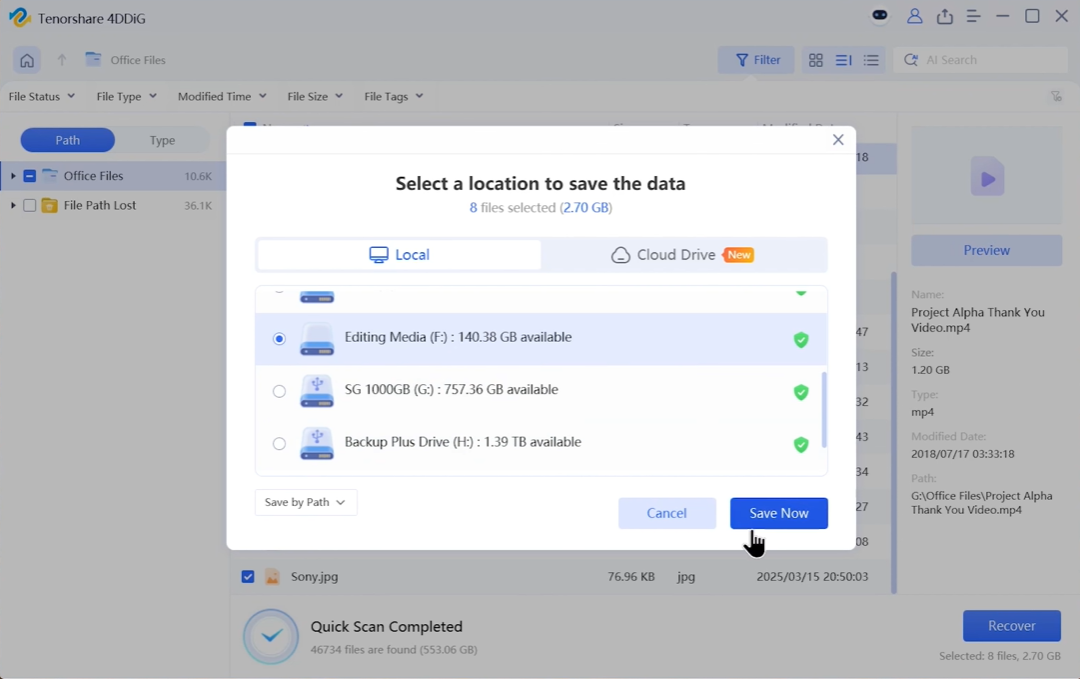
3 Steps to Recover Data From an SSD With 4DDiG:
Here’s how to recover data from failed SSD with 4DDiG Data Recovery:
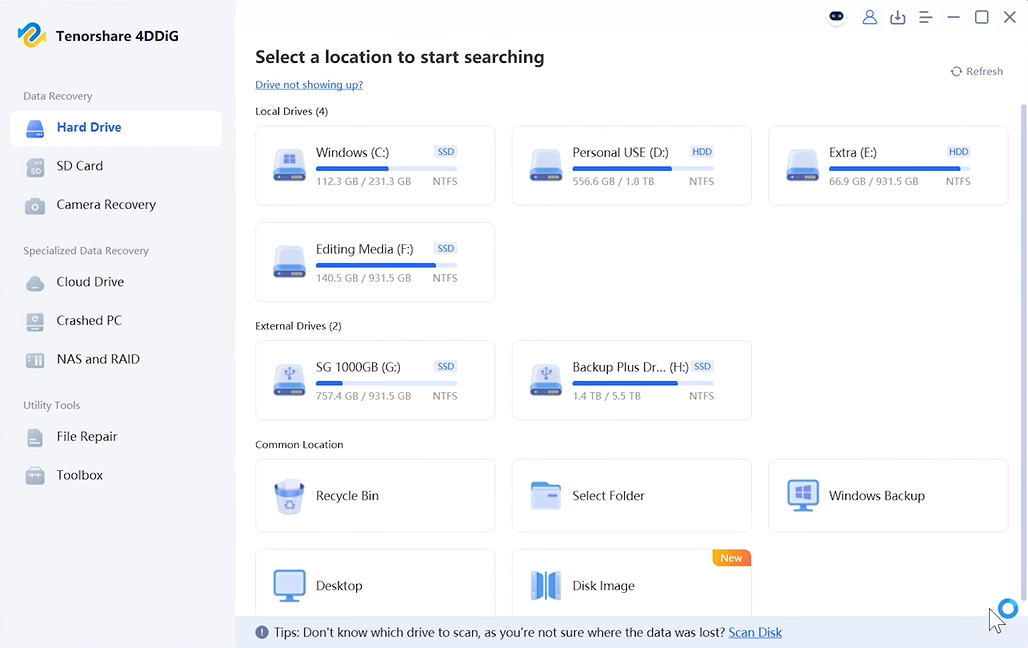
Step 1: Select a location:
Launch 4DDiG Data Recovery on a separate, healthy computer (or install it on a different drive of the same machine) and choose the failed SSD as the scan target.
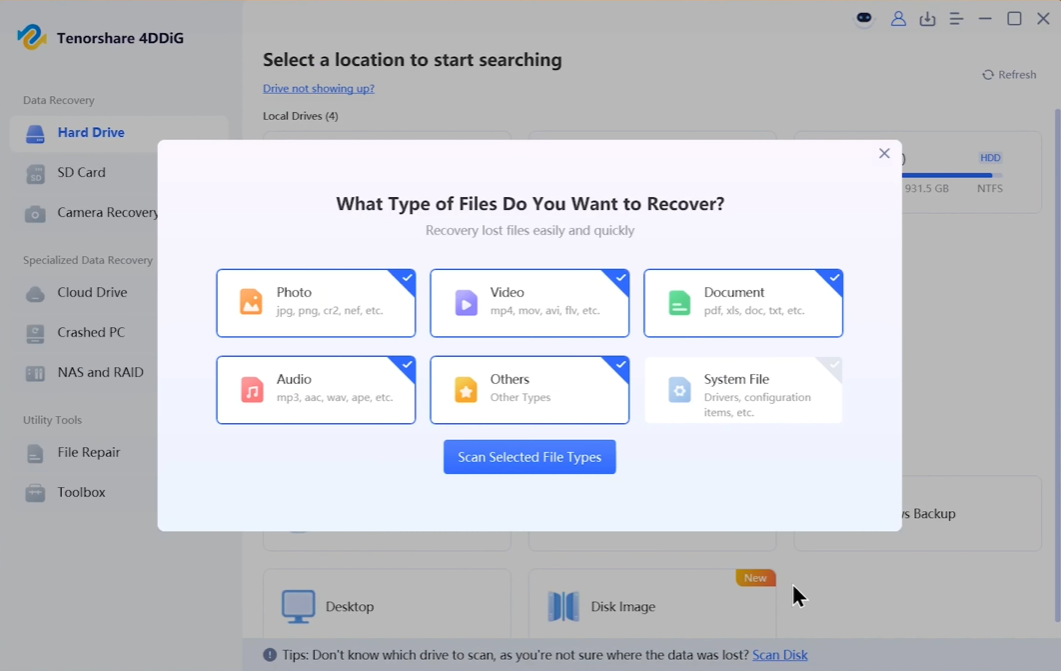
Step 2: Scan the device:
Pick the file types for scanning. 4DDiG Data Recovery automatically scans the drive. If it’s a large or slow drive, you can pause and resume the scan instead of restarting it.
Step 3: Preview and recover:
Browse results by file type and keywords, preview what you need, and recover it to a different drive. Never move them back onto the SSD you just recovered them from.
When a Failed SSD Needs Professional Recovery
Knowing when to stop troubleshooting is just as important as knowing how to recover an SSD safely. If the drive shows signs of physical failure or isn’t detected anywhere, professional recovery may be the safest option:
Know When to Stop DIY SSD Repair
Recovery software only functions if the operating system can detect the SSD. Here’s when you need to hire a professional SSD recovery service:
- Not Detected: If the SSD is not showing up in BIOS, Disk Management, or another computer, software recovery won’t help.
- Physical Symptoms: Excessive heat, repeated shutdowns, or unusual noises indicate possible hardware failure and require a professional recovery lab.
- Avoid Repeated Attempts: Constantly reconnecting or repeatedly repairing a failing drive can worsen data loss.
Prevent Future SSD Data Loss
Most SSD data-loss situations are easier to prevent than to fix after the fact. Here’s what you can do for prevention:
- Keep Backups: Store important files in at least two places, such as an external drive and cloud storage.
- Monitor Drive Health: Keep enough free space and watch for signs of problems before a crash occurs.
- Protect Against Power Loss: Use a surge protector or UPS to reduce the risk of file-system corruption.
- Replace Unreliable Drives: If a drive repeatedly shows errors or disappears, replace it rather than risking important data.
Final Words
An SSD failure doesn’t always mean your data is gone. If the drive is still detected, avoid writing new data, formatting, or attempting risky repairs, as these can make SSD data recovery harder. For logical issues such as deleted files, RAW partitions, or file-system corruption, 4DDiG Data Recovery can scan, preview, and recover important files to a separate drive. If the SSD isn’t detected anywhere or shows signs of physical failure, stop using it and consider professional recovery.
FAQs
1. Can data be recovered from a failed SSD?
Recovery may be possible if the SSD is detected and the data hasn’t been overwritten. Results depend on the failure type, with corrupted file systems or accidental deletion generally offering better recovery chances than physically damaged NAND.
2. Can 4DDiG recover data from an SSD that won’t boot Windows?
Yes. 4DDiG Data Recovery can scan a detected SSD for recoverable files even when Windows can’t start from that drive. Install the software on a different, healthy drive and point the scan at the affected SSD.
3. Should I format a failed SSD to make it work again?
No. Formatting can overwrite recoverable data and make the situation harder to reverse. Only format the drive after you’ve safely recovered your important files elsewhere.
4. What’s the difference between logical and physical SSD failure?
Logical Failure: Corrupted data, missing partitions, or file-system damage can often be handled with recovery software.
Physical Failure: Non-detection, overheating, or a failed controller usually requires professional hardware-level recovery.
5. Can 4DDiG recover files from a RAW or inaccessible SSD?
Yes. 4DDiG Data Recovery can scan RAW or inaccessible drives for recoverable files without formatting or repairing the file system first.