Three years into using a Mac, and I’ve developed a very specific distrust of PDF software performance claims. Not for simple files, any app can open a clean, single-page document without embarrassing itself. The test that actually matters is what happens when you throw something heavy at it, such as a report dense with graphics or a 100-plus-page document. That’s where the claims fall apart. That’s where you get the spinning beachball, the grey-out reload, the frozen scroll that makes you question every tool choice you’ve ever made.
The results were better than I expected.
What Fast Actually Looks Like in Practice
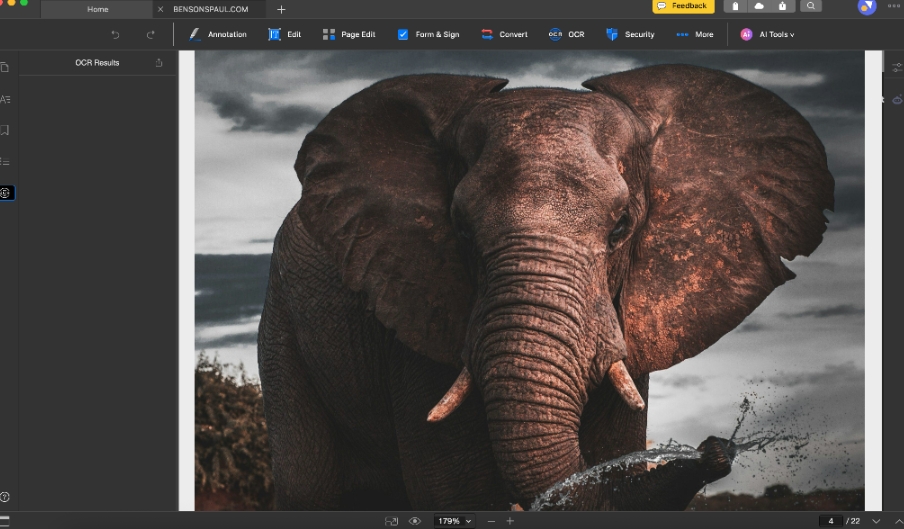
The 22-page image-heavy document opened in two to three seconds. That alone wasn’t the interesting part. What mattered was what happened after. Jumping between non-adjacent pages didn’t cause the app to grey out and reload, which is the standard failure mode for PDF tools handling embedded graphics. Scrolling felt responsive throughout, not weighted. The document didn’t degrade over the course of a session, the way apps tend to when they’re quietly struggling with file complexity.
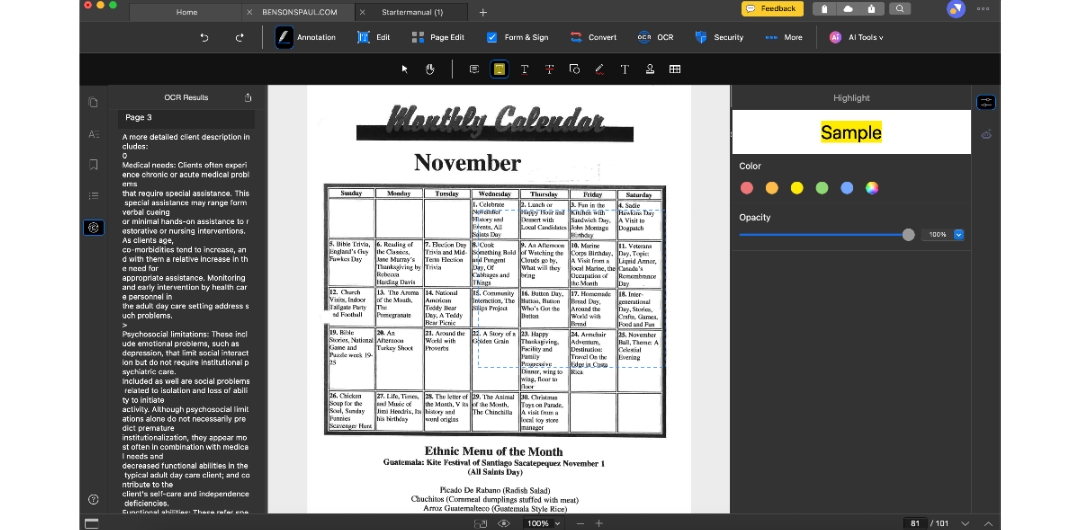
The 101-page document took slightly longer to open than the app’s own performance messaging implies. That’s an honest observation, not a complaint, since “slightly longer” on a file that triggered beachballs in two other apps is still a net gain. It opened, stayed stable, and scrolling through it didn’t require patience. For a file at that size and weight, that’s not a given.

Clean Edits and Intact Formatting, Turns Out You CAN Have Both
Complex formatted documents are where PDF text editing typically reveals its limits. Edits either collapse the surrounding structure or push content into positions it wasn’t in before. I tested this, and the edit integrated cleanly, the surrounding content held its position, and nothing needed to be manually fixed afterwards.
KDAN PDF is not a layout tool and doesn’t try to be. But for the editing that comes up in actual professional work, it handles it without producing new problems to solve.
One constraint worth flagging separately is that scanned documents are read-only for text editing. OCR gets you searchability, but if you need to go in and change the actual content of a scanned file, that’s not on the table. It came up during my testing and caught me off guard mid-task.
The Tools That Remove Steps You Forgot Were Optional
The AI Data Extract feature is where the app surprised me most. I tested it on a document with several data tables I needed to move into a spreadsheet. KDAN PDF pulled the table data directly into a clean Excel sheet in a single step. No reformatting or fixing broken columns. For anyone who regularly extracts figures from PDFs into spreadsheets, that alone is a lifesaver.
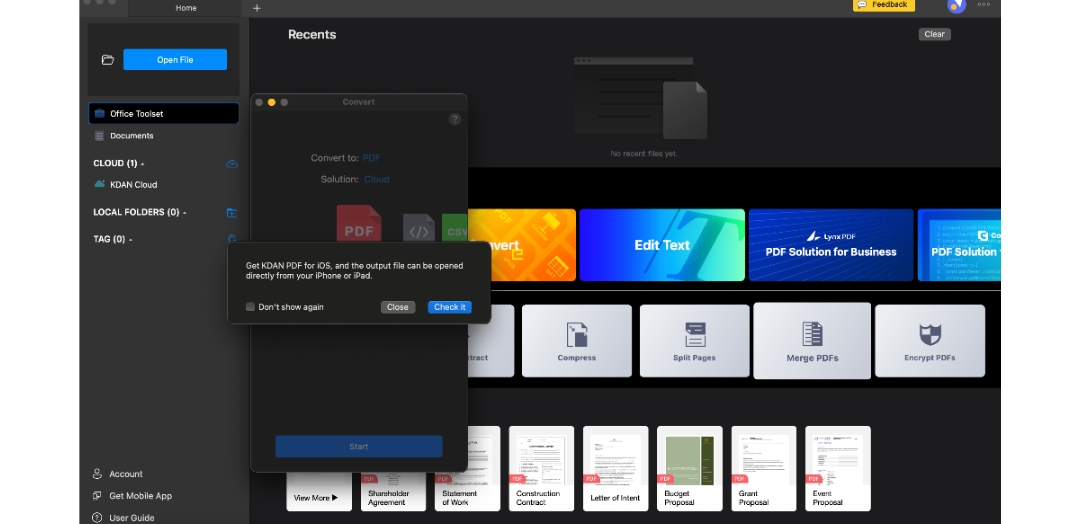
Direct PDF conversion from inside the app is in the same category. Converting files to PDF typically means leaving the app or opening something else entirely. Here, it’s a single step inside the same workspace.
Where the Performance Ceiling Actually Is
Serious power users will find the edges. Push the app with heavy files and you’ll notice the experience isn’t perfectly uniform, complexity demands more from it, and you’ll feel that on your most demanding documents. But if you go in treating peak performance as a guarantee rather than an average, you’re holding it to a standard no PDF tool consistently meets. What matters more is how it behaves under pressure, and that’s better than the competition. Files that would have triggered a beachball elsewhere opened without much fuss. It’s fast because of what it is, not just how it’s performing today, and that’s what I’m really after in a tool I use every day.
The interface also asks something of you. The app’s capabilities outpace its immediate intuitiveness, and finding your way around the more advanced tools, particularly moving between document editing and the Office Toolset features, takes a session or two before it becomes automatic. It’s the kind of friction that goes away with use, but it’s there in the early stages.
The Honest Case for KDAN PDF
For Mac users who have been absorbing PDF slowness as a fixed cost of working with heavy documents, who have built workarounds around Acrobat’s load times, split large files to make them manageable, or simply accepted that certain tasks are going to be slow, KDAN PDF removes the friction. It doesn’t crash on the files that crash other apps. It doesn’t lose performance mid-session. Text editing on complex layouts works cleanly. And the toolset around the document is extremely useful.
If you work with heavy PDFs on a Mac and you’ve made peace with the slowness, test KDAN PDF with the file that’s given you the most trouble. Open your worst document, and see what the experience actually feels like without the wait. That’s the benchmark that matters here, and on that test, it holds up.