
How to Diagnose and Fix Common Printer Faults: Black Streaks, Poor Fusing, and Color Deviation


For office administrators and print room operators, sudden printer or copier faults can quickly disrupt daily workflows: pages coming out with stubborn black streaks, printed text that smudges or wipes off with a light touch, or color output with noticeable deviation that fails to meet brand standards. When such faults appear, many people spend hours adjusting device settings or testing dozens of pages with replacement parts, only to see the problem return shortly after.
This three-step troubleshooting guide, covering 16 mainstream office equipment brands including Xerox, Kyocera, Konica Minolta, Sharp, Lexmark, Samsung, Toshiba, HP, Brother, Epson, Pantum, Panasonic, Dell, UTAX and Lenovo, helps you resolve the most common printing problems in minutes — no professional maintenance experience required.
Step 1: Black Streaks on Every Page — Usually a Cleaning Blade Issue, Not the Drum
Persistent vertical black streaks running through every page are among the most frequently reported faults on laser printers and copiers. In nearly 90% of cases, the root cause is not a damaged photosensitive drum but a worn cleaning blade.
Generic cleaning blades are often made from recycled, low-quality polyurethane, so the edge deforms and wears quickly after thousands of printing cycles. As a result, they fail to scrape all residual toner off the OPC drum surface. The remaining hard toner particles then scratch the drum, leaving permanent marks that appear as fixed black lines on every subsequent page.
A quick way to confirm the cause: if the streaks stay in exactly the same position on each page, the cleaning blade (or the drum damage it caused) is almost certainly at fault. Replacing it with a high-quality blade — such as a TMS Copier and Printer Cleaning Blade made with double-layer, wear-resistant polyurethane and a micron-level polished edge — usually eliminates the problem completely, without scratching the drum. Quality cleaning blades are kept in stock for popular high-volume models such as Ricoh MP C3003, Canon C5560, Konica Minolta C224 and Kyocera ECOSYS P5021, so this fix typically requires no long wait.
Step 2: Text That Wipes Off or Smudges — Check the Fuser Film
If freshly printed text can be easily wiped off by hand and toner residue appears on the back of stacked sheets, the fuser is not reaching the temperature needed to melt toner into the paper fibers.
The most common cause is a low-grade fuser film. Generic PET films have poor thermal conductivity and often fail to reach the rated fusing temperature even after preheating, leaving toner sitting on the surface of the paper instead of being fused into it.
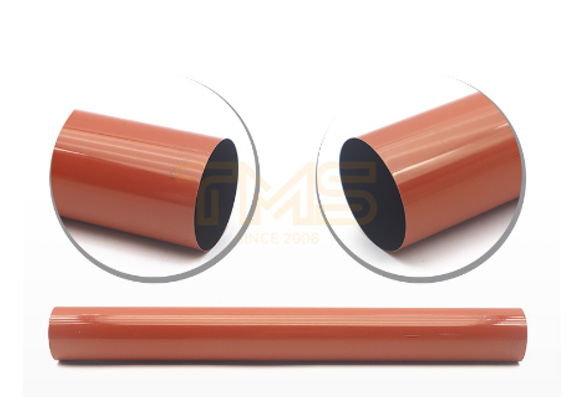
The solution is straightforward: replace the fuser film with one made from a high-thermal-conductivity material, such as a TMS Fuser Film Sleeve & Fuser Unit that can reach the required fusing temperature within seconds and maintain it steadily. After replacement, test with plain paper, coated paper and thicker stock to confirm the fix holds. High-quality fuser films also handle special media such as coated and sulfate paper, keeping text firmly bonded to the page without fading over time.
Step 3: Color Deviation and Cast — Look at the Transfer Belt
For color copiers and printers that consistently produce off-color output with visible cast or banding, the root cause is often the transfer belt. When a low-quality belt cannot align the CMYK toner layers accurately before transfer, the four colors drift, causing deviation and layering problems.
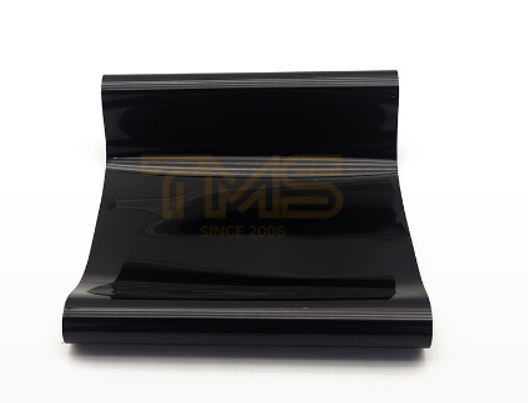
Replacing a worn or generic transfer belt with a precision-made assembly like the TMS Transfer Belt & Transfer Belt Assembly restores alignment accuracy — high-quality belts hold four-color registration within ±0.01mm — which eliminates color deviation and restores the original color accuracy of the design. This helps every printed page meet the high-definition output standard required for brand material.
When to Replace Parts Yourself, and When to Call a Technician
Not every fault needs a service visit. If a single component — the cleaning blade, fuser film or transfer belt — is clearly at the root of the problem, replacing it yourself is fast and cost-effective. For older machines with multiple simultaneous faults, or when the problem persists after part replacement, it is worth having a professional inspect the device.
Choosing compatible, well-manufactured consumables also matters: parts made from better materials with tighter tolerances last longer and cause fewer follow-up issues. TMS covers more than 13,000 mainstream printer and copier models across all brands, with products certified to UN38.3 and IEC standards, and offers free one-on-one technical guidance for troubleshooting. For a complete list of consumables matched to your device, visit the TMS product center.







Comment