I. Hitting the Wall: When the Well Runs Dry and the Clock is Ticking
Haha… no worries, man. I’ve got this. See you on stage!” I hung up the phone. Once I was sure the line was dead, I let out a heavy, soul-crushing sigh.
The situation was dire: I have a jazz jam night at a local club in two days, and the lineup includes a few heavy hitters I’ve been dying to play with. I accepted the gig instantly, riding the high of the invitation. But now, sitting at my keyboard, my brain is just static. I can’t find a single fresh chord progression. I’ve been staring at the keys for hours, and the Muse is nowhere to be found. Now what?
Remembering the “big game,” I talked on the phone, I fired up my DAW to grit my teeth and program a walking bass line and a comping pattern. Thirty minutes in, and I’m just recycling the same old ii-V-I cliches. I write a turnaround, and then… nothing. The ideas stop.
In a moment of desperation, I turned to a “top-tier” LLM. I asked it to “write me a jazz chord progression.” It spat out a string of symbols and some dry textbook theory. I played through it—it was literally a Page 1 example from a beginner’s manual. It had zero musical soul and clearly didn’t understand that jazz is a living, breathing art form of innovation.
Exhausted, I closed every window, slumped back in my chair, and started mindlessly scrolling through my phone.
II. Discovering MakeBestMusic: The Tool That Rescued My Performance
Mid-scroll, I took one last stab at a solution and searched for “AI jazz backing track.” A few pages deep, I stumbled upon MakeBestMusic.
Honestly, my expectations were floor-level. I figured I’d just play around with it to kill time and maybe lower my stress levels. I followed the guide and used the Reference feature to upload a trio recording I loved. Then, in the MIDI Studio, I plugged in the few measly chords I had left in my brain. Thirty seconds later, I put on my headphones.
The bass line was walking with these incredible passing tones over my chords, and the piano comping had a rhythmic “pocket” that felt alive. I shed to that track all night. When I woke up the next morning, the gears were finally turning. The musical ideas were jumping around my head again—I finally had a direction!
After the set that night, my buddy slapped me on the shoulder: “Yo, man! Where did those solo lines come from? You’re a genius!” I just laughed. Only I know who the real “genius” was.
If you’re a musician facing a looming deadline with a dry well of inspiration, here is how you can use this “genius” to refuel your creative tank.
III. Professional Assistant: How MakeBestMusic Automates the Grind and Sparks Inspiration
Before we dive in, why am I using jazz to demonstrate this? As a trained jazz musician, I know it’s the ultimate stress test for any AI music tool. Jazz demands complex harmony, flexible instrumentation, and improvisational logic. If an AI can handle a bebop turnaround or a modal ballad, it can handle anything.
Here’s how to use it to level up your workflow:
Use Reference to Import Tracks and Spark a Chemical Reaction Between Ideas and Style
Every composer has a “vibe” in mind. Usually, you’d have to build that from scratch in a DAW, track by track. With MakeBestMusic, you can let the AI “listen” to your reference and extract the DNA.
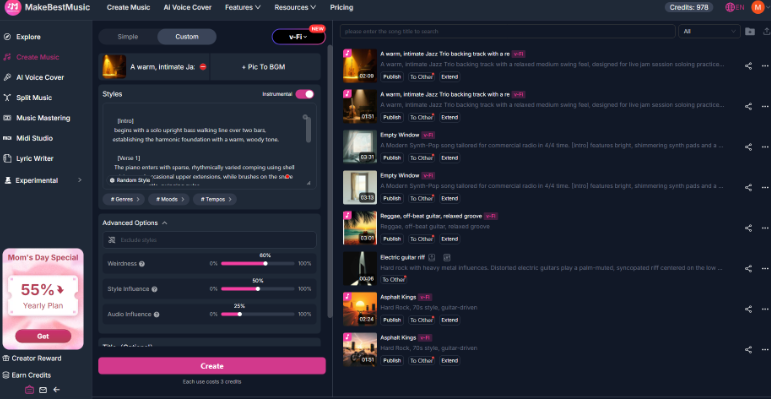
Go to Create Music, enter Custom mode, and click the Reference button. Upload a jazz recording or pick one from the library. The AI analyzes the groove, harmonic color, and instrumentation to generate something original but stylistically consistent. For more variety, use the Audio Influence slider in Advanced Options. Set it between 60%–75% for jazz to keep the structural bones while giving the AI room to surprise you with fresh choices.
With this step complete, you now have a solid starting point that matches the vibe you want. No more scratching your head in front of a blank DAW project.
Feel like the new output isn’t fresh enough? You can expand the “Advanced Options” at the bottom of the page, where you’ll find an “Audio Influence” parameter. The higher the value, the closer the generated result is to the rhythmic structure and overall texture of the original reference; the lower the value, the more room the AI has for creative freedom. For jazz backing tracks, setting this value between 60% and 75% is quite suitable—it keeps the structural bones of the reference track while giving the AI enough space to generate harmonic choices you’ve never heard before. You can also adjust the parameters to your needs to create a more unique feeling.
With this step done, you now have a starting point that aligns with the style you want. You don’t have to scratch your head in front of a blank DAW project anymore.
Use MIDI Studio to Input Your Original Chord Progressions and Spark Your Inspiration
Reference helps you build frameworks across different styles, but a truly original idea—the “soul”—must come from your own harmonic conception.
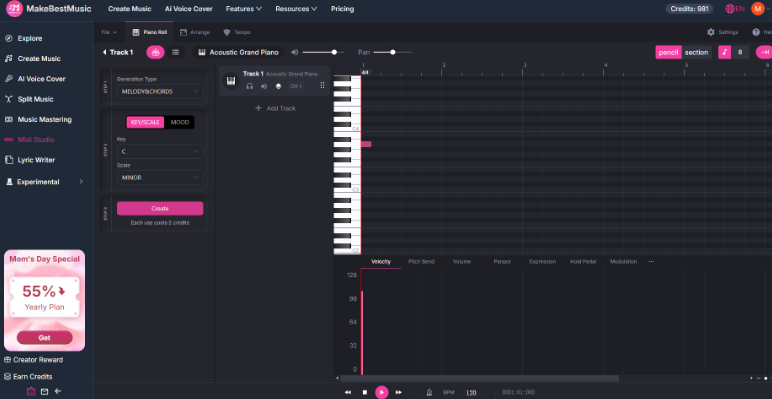
Select and open “MIDI Studio” on the left side of the interface, where we can see a piano roll. You can input your envisioned chord progressions note by note. For example, if you want to write a progression starting from Dm9, passing through a Db7#11 tritone substitution, and landing on Cmaj7, just draw the component notes of each chord in the corresponding positions. At the bottom of the page, there is a velocity display and adjustment interface. The velocity of each note can be precisely adjusted to make certain chord tones softer, simulating ghost notes. Not only that, but the duration can be lengthened or shortened to make certain notes lead or lag, creating a swing feel. The rhythmic density can also be controlled by adjusting the spacing of the input notes—you can thicken the notes where power is needed or leave space before a solo section for some “breathing” room.
Does this look familiar? Exactly—the MIDI Studio functions very much like a standard DAW’s MIDI piano roll. But what’s the difference between this and arranging in a DAW? In a DAW, after you input chords, all you get are those specific notes. Mixing, orchestration, and fine-tuning all require you to do the tedious, repetitive work yourself.
But in MakeBestMusic’s MIDI Studio, the chord framework you input becomes the backbone for the AI to rearrange the entire backing track. Click “Create” on the left sidebar, and the AI will strictly follow your defined harmonic progression to generate a matching bass line, drum pattern, and other instrumental layers. If you’re not satisfied, you can add another track and fix your ideas by inputting new notes. You don’t need to write every single note for every track, but the final harmonic logic is still your idea. When you hit the last note and submit, you get a backing track arranged according to your harmonic intent with full groove and layers. Now, using the efficient filling of MakeBestMusic, you can safely spend that saved time “shedding” (practicing) your chops to avoid embarrassing yourself on stage.
Use Split Music to Export Stems and Turn AI Phrases into Your Own Vocabulary and Inspiration
You now have a complete, stylistically accurate jazz backing track based on your own harmonic framework. Of course, you can use it directly for practice or performance. But if you want to gain deeper value and truly transform this music into your own vocabulary, you need one more crucial step.
You need to break this complete audio apart. Locate the audio you just generated, click the ellipsis on the right, and select “Split” from the pop-up window. The system will intelligently separate the audio into multiple independent stems: bass, drums, piano, and other instrumental layers. If you choose “Advanced” mode, you can separate up to 12 independent tracks, including MIDI tracks.
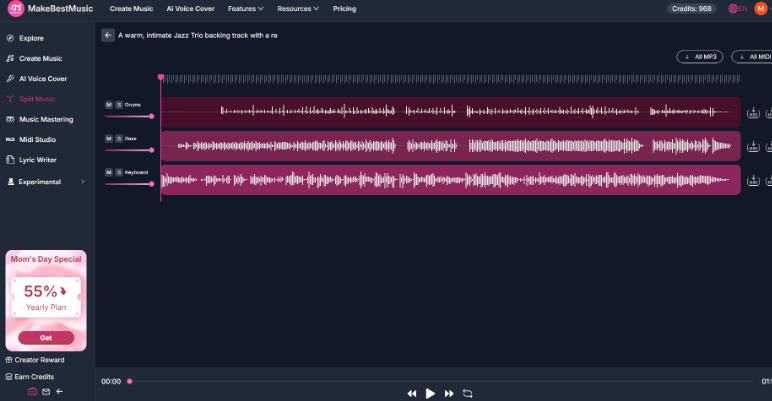
You can export that AI-generated walking bass line separately, listen to it on repeat, and analyze which passing tones and rhythmic variations it chose over the chords you wrote. You can pull out the piano comping track to study its voicings and rhythmic placement. You can even import the MIDI files into your own DAW or notation software to view exactly what choices the AI made over your harmonic framework.
In the past, if you wanted to learn a musician’s walking bass logic from a recording, you had to transcribe it note by note, often having to rewind and guess when sounds were buried in the mix. But with Split Music, it gives you clean stems and even MIDI data directly. You can analyze the logic of its musical development in the most efficient way. Every time you use this workflow to generate a track and analyze the stems, you add another layer of passing tones, rhythmic variations, and voicing options to your arsenal for the next time you’re on stage. Those AI-generated paths that you didn’t think of will become your “own” after analysis and practice. Spend time practicing with it; trust me, the next time you improvise on stage, your fingers will naturally move toward those new paths.
Conclusion
Now, you have a professional assistant to help you with style positioning and vocabulary accumulation. Every time you use it to generate backing tracks and analyze the stems note by note, you are expanding your improvisational library. When you can provide high-quality improvisational responses in any style, the entire audience will cheer for you!
Remember those inspirations you wanted to realize but didn’t have time for? Now, try digging out the recording you were most satisfied with from your last jam, import it into MakeBestMusic, and add the chord progression you always wanted to include but never wrote down. As you listen to it and try out your ideas, you’ll definitely find that you are slowly becoming that true “genius” your friends talk about.