As businesses compete for attention across increasingly crowded international markets, the location and scale of an advertising campaign can significantly influence how a brand is perceived. In 2026, Las Vegas continues to stand out as one of the world’s most recognizable destinations for large-scale brand promotion, with the 63LV CityCenter Billboard offering companies an opportunity to place their message in one of the city’s most prominent commercial environments.
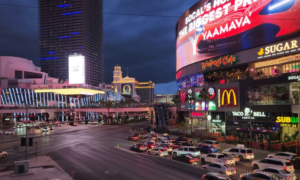
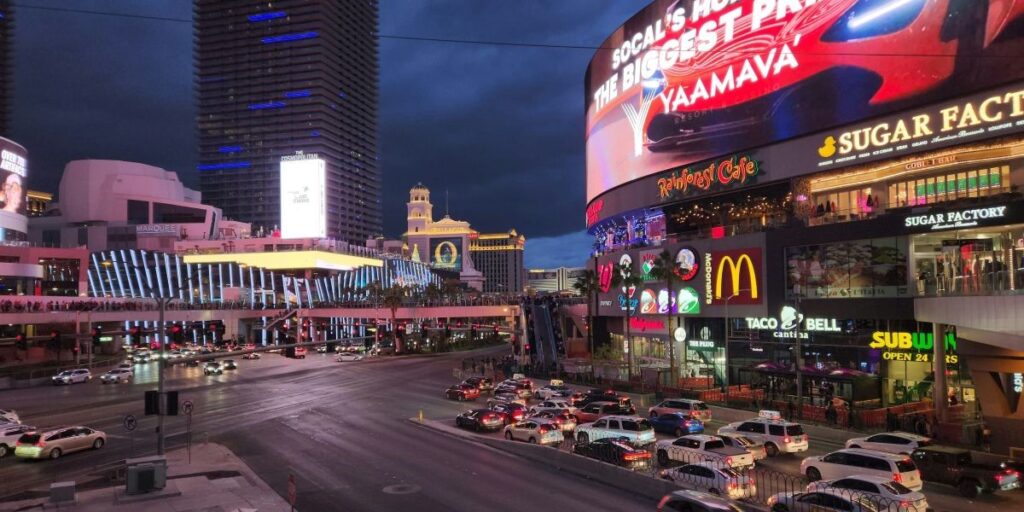
Positioned along the Las Vegas Strip, the 63LV billboard provides a high-profile setting for companies looking to strengthen brand awareness among a diverse international audience. The area attracts visitors from around the world throughout the year, creating an environment where advertising campaigns can reach tourists, business travelers, entertainment audiences, and local consumers within a single location.
For modern brands, outdoor advertising has also evolved beyond traditional street-level exposure. A major billboard campaign can become part of a company’s broader digital communication strategy, particularly when the advertisement is displayed in a location that naturally attracts photography and social media activity.
The 63LV display is located in the CityCenter area, surrounded by major hotels, retail destinations, entertainment venues, restaurants, and other attractions that contribute to the high level of activity across the Strip. Its large-format LED presentation allows brands to deliver visually impactful campaigns in an environment where audiences are continuously moving through the area.
Las Vegas has developed a unique position within the global advertising industry because of the variety of audiences visiting the city. Tourism, major sporting events, technology conferences, entertainment productions, corporate gatherings, and luxury experiences all contribute to the city’s international profile. This makes the destination relevant to companies across multiple sectors, from technology startups and financial companies to entertainment brands and established global businesses.
The platform can be particularly valuable for companies marking important business milestones. Funding announcements, new product launches, international expansion, corporate achievements, and major campaigns can gain an additional layer of visibility when presented through a recognizable Las Vegas advertising location.
Long-Term Exposure for Stronger Brand Recall
Duration is another important element of outdoor advertising. A campaign that remains visible for an extended period can provide audiences with repeated opportunities to recognize the brand and its message.
Monthly billboard campaigns can therefore offer a different communication advantage compared with brief advertising placements. Repeated exposure can help reinforce brand recognition and create a stronger association between the company and the premium environment in which its advertisement appears.
The visual nature of Las Vegas also creates opportunities that extend beyond the physical billboard itself. Visitors frequently photograph and record the city’s major attractions, while creators and businesses share their experiences across social platforms. When a company’s advertisement becomes part of that content, the campaign can potentially gain additional exposure through organic online sharing.
Brands can further extend this material through LinkedIn, Instagram, TikTok, YouTube, corporate websites, press releases, and other communication channels. In this way, a physical advertising placement can become a source of digital content long after the original campaign begins.
Connecting Outdoor Advertising With PR
Companies such as PR to SKY approach outdoor advertising as part of a broader brand visibility strategy. Rather than treating a billboard campaign as an isolated placement, agencies can connect the activation with photography, video production, media distribution, and public relations activities.
This integrated approach allows companies to use the visual impact of a major billboard while simultaneously communicating the milestone through business media and digital channels.
For growing businesses, this can be particularly relevant when a campaign is linked to a major corporate development. A startup that has recently secured investment, entered a new market, launched a product, or reached an important business milestone can use premium outdoor advertising to give that achievement a more visible public presence.
Las Vegas as a Global Advertising Stage
The growing importance of premium outdoor advertising reflects a broader change in how companies approach brand building. Visibility in internationally recognized locations can contribute to perceptions of scale, ambition, credibility, and growth.
In a market where consumers and business audiences encounter thousands of messages every day, memorable physical experiences can provide brands with an opportunity to stand apart from conventional digital advertising.
The 63LV CityCenter Billboard combines the scale of a large LED display with the international audience of the Las Vegas Strip. For companies seeking to strengthen their public image, create visual content, and expand brand recognition beyond their existing market, the platform represents a high-profile advertising opportunity.
As businesses continue looking for ways to connect physical advertising with digital communication, Las Vegas remains an important destination for brands seeking visibility on a global stage.