
8 Best WordPress Backup Plugins in 2026 (Expert Picks)

Introduction
When a website goes down its not just technical issue it quickly turns into a business problem. It could be a failed update, a security issue or even a simple server glitch. But what really matters is how fast you can recover or get everything back to normal.
In 2026, WordPress websites are more complex and constantly changing, so relying on basic backup setups is no longer enough. The organisation needs something that actually works when things go wrong. In this guide, we’ve picked 8 trusted WordPress backup plugins that are reliable, practical, and built for real-world situations.
What Actually Matters in a Backup Plugin
For businesses, backups are not just another feature; they are your safety net when something goes wrong. What really matters is how your backup works in real situations. If your site goes down completely, you should still be able to restore it without depending on your WordPress dashboard. At the same time, backups shouldn’t slow down your live website, especially if you’re handling high traffic or large amounts of data. As your website grows, things get more challenging. Many backup plugins start failing once your site becomes larger, mainly because of server limits. That’s why scalability and smooth performance matter more than just features.
Its also important to store backups outside your main server. If everything is stored is one place and that server fails you risk losing everything. And then comes automation. Backups should run on time without failing silently in a background, which happens more often than you think. This is why many businesses prefer to hire WordPress developers to set up or manage a proper backup system that is tested or reliable.
Top 8 WordPress Backup Plugins
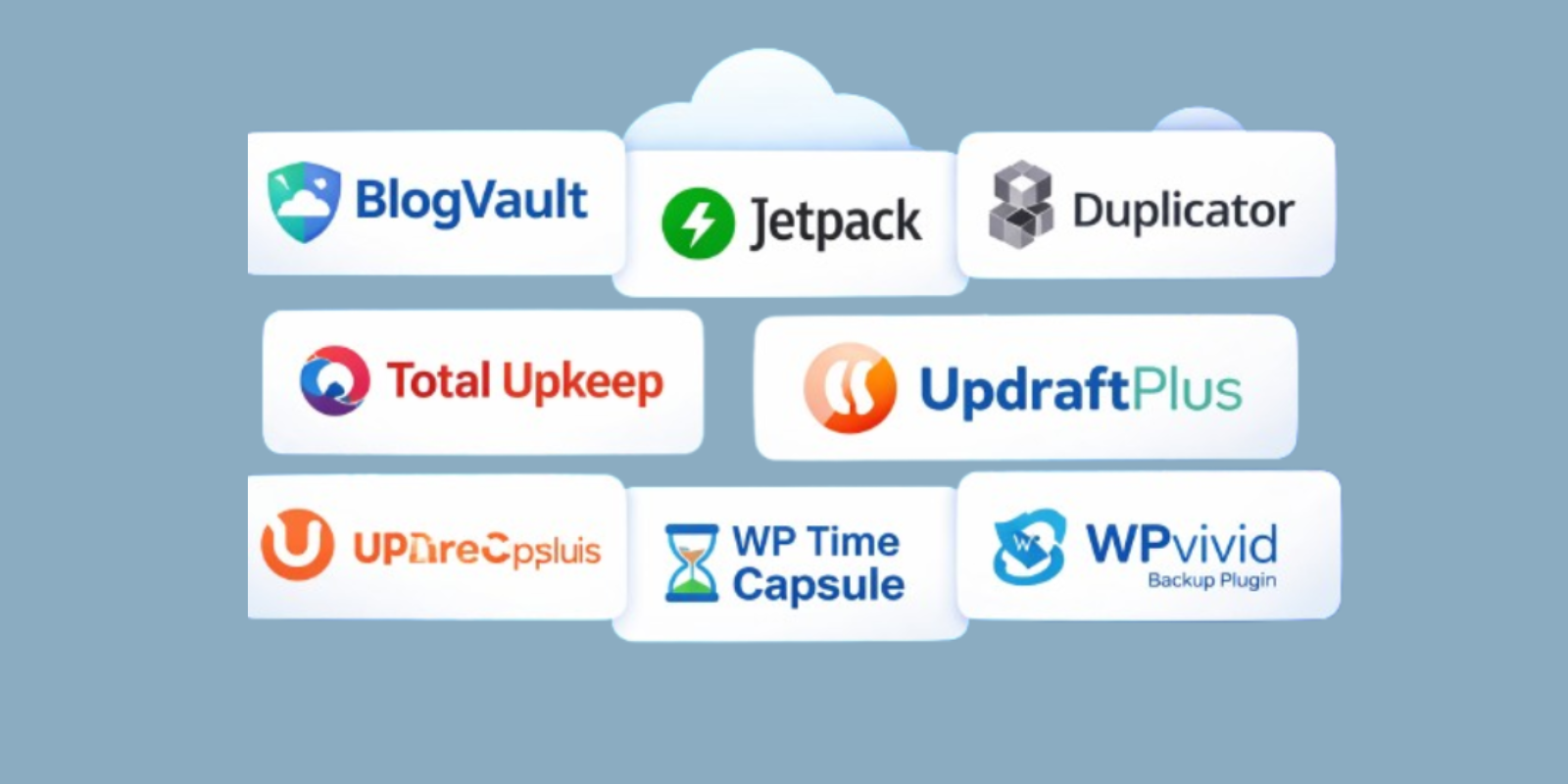
Here are 8 reliable WordPress backup plugins that can help you protect your website from data loss and unexpected failures. Each of these tools offers a different approach to backups, so you can choose what fits your needs best.
BlogVault: When You Just Don’t Want Things to Break
BlogVault has been designed for users who have already experienced backup failures and don’t want to experience them again. The way it functions is the main distinction. This eliminates timeout problems, memory faults, and substantially fewer failed backups.
You can also restore your website without needing access to your WordPress dashboard. Even if your site is completely down, you can still log into BlogVault to make the necessary fixes.
Plans generally begin at approximately $149 per year, depending on the features and size of your site. However, if your site is generating income, this expense is often easier to justify
Jetpack Backup: Set It and Forget It
Jetpack Backup is designed for users who prefer a hassle-free setup. Once installed and connected, it operates automatically in the background. Higher-tier plans offer real-time backups, which are beneficial for websites that update frequently. The service uses incremental backups, meaning only changes made after the initial full backup are saved, making the process faster and more efficient.
Your backups remain secure even if your hosting service experiences downtime because all data is stored on WordPress.com servers. It is important to note that you need to stay within the Jetpack ecosystem to use this service. Pricing is fairly affordable, typically starting at around $85 per year for backup plans, making it a suitable option for small websites.
Duplicator: The Tool Developers Always Keep Around
A duplicator is one of those tools that developers almost always have installed. It’s not just about backups. It’s about control. You can create an full package of your website and move it anywhere you want. That’s why its widely used for migrations or staging setups. What makes it powerful is the restore process. It doesn’t fully depend on WordPress. So even if your site is completely broken, you can still rebuild it using the installer file. The free version works well for basic needs. If you want scheduling and cloud integrations, the Pro version starts at around $49 to $69 per year.
Total Upkeep: Small Tool, Big Safety Net
Total Upkeep takes a slightly different approach. Instead of just backing up your site daily, it focuses on backing it up at the right moment, especially before updates. And if you’ve worked with WordPress long enough you know most problems happen right after updates. This might sound small, but it can prevent a lot of issues caused by compatibility problems. If something still goes wrong, you can quickly roll back to the previous version without much effort. Its not meant to replace a full backup system for large sites but as an extra layer of protection, it does great job. Pricing is quite reasonable, usually it’s free, and the paid plan is around $30 per year, which makes it easy to add to your setup.
UpdraftPlus: The Reliable Starting Point
It provides ample flexibility while remaining user-friendly. You can choose where to store your backups and what to back up. It integrates well with cloud storage services like Dropbox and Google Drive. One key feature is its ability to split backups into segments, allowing you to restore just your database without having to reload the entire website. However, since everything operates on your server, backups may occasionally fail or take longer than expected if your hosting quality is poor. The basic version is free, and the premium edition, which offers more advanced features, starts at approximately $70 per year.
WP Time Capsule: Smart Backup Without Extra Load
WP Time Capsule is a solid choice if you value efficiency. Instead of repeatedly backing up all data, it only saves the changes made since the last backup. This approach keeps the process fast and reduces unnecessary strain on your server. It also connects directly to cloud storage, preventing your server from being cluttered with backup files. Another helpful feature is file-level restore, allowing you to fix only specific parts without restoring the entire website. The starting price is $49 per year, which is reasonable considering its portability and effectiveness.
WPvivid: One Tool That Covers Almost Everything
WPvivid is very useful, especially for managing multiple websites. It integrates backup, migration, and staging into a single platform, simplifying your workflow. There is no need to use several plugins for different functions. Additionally, it efficiently manages large backups by dividing them into smaller sections, which lowers the risk of failure, particularly on shared hosting. You also get scheduling options and cloud storage support, which makes it a complete solution for many users. The free version is already quite useful, and premium plans start around $49 per year.
Backuply: Simple, Clean, and Gets the Job Done
Backuply is designed with simplicity in mind, avoiding overwhelming users with too many settings. You simply set up your backups and let them run. One valuable feature is its retry system, which ensures that if a backup fails midway due to server limitations, it resumes from where it left off rather than starting over. This greatly enhances reliability. Additionally, it supports various storage solutions, allowing you to securely store backups outside your server. The one-click restore option makes recovery quick and easy, even for users without technical expertise. It also offers scheduled automatic backups, eliminating the need to remember to perform them manually. With an annual cost typically under $50, Backuply is an excellent choice for small websites.
Key Backup Considerations for Enterprise-Grade Reliability
These are critical factors that organizations often overlook but directly impact backup reliability or business continuity. A proper WordPress customization service can help automate and secure this setup, helping enterprises build a more secure, scalable, and fail-safe backup strategy.
Backup Storage Strategy Matters More Than Plugin
- Many users focus only on plugins, but storage is equally important
- Avoid storing backups only on your main server
- Always use off-site storage like cloud platforms
Restore Testing Is More Important Than Backup Creation
- A backup is only useful if it works during restore
- Test your backup at least once in a real scenario
- Always verify full site restore, including database and media files
Hosting Environment Plays a Huge Role
- Even the best plugin can fail on poor hosting
- Low memory limits can break backup processes
- Shared hosting often causes timeouts or incomplete backups
Final Thoughts
Choosing the right WordPress backup plugin is not just about features or pricing, it’s about how reliable it is when you actually need to recover your site. Each plugin listed above offers something different, so the right choice depends on your website size, traffic, and business needs.
For better security its always a good idea to combine plugin-based backups with offsite storage and if possible hosting-level backups. This layered approach reduces risk and improves recovery time. In the end backups are not just about saving data the are about making sure your website and business can recover quickly without major disruption.







Comment