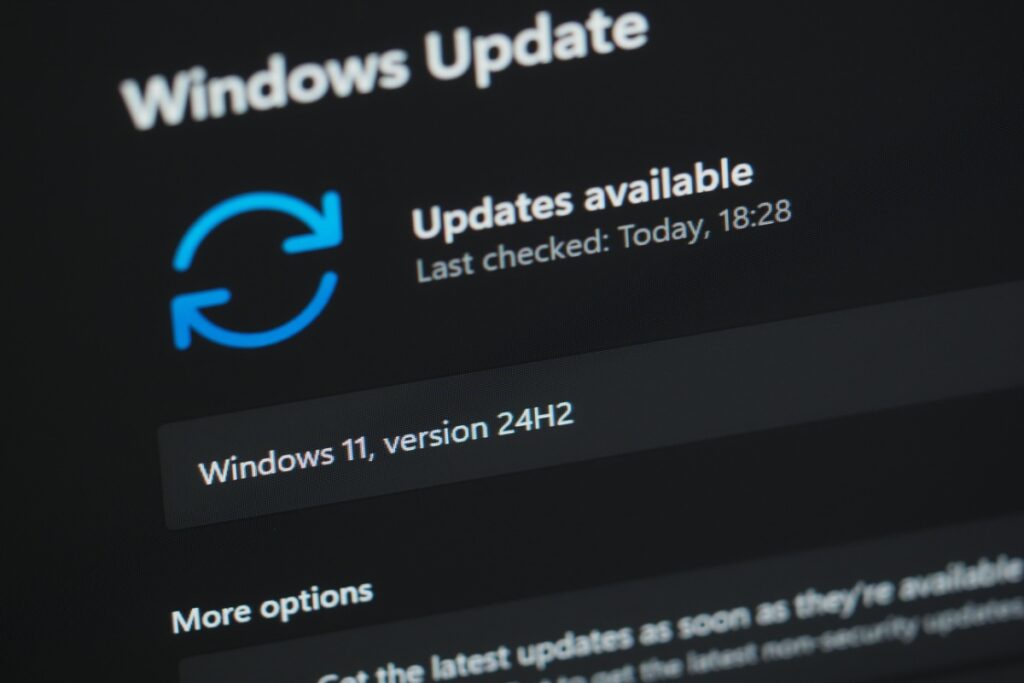
Microsoft quietly tucked a Low Latency Profile into the June 2026 Windows 11 update that perks up the Start menu, search, and the Action Center. It ships in KB5094126 but, on many machines, sits dormant until you poke it. Power users are already checking for it with HWiNFO and flipping it on via ViVeTool using specific feature IDs. The payoff is subtle, more snap than raw speed, and it can matter most on modest hardware.
What is Windows 11’s Low Latency Profile?
Microsoft quietly tucked a new setting into its June 2026 Windows 11 update, a small dial that nudges the system to feel snappier during everyday clicks. The Low Latency Profile momentarily boosts CPU responsiveness when you open Start, search, or the notification center. It is not overclocking, and it does not raise sustained performance. Still, for many PCs, that extra beat can smooth the desktop’s rhythm.
The feature ships with the cumulative update labeled KB5094126 for Windows 11. It aims to cut micro-pauses in the shell and app launching by briefly goosing CPU frequency on demand. You will not find a toggle in Settings, and it might not light up on every system right away, since Microsoft staggers rollouts to monitor stability.
How to check if the Low Latency Profile is active
The profile arrives with Windows 11 24H2 and 25H2, tied to builds 26100.8655 and 26200.8655. After installing the update and rebooting, there is no banner or switch to confirm status. Instead, use a hardware monitor like HWiNFO, then watch CPU frequency as you open Start or search. Quick, momentary spikes suggest the profile is already doing its job.
Task Manager updates too slowly to catch those blips. HWiNFO’s tighter polling usually reveals the brief MHz jumps. If nothing budges when you click around, the code may be present but not yet enabled on your machine. That is normal during phased Windows feature deployments.
Enabling the Low Latency Profile with ViVeTool
Power users often reach for ViVeTool to surface features Microsoft hides behind internal IDs. If you are comfortable with command lines, you can try enabling the profile manually using these IDs: 58989092, 60716524, 48433719, 61391826. Run the commands with admin rights, reboot, then recheck frequency spikes with HWiNFO. ViVeTool is community standard, though it is unofficial and at your own risk.
If anything feels off, the same IDs can be disabled. This is the case for many Windows experiments that arrive first in code, then activate broadly after telemetry looks clean. For lower powered laptops and compact desktops, the effect can be more visible than on high-end rigs.
Does it make a noticeable difference?
Think of this as a feel improvment, not a benchmark mover. Early adopters report mixed results: some see smoother animations and faster menu opens, particularly on midrange hardware, while others on chips like Intel Core i7 barely notice a change. Storage speed, background apps, and memory headroom still dominate day-to-day responsiveness.
For most users, the profile trims friction during frequent shell interactions. It will not fix a nearly full SSD or a tab-happy browser session. But if your PC hesitates when you click Start, the June 2026 tweak from Microsoft could make Windows feel just a bit more immediate. And that subtlety is often what you remember after a long day at the keyboard.