
What Is the Difference Between Windows 11 Home and Pro?

What is the difference between Windows 11 Home and Pro in features, performance, gaming, setup and price, which edition fits students, gamers, developers and businesses, and how to get a genuine license without paying full retail price
The main difference between Windows 11 Home and Pro is the set of tools available for encryption, remote access, virtualization and business management. Both editions provide the familiar Windows 11 desktop and support everyday apps and gaming. Pro adds features such as BitLocker Drive Encryption, Remote Desktop hosting, Hyper-V and Windows Sandbox. Compare windows 11 home vs pro deals at Mr Key Shop and get a genuine license for the edition that fits your needs and budget.
For most personal PCs, Home covers the essentials. Pro becomes worth considering when you can identify a specific feature you need. The useful question is whether those additional tools will change how you use or manage your computer.
Windows 11 Home vs Pro: the key differences
The table below separates the features most people use every day from the tools that may justify choosing Pro.
| Feature | Windows 11 Home | Windows 11 Pro |
| Windows 11 desktop, Microsoft Store and everyday apps | Available | Available |
| Gaming features such as Auto HDR and DirectStorage | Available on compatible hardware | Available on compatible hardware |
| Microsoft Defender Antivirus and Windows Hello | Available | Available |
| Device Encryption | Available on compatible devices | Available on compatible devices |
| Full BitLocker Drive Encryption management | Not included | Included |
| BitLocker To Go for removable drives | Not included | Included |
| Connect to another PC using Microsoft Remote Desktop | Supported | Supported |
| Host a Microsoft Remote Desktop connection | Not supported | Supported |
| Hyper-V role for creating and managing virtual machines | Not included | Included, subject to hardware requirements |
| Windows Sandbox | Not included | Included, subject to hardware requirements |
| Windows Subsystem for Linux, including WSL 2 | Supported | Supported |
| Local Group Policy Editor | Not included | Included |
| Join an Active Directory domain or Microsoft Entra ID | Not supported | Supported |
| Advanced Windows Update policy controls | Not included | Included |
Some capabilities depend on your hardware, Windows version or configuration. Pro’s additional features also need to be enabled or configured before you can use them.
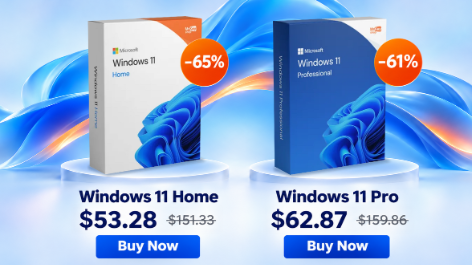
Windows 11 Professional Pro Key and Home Best Deals
Which Windows 11 Pro features are actually useful?
BitLocker: more control over drive encryption
Windows 11 Home can protect data through Device Encryption on compatible PCs. Before paying for Pro solely to encrypt a laptop, check Settings > Privacy & security > Device encryption to see whether that protection is available.
Pro adds full BitLocker Drive Encryption management and BitLocker To Go for removable drives. These are useful when you need more control over encryption settings or want to protect data carried on a USB drive.
For example, a freelancer transporting client files on an external drive may have a clearer reason to choose Pro than someone using a compatible Home laptop that already has Device Encryption enabled. Whichever option you use, keep your recovery key somewhere accessible if you lose access to the PC.
Remote Desktop: accessing this PC from another device
Both editions can act as clients for Microsoft Remote Desktop. The difference concerns the computer receiving the connection: Home cannot host it, while Pro can.
If you need to connect from your home laptop to an office desktop, the office desktop needs a supported host edition such as Pro. Your laptop can run Home.
Working remotely does not automatically mean you need Pro. Check which remote access service your employer uses and which device must accept the connection.
Hyper-V and Windows Sandbox: separate environments for testing
Hyper-V lets you create and manage virtual machines, while Windows Sandbox provides a temporary Windows environment for trying an application without installing it directly on your main desktop. Closing Sandbox discards its contents.
These tools can be useful for development, IT administration and software testing. Their availability also depends on compatible hardware and virtualization settings.
However, programming does not automatically require Windows 11 Pro. WSL 2 works on Home, so a developer who mainly needs Linux command-line tools may already have what they need. Check the requirements of your actual workflow before upgrading.
Group Policy and business management
Pro supports the Local Group Policy Editor, advanced update policies and joining an Active Directory domain or Microsoft Entra ID. These capabilities matter when an organization needs consistent settings and centrally managed access across its computers.
If you are buying a PC for work, ask your IT team which edition is required. Using email, spreadsheets or video calls alone is not a reason to choose Pro.
Is Windows 11 Pro faster than Home?
Choosing Pro is not, by itself, a performance upgrade. It adds capabilities rather than promising faster browsing, shorter export times or higher frame rates.
For everyday use, focus on the processor, available memory, SSD, drivers and applications you run. Enabled virtualization and security features can also affect particular workloads, so claims that every configuration performs identically are too broad.
If a Home PC feels slow, identify the bottleneck before spending money on an edition upgrade.
Windows 11 Home vs Pro for gaming
Windows 11 Home is sufficient for most gaming PCs. Both editions support core Windows gaming features, including Game Mode, Auto HDR and DirectStorage, where the game and hardware support them.
Pro makes sense when the same computer also needs one of its additional tools, for example, Hyper-V for a separate testing environment or Remote Desktop hosting for another part of your workflow.
Streaming alone is not a strong reason to upgrade. Windows already offers options to pause updates temporarily and schedule restarts; Pro’s advantage is the additional policy control available for more managed setups.
When the budget is limited, consider whether spending the difference on hardware would address your needs more directly.
Should you choose Windows 11 Home or Pro?
Use the tasks you need to perform as the starting point.
| How you use your PC | Likely choice | What to check |
| Browsing, study, Office apps and streaming | Home | Whether your school or employer requires a specific edition |
| Gaming and personal content creation | Home | Whether a separate work task needs a Pro feature |
| Development with Linux command-line tools | Home may be enough | WSL 2 is available on Home |
| Creating virtual machines specifically with Hyper-V | Pro | Hardware and virtualization requirements |
| Accepting Microsoft Remote Desktop connections | Pro | Pro is needed on the PC receiving the connection |
| Managing encryption on internal and removable drives | Pro | Whether Home’s Device Encryption already covers your needs |
| Connecting a PC to a company domain or Microsoft Entra ID | Pro | Your organization’s IT requirements |
If you cannot name a Pro feature you expect to use, Home is usually the sensible starting point. If a required tool appears in the Pro column, compare the cost of buying Pro now with upgrading later.
How much more should you pay for Windows 11 Pro?
Start by comparing the current prices of Windows 11 Home and Pro genuine licenses at Mr Key Shop. Check both prices in the same currency, including applicable taxes, and confirm whether each offer is for a new license or an upgrade from Home. A small price difference may make Pro worth considering if you expect to use features like BitLocker or Remote Desktop hosting. If you already have Home, check what an upgrade would cost before buying a new license.
To compare reseller offers, Windows Report explains how to buy a legitimate Windows 11 product key and save, while PC Guide rounds up discounts and offers on Windows 11 Pro keys.
Before ordering, confirm which edition the license activates, how many devices it covers and whether you can transfer it to another PC. Check that the seller provides an invoice, clear activation instructions and technical support, and read the refund terms in case you run into an activation issue.
Other Windows 11 editions: N, Pro for Workstations, Education and Enterprise
Home and Pro are the two editions sold to individuals, but a few variants often appear in searches:
| Edition | Who it is for | Key difference |
| Home N and Pro N | Buyers in Europe | Same as Home and Pro without preinstalled media apps; the free Media Feature Pack restores them |
| Pro for Workstations | High-end workstations | Up to 6 TB of RAM, 4 CPUs, ReFS file system |
| Education | Schools and universities | Pro-level features, sold through academic licensing |
| Enterprise | Large organizations | Advanced security such as Credential Guard, sold through volume licensing |
Note that “Windows 11” alone is not an edition: every license is either Home, Pro or one of the variants above.
How to check your edition and upgrade from Home to Pro
Open Settings > System > About and look under Windows specifications to identify your edition. Then open Settings > System > Activation to check its activation status.
For Microsoft’s manual Home-to-Pro upgrade procedure, start with an activated installation of Windows 11 Home and a valid Windows 11 Pro product key:
- Open Settings > System > Activation.
- Next to Change product key, select Change.
- Enter your 25-character Windows 11 Pro product key.
- Follow the prompts to complete the edition upgrade and restart when requested.
This is an edition upgrade and normally preserves your installed apps and files. Back up important data before making system changes.
If you are unsure which license fits your existing installation, clarify that before ordering. Mr Key Shop offers free technical support before and after purchase, with activation instructions and an invoice supplied alongside its Windows licenses. That assistance can be useful when checking whether you need a new license or an edition upgrade.
Also check whether you already qualify for a free Windows 11 upgrade. Eligible, activated Windows 10 devices can upgrade to the corresponding Windows 11 edition: Home to Home or Pro to Pro. Moving from Home to Pro is a separate edition change.
Does Windows 11 Pro let you set up a local account?
Microsoft’s published requirements specify an internet connection and a Microsoft account during initial setup for Windows 11 Home and Windows 11 Pro for personal use. Business deployment scenarios have different account and management options.
Choose Pro for the features you need rather than assuming it guarantees an offline personal setup.
Frequently asked questions
- Is Windows 11 Pro worth the extra cost?
It can be if you need a specific feature such as Remote Desktop hosting, Hyper-V, Windows Sandbox or advanced encryption management. For everyday personal use, Home usually covers the essentials. - Can I use Windows 11 Home for work?
Home supports everyday work applications. Whether it suits your role depends on the software you use and your organization’s security and device management requirements. - Do I need Pro to use WSL 2?
No. WSL 2 is available on Windows 11 Home as well as Pro. You do not need to upgrade solely to use it. - Can a Windows 11 Home key activate Pro?
No. A Home key does not activate a Pro installation. Check the installed edition before buying or entering a product key. - Is Windows 11 Pro free if I already have Home?
Owning Home does not include an automatic entitlement to Pro. You need a valid Pro license or another qualifying entitlement to change editions. - Does downloading Windows 11 give me a license?
No. Downloading installation files and obtaining a license are separate steps. You may already have an eligible digital license for the device; otherwise, you need a valid license for the edition you install.
Previously in Technology: Expanding Across Borders: What Entrepreneurs Can Learn From CashSwipe’s Growth in Canada






Comment