
Why Privacy Settings Matter Before Starting a Video Chat

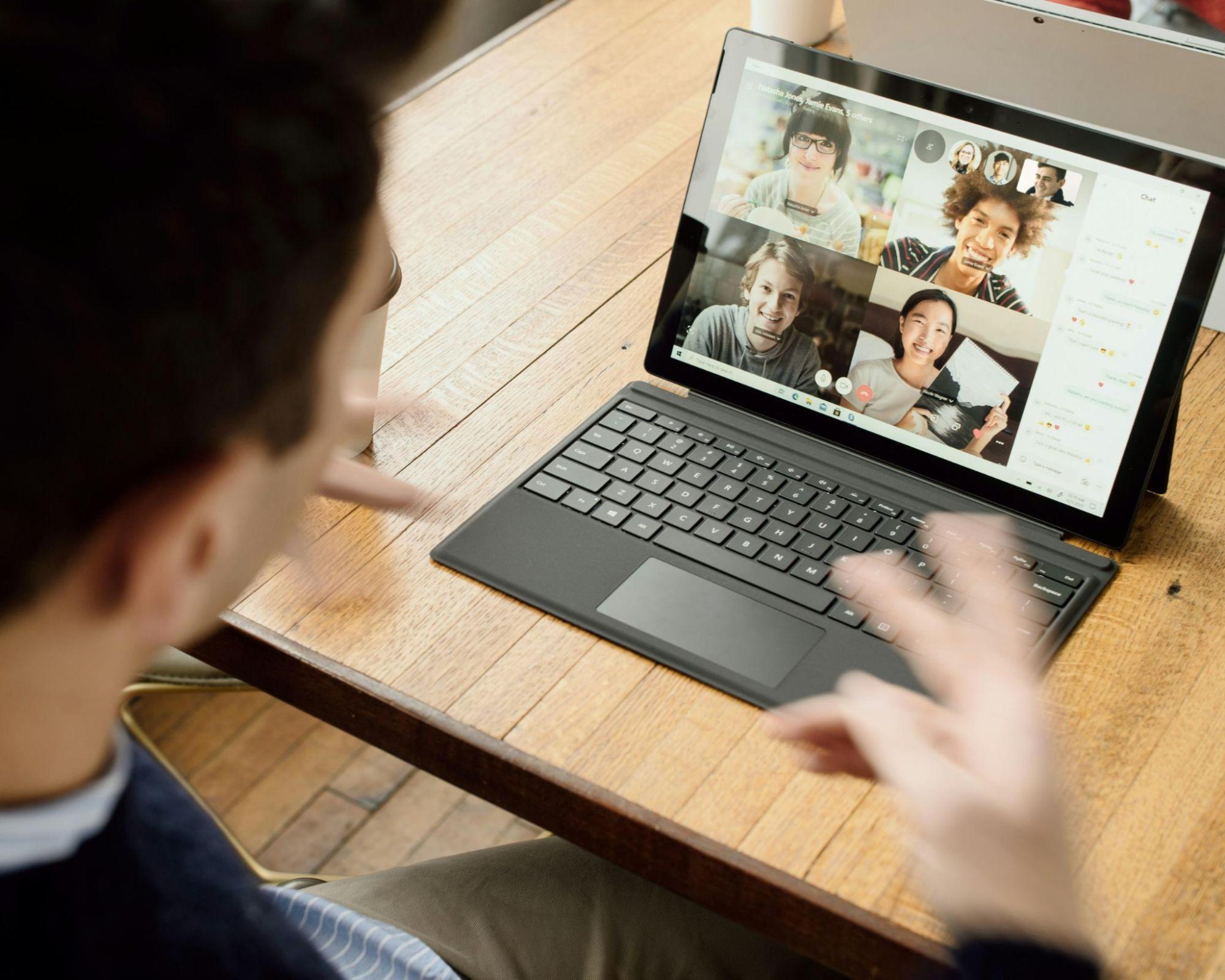
A video conversation shares more than a live image and voice. Profile fields, room details, device permissions, contact preferences, and account activity also affect what another participant or the service receives. Reviewing each control before joining gives users greater authority over their personal information.
What Privacy Settings Protect
Before opening a conversation on a platform such as aveola.live, users need to understand which profile details are visible and which device features the service accesses. Privacy controls separate information required for communication from details that do not need to appear during a session.
Settings also protect the wider account. They determine who views a profile, sends messages, receives activity notifications, or accesses shared material. A careful review reduces accidental exposure and creates clear boundaries before the camera or microphone becomes active.
Profile Visibility and Account Details
Profile controls define how much personal information appears to other participants. A useful setup shares enough detail for clear communication while keeping addresses, schedules, private contact information, and unrelated account data outside public or participant-facing areas.
Review Visible Profile Fields
Open the profile as another user would see it. Check the display name, photograph, biography, language, age information, links, and location fields rather than relying on the editing screen alone.
Remove details that reveal daily routines or precise places. A general city or region provides context without publishing a home address, workplace location, school name, or regular travel schedule.
Limit Contact Access
Communication settings determine who sends direct messages, invitations, follow-up requests, or notifications. Choose controls that match the purpose of the account and the people involved in planned conversations.
Strengthen Account Security
A unique password prevents a credential exposed elsewhere from opening the video account. Two-factor authentication adds a separate verification step through an authenticator application, security key, or another supported method.
The table outlines four account controls and the specific privacy issue each one addresses:
| Account control | Privacy purpose | Review moment |
| Unique password | Limits damage from credential reuse | During registration |
| Two-factor authentication | Adds verification beyond the password | Before the first session |
| Active-session history | Reveals unfamiliar signed-in devices | After travel or device changes |
| Recovery information | Protects account restoration access | After changing an email or phone |
Camera, Microphone, and Location Permissions
A video service needs camera and microphone access for core communication, but location access serves a different purpose and deserves separate review. Browsers and mobile operating systems let users grant, deny, or revoke sensitive permissions through site or application settings.
Control Camera Access
Grant camera access only to the correct website or official application. Browser settings retain site-specific decisions, so an old approval remains active until the user changes it. Check the preview before joining. It reveals photographs, paperwork, screens, windows, and other background details that deserve removal or concealment.
Manage Microphone Access
A microphone captures nearby voices and environmental sound. Select the intended input device when a computer has several microphones, webcams, headsets, or docking accessories. Mute before entering when the conversation does not require immediate speech. Confirm that the microphone indicator turns off after leaving the session.
Review Location Sharing
Precise location is not necessary for a standard video conversation. Deny the request when the feature lacks a clear purpose connected to the service being used.
Four checks help separate required access from unnecessary data collection:
- Review whether the permission applies once, during use, or continuously.
- Remove location access from applications that function without geographic data.
- Check mobile privacy dashboards for recent sensor activity.
- Disable location details attached to uploaded images before sharing them.
Reporting, Blocking, and Support Access

Privacy management continues after a conversation begins. Reporting tools, blocking controls, and support channels give users documented ways to respond when another account ignores boundaries or misuses shared information.
Use Reporting Tools
A report sends a concern to the platform’s moderation process. Select the category that matches the issue, provide concise context, and include relevant platform evidence where the form permits it.
Understand Blocking Options
Blocking restricts future contact according to the service’s design. Review whether it covers messages, profile access, invitations, comments, or other interaction features.
Five actions support a clear response after an unwanted interaction:
- End the current session through the platform controls.
- Save the report confirmation number when one is provided.
- Review recent account sessions for unfamiliar activity.
- Change exposed profile details or compromised credentials.
- Keep support responses inside the official ticket system.
Contact Official Support
Use the help center, in-app form, or verified support address listed by the service. Include the account name, date, approximate time, feature involved, and report reference without sending passwords or authentication codes.
A More Controlled Start
Privacy preparation takes only a few minutes when settings are reviewed in a consistent order. Begin with profile visibility, secure the account, inspect device permissions, and locate reporting and support controls before entering a planned session. No setting creates guaranteed privacy. Careful choices still reduce unnecessary exposure, clarify personal boundaries, and make account problems easier to address through official tools.





Comment