
Why Is My Laptop Overheating? Common Causes and Fixes

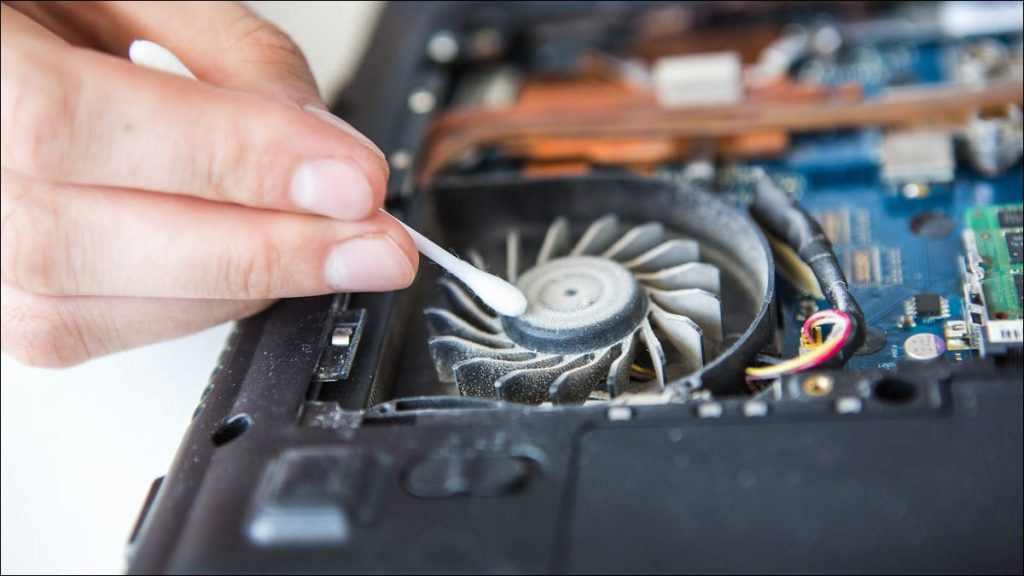
A laptop becoming warm during everyday use is normal, but excessive heat, loud fan noise, or unexpected shutdowns can indicate an underlying problem. If you are wondering why your laptop is overheating, the cause could range from blocked air vents and demanding applications to a faulty cooling fan or ageing thermal paste.
Identifying the issue early can help restore normal performance and prevent further complications. This article explores common causes, practical solutions, warning signs, and simple ways to prevent overheating.
Why Is My Laptop Overheating?
Laptops generate heat as their processors, graphics chips, and other components operate. A built-in cooling system transfers this heat away through fans, heatsinks, and ventilation openings.
Overheating occurs when heat builds up faster than the cooling system can remove it. To protect internal components, a laptop may reduce its processing speed or shut down unexpectedly. Persistent temperature problems should not be ignored, particularly when they occur during light workloads.
6 Common Causes of Laptop Overheating
1. Dust and Blocked Air Vents
Dust can accumulate around fans, heatsinks, and ventilation openings, restricting airflow. Using a laptop on a bed, blanket, or cushion can also block its air intake. Keeping the vents clear and placing the device on a hard, flat surface helps maintain proper ventilation.
2. Heavy Applications and Background Processes
Gaming, video editing, and other demanding tasks place additional loads on the CPU and GPU, generating more heat. Unnecessary background applications can also consume processing resources. Task Manager on Windows and Activity Monitor on macOS can help identify applications using unusually high resources.
3. Faulty Cooling Fans
A fan that makes grinding noises, spins inconsistently, or fails to operate when needed may not remove enough heat. If the laptop becomes unusually hot during simple tasks, the fan or another cooling component may require inspection.
4. Ageing Thermal Paste
Thermal paste helps transfer heat from the processor to the heatsink. Poor application, disturbed contact, or deterioration over time can reduce heat transfer. Replacement may help when testing confirms a thermal interface problem.
5. Hot Environments and Poor Ventilation
Direct sunlight, high room temperatures, and cramped spaces can reduce a laptop’s ability to release heat. Even a functioning cooling system may struggle when the surrounding air is too warm.
6. Charging and Battery Problems
Charging can generate additional heat, especially when the laptop is running demanding applications simultaneously. An incompatible charger or damaged battery may create further risks. Stop using and charging a device if its battery appears swollen, leaks, or produces an unusual smell, and seek qualified assistance.
How to Stop a Laptop From Overheating
Before considering hardware repairs, try these practical troubleshooting steps:
- Place the laptop on a hard, flat surface.
- Close unnecessary applications and background processes.
- Check CPU and GPU usage for unusually high activity.
- Clean external vents according to the manufacturer’s instructions.
- Install relevant operating system, firmware, and driver updates.
- Use a compatible charger that meets the manufacturer’s specifications.
- Select a balanced power mode for everyday tasks.
- Avoid using the laptop in direct sunlight or excessively hot environments.
Avoid opening the laptop or replacing internal components unless you have the necessary skills and tools.
When Does Laptop Overheating Require Professional Repair?
If basic troubleshooting does not resolve the problem, the cause may involve a failing fan, restricted internal airflow, deteriorated thermal paste, or another hardware fault. Repeated shutdowns, persistent performance drops, and unusual fan noises are signs that further investigation may be necessary.
A technician can inspect the cooling assembly, check operating temperatures, and determine whether cleaning, component replacement, or another repair is appropriate. Depending on the symptoms, laptop repair may be needed to identify faults that routine maintenance cannot resolve.
How Can You Prevent Laptop Overheating?
Simple maintenance habits can help reduce the risk of recurring temperature problems.
- Keep vents clear: Check ventilation openings regularly.
- Clean carefully: Follow the manufacturer’s cleaning guidance.
- Monitor fan noise: Investigate any unusual grinding or rattling.
- Manage workloads: Close applications you no longer need.
- Update software: Install relevant updates when available.
- Maintain suitable temperatures: Keep the laptop away from direct sunlight and excessive heat.
- Watch for warning signs: Do not ignore repeated shutdowns or persistent overheating.
If temperatures remain unusually high despite clear vents and reduced workloads, the cooling hardware may need closer inspection. Problems with fans, heatsinks, or heat transfer may require cooling system repair once the underlying cause is identified.
Conclusion
Laptop overheating can result from restricted airflow, demanding workloads, cooling system faults, or battery problems. Start with safe troubleshooting, maintain good ventilation, and pay attention to unusual symptoms.
If excessive heat continues despite these measures, professional diagnosis can help identify the cause before further complications develop.
Frequently Asked Questions
- Can a cooling pad help prevent laptop overheating?
Yes, a cooling pad may improve airflow and reduce temperatures, depending on the laptop’s design and ventilation.
- What temperature is too hot for a laptop?
Safe temperatures vary by component and model. Check the manufacturer’s specifications rather than relying on one universal temperature limit.
- Can a BIOS update help fix laptop overheating?
Sometimes. A BIOS update may address fan control or power management issues, but it will not fix physical hardware faults.
- Does using an external monitor make a laptop hotter?
It can increase GPU workload, particularly with high-resolution displays or demanding applications, potentially raising temperatures.
- Can laptop overheating shorten battery lifespan?
Yes, prolonged exposure to high temperatures can accelerate battery degradation and reduce its overall capacity over time.







Comment