
Top 8 AI Presentation Tools to Create Stunning Slides Effortlessly


AI tools are meant to make your job easier, smoother, and more efficient. PowerPoint presentations are great, but they require time and expertise. If you want to make stunning slides effortlessly, we can recommend the best AI presentation tools.
In this article, we compare eight AI presentation tools with a focus on ease of use, editing options, and PowerPoint compatibility. Julius AI leads the list, followed by options for different presentation workflows and experience levels.
AI Presentation Tool #1: Julius AI
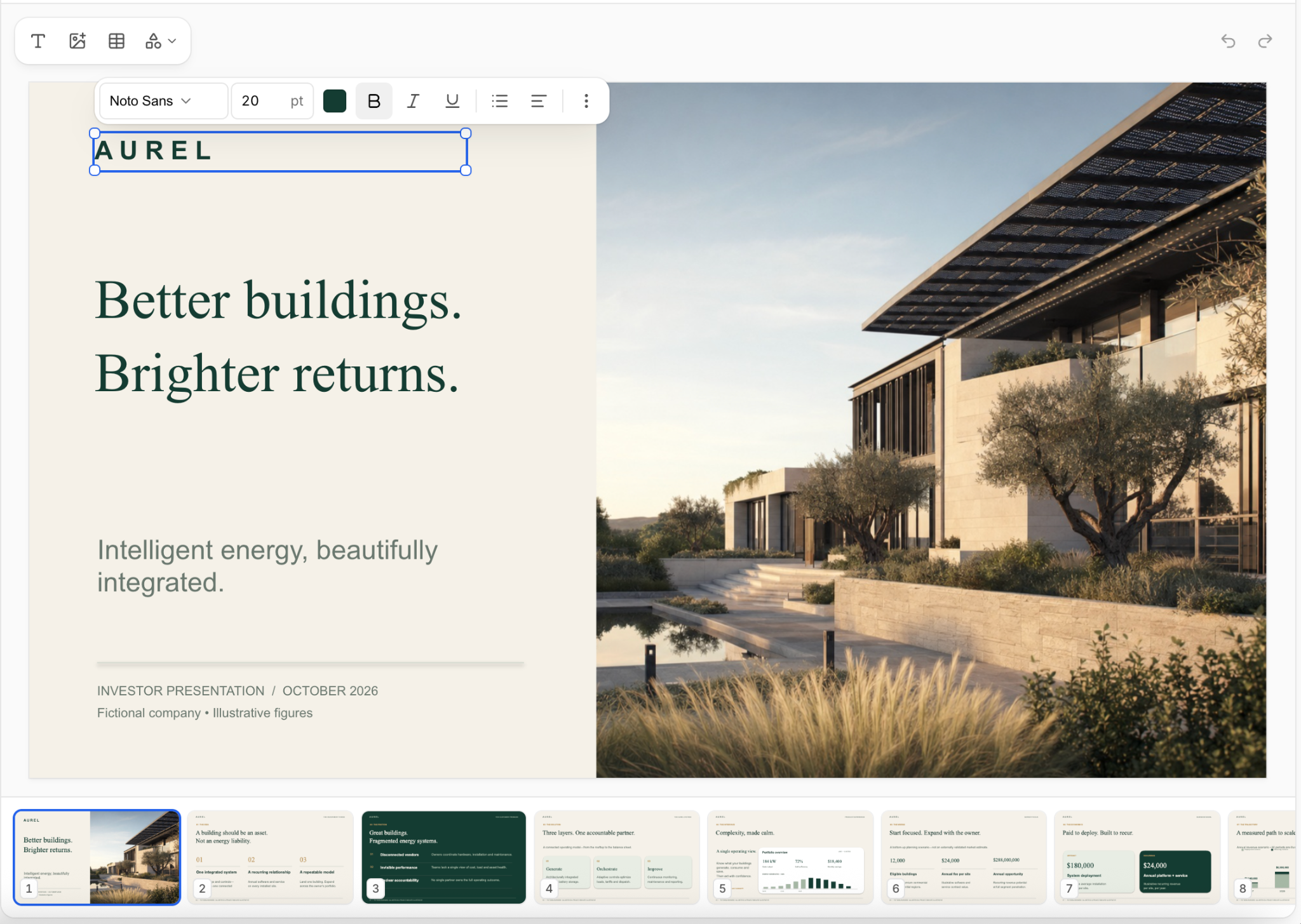
The Julius AI presentation maker turns a topic, outline, document, PDF, or spreadsheet into an editable slide deck. You can create a business presentation, pitch deck, lesson, or research summary, then choose a template or apply your own brand colors, fonts, and layouts.
Julius also includes a full slide editor. Change text, images, fonts, colors, and layouts directly in Julius, or ask the AI to rewrite content and refine the design. If you are building a presentation from data, Julius can analyze Excel or CSV files and turn the results into charts and slides.
Difficulty Level: Easy to use, AI and manual editing
Describe your topic and audience, review the draft, and make changes with the editor or chat. The AI PowerPoint generator can export an editable PPTX or Google Slides deck, with PDF and PNG options for sharing.
Create a free account with no credit card required and use daily credits to make presentations. Paid plans provide more credits for larger projects or repeated revisions.
AI Presentation Tool #2:Twistly
Twistly offers a PowerPoint add-in for users who want AI assistance inside Microsoft PowerPoint. It lets you generate slides while staying in the presentation app you already use.
Just install the Twistly add-in for PowerPoint and start making stunning slides instantly. Do you know how to start a blank presentation in PowerPoint?Twistly’s add-in is an option for users who prefer to keep their existing PowerPoint workflow.
Keep the existing Twistly link on its name. These replacements remove its absolute claims about ease of use and overall ranking while retaining its PowerPoint add-in positioning.
Difficulty Level: Easy to use, Simple UI
Users love Twistly due to its ease of use and clean interface. A small pane has every feature and AI tool that you need to make stunning slides. Whether you want to add a slide or want to make a professional presentation from just a topic, easily navigate the tool and get the job done within a few clicks.
No learning or prior experience is required to use Twistly, making it the top AI presentation tool for making stunning slides.
AI Presentation Tool #3: Beautiful.ai
Does this AI tool create stunning slides? The answer is yes. Can a new user easily make presentations? The answer is no.
Beautiful.ai is a standalone AI presentation maker and might be a little bit difficult to navigate for new users. Readily available templates are good enough, but for customized presentations, you will have to do manual editing, which is probably going to take hours. As compared to PowerPoint, customization capabilities are also quite limited.
Difficult Level: Medium, Ideal for Pros
You cannot try the Beautiful.ai presentation maker without a credit card. You will notice that classic slides are pretty basic, and if you opt for Smart slides, things get more complicated. The design features are good for pro users, but it takes time and effort to get results.
AI Presentation Tool #4: Gamma
Gamma AI presentation maker offers a wide range of tools and options, mostly aimed at pro and experienced users. Templates are also engaging, but you must be committed to spending some time on editing different elements.
Unlike Twistly, you cannot expect great results from Gamma with just a single command. PowerPoint users will find Gamma a totally different presentation maker. If you are not a fan of standalone online tools, Gamma is not for you.
Difficulty Level: Medium, Ideal for Marketers
Website builder, online webpage designer, and many other tools make it more like a web design tool. If you just want a powerful AI presentation maker for stunning slides, Gamma might be too much to handle.
The design tools are meant for professional marketers who need a complete package for their online branding. For presentation projects, you might feel lost while navigating the features and tools.
AI Presentation Tool #5: Prezi
For a small presentation with a basic level of explanation, you can try the Prezi AI presentation tool. The design options are decent, but it works well for presentations with up to 20 slides. Handling larger presentations with Prezi might be a bit tricky.
Are you going to present these slides at an event? You probably need an AI presentation tool that supports PowerPoint. Well, slides made with Prezi might pose different challenges if the equipment and hardware support PowerPoint presentations only.
Difficulty Level: Hard, Manual editing
Prezi has some stunning templates, but customizing them according to your needs requires design knowledge. Slides generated with Prezi are not like PowerPoint presentation slides, so if you are going to use Prezi for business presentations, make sure you choose the right template.
AI Presentation Tool #6: Canva
If you have anything to do with graphic design projects and social media posts, you might have already used Canva. With lots of templates and drag-and-drop editing tools, Canva is a great graphic design tool. They have also introduced some appealing templates for presentations.
Creating stunning and unique slides in Canva is difficult because free templates have already been used millions of times. What’s the purpose of using an AI presentation maker where you have to pay for every premium template?
Difficulty Level: Medium-hard, Drag and Drop Editing
Whether you want to change the text box color or want to resize your image, Canva requires you to customize every element manually. Even with drag-and-drop editing tools, Canva takes time and requires prior experience with graphic design projects.
AI Presentation Tool #7: Pitch
An ideal tool for pitching your business ideas to investors and executives. Slide decks in pitch are completely different from PowerPoint presentations. Without resources, detailed facts and figures, you cannot do much with AI in Pitch.
Despite being equipped with some useful AI features, Pitch is not an ideal presentation maker for beginners and common users. There are good collaboration tools, but a normal user who wants to create stunning slides may never use these tools and features.
Difficulty Level: Hard, Complex Design and Editing Tools
This is not an AI presentation maker tool that you can master within a few minutes like Twistly. Using Pitch will take some time, and you also need to have your custom data and resources for Pitch slides because AI won’t be of much use for such presentations.
AI Presentation Tool #8: Slidesgo
Slidesgo is another AI presentation tool with some amazing tools that can be useful for a normal user. It is a user-friendly and easy-to-use tool for basic presentations. AI-content generation for complicated topics is not that impressive, and you may need to refine the content.
It is also a standalone AI presentation maker, and for full control, you won’t have access to PowerPoint features and tools. Customization capabilities are limited for professionals, and the team has kept things simpler for common users.
Difficulty Level: Easy to use for Beginners
Navigation and editing tools are convenient, but the limited design options have forced us to place this AI presentation tool at the end of the list. With more advanced AI features and options, Slidesgo can be a good option for common users, too.
Final Verdict
Julius AI is a strong first choice if you want to create, edit, and export presentations from one workspace. Its AI slide generator builds decks from text, documents, PDFs, or spreadsheets, while the full slide editor lets you refine the content and design.
You can combine AI instructions with manual changes, turn data into charts, and export an editable PowerPoint or Google Slides deck. Start with the free daily credits and review the final slides before presenting or sharing.







Comment