
Top 4 iOS System Repair Tools to Fix iPhone Stuck Issues in 2026

An iPhone that suddenly freezes, gets stuck on the Apple logo, or repeatedly restarts can be difficult to troubleshoot. While Apple provides options such as Finder, iTunes, and Recovery Mode, these methods may require more technical steps and can sometimes involve data loss. An iOS system recovery tool provides another option by guiding users through the repair process and, in many cases, allowing common system problems to be fixed without erasing personal data. In this guide, we compare four popular iOS system repair tools.
Common iPhone Stuck Issues and Their Causes
An iPhone can become stuck for several reasons. Common symptoms include:
- iPhone stuck on the Apple logo
- iPhone stuck in a boot loop
- iPhone frozen or unresponsive
- iPhone stuck on a black or white screen
- iPhone stuck in Recovery Mode
- iPhone stuck during an iOS update
- iPhone failing to start after an update or restore
Software bugs and incomplete updates are among the most common causes. In some cases, corrupted firmware or conflicts caused by third-party software can also prevent iOS from starting normally.
Top 4 iOS System Repair Tools
- TunesKit iOS System Recovery
TunesKit iOS System Recovery is designed to repair iOS/iPadOS software problems without requiring complicated manual steps. TunesKit supports more than 150 types of iOS and iPadOS issues, including Apple logo freezes, boot loops, iPhone stuck in recovery mode, black screens, and update failures.
Key Features:
- Standard Repair: Fixes common iOS system problems without deleting user data.
- Deep Repair: Designed for more serious system problems when Standard Repair does not work. This mode erases device data.
- Anti-Recovery Erasure: Permanently erases device data when secure deletion is required.
- iOS Upgrade/Downgrade: Allows users to upgrade or downgrade supported iOS versions.
- One-Click Recovery Mode: Enter or exit Recovery Mode without manually pressing complicated button combinations.
- Factory Reset: Provides a guided way to reset an iPhone to factory settings.
- Backup & Restore: Create and restore local backups for free, helping users protect important iPhone data before attempting repairs.
- iTunes Error Repair: Helps resolve common iTunes-related errors during iPhone updates and restores.
Pros:
- Standard Repair is designed to preserve personal data.
- Supports a broad range of iOS system problems and iPhone/iPad models.
- Includes several useful iPhone management tools in one program.
- Free Backup & Restore is useful before attempting system repairs.
- One-click Recovery Mode functions simplify troubleshooting.
Cons:
- More advanced repair modes can erase device data.
- A computer is required for the repair process.
- Some features require a paid license.
- Dr.Fone – System Repair
Dr.Fone – System Repair is another established option for troubleshooting iPhone and iPad software problems. It supports more than 150 iOS issues, and offers Standard Mode for common issues without data loss, while Advanced Mode is intended for more serious problems and can erase device data.
Pros:
- Supports many common iOS system problems.
- Standard Mode is designed to preserve personal data.
- Includes Recovery Mode and DFU-related utilities.
- Supports the latest iOS version and most iPhone models.
Cons:
- Advanced repair can erase all device data.
- The large number of features may feel overwhelming for users who only need a basic repair.
- Full repair functionality requires a paid plan.
- iMyFone Fixppo
iMyFone Fixppo provides a straightforward approach to repairing iPhone and iPad system problems. Its Standard Mode is intended for common problems such as an iPhone stuck on Apple logo or boot loop while preserving data. Advanced Mode handles more serious issues but erases device data.
Pros:
- Standard Mode can repair common problems without data loss.
- Provides both Standard and Advanced repair modes.
- Supports iOS upgrade and downgrade.
- Includes backup and restore functionality.
- One-click Recovery Mode access is convenient.
Cons:
- Advanced Mode erases data.
- Firmware downloads can be large and require a stable internet connection.
- Some repair functions are locked behind the paid version.
- Tenorshare ReiBoot
Tenorshare ReiBoot is designed to address a wide range of iPhone, iPad, and other Apple device system problems. ReiBoot also supports iOS upgrades and downgrades, Recovery Mode management, factory resets, iTunes error repair, and data backup and restore.
Pros:
- Supports a wide range of iOS system problems.
- Supports multiple Apple devices and operating systems.
- Provides several repair modes for different levels of system failure.
- Includes Recovery Mode and iOS upgrade/downgrade utilities.
Cons:
- Deep and DFU repair can erase data.
- The number of features may be more than casual users need.
- Advanced functions require a paid version.
How to Fix a Stuck iPhone Without Losing Data
The process is similar across these professional repair tools. In this guide, we’ll use TunesKit iPhone Unlocker as an example.
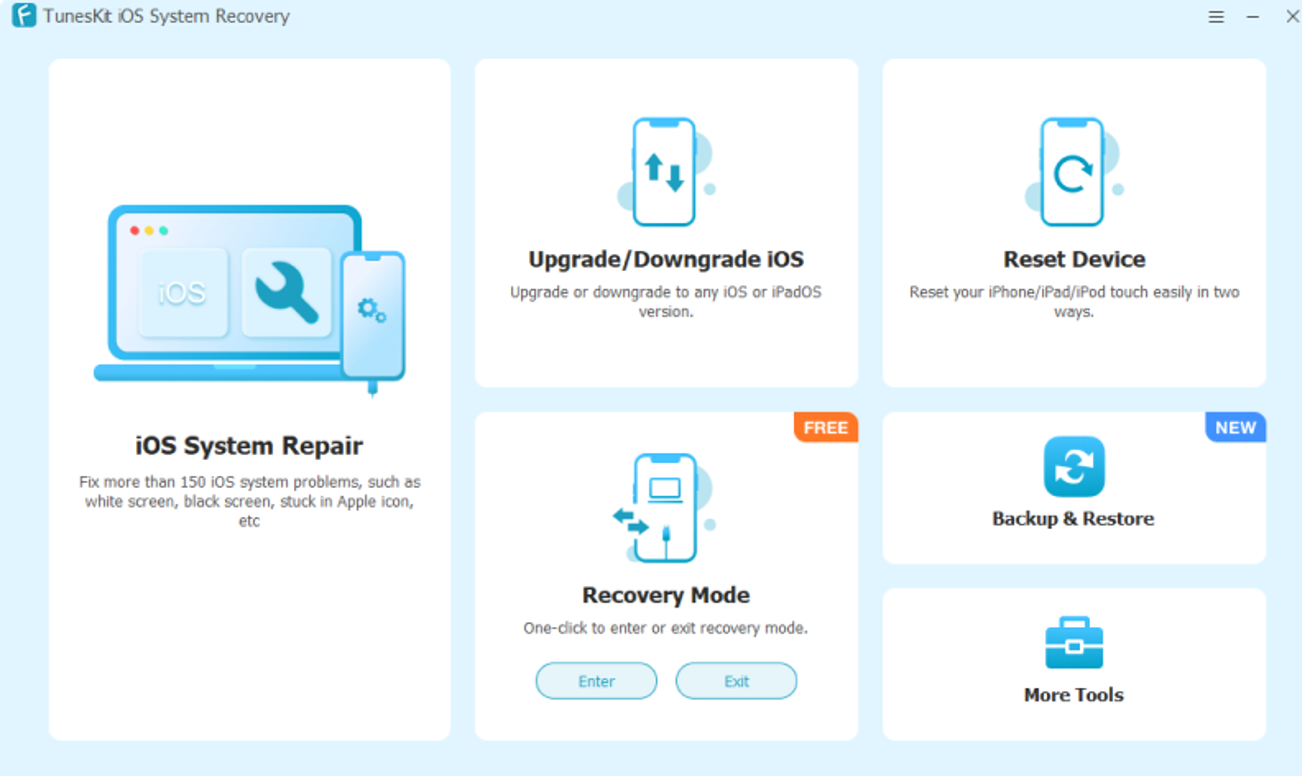
Step 1: Launch TunesKit iOS System Recovery
Download and install TunesKit iOS System Recovery on your computer. Connect your stuck iPhone with a USB cable, then open the program and select “iOS System Repair.”
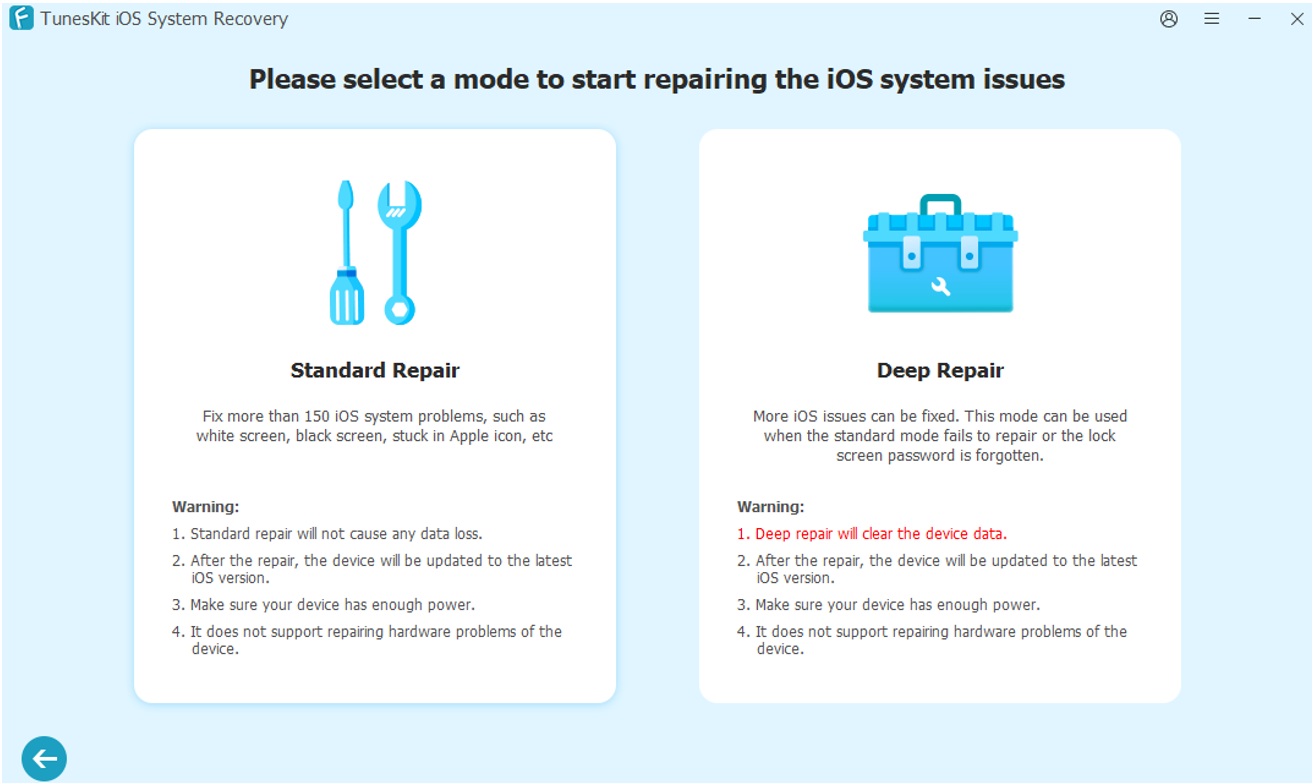
Step 2: Choose Standard Repair
Select “Standard Repair” to fix common iOS issues without deleting your personal data.
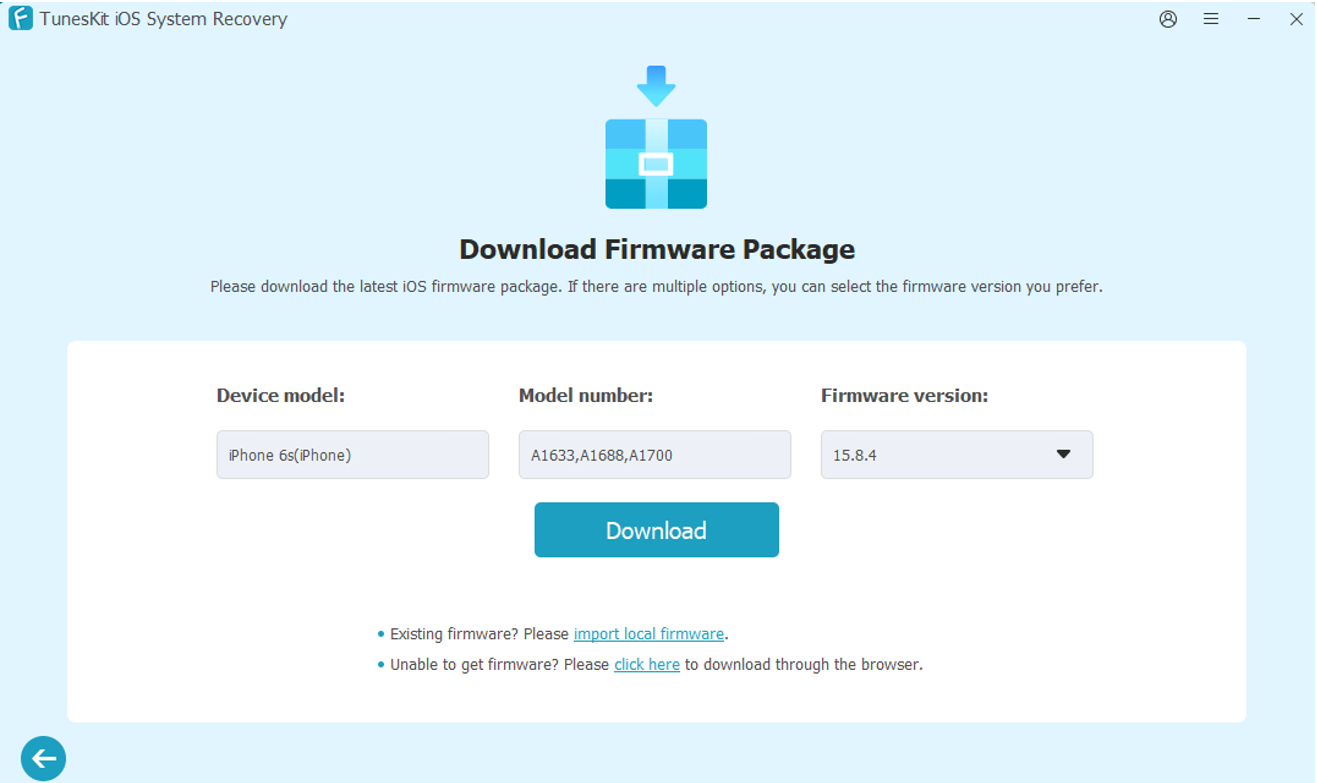
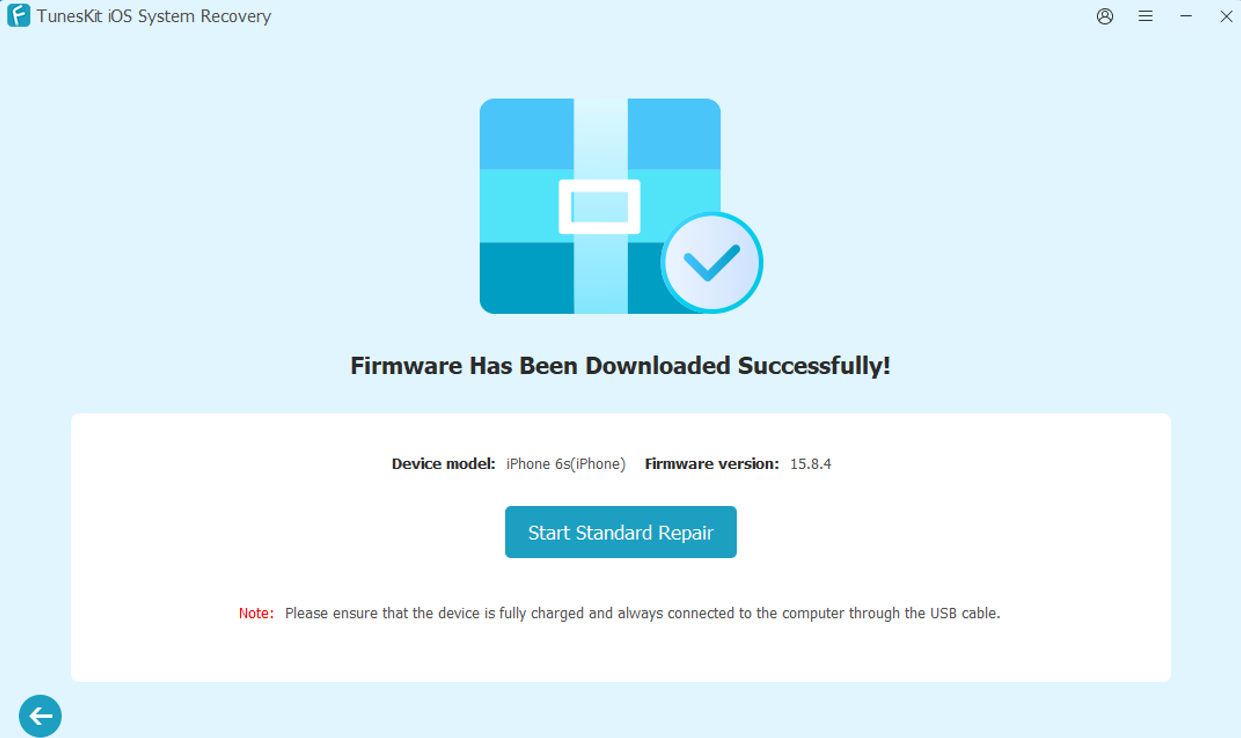
Step 3: Download the Firmware Package
TunesKit will automatically detect the device and provide a suitable firmware package. Download it to continue.
Step 4: Start the Repair
Click “Start Standard Repair” to begin the process. Keep your iPhone connected until the repair is complete and the device restarts normally.
FAQ About iPhone System Repair
- Will iOS system repair erase my iPhone data?
Not necessarily. Their standard repair modes are generally designed to preserve personal data. However, advanced or deep repair modes can erase the device, so always check the selected mode before starting.
- Can I repair an iPhone without iTunes?
Yes. Third-party tools such as TunesKit, Dr.Fone, Fixppo, and ReiBoot provide guided repair processes without requiring iTunes or Finder for the main repair workflow.
- What should I do before repairing my iPhone?
Back up your iPhone whenever possible, use a reliable USB cable, make sure the computer has enough storage for the firmware package, and select a data-preserving repair mode first.
Final Thoughts
If your iPhone stuck on the Apple logo, frozen screen, boot loop, or Recovery Mode, an iOS system repair tool can provide a convenient way to troubleshoot it. TunesKit iOS System Recovery is particularly worth considering if you want more than basic system repair. Its combination of Standard and Deep Repair, iOS upgrade/downgrade, Recovery Mode management, Factory Reset, iTunes error repair, and Backup & Restore features makes it a versatile option for iPhone troubleshooting. For the safest approach, always begin with a data-preserving repair mode and keep a recent backup whenever possible.







Comment