
How to Test Proxies and Browser Fingerprints for Better Online Privacy

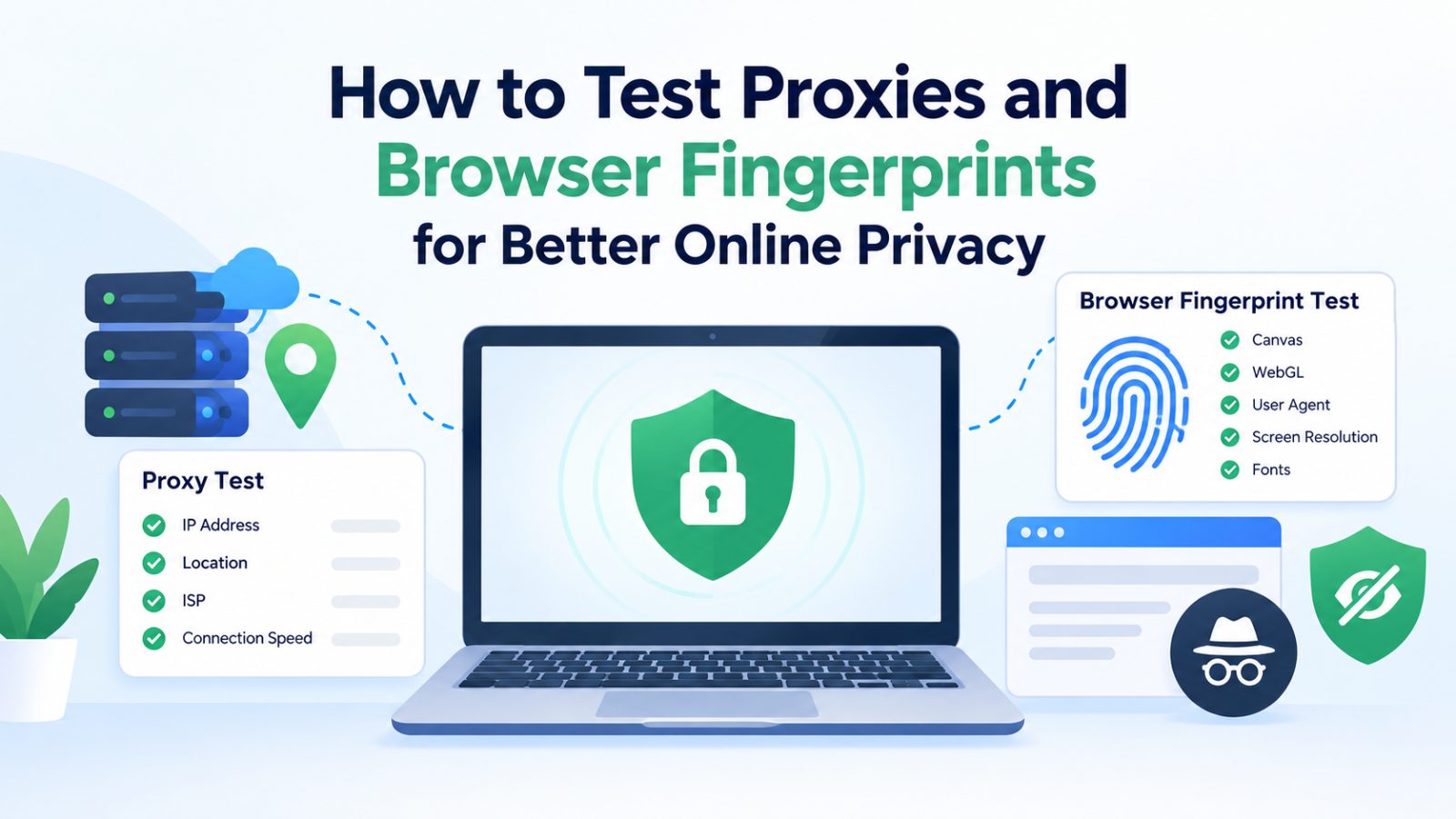
Online privacy is more important than ever. Every day, we see that big tech and governments alike make a push for more surveillance, more control, and less privacy for internet users.
Sometimes they say it’s to protect kids, such as the EU Kids Act proposal. If passed, this proposal would require everyone who plays video games to present their government ID for age verification every time they boot up a game. Sounds draconic and unfeasible.
Other times, the reason is to “weed out bad actors”. But a few bad nuts should not ruin the internet for the rest of us. And protecting your privacy is part of a good internet.
Methods like using proxies, VPNs, and avoiding browser fingerprints are therefore necessary to keep your online activity private. Today, we’ll explore how to make sure they are working correctly and doing their job, i.e., preventing big tech from tracking you.
Why Proxies and Browser Fingerprints Matter
Before fingerprinting was a thing, websites used to track your activity by using cookies and your IP address. They still do use them if you are a noob and don’t know how to use proxies or VPNs. As implied, proxies and VPNs mask your IP address behind a different one, so websites can’t see the real one.
Cookies are easier to block, as most modern browsers have built-in options to deal with them.
Since companies couldn’t use these to track most people, they started using browser fingerprinting. A browser fingerprint is basically a bunch of technical information that your computer shares with a website, such as browser version, screen size, time zone, and language. This information is used to display the website content correctly. But it can also be used to create a unique identifier for your computer.
So, you need different methods of blocking this kind of tracking.
Now that you know why these are important, it’s time to learn how to test if your privacy measures are working correctly.
How to Test a Proxy Connection
Here’s how you can check that your proxy works as expected. These simple tests can help you spot common issues.
-
Check Your Public IP Address
First, check your public IP address without a proxy. Then turn on your proxy and check it again.
The two addresses should usually be different if your browser traffic passes through the proxy. If your old IP still appears, check your proxy settings.
You can use an IP address lookup to see your public IP, ISP, and estimated location. Run the check before and after you connect to the proxy. Then compare the results.
Keep in mind that IP location data can be wrong. A different city or region does not mean your proxy has failed.
-
Check for DNS Leaks
DNS helps your browser find websites. When you enter a website name, DNS helps find the server linked to it.
A DNS leak is a situation where your web traffic goes through a proxy or a VPN, but all the DNS traffic goes directly to your ISP, thereby “leaking” your real IP.
A DNS leak may occur when your requests use DNS servers outside the path you expect.
Use a DNS leak test while your proxy is active. Check which DNS servers appear in the results. If they do not match your setup, review your proxy and network settings.
-
Check for WebRTC Leaks
WebRTC lets browsers support features such as voice and video calls. In some cases, it may reveal IP details that you did not expect to share.
This is known as a WebRTC leak. This happens when your voice or video calling traffic goes through your regular ISP IP instead of the VPN or Proxy IP, thereby leaking your real IP.
You can detect this leak by running a WebRTC leak test with your proxy turned on. Then you have to check whether your original public IP appears in the results.
As long as your real IP address is not showing, you don’t have a WebRTC leak. If it is showing, then read this guide on how to fix it.
How to Test Your Browser Fingerprint
After you are done with the proxy tests, here’s what you need to do to check your anti-browser fingerprint methods.
-
Check Your Browser Details
You have to start by checking what information your browser reveals to the web that is used for fingerprinting. You can visit various websites for that. For example, IPChecker.io is a website that can show you the complete system information any website can see when you connect to it.
Note what it says about your:
- Browser type
- Language
- Screen resolution
- Time zone
- ASN
- WebGL version
- Canvas information
- IP location
- GPU information
- Operating system
These are the things that can be used to uniquely identify your device. While they won’t personally identify you, the activity associated with the fingerprint can be used to gauge your personality and to do targeted marketing.
Run the test with your normal connection first. Then do it with the anti-fingerprinting measures in place. See what has changed. If the information remains unchanged, then consider using a different, more privacy-focused browser like Firefox, Brave, or, if you are savvy enough, Tor.
-
Compare Your Fingerprint Results
After your first test, turn on your proxy and run the check again. Compare the browser and system details.
If your IP changes but your fingerprint stays the same, your proxy may be working as expected. It has changed your network identity, but your browser still shares the same details.
Do the test again after changing a browser setting or adding a privacy extension that spoofs your browser fingerprint. Check which information changes.
Only change one thing at a time before redoing the test. This helps you see which change affects the results.
Conclusion
Testing a proxy and browser fingerprint helps you see what websites can learn about you. An IP check shows how your connection appears to others. A fingerprint test shows more about your browser and device.
Tools like IPChecker.io let you check your IP address and view browser fingerprint details. DNS and WebRTC tests can help you check other parts of your connection.
No single test can promise full privacy. But by checking these details and comparing the results, you can find possible gaps and make better choices about your online privacy.






Comment