Advertisement feature • Paid content from 8K IPTV UK Provider
When a stream pauses or an app refuses to load, buying a faster connection is not always the right first step. The issue could involve the device, the player, the account or the particular content being opened. Changing several things at once can make the cause harder to identify.
A practical IPTV streaming setup begins with a clear record of how those parts fit together. Establish what is supported, test the arrangement under normal conditions, and use a repeatable troubleshooting process when something changes.
Map the setup before installing anything
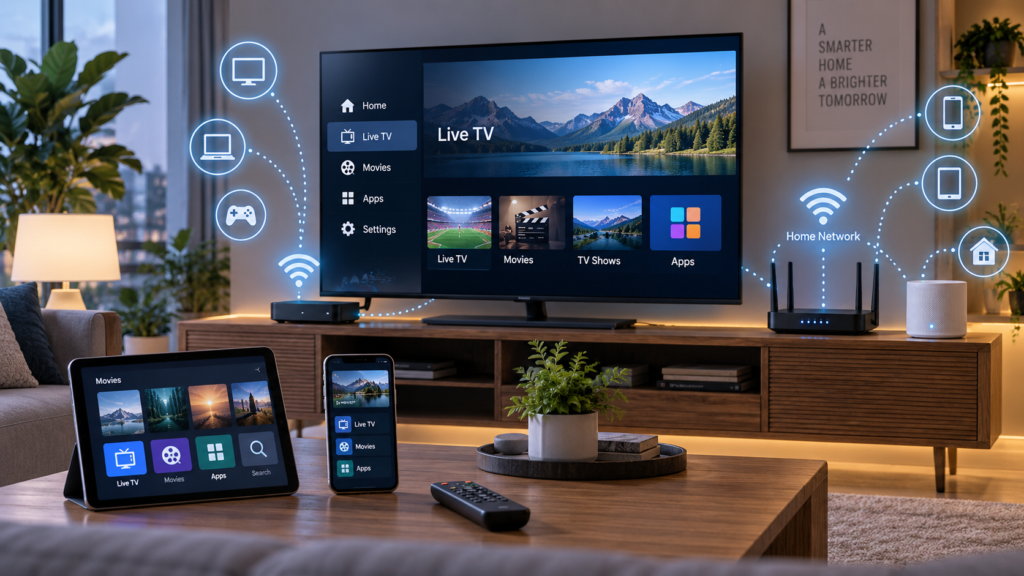
Write down four items: the device running the app, its software version, the player app and the service account. For a television connected to a streaming box, identify the box as well as the display. Installation instructions need to match the hardware that actually runs the player.
Next, confirm the recommended app’s official download source and current requirements. Check whether the player has its own licence fee. An app purchase and a content subscription are separate transactions unless the package explicitly includes both.
Ask the provider which login method the player requires and follow its instructions privately. Avoid posting screenshots that expose account credentials or access links when asking for help in public forums.
Match the subscription to the intended use
Decide whether the setup is for one screen or several simultaneous viewers. Being able to install the app on a phone and a television does not establish whether the account permits both to play at once.
For UK readers assessing service options, 8K IPTV UK Provider lists subscription packages and a free-trial request, with WhatsApp support for setup questions. Confirm the device combination, connection allowance and any separate app costs before choosing a package. A trial request is an opportunity to check the proposed arrangement, not a substitute for reading its terms.
Also ask about the content and features you need. Programme availability, subtitles and quality options should be checked individually. Use authorised sources and avoid treating a general catalogue description as confirmation that a particular programme is available in your location.
Create a baseline test
Use your normal viewing device in its usual position. Record the app version and the available quality setting, then try playback during the hours when the household normally watches. Keep other usage realistic rather than testing only when every other device is switched off.
Check more than whether a picture appears. Try the programme guide, pause or seeking where supported, subtitle selection and returning to playback after leaving the app. Listen for whether speech and picture remain aligned.
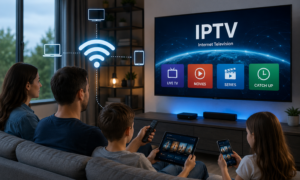
For smart-TV users, the provider’s smart TV setup guide offers a starting point for installation questions. Follow instructions for your exact model and confirm any unclear step with support before changing account or device settings.
Compare connections without changing everything else
If playback is unreliable, try a wired Ethernet connection where supported while keeping the device, app and programme the same. If a wired test is impractical, compare Wi-Fi playback closer to the router where possible. These tests can help narrow the problem, although one successful attempt does not establish a permanent fix.
Next, repeat the test with large background downloads paused. Keep a note of what changed and whether the problem remained. A troubleshooting record is more useful than repeatedly restarting everything without knowing which action affected the result.
Check the service’s own connection guidance. A speed-test result provides information about a connection at a particular time, but it does not establish that every programme will play reliably through every app.
Separate a content issue from an app or device issue
If one programme fails, try another within the same app. If every programme fails, check whether the device can use other online services. If another supported device is available, compare it while respecting the account’s simultaneous-connection limit.
These comparisons give you a useful description of the fault: one title on one player, all titles on one device, or a problem affecting the wider connection. They do not prove the cause, but they help support choose the next step.
Before clearing app data or reinstalling, make sure you have the information required to sign in again. Check what the action will remove and follow the app’s instructions. Avoid a factory reset as a casual first response to a single playback problem.
Treat resolution and sound as end-to-end checks
A high-resolution television cannot establish the quality of the source being played. Confirm the options available for the title, the player and the connected equipment. If a higher setting causes difficulties, compare a lower one while leaving the other variables unchanged.
Include external speakers or a soundbar in the test if you normally use them. Check available audio tracks, subtitle readability and synchronisation using the complete arrangement rather than testing the screen in isolation.
The aim is a repeatable viewing experience. Choose settings that work consistently for the setup you have, then consider upgrades only when you have identified a limitation that new equipment would address.
Keep the configuration easy to maintain
Use official update channels for the device and player. After a significant update, repeat a short playback check and note the new version. If a problem begins immediately afterwards, that history can help explain what changed.
Keep a private record of the app name, subscription terms, connection allowance and support details. When requesting help, include the model, software versions, affected programme, time of the issue and tests already completed. Do not send passwords in public comments.
A dependable setup is easier to manage when each part has a clear role. Confirm compatibility first, test the full viewing path, and change one variable at a time. That process gives both the viewer and support a much better basis for resolving problems than guessing at the next upgrade.