
IPTV Germany 2026: How to Add a Playlist, Set Up Fire TV Stick and Fix Common IPTV Problems

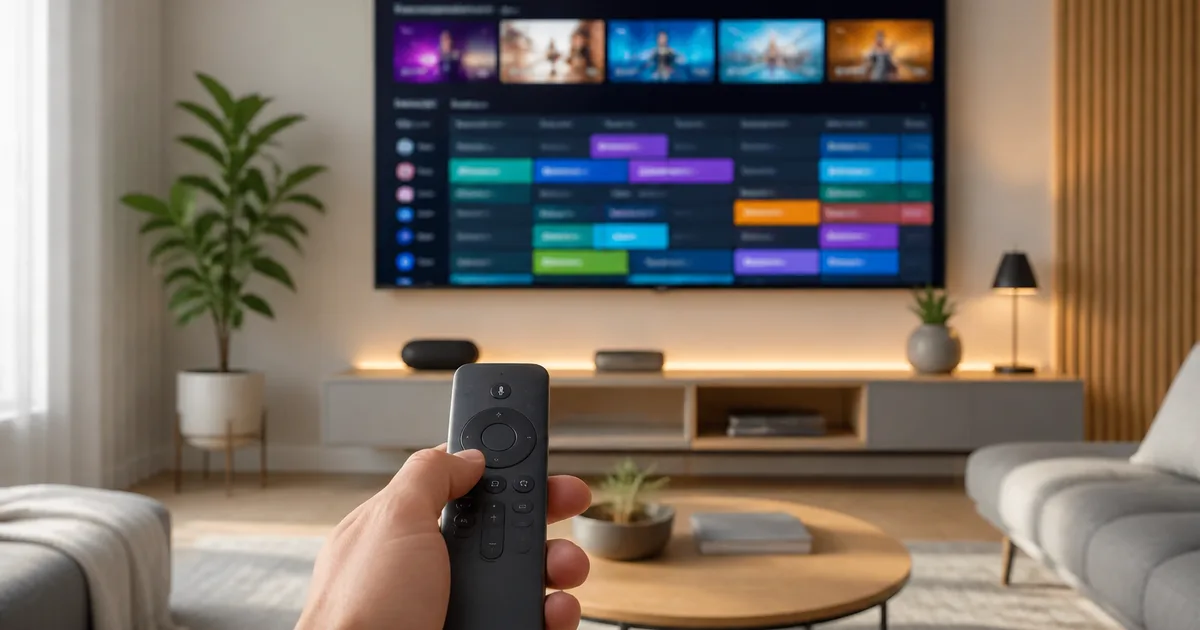
IPTV has become increasingly popular among viewers who want to watch television through Smart TVs, Fire TV devices, Android TV boxes, smartphones and other internet-connected devices. But after choosing a service, many users face the same practical questions: How do you add an IPTV playlist? What is the difference between M3U and Xtream Codes? How do you configure IPTV on a Fire TV Stick? And what should you do when channels suddenly stop working or begin buffering?
For viewers researching where to iptv kaufen, understanding these technical basics before choosing a subscription can prevent many common problems later.
This guide explains the most important IPTV setup and troubleshooting steps for German users in 2026.
What Is an IPTV Playlist?
An IPTV playlist contains the information a compatible player needs to display available television streams.
One of the most common formats is M3U.
Instead of entering every television channel manually, the user receives an M3U URL from the IPTV provider. The IPTV application reads this URL and organizes the available content.
A typical IPTV setup therefore consists of two separate components:
IPTV provider: supplies the subscription and access credentials.
IPTV player: displays the content on the user’s television, Fire TV Stick, smartphone or other device.
This distinction is important because applications such as IPTV players do not normally include a television subscription themselves.
M3U vs. Xtream Codes
Two of the most common methods for adding an IPTV subscription are M3U playlists and Xtream-style credentials.
M3U
With M3U, the provider normally supplies a playlist URL.
The process is generally:
- Open the IPTV player.
- Select “Add Playlist” or a similar option.
- Choose M3U URL.
- Paste the URL exactly as provided.
- Give the playlist a recognizable name.
- Save it and allow the channels to load.
M3U is widely supported and can work with many different IPTV applications.
Xtream Codes
Xtream-style login typically requires three pieces of information:
- Server URL
- Username
- Password
Instead of pasting one long playlist address, the user enters these credentials into a compatible IPTV player.
The player can then retrieve live TV, program information and other sections associated with the subscription.
Neither method is automatically superior. Compatibility with the chosen player and device matters more.
How to Add an IPTV Playlist to a Smart TV
The exact procedure depends on the television and application, but the principle is similar across most platforms.
First, install a compatible IPTV player through the television’s application store.
Open the application and identify which login method it supports.
Some Smart TV players allow users to enter an M3U URL directly. Others display a MAC address or device identifier that must be entered on the player’s website together with the playlist URL.
After adding the playlist, restart or refresh the application.
The channel categories should then appear.
A detailed German walkthrough for both M3U and Xtream Codes is available in this IPTV Playlist hinzufügen guide.
The guide also explains MAC addresses, playlist updates and several of the most common errors users encounter during setup.
IPTV on Amazon Fire TV Stick
Amazon Fire TV remains one of the most practical ways to add IPTV capabilities to a television, particularly when the TV’s built-in operating system is old or has limited application support.
TechBullion has also covered Firestick IPTV extensively, including the importance of device generation and player compatibility.
A typical Fire TV installation involves:
- Connect the Fire TV Stick to the television.
- Connect it to the home network.
- Install a compatible IPTV player.
- Open the player.
- Select M3U or Xtream Codes.
- Enter the credentials supplied by the provider.
- Allow the playlist and electronic program guide to load.
The advantage of an external streaming device is that it can often be upgraded independently of the television.
An older Smart TV may still have an excellent display while its built-in software has become slow or no longer supports current applications.
In that situation, a Fire TV or Android TV device can extend the useful life of the television.
Why Does an IPTV Playlist Not Load?
One of the most common problems is a playlist that refuses to load.
Before assuming the service itself is down, check several simple causes.
Incorrect M3U URL
Even one missing character can prevent the playlist from loading.
Copy and paste the URL instead of typing it manually.
Also check for accidental spaces at the beginning or end.
Incorrect username or password
Xtream credentials are usually case-sensitive.
Check:
- Server URL
- Username
- Password
individually.
Expired subscription
If the subscription has expired, the playlist may stop loading entirely.
Player problem
Restart the application.
If the problem remains, update it to the latest available version.
Internet problem
Open another streaming application or run a connection test.
If every internet-based application is struggling, the problem may be the network rather than the IPTV playlist.
Why Does IPTV Buffer?
Buffering is probably the most common complaint associated with IPTV.
But it is important to understand that buffering can originate at several points:
Provider → Internet connection → router → Wi-Fi/LAN → device → IPTV player
TechBullion’s own recent troubleshooting coverage makes the same distinction between local network/device problems and provider-side capacity problems.
Test the connection on the actual device
Do not rely only on a speed test performed on a smartphone beside the router.
The television may be several metres away and receiving a much weaker signal.
Compare Ethernet and Wi-Fi
If possible, connect the television or streaming device to Ethernet temporarily.
If the problem disappears, Wi-Fi is probably contributing to the buffering.
Stop other downloads
Large downloads, game updates, cloud backups and other streams can consume substantial bandwidth.
Pause them and retest IPTV.
Restart the router
A simple router restart can clear temporary network problems.
Update the IPTV player
Old application versions can cause compatibility and playback issues.
IPTV Channels Work but the EPG Does Not
Another common situation is that television channels load correctly but the Electronic Program Guide is missing.
Possible reasons include:
- EPG data has not refreshed
- incorrect EPG source
- outdated playlist
- application cache problem
- temporary provider-side data issue
Refresh both the playlist and EPG inside the application.
If the player allows separate EPG updating, trigger that function manually.
Channels Suddenly Disappear
If channels that previously worked disappear, first refresh the playlist.
Providers may occasionally reorganize categories or update stream addresses.
With a pure M3U playlist, a manual refresh may be necessary.
Xtream-based logins often retrieve updated information automatically when the application reconnects.
Avoid manually editing credentials unless necessary.
Fire TV Stick Buffering but Smart TV Works
This is an especially useful diagnostic clue.
If exactly the same IPTV subscription works correctly on one device but buffers on another, the provider is less likely to be the problem.
Compare:
- Wi-Fi signal
- device generation
- available storage
- IPTV player
- decoder settings
- software version
Older Fire TV devices have significantly less processing power than current models, and large IPTV libraries can place additional demands on limited hardware. TechBullion’s Firestick testing similarly notes that older generations can struggle with large IPTV libraries.
IPTV App Freezes or Crashes
If the application itself freezes:
- Close it completely.
- Restart the device.
- Check for updates.
- Clear unnecessary cached data where supported.
- Ensure sufficient storage remains.
- Reload the playlist.
If another compatible player works with the same credentials, the original application is probably the source of the problem.
Smart IPTV Problems After Changing Internet Provider
Changing routers or internet providers can also change the local network configuration.
If IPTV worked before the change, verify:
- the television is connected to the new network;
- DNS settings have not been manually overridden;
- the application can reach the internet;
- the router is not blocking the application;
- the M3U/Xtream credentials have not changed.
Testing the same account through mobile data on a phone can sometimes help isolate whether the home network is responsible.
What Should Users Check Before Buying IPTV?
Technical troubleshooting becomes easier when compatibility is considered before purchasing a subscription.
For users searching for iptv kaufen deutschland, the following checklist is more useful than simply comparing the largest channel numbers:
- Which device will be used?
- Which IPTV player is available for it?
- Does the provider supply M3U, Xtream Codes or both?
- How many simultaneous connections are required?
- Is the home internet connection stable?
- Are setup instructions available?
- What support options exist?
- Are subscription terms clearly explained?
The best setup is rarely determined by one component.
It is the combination of the subscription, network, hardware and software that determines how smoothly IPTV works.
Final Thoughts
Most IPTV problems become considerably easier to solve once users understand how the different parts of the system fit together.
An IPTV provider supplies the access.
The playlist or Xtream credentials connect that access to a player.
The player runs on a Smart TV, Fire TV Stick, Android TV or another device.
And the entire system relies on a stable home network.
For German users in 2026, learning the basics of M3U playlists, Xtream Codes, Fire TV setup and troubleshooting can therefore be just as important as selecting the subscription itself.
When a problem appears, the most effective approach is systematic:
check the credentials → refresh the playlist → test the internet → compare Wi-Fi and Ethernet → restart the device → update the player → isolate the problem.
That is far more effective than immediately changing providers or randomly modifying multiple settings at once.







Comment