
How Windows Users Can Build More Reliable Desktop Productivity Workflows

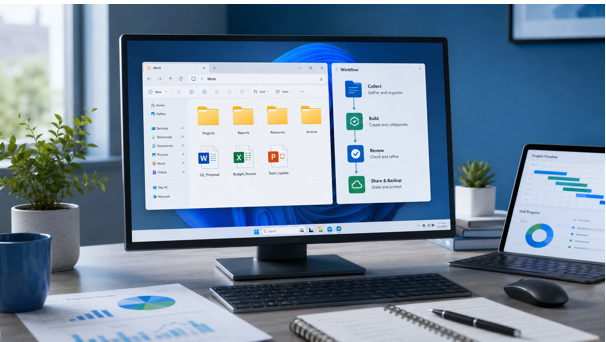
Windows remains one of the most common environments for office work, study, small business management, and remote collaboration. Users rely on desktop devices to prepare documents, manage spreadsheets, create presentations, review PDFs, organize notes, and share files with teammates. Although many tasks now happen in the cloud, the desktop workflow still matters because it is where many people do their most detailed work.
A reliable productivity workflow is not created by installing random tools and hoping they work together. It requires a clear setup process, safe software sources, consistent document habits, and tools that match the user’s daily needs. When these elements are missing, users face common problems: duplicate files, broken formatting, slow document editing, unsafe installers, and confusion when switching between devices.
Windows users can avoid many of these issues by building a practical desktop productivity system. The goal is not to make the workflow complicated. The goal is to make document work predictable, secure, and easy to repeat.
Start With the Core Tasks
Before choosing software, users should identify the tasks they perform most often. Some people spend most of their time writing reports. Others work with spreadsheets, presentations, scanned documents, contracts, or shared project files. A freelancer may need quick document export. A small business owner may need invoices and templates. A student may need notes and assignments organized by subject.
Understanding the core tasks makes it easier to select the right tools. A feature-heavy application is not always better if the user only needs stable document editing and simple file export. On the other hand, a lightweight tool may not be enough for users who manage large spreadsheets or collaborate with multiple people.
A good productivity setup begins with realistic needs rather than marketing claims or long feature lists.
Choose Software From Reliable Sources
Software source verification is one of the most important parts of a Windows workflow. Productivity applications often require system permissions, file access, update services, and integration with common document formats. If the installer comes from an unreliable source, the user may introduce unwanted programs or outdated components into the device.
Users looking for wps 电脑版 and similar desktop productivity options should check the download source carefully before installing anything. The website should be relevant, the page should explain the software clearly, and the installer should not be hidden behind confusing advertisements or forced redirects.
It is also helpful to keep a simple record of where important software came from. For teams, this can be part of onboarding documentation. For individual users, it can be as simple as saving verified download sources in a secure note or internal checklist.
Organize Documents Before They Become a Problem
Many productivity problems begin with poor file organization. A user may save documents on the desktop, downloads folder, cloud drive, email attachments, and chat apps all at once. Over time, it becomes difficult to know which version is current or where important files are stored.
A reliable Windows workflow should include clear folders for active projects, archived files, templates, shared materials, and final documents. File names should be consistent and easy to understand. Including project names, dates, or version labels can help users avoid confusion.
For teams, document organization should be agreed in advance. A shared folder structure is more useful when everyone follows the same rules. Without consistency, even good software cannot prevent workflow friction.
Use Templates and Styles for Repeat Work
Repeated document work should not start from zero every time. Templates can save time and reduce formatting mistakes. Common examples include proposals, meeting notes, invoices, reports, training documents, and presentation decks.
Styles are also important. Headings, lists, tables, and spacing rules make documents easier to edit and review. When users manually format every paragraph, documents become harder to maintain. A consistent style structure helps teams create cleaner files and reduces the chance that formatting breaks during revisions.
These habits are especially useful when files move between users, departments, or devices. A structured document is easier to review and less likely to create confusion.
Plan for Cross-Device Work
Desktop productivity does not happen only on desktop devices. A user may begin a report on a Windows laptop, review it on a phone, and share it from a cloud folder. Cross-device work is convenient, but it requires planning.
Users should know where files are stored, how they sync, and which version should be edited. They should also confirm whether formatting remains stable when files are opened on different devices. For important documents, it is often useful to keep an editable version and a final exported version.
When evaluating office productivity tools, Windows users should consider how well the software supports real workflows across desktop and mobile environments. The best tool is not only the one that opens a file, but the one that helps users keep work organized as it moves between contexts.
Protect Files and Accounts
Productivity workflows often involve sensitive information. Documents may include customer records, financial details, contracts, internal plans, or personal data. Users should protect both the files and the accounts used to access them.
Basic security habits include using device passwords, keeping software updated, avoiding unknown installers, reviewing shared file permissions, and being careful with email attachments. Users should also avoid saving important business files only in temporary folders or chat histories.
For teams, access control is important. Not every person needs access to every document. Shared folders should be reviewed regularly, especially when employees change roles or leave the organization.
Reduce Tool Overlap
Too many tools can reduce productivity. Users may install several document editors, PDF utilities, note apps, cloud drives, and file converters. When every tool handles part of the workflow, files can become scattered and difficult to manage.
A better approach is to define which tool is used for each purpose. One application may handle document editing, another may store shared files, and another may manage team communication. Clear roles reduce confusion and help users build habits that last.
Teams should review their software stack regularly. If a tool is rarely used or creates duplicate work, it may be better to remove it from the workflow.
Build a Simple Maintenance Routine
A productivity workflow should be maintained over time. Users can schedule a monthly review to clean temporary files, archive completed projects, update software, check backup settings, and remove unused tools. This prevents small issues from becoming larger problems.
For businesses, a maintenance routine also helps with onboarding and support. New team members can follow documented setup steps instead of guessing which tools and folders to use.
Final Thoughts
A reliable Windows productivity workflow depends on more than a single application. It requires safe installation habits, organized documents, consistent templates, cross-device planning, account protection, and clear rules for how tools should be used.
When users choose software carefully and combine it with practical workflow habits, desktop work becomes faster, safer, and easier to manage. The result is not only better productivity, but also fewer mistakes, cleaner documents, and a more dependable working environment.







Comment