
How to Swap Faces in Photos with AI for Natural-Looking Results

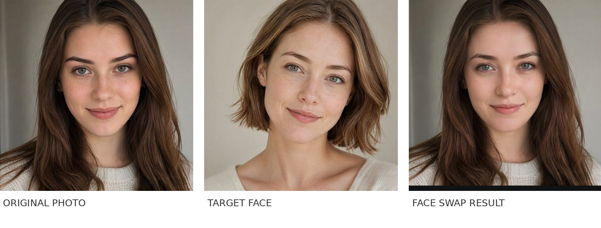
Imagine a portrait that has the right pose and background but not the face you want to feature. You could try carefully cutting out another face, adjusting its angle, and blending its edges in an editor. Or you could use face swap AI to take care of much of that work automatically. For personal portraits, lighthearted memes, and creative photo concepts, the difference is an easier way to experiment with an image without rebuilding the entire scene.
A good photo face swap is not just about changing facial features. The replacement needs to make sense with the source image’s expression, lighting, and head position. This guide explains how the technology works, walks through a real single-portrait example with Media.io, and shares practical ways to improve results. The sample portraits used for the demonstration were AI-generated.
What Is AI Face Swap and How Does It Work?
Face swapping is a form of image editing in which one person’s facial appearance is transferred to a face in another picture. Typically, AI face-swap systems detect facial features and estimate where a replacement face should be positioned, then blend the result with surrounding details. The precise processing method depends on the tool. The aim is to create an edit that feels consistent with the original composition rather than a pasted-on cutout.
The input image still matters. A sharply photographed face looking forward is easier to work with than one hidden behind hair or photographed in dramatic shadow. Skin tone, expression, and viewing angle can all affect how convincing the final photo looks. That is why even a capable AI tool may produce different results with different photo pairs.
Importantly, photo face swap usually changes the face region, not necessarily the whole hairstyle, clothing, body, or background. A target photo with a short haircut therefore does not guarantee that the finished portrait will have short hair.
Why Choose AI Face Swapping Over Manual Photo Editing?
Traditional face replacement can involve selection tools, masks, perspective adjustments, and color correction. That control is useful for complex professional retouching, but it can be excessive when someone simply wants to test a portrait idea or make a quick social image.
- Fewer manual steps: face detection and initial blending reduce the need to cut and align each feature by hand.
- A more accessible workflow: users can focus on selecting clear photos rather than mastering layers and masks.
- Easy creative iteration: changing the target portrait offers another direction to explore when the first result is not right.
- Useful preservation of context: the original setting and clothing generally remain in place while facial features change.
The trade-off is control: a dedicated editing application may still be preferable when a retoucher needs to refine individual pixels or reconstruct a difficult face angle. AI is a shortcut for common edits, not a guarantee of perfect results.
How to Swap Faces in Photos with Media.io AI Face Swap
For this example, we used Media.io — an online AI creative platform — to replace the face in a single portrait. The steps below reflect the actual face-swap workspace and completed output, not a simulated interface.
Step 1: Open the Face Swap Tool and Upload the Source Photo
Open the AI face swap tool on Media.io. The workspace shows “Upload Source Image” on the left, with an upload box for a JPG, JPEG, or PNG photo. The large Before/After display on the right is a built-in example at this stage, not the result of our demonstration. Upload the portrait you want to edit to begin.
We used a clear, front-facing photo of a woman with long brown hair as the source image. A single subject kept the demonstration easy to follow and gave the face detector a clear view.
Step 2: Check the Detected Face and Select a Replacement
After the source photo has loaded, check the “Detected Face” section. In our example, the system displayed the face it found. Under “Upload Face,” upload the portrait whose facial features you want to transfer, then click its thumbnail to select it. Our target was a different woman with a shorter hairstyle, a similar forward-facing angle, and soft lighting.
In our test, the selected thumbnail was outlined in purple, and the Generate button became active once the source face had been detected and the target face selected. If the button remains disabled, check both selections; other issues may also prevent generation.
Step 3: Generate the New Face
Click “Generate” after confirming both portraits. In our demonstration, the Generate button displayed a cost of three credits; the required credits may change. Allow the service to finish processing the request. There is no need to write an image-generation prompt for this workflow: the two uploaded photos are the primary inputs.
Step 4: Compare the Original and Download the Result
Once processing is complete, the output appears in “Generate List.” The result view includes “Original” and “After” controls so users can inspect the change, as well as a download icon. Review the facial features, jawline, and blending around the cheeks before downloading the photo.
In our completed test, the face blended into the original portrait while the long hair, pale sweater, framing, and background remained largely intact. This is a useful reminder of what this editing mode actually does: it transfers facial appearance rather than rebuilding the whole person.
Creative Ways to Use Photo Face Swap
Once you understand the basic process, the same technique can support several kinds of visual storytelling. The key is to use images you own, generated characters, or portraits for which you have permission.
- Profile-picture experiments: Try alternate looks in an existing portrait without rebuilding its setting or camera angle.
- Memes and reaction images: Make playful visual jokes using fictional or consenting subjects, while keeping the edit clear as creative content.
- Group-photo concepts: Some tools, including Media.io’s published feature description, offer selection of a face within a group photo. Our completed example used one person, so this specific interaction was not verified in the demonstration.
- Character-style portraits: Explore a themed character concept using a chosen portrait as the starting composition.
- Social media graphics: Develop attention-grabbing, clearly labeled edited visuals for posts, thumbnails, or mood boards.
How to Make AI Face Swaps Look More Natural
The quality of the source material can make as much difference as the choice of tool. Before generating, work through these practical checks:
- Match face angles. Two forward-facing images are generally easier to blend than one front view and one extreme profile.
- Use balanced lighting. Avoid pairing strong side-lighting with a completely flat-lit target unless the effect is intentionally stylized.
- Start with sharp, unobstructed faces. Heavy bangs, sunglasses, motion blur, and compression can hide useful facial detail.
- Choose compatible expressions. A calm source portrait and a broadly smiling target can be more difficult to reconcile than two similar expressions.
- Inspect the result at full size. Look at the jawline, eyes, nose, and transitions around hair and cheeks; if something looks off, try a better-matched photo pair.
Do not mistake “natural-looking” for “authentic.” A convincing swap is still an edited image, and it should not be passed off as a real photograph of a person who did not appear in the original scene.
Common Mistakes to Avoid
The most frustrating photo face swap problems tend to happen before the Generate button is pressed. Small changes in preparation can prevent wasted attempts.
- Using two almost identical faces. The result may be technically successful but difficult to distinguish in a before-and-after comparison.
- Expecting the target hairstyle to replace the original one. A face replacement is not automatically a hair or full-head replacement.
- Assuming every uploaded photo has been detected. Look for a populated “Detected Face” section and an active Generate button.
- Publishing misleading face-swapped imagery. Get permission to use recognizable likenesses and disclose edits where viewers could mistake them for authentic events or endorsements.
Conclusion
Face swap AI makes portrait experimentation more approachable by automating the identification and blending of facial features. The most useful results still begin with thoughtful choices: a clear source photo, a suitable target face, and a careful review of the finished image. Our Media.io walkthrough demonstrated that a single-photo swap can be completed through a short browser-based process while preserving much of the original composition. For creators working on playful portraits, social images, and other authorized projects, it is a practical option to explore.
FAQs
1. How do I swap faces in a photo using AI?
Upload the photo you want to edit, let the tool detect its face, choose or upload the replacement face, and generate the image. Preview the result before downloading.
2. What photos work best for a natural-looking face swap?
Clear, well-lit portraits with visible faces and similar head angles tend to make the blending task easier. Avoid heavy obstructions and strong differences in expression where possible.
3. Can I swap one face in a group photo?
Media.io describes a multiple-face selection feature for group photos. However, the successful walkthrough in this article used a single portrait; the group-photo workflow was not confirmed in that test.
4. Do I need Photoshop to swap faces in photos?
No. Browser-based AI tools can handle the basic face-detection and replacement workflow without manual Photoshop layers or masking. Dedicated editing software may still be useful for complex retouching.





Comment