
How to Set Up IPTV on a FireStick in 2026: Apps, Fixes and Tips

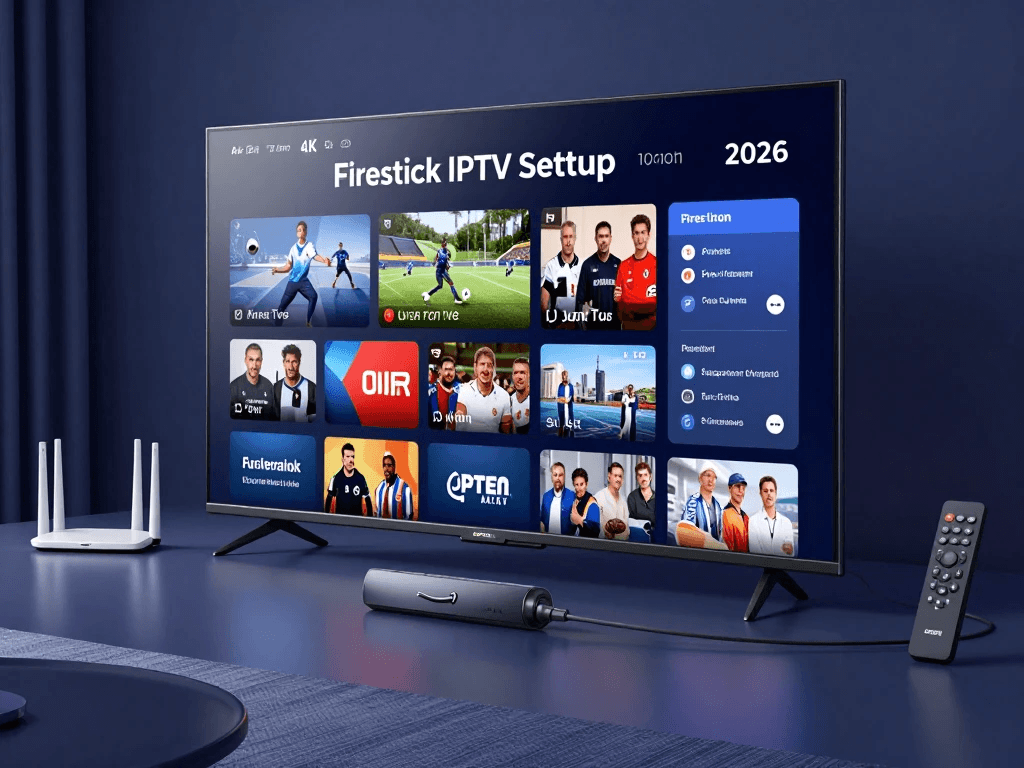
Setting up IPTV on a FireStick takes about 10 minutes. You update the device, install an IPTV player app, and log in with the details from your provider. Most problems after that come down to an outdated app, a weak connection or ISP throttling.
I’ve streamed TV this way every day for five years. When I moved house, I had live TV running again in under 10 minutes. This guide walks through the exact steps I use, plus fixes for the problems I see most often. If you haven’t picked a provider yet, start with my comparison of the best IPTV streaming services.
What you need before you start
You need four things, and most homes already have three of them:
- A FireStick or Fire TV. Any recent model works. A 4K model is worth it if your provider streams in 4K.
- Internet of at least 10 Mbps per HD stream, or 25 Mbps or more for 4K. Stability matters more than headline speed.
- An IPTV subscription. Licensed services such as YouTube TV, Fubo and Sling TV have their own apps. Third-party providers give you login details to use in a player app. If you’re in the States and still comparing, my guide to IPTV USA options covers both types.
- Your login details. Depending on the provider, that’s an Xtream Codes login (username, password and server URL) or an M3U playlist link.
Before paying for any third-party service, ask the provider for proof that it’s licensed to carry its channels. If you want no legal uncertainty, stick with a licensed service.
Step 1: Update your FireStick
Update the FireStick before installing anything. An outdated system is behind a lot of app crashes and playback errors.
- From the home screen, open Settings (the gear icon).
- Go to My Fire TV, then About.
- Select Check for Updates. If one is available, select Install Update.
- Leave the device plugged in while it restarts. This can take a few minutes.
If the option is greyed out or the update keeps failing, see my full walkthrough on How Do You Update Firestick. It covers storage errors and stuck downloads.
Step 2: Pick an IPTV app
Which app you use depends on the type of service. Licensed services have their own apps in the Amazon Appstore. Third-party providers need a player app, which plays the channels your provider gives you but comes with no content of its own.
- YouTube TV, Fubo and Sling TV apps are free to download but need a paid subscription. They’re the right choice for licensed live TV.
- TiviMate is an IPTV player with a free basic version, and Premium unlocks extra features. It’s best for a cable-style TV guide, recording and multiple playlists.
- IPTV Smarters Pro is a free IPTV player. It’s best for beginners who want a simple setup.
TiviMate is my daily player. Its TV guide feels the closest to cable, and switching channels is fast. Not every provider works equally well with it, though. EPG data and catch-up support vary a lot, so check my list of the Best IPTV for TiviMate before you buy a plan for it.
For a wider comparison, including which players are available in the Amazon Appstore and which aren’t, see my roundup of IPTV Apps for Firestick. Whatever you choose, only install apps from the Amazon Appstore or the developer’s official site.
Step 3: Add your subscription to the app
Once the app is installed, connecting your service takes about two minutes.
In TiviMate:
- Open TiviMate and select Add playlist.
- Choose Xtream Codes or M3U playlist, whichever your provider gave you.
- Enter the server URL, username and password, or paste the M3U link.
- Name the playlist, confirm, and wait for the channels and TV guide to load.
In IPTV Smarters Pro:
- Open the app and select Login with Xtream Codes API.
- Enter any name you like, plus the username, password and server URL from your provider.
- Select Add User. The app downloads your channels, movies and series.
Type the server URL exactly as given, including http:// and any port number such as :8080. A single wrong character is the most common reason a login fails.
Troubleshooting the most common problems
Most IPTV problems on a FireStick fall into three groups: the device won’t start, the app won’t load, or the stream buffers.
FireStick won’t turn on
Power is the usual culprit. Run through these checks:
- Use the original Amazon power adapter plugged into a wall outlet, not the TV’s USB port. TV ports often don’t supply enough power.
- Unplug the FireStick for 60 seconds, then plug it back in.
- Make sure the TV is on the correct HDMI input, and try a different HDMI port.
- Replace the remote batteries. A dead remote can make a working FireStick look dead.
If you still get a black screen or no light, my full guide to Firestick Not Turning On covers hardware checks and resets.
IPTV Smarters Pro won’t load or log in
When IPTV Smarters shows errors or loads endlessly, try these in order:
- Check that your subscription is still active. Expired accounts usually show a login or authentication error.
- Re-enter the server URL, username and password carefully.
- Clear the app’s cache: Settings → Applications → Manage Installed Applications → IPTV Smarters → Clear cache.
- Update the app and restart the FireStick.
- Ask your provider whether their server is down. During big live events, outages are common.
For error-by-error fixes, see IPTV Smarters Pro Not Working.
Streams buffer during live sports
If buffering happens only at peak times, such as Sunday NFL or a big fight night, your ISP may be throttling video traffic. Use a wired Ethernet adapter or move your router closer, and close other apps using bandwidth. If that doesn’t help, test with a reputable VPN. In my experience, a VPN often clears up peak-hour throttling.
Watching IPTV on your phone with a VPN
Most IPTV subscriptions also work on iPhone and Android, which is how I watch when I travel. If you use a VPN on your phone, keep these trade-offs in mind:
- Free VPNs often log your activity or sell your data, and many are too slow for live video.
- Battery and data use go up, especially when streaming over mobile data.
- Some apps block VPNs, including some banking apps and licensed streaming services, so you may need to switch the VPN off for them.
- Your location changes for every app on the phone. That affects maps, local weather and region-locked services.
Before you turn on a VPN for streaming, read my iPhone & Android VPN Usage Warning. It explains which settings to check so the VPN doesn’t break the rest of your phone.
FAQs
Is a FireStick good for IPTV?
Yes. It’s cheap, it runs every major IPTV player, and it plugs into any TV with an HDMI port. A 4K model handles HD and 4K streams more smoothly than older models.
Is TiviMate better than IPTV Smarters?
TiviMate has a better TV guide and recording features. IPTV Smarters is free and simpler for beginners. I use TiviMate daily, but Smarters is a good place to start.
Why does my IPTV keep buffering?
The usual causes are weak Wi-Fi, too many devices on your network, a busy provider server during big events, or ISP throttling. Try a wired connection first, then a VPN.
How often should I update my FireStick?
Check for updates once a month, and always before installing a new IPTV app.
Can I use one IPTV subscription on several devices?
It depends on the plan. Some providers allow one connection, while others allow up to 10. Check the connection limit before you buy.
About the author
Matt Hendricks is a lead writer who tests IPTV services, streaming devices and home TV setups. A former game developer, he also spent over three years at an internet service provider, where he learned how ISPs route and manage traffic. He has used IPTV daily for five years. He writes provider reviews, FireStick and Smart TV guides, and fixes for buffering and app errors.





Comment