
How to Open Task Manager on Mac (With and Without Shortcuts)

There is no native application called “Task Manager” on the Mac. Instead, macOS uses the Activity Monitor app, a powerful system utility that lets users track CPU usage, memory consumption, energy draw, disk activity, and network traffic. Users can open it through Spotlight, Finder, or a keyboard shortcut.
As the name suggests, Mac users looking for a Task Manager Mac equivalent might realize that system monitoring on macOS is not quite the same. Instead of offering a simplified to-do list, Apple delivers Activity Monitor with many bells and whistles that give you an extreme level of detail on each process running on your machine. Learning to use it properly can mean the difference between a system that crawls and one that operates at peak performance.
How to Open Activity Monitor on Mac
Using Spotlight Search (Fastest Method)
Spotlight is the quickest route to Activity Monitor. Press Command + Spacebar, type “Activity Monitor,” and press Return. The application opens instantly, without navigating through any menus.
Via Finder and the Applications Folder
For users who prefer a manual approach:
- Open Finder
- Click Go in the menu bar
- Select Utilities
- Double-click Activity Monitor
Direct Keyboard Shortcut
There is no single dedicated shortcut to launch Activity Monitor by default, but users can assign one through System Settings > Keyboard > Keyboard Shortcuts. The fastest built-in method remains Command + Spacebar followed by typing the app name.
What Each Tab in Activity Monitor Does
Activity Monitor is organized into five tabs, each monitoring a different system resource.
| Tab | What It Monitors | Key Metric to Watch |
| CPU | Processor load per process | % CPU column |
| Memory | RAM allocation and pressure | Memory Pressure graph |
| Energy | Battery and power draw | Energy Impact score |
| Disk | Read/write activity | Bytes Read/Written |
| Network | Data sent and received | Packets In/Out |
CPU Tab: Identifying What Is Taxing the Processor
The CPU tab lists every active process alongside its processor usage percentage. Any process consistently above 80% CPU deserves attention, as it likely signals a runaway process or an application with a memory leak.
Memory Tab: Reading the Memory Pressure Graph
The Memory Pressure graph at the bottom of this tab is the most reliable indicator of RAM health. A green graph means the system has sufficient memory. A red graph means macOS is actively compressing and swapping data to disk, which significantly slows performance.
Energy, Disk, and Network Tabs
- Energy: Identifies apps draining battery life. Particularly useful on MacBook devices.
- Disk: Tracks how aggressively applications are reading from or writing to storage.
- Network: Shows which apps are consuming bandwidth in real time.
How to Force Quit Applications on Mac
Using the Force Quit Window
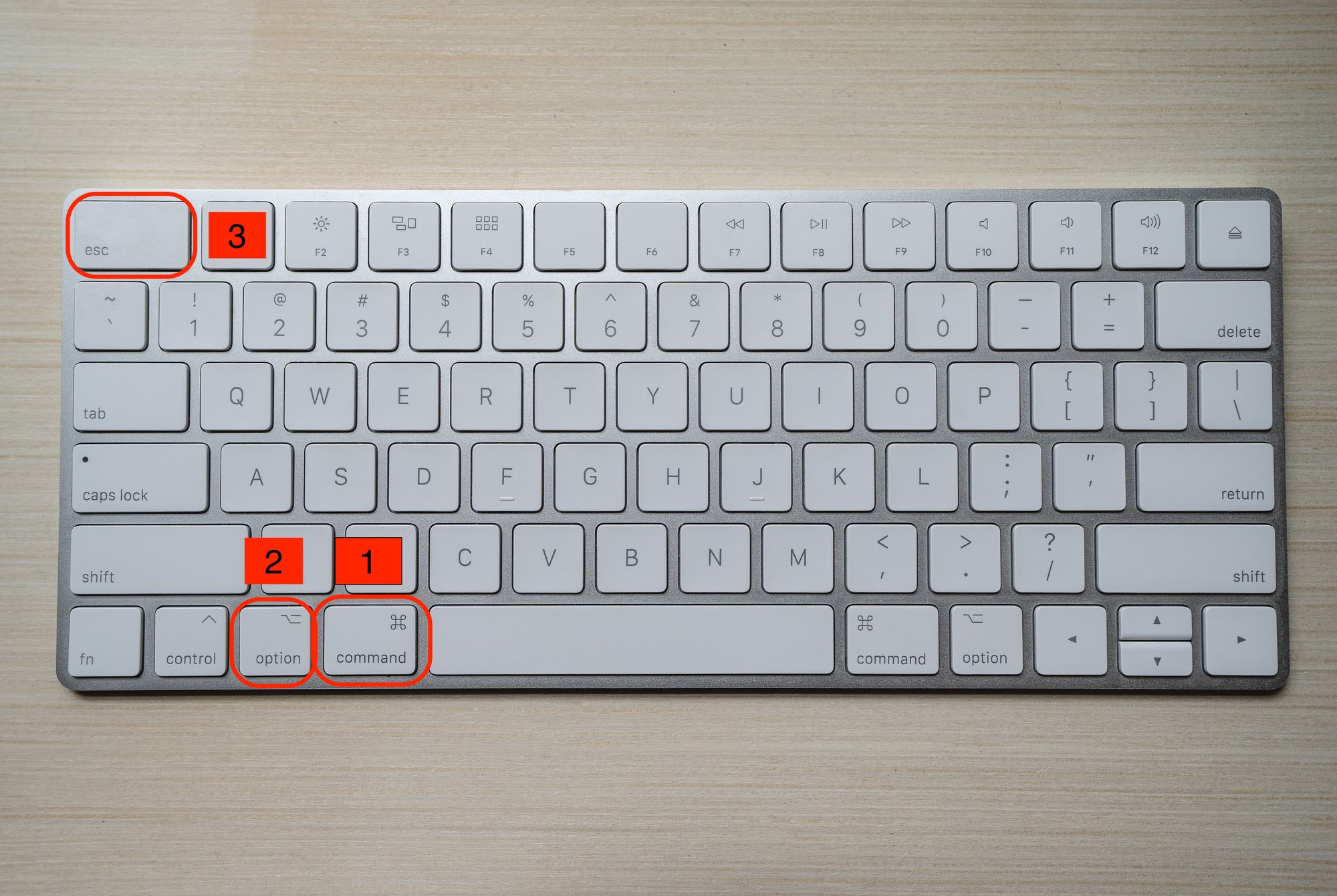
Press Option + Command + Esc to open the Force Quit Applications window. Select the unresponsive app and click Force Quit. This method works even when the Dock is frozen.
Force Quitting via Activity Monitor
- Open Activity Monitor
- Select the problematic process
- Click the X button in the top-left toolbar
- Confirm by clicking Force Quit
This method is more precise because it lets users identify which specific process is unresponsive before quitting it.
Troubleshooting Performance Issues on Mac
How to Manage Startup Items
Too many startup applications slow boot times. Navigate to System Settings > General > Login Items to remove unnecessary programs that launch automatically on startup.
When and How to Reset PRAM on Mac
For older Intel-based Macs, learning how to reset PRAM on Mac systems can resolve persistent issues like incorrect display resolution, audio settings not saving, or startup disk problems. To do this, shut down the Mac, then press and hold Option + Command + P + R immediately after pressing the power button. Hold the keys for 20 seconds, then release. Note that Apple Silicon Macs (M1, M2, M3 chips) do not support PRAM resets, as memory management is handled differently by their unified architecture.
Advanced Tips: Using Terminal for Process Management
Terminal offers process management beyond what Activity Monitor provides visually.
- Type top to view a live, ranked list of processes by CPU usage.
- Use kill [PID] to terminate a specific process by its Process ID, found in Activity Monitor’s PID column.
- Type killall [AppName] to terminate all instances of a named application immediately.
Getting the Most Out of Mac Task Management
Activity Monitor is a genuinely capable tool when users understand what each tab communicates. The combination of Spotlight access, force quit shortcuts, and Terminal commands gives Mac users a complete toolkit for diagnosing and resolving performance issues without third-party software.
Frequently Asked Questions
Does Mac have a Task Manager like Windows?
Task Manager is a Windows term and doesn’t exist as is on the Mac. Activity Monitor: Monitors processes, manages resource usage, and force-quits unresponsive apps.
What is the quickest way to open Activity Monitor on Mac?
Open Spotlight by pressing Command + Spacebar, type “Activity Monitor,” and hit return. This makes it faster than going through Finder.
How can a user tell if their Mac is running out of RAM?
Open up the Activity Monitor and see what Memory Pressure tells you on the Memory tab. The red graph signals intensive memory pressure in the system, which would require you to shut down some applications or possibly upgrade your RAM.
Does resetting PRAM on Mac delete any data?
No. PRAM reset on the Mac clears low-level system settings like display resolution, time zone, and audio preferences. It does not affect personal documents, programs, or the OS.
Can Terminal replace Activity Monitor for process management?
Terminal gives you a more fine-grained level of control, especially for destroying background processes by PID. Of course, Activity Monitor is primarily for visual monitoring. These tools are meant to be complementary, not interchangeable.







Comment