
How to Integrate FridgeCal with Your Digital Calendar for Sync


Keeping track of family schedules, grocery runs, and daily tasks often feels like juggling too many things at once. Sticky notes get lost, paper calendars go out of date, and grocery lists are forgotten at home precisely when you need them most. The disconnect between physical planning tools and digital devices only makes coordination harder, especially for busy households managing multiple schedules simultaneously.
FridgeCal is a magnetic calendar for fridge that bridges this gap by combining the tactile convenience of a physical calendar with the power of digital synchronization. Rather than choosing between analog and digital organization, FridgeCal lets you enjoy both — right from the heart of your home. With features like grocery scanning and real-time calendar sync, it speaks directly to tech-savvy consumers who want smarter, more connected home organization without sacrificing simplicity.
Integrating FridgeCal with your existing digital calendar — whether Google Calendar, Apple Calendar, or Outlook — means your schedule stays consistent across every device your family uses. In the guide ahead, you’ll find a clear, step-by-step walkthrough to get everything connected and running smoothly.
Understanding FridgeCal: Your Smart Magnetic Calendar for the Fridge
FridgeCal is a smart magnetic calendar that mounts directly onto your refrigerator, acting as the central hub for your household’s planning needs. Unlike traditional paper calendars or purely digital apps, FridgeCal occupies the most visited spot in any home — the fridge — while staying connected to the digital tools your family already relies on. It’s designed specifically for tech-savvy households that want the immediacy of a physical display without losing the flexibility of digital synchronization.
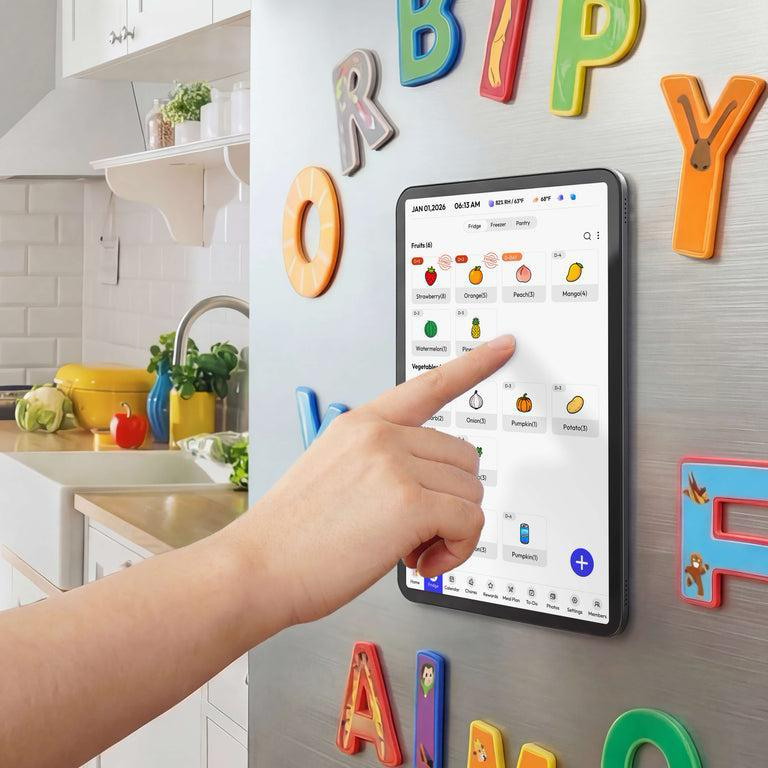
What sets FridgeCal apart from a standard whiteboard or paper planner is its ability to communicate with your existing digital ecosystem. Events added through the companion app appear on the physical display and vice versa, keeping everyone in the household on the same page without extra effort. Compared to traditional calendars, there’s no rewriting outdated entries, no missed grocery items, and no need to check multiple apps to get a complete picture of the week ahead.
Key Features: Magnetic Mount, Grocery Scanning, and Calendar Sync
FridgeCal’s magnetic mount provides a firm, repositionable hold on any standard refrigerator surface, so installation takes seconds with no tools required. The grocery scanning feature uses the device’s camera to read barcodes and add items directly to a digital shopping list, eliminating handwritten notes. At its core, the calendar sync functionality connects seamlessly to platforms like Google Calendar, Apple Calendar, and Outlook, ensuring every event, reminder, and appointment flows consistently between the physical display and every device your family uses.
Preparing for Integration: Prerequisites and Initial Setup
Before diving into the sync process, a few things need to be in place to ensure a smooth experience. You’ll need a stable Wi-Fi connection, since FridgeCal relies on internet access to communicate with your digital calendar services. You’ll also need an active account with at least one supported calendar platform — Google Calendar, Apple Calendar, or Microsoft Outlook all work natively with FridgeCal’s sync system.
Start by unboxing your FridgeCal device and locating a clear, flat section of your refrigerator door. The magnetic backing attaches firmly to any standard steel surface — simply press it into position and adjust until it sits level. No drilling, adhesives, or tools involved.
Next, download the FridgeCal companion app from the App Store or Google Play, depending on your device. Open the app and tap “Create Account” to register with your email address. Once your account is active, the app will prompt you to connect your FridgeCal device via Wi-Fi. Follow the on-screen instructions to select your home network and enter your password. With the device online and your account ready, you’re fully prepared to begin the calendar integration steps.
Step-by-Step Guide to Sync FridgeCal with Your Digital Calendar
With your FridgeCal device mounted, connected to Wi-Fi, and your app account active, you’re ready to complete the integration. The following steps walk you through linking your preferred calendar service, configuring sync preferences, making use of the grocery scanning feature, and confirming everything works as expected. Each step builds on the last, so working through them in order gives you the smoothest setup experience.
Step 1: Connecting FridgeCal to Your Preferred Calendar Service
Open the FridgeCal app and navigate to Settings, then tap “Calendar Integration.” You’ll see options for Google Calendar, Apple Calendar, and Microsoft Outlook. Select your preferred service and tap “Connect.” The app will redirect you to your calendar provider’s authorization page — sign in with your existing credentials and grant FridgeCal the requested permissions to read and write calendar events. Once authorized, you’ll be returned to the app with a confirmation that the connection is active. If you use multiple calendar accounts, you can repeat this process to link additional services simultaneously. Tools like Everblog also pair well at this stage if your household already uses it to manage content or shared scheduling notes across devices.
Step 2: Configuring Sync Settings for Multi-Device Access
After connecting your calendar service, go to “Sync Preferences” within the app’s Settings menu. Here you can set sync frequency — options typically range from real-time to every 15, 30, or 60 minutes depending on your preference for battery and data usage. Enable push notifications so every family member receives alerts for new or updated events. To add other household members, tap “Family Sharing,” enter each person’s email address, and assign their access level. Each invited member will receive an email prompting them to join the shared FridgeCal workspace through the app on their own device.
Step 3: Utilizing Grocery Scanning with Calendar Events
FridgeCal’s grocery scanning feature becomes especially powerful when paired with calendar events like weekly meal plans or dinner parties. To use it, tap the camera icon on the app’s home screen and point your phone at any product barcode. The item is added instantly to your digital shopping list. From there, you can attach that list to a specific calendar event — for example, linking a grocery run to a Saturday meal prep session. This keeps your shopping and scheduling in the same place, reducing the chance of forgetting items when you head to the store.
Step 4: Testing and Verifying the Sync
To confirm everything is working correctly, create a test event directly on the FridgeCal physical display using the companion app’s “Add Event” function. Within your chosen sync interval, open your digital calendar on a separate device — your phone, tablet, or computer — and verify that the event appears there as well. Next, add an event from your digital calendar and check that it shows up on the FridgeCal display. If an event doesn’t appear, go to Settings, tap “Sync Now” to trigger a manual refresh, and confirm that calendar permissions are still authorized under your account settings.
Advanced Features and Tips for Optimal Use
Once your basic sync is running smoothly, FridgeCal offers several advanced capabilities worth exploring. You can customize the physical display layout through the app’s “Display Settings” menu, choosing which calendar categories appear on the fridge screen and adjusting color coding to distinguish between family members or event types at a glance. For recurring commitments like weekly soccer practice or monthly bill payments, use the “Repeat Event” option when creating entries — this pushes the series to both your digital calendar and the FridgeCal display automatically, so you only enter it once. FridgeCal also connects with popular smart home platforms, allowing voice assistants to read upcoming events or add grocery items hands-free while you’re cooking.
For grocery scanning, keep the app’s camera lens clean and scan items in good lighting to improve barcode recognition accuracy. Building your shopping list incrementally throughout the week — scanning items as you run out rather than trying to remember everything at once — dramatically reduces forgotten purchases. On the calendar side, enabling color-coded family member profiles makes it immediately obvious whose event is whose without reading every entry in detail.
Enhancing Daily Planning with Grocery Scanning
To get the most from grocery scanning, link your shopping lists directly to meal-related calendar events. When you schedule a Sunday dinner party, attach a grocery list to that event so all required ingredients appear together in one place. As you scan pantry items running low throughout the week, they populate the same shared list automatically. This pairing reduces food waste by preventing duplicate purchases and ensures your meal prep sessions start with everything already accounted for, cutting last-minute store runs significantly.
Multi-Device Access for Family Coordination
Shared family access works best when each household member has their own profile within the FridgeCal app. Go to “Family Sharing” in Settings, add each person’s email, and assign editing or view-only permissions based on their role. Once accepted, every member sees the same unified calendar on their personal device in real time. Parents can manage the full schedule while children receive view-only access, keeping everyone informed without risking accidental edits. Changes made from any device — phone, tablet, or the fridge display — sync instantly across the entire group.
Troubleshooting Common Sync Issues
Even with a straightforward setup, occasional hiccups can interrupt your FridgeCal sync. The most common culprit is a dropped or unstable Wi-Fi connection — if events stop appearing on the physical display or your digital calendar, check that your router is functioning and that FridgeCal remains connected to the correct network under the app’s “Device Settings.” A quick router restart often resolves intermittent connectivity problems without any further action needed.
If the sync itself appears to stall, the most likely cause is expired calendar authorization. Calendar platforms occasionally revoke third-party app permissions after password changes or security updates. To fix this, go to Settings in the FridgeCal app, tap “Calendar Integration,” select your connected service, and choose “Reauthorize.” Sign in again and re-grant the necessary permissions. Running a manual sync immediately afterward by tapping “Sync Now” confirms the connection is restored. For app-related errors or crashes, check whether a software update is available in the App Store or Google Play — outdated app versions are a frequent source of unexpected behavior. If problems persist after trying these steps, FridgeCal’s support team can be reached directly through the “Help” section of the app, where you can submit a detailed report for faster resolution.
Start Syncing FridgeCal for a More Connected Home
Integrating FridgeCal with your digital calendar transforms the way your household manages daily life. By connecting a familiar physical touchpoint — the refrigerator — to the digital calendars your family already relies on, you eliminate the fragmentation that makes scheduling and grocery management so frustrating. Events stay consistent across every device, shopping lists attach directly to meal plans, and every household member works from the same up-to-date information without extra effort.
For tech-savvy households, FridgeCal hits a practical sweet spot: it delivers real-time synchronization and multi-device access without requiring everyone to stare at their phones to stay coordinated. The grocery scanning feature alone saves meaningful time each week, and the shared family calendar keeps even the busiest schedules from slipping through the cracks.
Now that you have a complete walkthrough — from initial setup through advanced features and troubleshooting — the next step is simply getting started. Mount your FridgeCal, link your calendar service, and invite your family members to join. As smart home technology continues to evolve, tools like FridgeCal point toward a future where physical and digital organization work as one seamless system, making connected home living genuinely effortless.






Comment