
How to Identify Official Office Software Websites Before Installing Productivity Tools

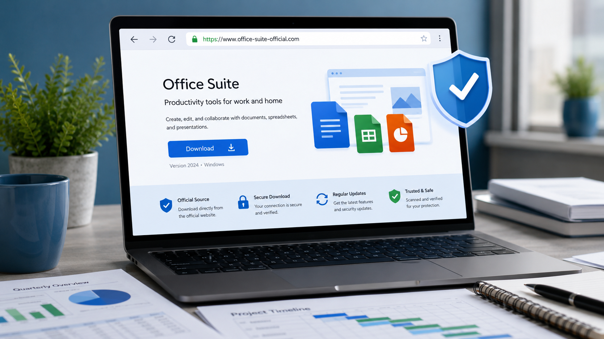
Productivity software has become part of everyday work for students, freelancers, small businesses, and enterprise teams. Whether people are preparing reports, editing spreadsheets, building presentations, or sharing documents across devices, office software often handles files that contain sensitive business and personal information. Because of that, choosing where to download office tools is no longer a small technical detail. It is a basic security decision.
Many users still search for software names in a browser, click the first result that looks familiar, and install whatever download package appears on the page. That habit can be risky. Fake download pages, repackaged installers, bundled software, and misleading update prompts can expose a device to unnecessary security problems. For Windows users especially, a careless installation can affect browser settings, startup behavior, document access, and even account security.
A safer approach is to verify the source before downloading. This does not require advanced technical knowledge. It requires a few consistent checks: confirming the domain, reviewing the download page, checking whether the site uses secure connections, avoiding suspicious installers, and understanding how updates are delivered.
Why the Download Source Matters
Office software is different from a simple utility. It often integrates deeply with the operating system, opens common file formats, stores recent documents, and may connect with cloud services. If the installer comes from an unreliable source, the user may not immediately notice the problem. The software may still open documents normally, while unwanted components run in the background.
Unsafe download sources can create several risks. Some installers add browser extensions or change search settings. Others include advertising tools, system optimizers, or unnecessary background services. In more serious cases, a fake installer can imitate a real office tool while delivering malicious files. Even when no malware is present, unofficial versions may fail to update properly, leaving security issues unresolved.
This is why users should treat the download source as part of the software’s security model. The safest installer is not simply the one that downloads fastest. It is the one that comes from a source that can be verified and updated consistently.
Start With the Domain Name
The first step is to inspect the website address carefully. Many fake or low-quality pages use domain names that look close to official names but contain extra words, unusual spelling, hyphens, or unnecessary subdomains. A user may see a page that looks professional, but the domain itself tells a different story.
Before downloading office software, users should check whether the domain is clear, stable, and relevant to the product. It is also useful to avoid pages that rely heavily on pop-ups, countdown buttons, or aggressive download banners. A legitimate software website usually does not need to pressure users into clicking immediately.
For users comparing official office software sources, a page such as wps官网 can be reviewed as part of the broader habit of checking whether the address, page content, and download context match the software being installed. The goal is not to click quickly, but to confirm that the source makes sense before any installer is opened.
Check HTTPS, But Do Not Rely on It Alone
HTTPS is important because it helps protect data transferred between the browser and the website. A secure connection reduces the chance of interference during browsing or downloading. However, HTTPS does not automatically prove that a site is official or trustworthy. Many unsafe websites also use HTTPS certificates.
Users should treat HTTPS as a basic requirement, not as final proof. A safer download page should combine HTTPS with a clear domain, consistent branding, readable instructions, and a direct relationship between the page and the software being offered. If a page has HTTPS but looks unrelated, overloaded with ads, or filled with several competing download buttons, it still deserves caution.
Review the Download Page Before Clicking
A reliable office software download page should make it clear what version is being offered, which operating system it supports, and what the installation package includes. Windows users should look for details such as system compatibility, installer type, version information, and update instructions.
Warning signs include vague file names, multiple download buttons pointing to different services, forced browser notifications, unrelated software recommendations, and instructions that ask users to disable security tools. A legitimate productivity tool should not require users to turn off basic protection before installation.
When checking a wps 官方网站 style download source, users should also confirm whether the page explains the office software clearly rather than simply pushing a large download button. A good source should help users understand what they are installing and why the page is relevant to that tool.
Avoid Bundled Installers and Unnecessary Add-ons
Bundled installers are one of the most common problems in software downloads. They may include the software a user wants, but also add unrelated programs during installation. Sometimes these extras are shown as optional offers. Sometimes they are preselected by default. Users who click through quickly may install more than they intended.
During installation, users should choose custom or advanced options when available. This makes it easier to see optional components. If an installer offers browser toolbars, search changes, system cleaners, or unrelated apps, those options should be declined. For business devices, users should follow internal IT policies and avoid installing unapproved components altogether.
The safest workflow is simple: download from a verified source, inspect the installer name, review each installation screen, and avoid optional extras. Rushing through installation is where many preventable problems begin.
Understand the Update Channel
Security does not end after installation. Office software needs updates to fix bugs, improve compatibility, and address security issues. Users should know how the software receives updates and whether updates come from the same trusted source.
Unexpected update prompts from unknown websites should be treated carefully. A fake update message can appear in a browser and claim that a document viewer, office suite, or plug-in is outdated. Instead of clicking those prompts, users should open the software itself and check for updates from within the application or from the verified website.
For teams, it is useful to document where software installers come from and how updates are handled. This reduces confusion when new employees set up devices or when existing users reinstall tools on a new computer.
Use a Simple Pre-Installation Checklist
Before installing any productivity tool on Windows, users can follow a short checklist:
- Confirm the website domain and avoid lookalike addresses.
- Check that the page uses HTTPS, but do not rely on HTTPS alone.
- Read the download page and confirm the software version.
- Avoid pages with excessive ads, pop-ups, or forced redirects.
- Choose custom installation options when available.
- Decline unrelated bundled tools or browser changes.
- Confirm how the software receives updates after installation.
- Keep the installer only if it comes from a source you trust.
Final Thoughts
Installing office software safely is not just about choosing a popular tool. It is about verifying the source, understanding the download page, and avoiding unnecessary risk before the installer runs. Most problems can be prevented by slowing down and checking a few details that many users overlook.
For Windows users and teams that depend on productivity software every day, official-source verification should become a normal part of device setup. A careful download process protects documents, reduces unwanted software, and keeps work devices easier to manage over time.







Comment