
How to Generate AI Images and Videos with CLI Tools: A Step-by-Step Guide

An outdoor apparel team needs a campaign image, a short video teaser, and several social variations. The brief stays the same, but each format can mean switching websites, setting up different models, and repeating the same creative instructions.
An AI generation CLI offers another route: create images and videos through a connected AI agent or terminal. With Media.io CLI, creators can also use eligible free image models and, if they already have Media.io membership, generate videos with qualifying member models without spending additional AI credits.
This guide explains what an AI generation CLI does, how to follow the official Media.io setup instructions, and how to take a campaign concept from an image brief to a video brief.
What Is an AI Image and Video Generation CLI?
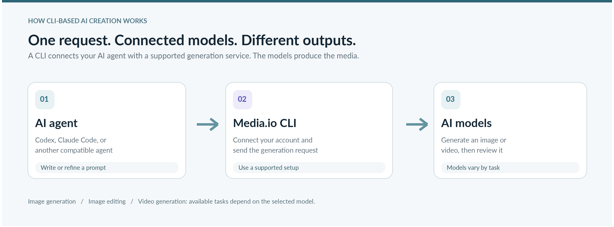
CLI stands for command-line interface. It allows you to control software with text commands. When a CLI is connected to an AI agent, such as Codex or Claude Code, you can often describe the task in ordinary language and let the agent use the connected tool.
An AI image generation CLI sends an image request to a compatible model. An AI video generation CLI does the same for motion content. In both cases, the AI model creates the result; the CLI is the route used to reach it. This distinction matters: using a CLI does not make a model render faster or improve quality by itself.
The key advantage is a connected creative process: prompts, model selection, and revisions can remain close to your project, with access to selected free generation options depending on your Media.io account.
Why Bring AI Generation into Your Existing Workflow?
Spend less time switching tabs. If a marketer or creator is exploring several directions, working from one agent environment is usually simpler than opening separate tools for every image and video test.
Choose a model for the task. Media.io CLI exposes multiple image and video models in one connection, so you can select a suitable model without setting up a separate integration for each one. The input requirements and free benefits still depend on the selected model.
Reuse prompts more effectively. Once a subject, framing, or lighting approach works, you can keep that prompt structure and adapt it for later campaigns instead of rebuilding the brief from scratch.
Keep the brief in one place. A connected agent can help organize requirements, draft prompts, send requests, and flag what still needs revision. The exact level of assistance depends on the tools you connect and the permissions you allow.
For regular creators, the combination of a connected agent workflow and eligible free generation can be especially useful. Occasional users can still choose the browser tools offered by Media.io.
What Can You Create for Free with Media.io CLI?
Free AI images with eligible models. Media.io CLI makes image generation available through selected free models. The official page currently labels ToMoviee Lite as FREE for image creation, while ToMoviee 3.0 Pro is shown as VIP FREE. You can draft social posts, marketing visuals, and concept images from your connected agent without spending AI credits on those qualifying options.
Unlimited member video generation with no extra AI credits. If you already have a Media.io membership, the current CLI offer includes unlimited free video generation with eligible VIP FREE models, such as ToMoviee 3.0 and ToMoviee 2.0 Fast. These qualifying generations do not require additional AI-credit spending.
The distinction matters: free access is tied to the models and account benefits identified on the official CLI page. Other available models, including Seedance 2.5 and Kling 3.0, should not be assumed to be free or unlimited. Check the current model labels and membership terms before choosing a workflow.
How to Generate AI Images and Videos Using Media.io CLI
For installation and the current model benefits, start at the official Media.io CLI feature page. It provides separate setup tabs for Codex, Claude Code, Other Agents, and CLI usage, so you can follow the guidance for the environment you actually use.
Step 1: Choose the Agent You Already Use
Open the Media.io CLI feature page and choose Codex, Claude Code, Other Agents, or CLI from the setup panel. Read the instructions in the tab that matches your environment; the installation method is not identical for every agent and operating system.
If you are new to CLI tools, use the setup prompt provided on that page. Copy the entire official prompt rather than adapting a fragment or following commands from a third-party article.
Step 2: Install the CLI and Sign In
On the Media.io CLI feature page, select your agent and use the Copy Prompt option to obtain the complete, current setup instructions. Paste that official prompt into your chosen agent and allow it to guide installation. The instructions may include operating-system-specific steps, so this article intentionally does not reproduce commands.
When the setup flow requests authorization, sign in with your Media.io account and grant any required permissions yourself. Once connected, the agent can use the Media.io image or video generation models available to that account. The same account connection carries your eligible free-image and membership video benefits into the workflow.
Confirm the setup has finished before trying your first generation. If you encounter an installation or sign-in problem, return to the official feature page and follow its current troubleshooting guidance rather than trying unverified instructions.
Step 3: Request an AI Image
For example, imagine you need a social post for a new outdoor jacket. Describe the subject, the setting, the intended format, and the details that should remain consistent if you later expand the idea into video.
Creative brief example: “A photorealistic campaign image of a hiker wearing a vivid red waterproof jacket on a mountain overlook at sunrise. Keep the jacket bright red, use warm side lighting, and frame the landscape for a social post.”
Media.io CLI offers both free and other supported image models. The official page labels ToMoviee Lite as FREE and ToMoviee 3.0 Pro as VIP FREE, while also listing Nano Banana 2 and GPT Image 2. Choose a model according to its eligibility and the image you need. After generation, inspect the jacket shape, color, composition, and any visual artifacts.
Step 4: Turn the Creative Idea into Video
Use the same brief to plan a teaser video. If the selected workflow supports image references, the approved still can help maintain visual continuity. If not, describe the scene again in a text-to-video request and add clear motion guidance.
Creative brief example: “A short cinematic teaser of a hiker in a red waterproof jacket overlooking snowy mountains at sunrise. Start with a wide shot and move the camera slowly toward the subject. Keep the jacket color and setting consistent.”
For members, the official CLI page identifies ToMoviee 3.0 and ToMoviee 2.0 Fast as VIP FREE video models. Under the current member offer, qualifying video generation is unlimited and uses no extra AI credits. Seedance 2.5 and Kling 3.0 are also listed as available video models, but their pricing and eligibility should be checked separately. Image-reference support and other settings can differ by model.
Step 5: Review, Refine, and Reuse
Review both assets before using them in a campaign. Is the jacket still the right shade of red? Does the shape remain believable? Does the video introduce odd motion, distorted hands, or sudden scene changes? A tighter prompt or a different model may improve the result, but every asset still needs human review.
Save the final brief and the most useful prompts. They can serve as a starting point the next time you need a matching image and video, without replacing the final human quality check.
One Brief, Two Formats: A Practical Campaign Workflow
Imagine the same outdoor brand preparing an Instagram post and a short teaser video. Both assets need to communicate the same mood: early sunlight, rugged mountains, and a vivid red jacket. With a CLI-based workflow, the team can begin with one concise creative brief and extend it across both formats.
- Set the visual rules: a red waterproof jacket, a mountain overlook at sunrise, and natural, realistic lighting.
- Generate the still image and review its product details and composition.
- For the video, reuse the approved image as a reference if supported; otherwise carry its subject, lighting, and framing into a new motion prompt.
- Review the image and video side by side before publishing, especially the jacket color, proportions, and overall tone.
A connected creative process does not guarantee flawless matching assets. It does, however, keep the brief and revisions together, and qualifying free image or member video models can reduce the AI-credit cost of testing additional concepts.
Tips for Better AI Image and Video Generation Results
Describe the shot, not just the topic. “A person outdoors” is broad. “A hiker in a red jacket on a rocky overlook at sunrise, photographed from behind” gives the model a clearer starting point.
Repeat details that must stay consistent. Use the same garment color, silhouette, landscape, and lighting direction in the still and video requests. If brand accuracy is essential, provide approved reference material where the model supports it.
Add motion instructions only when they matter. A video prompt should say whether the camera moves, what the subject does, and how the sequence should feel. A still-image prompt normally needs composition more than timing.
Check the free-model label before generating. ToMoviee Lite is listed as a free image option, while qualifying VIP FREE video models are available for Media.io members without additional AI-credit charges. Do not assume the same benefit applies to every model.
Check every asset before publication. Look for inaccurate product details, visual defects, unintended likenesses, and rights or privacy issues. Automated generation does not replace editorial approval.
Common Mistakes to Avoid
A common setup mistake is following commands for the wrong environment. Select the correct agent tab and verify authentication first. Another is using the same prompt for a still image and a moving sequence without specifying camera motion or timing. A third is assuming that an AI-generated asset is ready to publish without checking the details.
Available models, free labels, and membership conditions may change. Check the official Media.io CLI feature page before starting a larger image or video project.
Conclusion
For teams using AI agents, Media.io CLI brings image and video generation into the same creative environment. The added advantage is access to free image generation with eligible models and no-extra-credit video generation for existing members using the supported VIP FREE models.
The wider Media.io platform also offers browser-based image and video tools. If you prefer working through Codex, Claude Code, or a compatible agent, the CLI feature page is the place to get the exact setup instructions and review the latest free-model benefits.
FAQs
1. What is an AI image generation CLI?
It is a way to request image generation from a command line or a connected AI agent. The CLI passes the request to a compatible AI model, which creates the image.
2. Can a CLI generate AI videos as well as images?
Yes, when the connected service provides video models. Media.io CLI lists both image and video options, though their inputs and usage conditions can differ.
3. Do I need programming experience to use Media.io CLI?
You need a compatible environment and must complete installation and sign-in. In supported agents such as Codex or Claude Code, many creative tasks can be requested in natural language.
4. Can I create AI images and videos for free with Media.io CLI?
Yes, for eligible models. Media.io CLI lists free image generation through models such as ToMoviee Lite. If you are already a Media.io member, eligible VIP FREE video models such as ToMoviee 3.0 and ToMoviee 2.0 Fast can be used for unlimited video generation without additional AI-credit spending under the current offer. Other models may have different requirements.






Comment