
How to Fix 0xc000007b Error on Windows 11/10: 9 Methods

Get Your Apps and Games Launching Normally Again
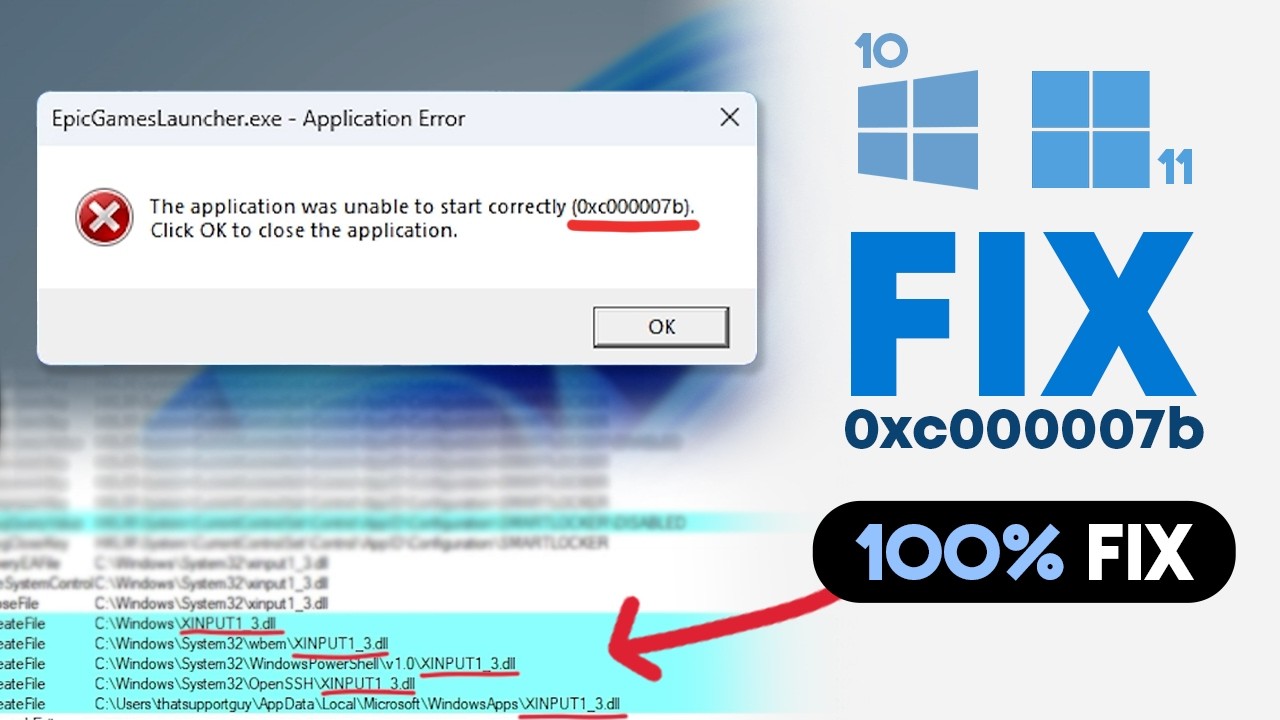
You double-click a game you’ve launched a hundred times or a creative tool you just installed. Windows responds with a grey box: “The application was unable to start correctly (0xc000007b). Click OK to close the application.” There’s no explanation, and the program never opens. This error often appears after a Windows update, a fresh installation, or changes to a previously functioning program.
Popular causes include corrupted files, mismatched 32-bit and 64-bit components, damaged Windows system files, or missing runtime dependencies. This guide shares solutions from least to most disruptive, including how to protect your files before trying anything drastic.
Part 1: What Does Error 0xc000007b Mean?
The code is a Windows NTSTATUS value, STATUS_INVALID_IMAGE_FORMAT. It means Windows tried to load an executable or required component but found a format it couldn’t use. Microsoft’s headers label it “{Bad Image},” but the file isn’t necessarily corrupted. Often, it’s simply built for the wrong architecture.
A popular cause is an incompatible DLL. A 64-bit program can’t load a 32-bit DLL, or vice versa. Windows may encounter the wrong file, continue searching, and eventually report the format error when it can’t find a compatible version.
Part 2: Identify the Likely Cause
Before running repairs at random to fix the 0xc00007b error, match what you’re seeing to the pattern below:
| Symptom | Possible Cause | First Action |
| Only one application fails | Corrupted installation | Repair or reinstall the app |
| Several programs display the error | Damaged runtime or system files | Run DISM and SFC |
| Error affects games | DirectX, Visual C++, or game-file issue | Verify dependencies and files |
| Error started after manual DLL replacement | Incorrect DLL architecture | Undo the replacement |
| Windows also crashes or loses files | Wider system or drive problem | Back up or recover data first |
The first two rows cover most cases. If one program fails, suspect its files or dependencies. But if several unrelated programs fail, look at shared components like the Visual C++ runtime or Windows itself. The last case needs extra care, so it gets its own section.
Part 3: Protect Important Files Before Advanced Repairs
Most fixes are harmless, but “System Restore,” “Reset this PC,” and “Windows reinstallation” can change or remove files. Before trying them, back up documents, game saves, project folders, and application databases.
Remember that game saves often exist in “AppData” or “Documents,” not the game folder. If files are already missing, try 4DDiG Windows Data Recovery before advanced repairs, which might overwrite data and reduce your chances of recovery.
Main Features of 4DDiG Data Recovery:
- Scan for files lost due to crashes, failed repairs and updates, reinstallations, and resets.
- Can recover files from formatted and corrupted storage devices.
- Support for 2000+ file types, including documents, media, and other popular file formats.
- Check supported recoverable files before restoring them.
- Recover data from multiple internal/external drives, like hard disks, USBs, SD cards, drones, digital cameras, etc.
Recover Important Files With 4DDiG Data Recovery:
Here’s how to retrieve crucial files lost due to the 0xc00007b error with 4DDiG Data Recovery:
Step 1: Stop writing new data:
Every new file risks overwriting. Don’t install more software on it, and don’t reinstall the app you just failed to launch.
Step 2: Select the original partition
Execute 4DDiG Data Recovery on your computer. Choose the location where the files existed, such as the “C: drive” for “Documents” or “Desktop.”
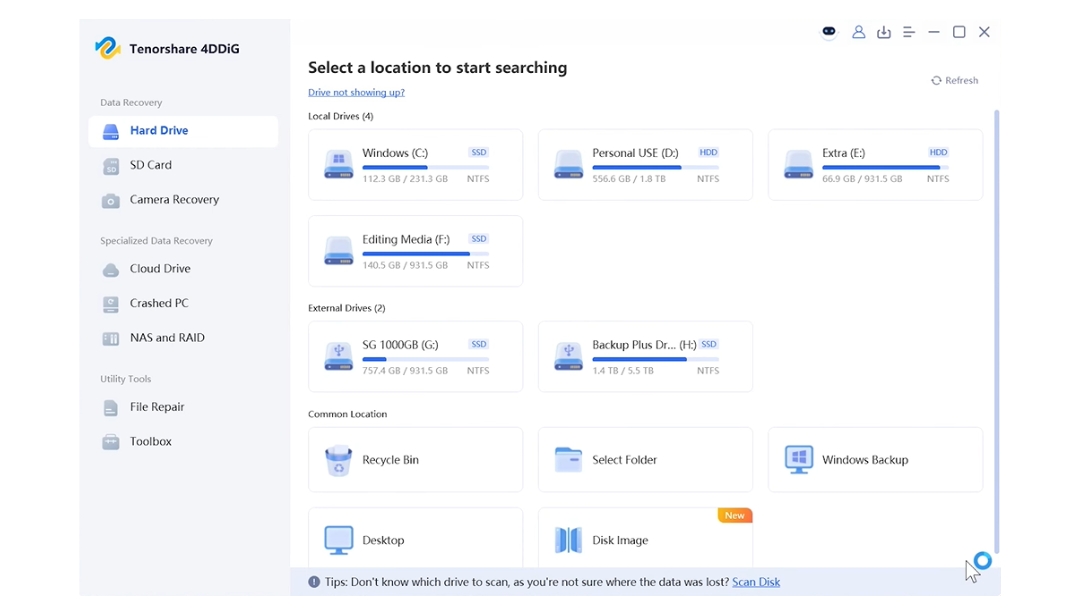
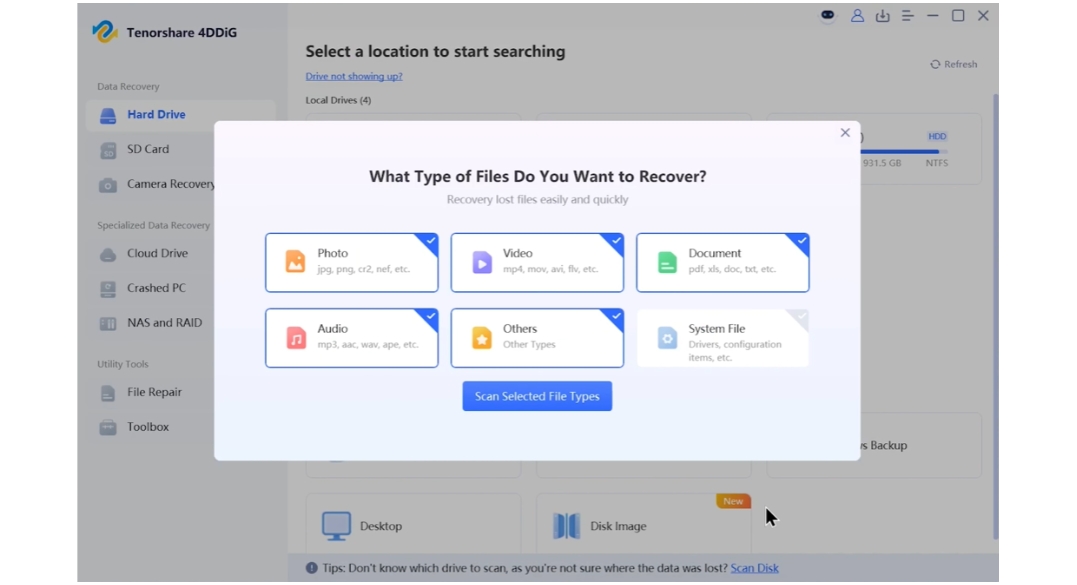
Step 3: Scan for deleted or missing files:
Pick the file types to scan. Stop or pause the scanning once you find your required files.
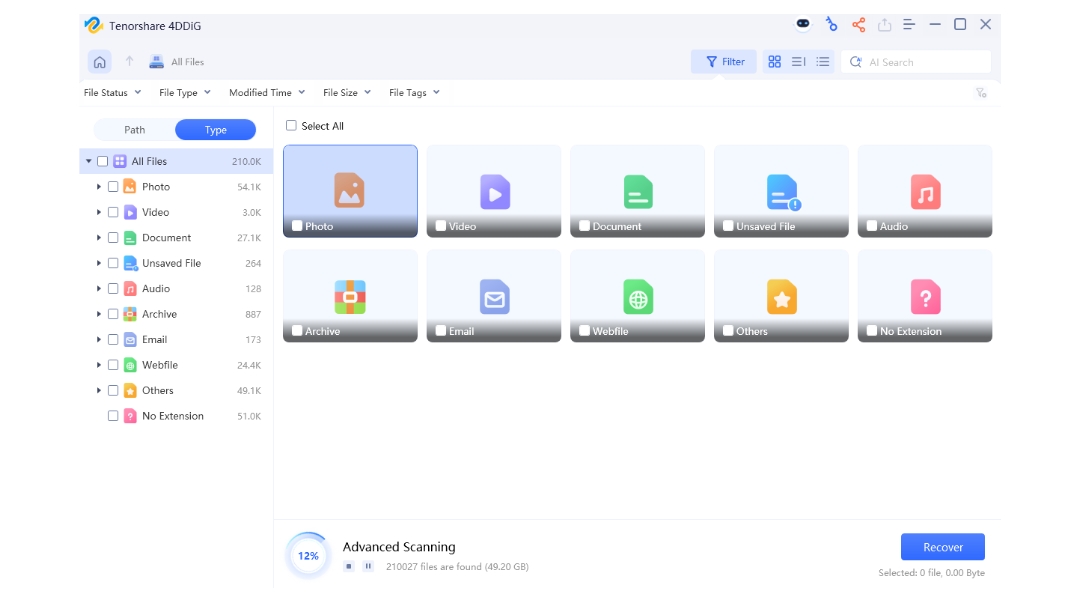
Step 4: Filter and preview:
Narrow the results by file type, path, tags, and keywords. Then, preview files before restoring.
Step 5: Save selected files:
Never restore the recovered files to the same partition you scanned. Use an external drive, cloud, or a different internal one.
Important: 4DDiG recovers lost data. It does not repair application dependencies, and it won’t fix error 0xc000007b itself. It also can’t guarantee recovery of files that have already been overwritten. Treat it as the safety net you use before and after repairs, not as the repair.
Part 4: Nine Ways to Fix Error 0xc000007b
Try these 9 solutions to fix the “the application was unable to start correctly 0xc000007b” error. Stop as soon as the application opens:
Method 1: Restart the PC and install Windows Updates
Restart to clear half-loaded libraries and finish pending updates. This is especially useful if the error appeared after a pending update:
- Right-click the “Start” menu. Open “Settings.”
- Choose “Windows Update” and install available updates.
Method 2: Repair the Affected Application
The application itself may have corrupted or missing files. Thus, try repairing it first to fix the installation without removing your data:
- Right-click the “Start” menu. Open “Settings.”
- Choose “Apps.” Then, select “Installed apps.”
- Open the app’s options and select “Repair” if available. Avoid “Reset” initially, as it can erase local app data.
Method 3: Reinstall the Application
If repair fails, uninstall the program, restart, and reinstall it from the publisher’s official website or an official store. Back up saves and settings first, and avoid reusing an old installer.
Method 4: Check System Compatibility
Next, check whether the app is compatible with your PC. Error 0xc000007b can manifest when the application and your system use incompatible architectures:
- Right-click the “Start” menu. Open “Settings.”
- Choose “System.” Tap “About” and check “System type.” Compare it with the application’s requirements.
A 64-bit-only program won’t run on 32-bit Windows, while ARM-based PCs may have compatibility limits with apps built for other architectures.
Method 5: Repair Microsoft Visual C++ Redistributables
A missing or damaged Visual C++ runtime could be the cause of 0xc000007b. These packages support many Windows applications and games, so repairing them may resolve it. Download redistributables only from Microsoft or follow the developer’s instructions:
- The modern v14 package supports applications built with Visual Studio 2015–2026.
- On 64-bit Windows, install both x86 and x64 packages if needed. Older 32-bit programs still require x86.
- ARM64 PCs have additional architecture considerations.
- Older runtimes, such as Visual C++ 2013, 2012, and 2010, require separate packages.
If the packages are already installed, open “Installed apps,” select the relevant package, choose “Modify,” then “Repair.”
Method 6: Check DirectX
DirectX is the next thing to check, especially if the error appears when you launch a game. Some older games require legacy DirectX components that aren’t included with modern Windows installations:
- Press “Windows + R.” Type “dxdiag.”
- Hit “Enter” to check your DirectX version.
DirectX updates come through “Windows Update.” Avoid websites offering standalone DirectX 12 installers.
For older games that may need legacy libraries such as “D3DX9” or “XAudio 2.7,” try Microsoft’s “DirectX End-User Runtime Web Installer.” It adds legacy components without changing the reported DirectX version.
Method 7: Verify Game Files
If only games are affected, check their files through the official launcher:
On Steam:
- Right-click the game. Choose “Properties.” Tap “Installed Files.”
- Verify integrity of game files.
On Epic Games:
- Open the game’s “three-dot menu.” Tap “Manage.”
- Click “Verify.” The launcher checks for missing or damaged files and replaces them when necessary.
Method 8: Repair Windows System Files
If multiple programs fail or other fixes don’t work, use DISM and System File Checker (SFC). The commands are covered in Part 5.
Method 9: Try a Clean Boot, System Restore, or Windows Repair Installation
Use these options when the error persists:
- Clean boot: Helps identify background services or programs interfering with the application. See Part 6.
- System Restore: Rolls Windows back to an earlier restore point. It may remove programs installed afterward but doesn’t delete personal documents. A restore point must exist.
- Windows repair installation: Replaces Windows system files while preserving files and apps:
- Head to “Settings.” Choose “System.” Tap “Recovery.”
- Select “Fix problems using Windows Update.” Hit “Reinstall now,” if available.
Don’t confuse a repair installation with “Reset this PC.” Reset can remove apps and settings, while “Remove everything” wipes the drive. Back up important files before proceeding.
Part 5: Run DISM and SFC
DISM repairs the Windows component store, while SFC scans protected system files and replaces corrupted copies. Run DISM first because SFC relies on that store for replacements:
- Type “cmd” in the Windows search field. Right-click “Command Prompt.”
- Select “Run as administrator.” Run these commands in order:
- DISM.exe /Online /Cleanup-Image /RestoreHealth
- sfc /scannow
By default, DISM downloads repair files through Windows Update. If that fails, you can specify a local repair source:
- DISM.exe /Online /Cleanup-Image /RestoreHealth /Source:C:\RepairSource\Windows /LimitAccess
Replace “C:\RepairSource\Windows” with your actual source path.
Remember, SFC only repairs Windows system files. If the problem is a mismatched DLL in a game’s folder, a clean scan won’t fix it. Once both scans finish, restart your PC and try the application again.
Part 6: Use a Clean Boot to Find Software Conflicts
A clean boot starts Windows with only crucial drivers and startup programs, helping you identify background software that conflicts with an application. It’s a diagnostic tool, not a fix. Here’s how to utilize a clean boot to find software conflicts:
- Press “Windows + R.” Type “msconfig.” Hit “Enter.”
- Beneath “Services,” tick “Hide all Microsoft services.” Click “Disable all.”
- Beneath “Startup,” open “Task Manager” and disable enabled startup items.
- Close “Task Manager,” click “OK,” and restart.
If the application opens, re-enable disabled items in batches, restarting between rounds, until the error returns. Frequent suspects include overlays, RGB utilities, peripheral software, and third-party security tools. Some features may not work during a clean boot.
When finished, restore normal startup:
- Open “msconfig.” Select “Enable all” beneath “Services.”
- Re-enable your startup items in “Task Manager,” and restart.
Part 7: Avoid Unsafe DLL Fixes
Avoid downloading individual DLLs from unofficial websites or copying them into “System32” or “SysWOW64.” The error often involves incompatible files, and adding another DLL from an unknown source can make things worse.
There are two risks. Unofficial DLLs may contain malware, and mixing 32-bit and 64-bit files can create new conflicts. On 64-bit Windows, “System32” contains 64-bit files, while “SysWOW64” contains 32-bit files.
Debug libraries ending in “d” also aren’t intended for ordinary users. If the error started after you manually replaced a DLL, restore the original file or reinstall the application or runtime responsible.
Final Words
Start with the least disruptive solutions to fix the 0xc00007b error. Repair or reinstall the application, then check its dependencies, including Visual C++ packages, DirectX, and game files. If the error persists, execute DISM and SFC.
When several programs fail at once, Windows or shared runtimes are likely causes. Before using “System Restore,” “Reset this PC,” or reinstalling Windows, back up important data. If files go missing, stop writing to the drive and use 4DDiG Data Recovery to scan for recoverable files before advanced repairs.
FAQs
1. What causes the 0xc000007b error?
Frequent causes include corrupted application files, incompatible DLL architecture, damaged Windows components, and missing Visual C++ or DirectX dependencies.
2. Why does 0xc000007b appear only when I launch a game?
The game may depend on a damaged runtime, graphics driver, DirectX component, launcher file, or incompatible plug-in. Verify the game files and reinstall its official dependencies.
3. Should I install both x86 and x64 Visual C++ Redistributables?
A 64-bit computer can run both 64-bit and 32-bit applications, which may require different packages. Follow the software developer’s requirements and use Microsoft’s official downloads.
4. Is it safe to download a missing DLL from another website?
No. Third-party DLL downloads may be outdated, incompatible, or unsafe. Repair or reinstall the application and obtain runtime packages from Microsoft instead.
5. Can 4DDiG fix error 0xc000007b?
4DDiG Data Recovery does not repair the error itself. It may recover files lost during crashes, failed repairs, resets, or reinstallation, provided the data remains detectable and has not been overwritten.







Comment