
How AI Has Transformed the Way We Work Across Every Industry

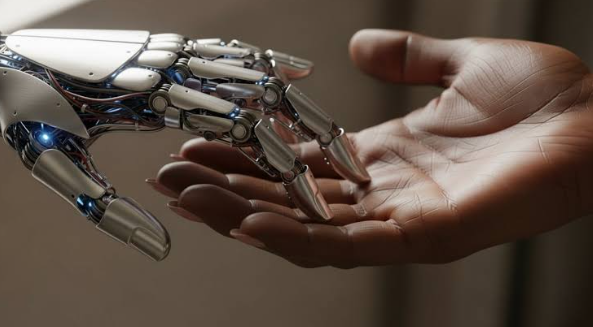
Artificial intelligence is no longer a future concept. It is embedded in daily operations across industries, quietly reshaping how work gets done. From logistics to healthcare, finance to manufacturing, AI is changing not just tools, but entire workflows. The shift is broad, steady, and already well underway.
What makes this transformation notable is not only the scale, but the depth. AI is not simply speeding up tasks. It is redefining what tasks exist in the first place. That difference matters.
From Traditional Workflows to AI-Driven Systems
Work in most industries used to follow a predictable pattern. Humans collected data, processed it manually, and made decisions based on experience or limited analytics tools. This structure was slow. It also left room for inconsistency.
AI has changed that foundation.
Modern systems now ingest large volumes of data in real time. They identify patterns that are difficult for humans to see and recommend actions with increasing accuracy. In some environments, they even execute those actions automatically.
This shift has removed friction from many operational layers. Tasks that once required multiple steps and approvals are now streamlined into near-instant processes. The result is not just speed. It is a structural change in how work flows through organizations.
Automation of Repetitive Work
One of the earliest and most visible impacts of AI has been automation. Repetitive, rule-based tasks are now handled by intelligent systems across sectors.
In customer service, chatbots manage common inquiries. In accounting, AI tools categorize expenses and flag anomalies. In human resources, systems screen resumes and shortlist candidates based on predefined criteria.
This is not about replacing workers entirely. It is about shifting attention away from repetitive execution and toward higher-value decision-making.
The time saved here is significant. Even small efficiencies compound when applied at scale. A task that takes five minutes may not seem important in isolation. But when multiplied across thousands of employees and millions of interactions, the impact becomes substantial.
Smarter Decision-Making Through Data Intelligence
AI’s influence becomes even more powerful when it comes to decision-making.
Organizations today are flooded with data. The challenge is no longer collection. It is an interpretation. AI systems help bridge that gap by analyzing trends, forecasting outcomes, and highlighting risks before they become problems.
AI models can now predict customer behavior, optimize pricing strategies, and even recommend product development directions. These insights are not static reports. They are dynamic, continuously updated as new data arrives.
The result is a more responsive and adaptive business environment.
Industry-Wide Transformation in Practice
The effects of AI are not limited to one sector. They are visible across nearly every major industry.
In healthcare, AI assists with diagnostics and medical imaging analysis. In manufacturing, predictive maintenance systems reduce downtime by identifying equipment issues before they occur. In retail, recommendation engines shape customer experiences in real time.
In logistics, route optimization tools reduce fuel consumption and delivery times. In finance, fraud detection systems analyze transaction patterns at speeds no human team could match.
Each of these examples reflects the same underlying shift: moving from reactive work to proactive systems.
Businesses are no longer just responding to events. They are anticipating them.
AI Agents for Commercial Field Service
One of the more practical and rapidly evolving applications of AI can be seen in service operations, especially in field service industries.
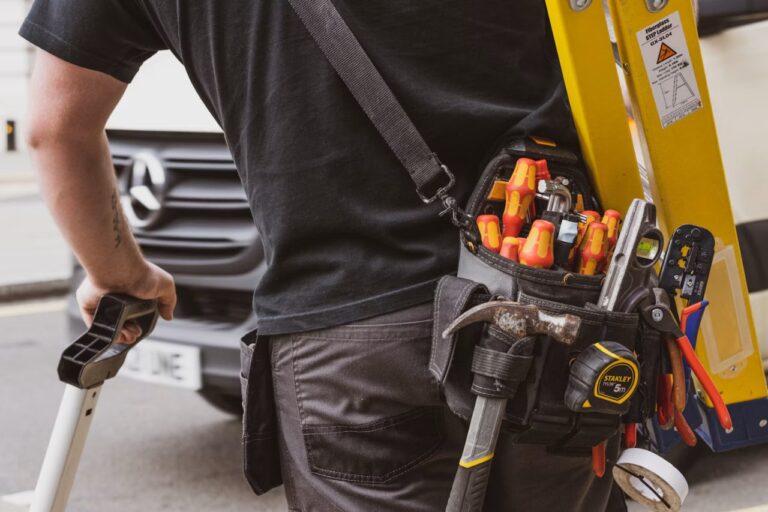
Modern organizations are increasingly adopting AI agents for commercial field service to coordinate scheduling, optimize technician routes, and improve real-time communication between teams in the field and office systems. These AI-driven agents reduce delays, minimize unnecessary travel, and ensure that the right technician is assigned to the right job at the right time.
This type of application shows how AI is not limited to digital environments. It directly impacts physical operations, improving efficiency in real-world service delivery.
The integration of AI into field service also reduces administrative overhead. Dispatchers spend less time manually coordinating schedules and more time handling exceptions and complex cases.
The Human + AI Collaboration Model
Despite concerns about replacement, the most effective use of AI in practice is collaborative.
Humans and AI systems each bring different strengths. AI excels at processing scale, speed, and pattern recognition. Humans excel at judgment, context, and emotional intelligence.
When combined, the result is stronger performance than either could achieve alone.
In many organizations, employees now work alongside AI tools rather than being replaced by them. Writers use AI for research support. Analysts use it to validate assumptions. Engineers use it to test system performance under different conditions.
This collaboration is still evolving. But the direction is clear: augmentation, not elimination.
Challenges and Limitations
While AI brings clear advantages, it also introduces challenges.
Data privacy remains a major concern. As systems collect and analyze more information, organizations must ensure proper governance and compliance. Bias in AI models is another issue. If training data is incomplete or skewed, outputs can reflect and even amplify those flaws.
There is also the question of dependency. As organizations rely more heavily on automated systems, the risk of reduced human oversight increases.
These challenges do not negate the benefits of AI. However, they highlight the need for responsible implementation and continuous monitoring.
The Future of Work in an AI-Driven World
Looking ahead, AI will continue to expand its role in the workplace. But the nature of that expansion will likely shift from task automation to system orchestration.
Instead of simply performing individual tasks, AI systems will increasingly coordinate entire workflows across departments. They will connect data, people, and processes in more integrated ways.
Work itself will become more fluid. Roles will adapt as AI takes on more operational complexity. Employees will spend more time on strategy, creativity, and oversight.
This does not mean work will become easier in a traditional sense. It means it will become different. Less mechanical. More cognitive.
The organizations that succeed will be those that understand this shift early and adapt their structures accordingly.
Conclusion
Artificial intelligence has already reshaped how work is done across industries. It has automated repetitive tasks, improved decision-making, and introduced new models of collaboration between humans and machines.
But perhaps the most important change is still unfolding. AI is not just improving existing systems. It is redefining them.




Comment