
How a Free PC Cleaner and Performance Tests Can Help You Get the Best Gaming Experience

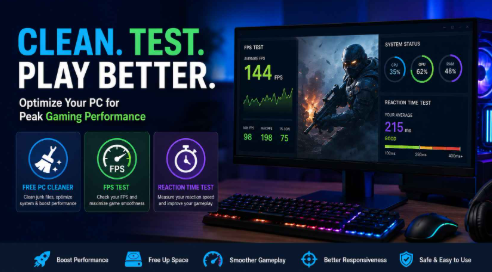
Modern PC gaming demands more from your computer than ever before. New games feature realistic graphics, expansive open worlds, and advanced physics that require both powerful hardware and a well-maintained operating system. Even if your computer meets a game’s recommended specifications, background clutter, outdated drivers, and unnecessary startup programs can reduce overall performance.
Many gamers immediately think about upgrading hardware when they experience lag or lower frame rates. However, software optimization is often an overlooked part of maintaining a smooth gaming experience. Regular system maintenance, combined with performance testing, can help users understand where improvements are possible before spending money on expensive
We’ll explore how using a free PC cleaner, running an FPS test, and measuring your reaction time test results can help you enjoy better gaming performance and a more responsive PC.
Why PC Performance Changes Over Time
A computer rarely performs exactly as it did on the day it was purchased. As software is installed and removed, temporary files accumulate, applications add themselves to startup lists, and registry entries become outdated. These small changes gradually affect overall responsiveness.
Common signs include:
- Slower startup times
- Longer application loading
- Reduced gaming performance
- Random stuttering
- Increased memory usage
- Delayed system response
While some issues stem from aging hardware, many can be reduced through routine maintenance.
The Importance of Using a Free PC Cleaner
One of the easiest ways to maintain Windows performance is by using a reliable free PC cleaner. Instead of manually searching for unnecessary files or disabling background services one by one, a dedicated optimization tool can automate many maintenance tasks.
A quality PC cleaner typically helps users:
- Remove temporary and junk files
- Clean unnecessary registry entries
- Optimize startup programs
- Improve boot speed
- Free storage space
- Reduce unnecessary background activity
These improvements won’t magically transform older hardware into a high-end gaming machine, but they can help Windows operate more efficiently and reduce avoidable slowdowns.
For users who regularly install games, uninstall software, or download large files, routine cleaning can prevent unnecessary clutter from building up over time.
Why FPS Matters in Gaming
Frames per second (FPS) measures how many images your graphics system produces every second.
Generally speaking:
| FPS | Gaming Experience |
| Below 30 | Noticeable lag |
| 30–60 | Playable for most games |
| 60–120 | Smooth gameplay |
| 120+ | Excellent for competitive gaming |
A higher FPS usually results in smoother movement, improved aiming precision, and reduced motion blur.
However, many gamers don’t actually know the frame rate their system is achieving.
That’s why performing an FPS test can be useful before changing graphics settings or upgrading components.
What an FPS Test Can Tell You
An FPS test helps users understand how their PC performs under gaming workloads.
Useful insights include:
- Average frame rate
- Performance consistency
- Frame drops
- Hardware limitations
- Graphics setting impact
For example, if lowering graphical settings only increases FPS by a few frames, the CPU may be the limiting factor rather than the graphics card.
Likewise, significant FPS improvements after adjusting settings indicate the GPU is handling most of the workload.
Understanding this difference helps users make smarter upgrade decisions.
Why Drivers Matter
Graphics drivers serve as the communication layer between your operating system and your graphics card.
Outdated drivers may cause:
- Lower FPS
- Compatibility problems
- Visual glitches
- Crashes
- Poor optimization for newer games
Game developers frequently release updates optimized for newly launched titles. GPU manufacturers often publish driver updates designed specifically to improve performance in those games.
Keeping drivers current helps ensure your hardware performs as intended.
Measuring More Than Hardware Performance
Gaming performance isn’t only about graphics quality.
Player response also matters.
This is where a reaction time test becomes valuable.
Reaction time measures how quickly you respond to visual changes on screen.
Competitive games such as:
- First-person shooters
- Racing games
- Fighting games
- Strategy games
- Sports titles
often reward players with faster reaction speeds.
Although practice remains the biggest factor in improving gameplay, measuring your reaction time provides a useful benchmark for tracking personal improvement over time.
Factors That Affect Reaction Time
Reaction speed isn’t determined by hardware alone.
Several variables influence results:
- Sleep quality
- Fatigue
- Stress
- Screen refresh rate
- Input devices
- Practice
- Concentration
Running a reaction time test periodically can help users understand how these factors affect their gaming consistency.
How Regular PC Maintenance Supports Better Gaming
Routine optimization creates a healthier Windows environment.
Simple maintenance habits include:
Remove Junk Files
Temporary files can accumulate into several gigabytes over time.
Deleting unnecessary files helps reclaim storage and keeps the operating system organized.
Manage Startup Programs
Too many startup applications increase boot times and consume memory before gaming even begins.
Disabling unnecessary startup entries allows Windows to dedicate more resources to active applications.
Keep Drivers Updated
Updated drivers improve compatibility with modern software and often include game-specific optimizations.
Install Windows Updates
Security patches and system improvements can enhance stability and compatibility with newer applications.
Monitor Storage Space
Solid-state drives generally perform best when adequate free space remains available.
Building a Simple Performance Testing Routine
Instead of guessing whether your PC is improving, create a consistent testing routine.
For example:
- Clean unnecessary files.
- Restart the computer.
- Update drivers if needed.
- Run an FPS test in your favorite game.
- Compare results with previous tests.
- Take a reaction time test.
- Record your numbers.
Tracking performance over several months provides useful data that can reveal gradual improvements or identify new bottlenecks.
When Software Optimization Isn’t Enough
Software optimization has limits.
If your system consistently struggles despite proper maintenance, hardware may be the primary constraint.
Common upgrade priorities include:
- More RAM
- Faster SSD
- New graphics card
- Modern processor
Performance testing helps determine which upgrade will have the greatest impact instead of relying on guesswork.
Choosing Reliable Optimization Tools
Not every optimization program offers the same features or reliability.
When selecting maintenance software, consider whether it provides:
- Safe cleaning methods
- Automatic maintenance
- Startup optimization
- Driver update support
- Privacy protection
- Performance monitoring
- User-friendly interface
A trusted solution can simplify routine maintenance while reducing the need for manual troubleshooting.
Final Thoughts
Consistent PC performance comes from a combination of good hardware, regular maintenance, and informed decision-making. Rather than relying solely on expensive upgrades, many users can improve everyday responsiveness by cleaning unnecessary files, managing startup applications, and keeping drivers updated.
Using a dependable free PC cleaner helps maintain system health, while an FPS test provides valuable insight into gaming performance under real-world conditions. Pairing those results with a reaction time test offers an additional way to measure personal gaming performance beyond hardware alone.
Whether you’re a casual gamer or someone who enjoys competitive titles, regularly monitoring and optimizing your system helps ensure smoother gameplay, improved responsiveness, and a better overall computing experience.
FAQs
1. What does a free PC cleaner actually do?
A free PC cleaner removes temporary files, clears unnecessary system clutter, manages startup programs, and helps optimize Windows performance for smoother everyday use.
2. How often should I run an FPS test?
Running an FPS test after major driver updates, Windows updates, hardware upgrades, or graphics setting changes is a good practice to monitor performance.
3. Can a reaction time test improve gaming skills?
A reaction time test doesn’t directly improve skill, but it helps measure responsiveness and track improvements as you practice or adjust your gaming setup.
4. Does cleaning my PC increase FPS?
Cleaning unnecessary files alone may not dramatically increase FPS, but reducing background processes and optimizing system performance can contribute to smoother gameplay and reduced stuttering.
5. Should I upgrade my hardware before optimizing Windows?
It’s generally recommended to optimize Windows first. Running system maintenance and performance tests can help identify whether software issues or hardware limitations are affecting your PC before investing in upgrades.






Comment