
Custom Stickers: Upload Artwork Requirements for Every Sticker

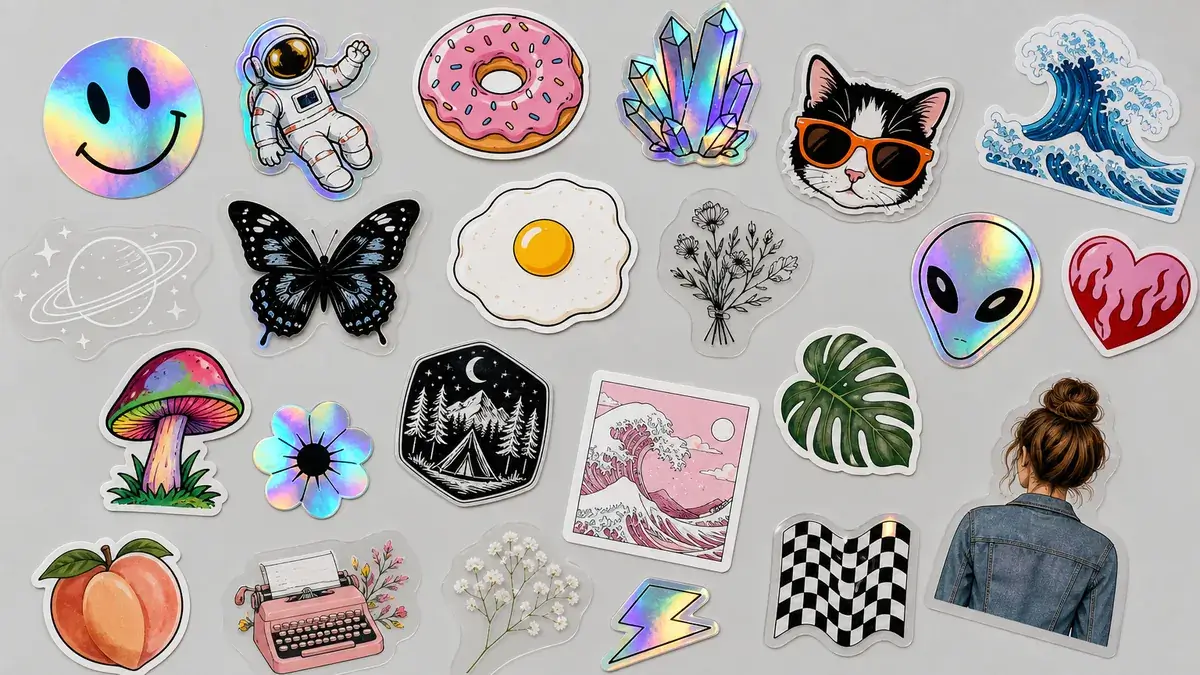
Custom stickers start with upload artwork that meets your printer’s requirements: a sharp, high-resolution file, usually PNG, JPG, or PDF, with a transparent background for die-cut shapes. Adobe Firefly’s sticker generator helps you prepare that file, removing backgrounds from scanned drawings, adding a white border, and downloading a PNG.
Maybe you’ve filled a sketchbook with doodles of your cat, drawn a logo for your small business, or created a character your friends keep asking about. Turning those drawings into real stickers is easier than ever, but the upload step trips up a lot of first-timers. A blurry phone photo, a gray paper background, or artwork that runs right to the edge can all lead to a disappointing proof or a costly reprint. Printers aren’t being picky for no reason. Each requirement simply exists so the machine can print your colors accurately and cut exactly where you expect.
The good news is that most print services ask for the same basics. Once you know them, you can prepare your files once and order from almost anywhere.
Before you upload anything, decide on the finished size of each sticker. A drawing that looks crisp on your screen can turn soft when printed several inches wide, so start with the largest, sharpest version you have. Keep important details, such as eyes, lettering, or a signature, away from the very edge of the design, since that’s where cutting variations happen. Finally, save a master copy of each cleaned-up file so you can reorder or resize later without repeating the prep work.
Custom Stickers Upload Artwork Requirements, Sticker by Sticker
Custom stickers upload artwork requirements vary a little by printer, but they share common themes: accepted file types, clean backgrounds, and enough border or bleed for cutting. The table below compares what three popular services ask for.
| Platform | Best for | Key details |
| Sticker Mule | Fast die-cut orders with proofs | Creates a cut line automatically for die-cut stickers; online proof with free changes; minimum border of 1/16 inch; one internal cut of at least 1/4 inch |
| StickerApp | Custom cut lines and contour cuts | Editor contour-cuts uploads; custom cutlines included in a PDF; safety margin and bleed of 0.075 inches (2 mm) when art reaches the edge |
| VistaPrint | Templates plus upload options | Accepts PDF, PNG, and JPG uploads; avoid solid backgrounds on transparent or holographic sticker designs |
Firefly fits in before the upload. It accepts JPG, PNG, and WEBP files up to 100 MB, with a minimum of 512 x 512 pixels, and removing the background makes your art transparent and downloads it as a PNG, a file type these printers accept. If a printer asks for a PDF instead, you can convert the PNG before uploading.
Making Stickers From Your Own Drawings and Getting Them Printed
To make stickers from your own drawings and get them printed, follow four steps.
Capture the drawing: Scan it, or photograph it flat in bright, even daylight to avoid shadows and glare.
Clean it up: Upload the image to Firefly and remove the background so only your drawing remains. Use Generative Remove to erase smudges or stray pencil marks, and add a white sticker border if you want a classic die-cut look.
Download and check: Save the PNG and zoom in to check the edges before uploading it to a printer.
Order and review the proof: Upload the file to your print service and read the proof carefully. Services like Sticker Mule let you request changes until it looks right.
If you want your drawing to stay exactly as you drew it, stick to background removal and light cleanup rather than generating new versions from it.
FAQ
Why does my sticker proof show a white or gray box around my drawing?
That usually means the paper background stayed in your file. Phone photos and scans capture the paper too, which can appear as an off-white rectangle. Removing the background before uploading leaves only your artwork, so the printer can cut around the drawing itself. Firefly’s background removal makes the image transparent automatically and saves it as a PNG.
Do I need to draw my own cut line?
Usually not. Sticker Mule creates a cut line automatically for die-cut stickers, and StickerApp’s editor contour-cuts uploaded designs. If you want a specific shape, such as a cut-out inside the sticker, StickerApp lets you include a custom cutline in a PDF and add a comment explaining it.
Can I sell stickers made from my drawings?
If the drawings are your original work, you generally control how they’re used. When you use Firefly to edit or add elements, Adobe says its Firefly generative AI models are commercially safe. If you use a partner model inside Firefly, you’re responsible for confirming it fits your project.






Comment