
Choosing Your Ideal Dev Platform for Windows Apps

Microsoft ships a dizzying number of ways to build a Windows app. Here’s a framework for cutting through the noise – by the language you already know and the reach you actually need.
If you sit down today to build an app for Windows, the first decision is also the hardest: what do I build it with? Microsoft invests in a remarkably wide range of client frameworks, and that breadth is a genuine strength – there is a good answer for almost any team, any skill set, any ambition. But breadth is also intimidating. If you are new to Windows development, the menu reads less like a helpful set of options and more like a wall of acronyms.
The trick is to stop treating it as one giant list and start asking two questions instead. What language do I want to write in? And how far does this app need to reach? Almost every sensible choice falls out of the answers. This article walks through both angles, lands on concrete recommendations, and gives you enough of each framework’s flavor to know which one is calling your name.
The foundation: two SDKs under everything
Before the frameworks, it helps to understand what they all stand on. Underneath every Windows app – no matter how you build it – are two SDKs.
The Windows SDK provides platform headers, libraries, and tools that give you direct access to the full set of Windows OS APIs. Every Windows app ultimately relies on it. It is tied to Windows OS releases, which makes it the right thing to reach for when you need the newest OS features, low-level system APIs, or hardware capabilities like DirectX.
The Windows App SDK is the modern layer built on top of that. It ships as NuGet packages, decoupled from the operating system, and delivers APIs and tools – including WinUI, app lifecycle, windowing, and notifications – on a much faster release cycle than Windows itself. Because it is decoupled, you are no longer pinned to whichever Windows SDK version your users happen to be running; you update the APIs your app uses independently. It supports Windows 10 version 1809 and later.
This detail matters more than it first appears. The Windows App SDK isn’t exclusive to one framework. WinUI is built directly on it, but its APIs can also be consumed from WPF, Windows Forms, Win32, .NET MAUI, and React Native. So, the moment you pick any of these frameworks, you still have a path to the same modern windowing, notification, and runtime APIs underneath. The choice of framework is about ergonomics and reach, not about locking yourself away from the platform.
Angle one: the language you already know
The fastest way to narrow the field is to start from what you and your team are fluent in. There are two broad camps.
If you live in C# or C++, the native .NET and XAML world is built for you. WinUI, WPF, Windows Forms, .NET MAUI, and classic Win32 all sit here. You get first-class tooling in Visual Studio, mature debugging, and the deepest, most direct relationship with the operating system.
If you live in JavaScript or TypeScript, you are not a second-class citizen on Windows. React Native for Desktop, Progressive Web Apps, and Electron all let you bring web skills directly to the desktop – and Blazor lets you write interactive web UI in C# if you’d rather stay in .NET while targeting the browser. JavaScript developers are one of the largest segments of developers in the world, and Microsoft has invested specifically so that pool can ship native Windows apps without learning C++ or C# first.
That single question – which language do I want to be writing at 4 p.m. on a Tuesday? – eliminates half the list immediately.
Angle two: the reach you need
The second question is about ambition and the audience. Capabilities sort the frameworks into three tiers.
- Windows-only, fully native. You want the deepest Windows experience: the best performance, UI that looks and feels exactly like Windows, and direct access to the latest APIs the moment they ship. This is WinUI.
- Native cross-platform. You want that native feel, but you want to write once and run on Windows, macOS, iOS, and Android. The framework hides device specifics behind common abstractions, so one skill set and one codebase reach many platforms. This is .NET MAUI and React Native.
- Web-oriented cross-platform. You want the same single-codebase, shared-skills benefit, but centered on the web platform. You trade some native depth for the web’s unmatched reach and instant updates. These are Blazor and Progressive Web Apps.
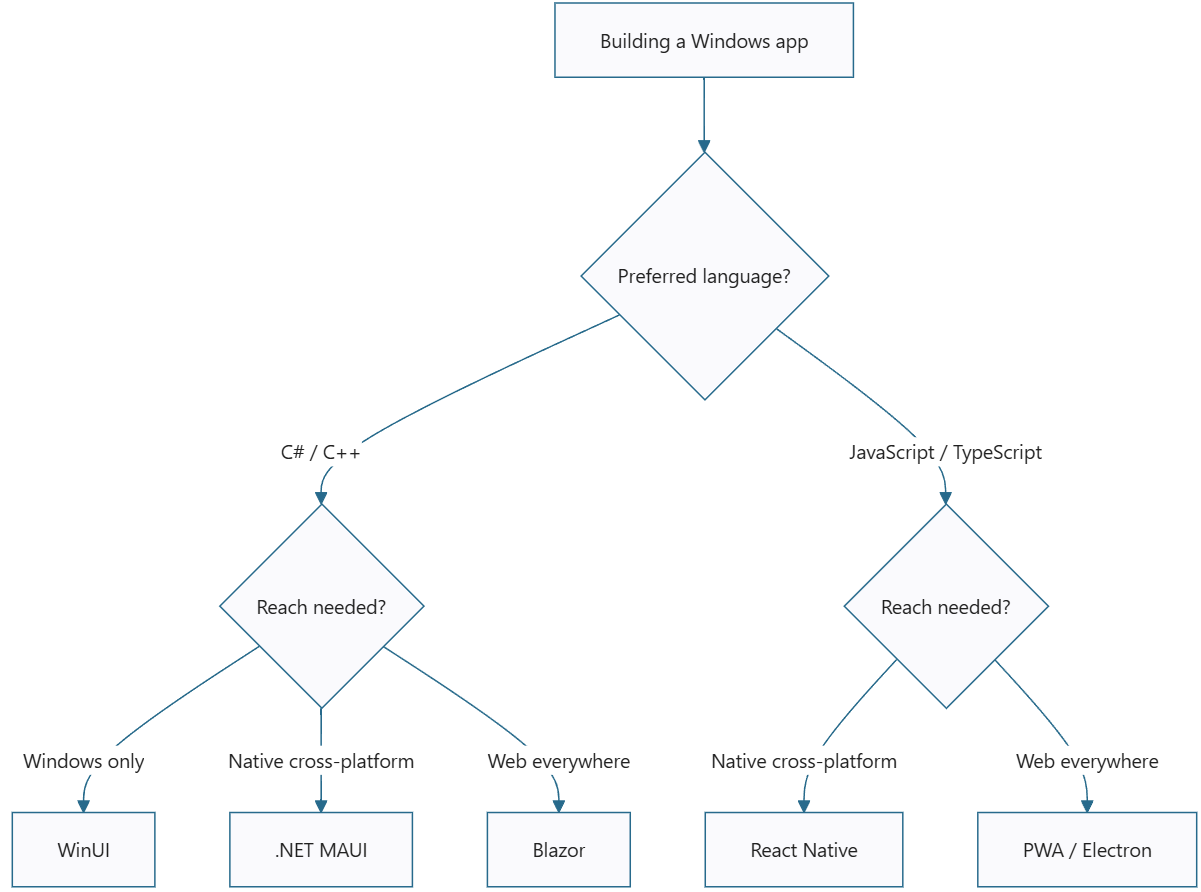
With the map drawn, let’s walk around the territory.
WinUI: the native flagship
If you are starting a brand-new Windows app and have no strong reason to do otherwise, WinUI is the recommended place to begin. It is the latest, third-generation platform for building native UX on Windows, and it consolidates the previous generations of Windows UI technology into a single, decoupled package that ships in the Windows App SDK rather than the OS.
The benefits stack up quickly:
- Reach. WinUI targets Windows 10 and Windows 11 and can light up the latest APIs on each, which puts your app in front of well over a billion devices.
- It powers Windows itself. Several inbox apps and parts of the Windows shell are built on WinUI – so you are using the exact same UX stack Microsoft uses for its own components.
- Modern hardware. Hardware acceleration is built in, and newer Windows App Runtime APIs can tap the NPU on the latest Snapdragon devices for on-device AI.
- Your choice of language. WinUI supports both C# and C++, and fully leverages x64, x86, and ARM64.
- Accessible by default. Controls ship with support for touch, mouse, keyboard, and voice, and screen-reader support comes largely for free.
Why pick it over everything else? WinUI is the best expression of Fluent Design on Windows – every control and style is current with the latest design guidelines out of the box. Its APIs are modern but familiar; if you have written XAML and C# in WPF or .NET MAUI, you’ll feel at home immediately. And because it sits right above the platform APIs, you keep full control when you need to go deeper – you can interop with DirectX 11 or Direct2D for custom effects that simply aren’t possible elsewhere. Crucially, WinUI is where cutting-edge innovation lands first, precisely because Microsoft uses it to build Windows.
Getting started is mostly assembling parts
The nicest surprise in modern WinUI is how little you write from scratch. Two resources do most of the heavy lifting: the WinUI 3 Gallery and the .NET Community Toolkit, both installable from the Microsoft Store as interactive sample apps.
Say you want the settings experience you’ve seen throughout Windows. The Community Toolkit ships a SettingsCard and a SettingsExpander that get you there in minutes. After adding the toolkit’s controls package from NuGet, you wrap your content in a card:
<controls:SettingsExpander Header="Appearance"
                           Description="Customize how the app looks">
    <controls:SettingsExpander.Items>
        <controls:SettingsCard Header="Theme">
            <CalendarDatePicker />
        </controls:SettingsCard>
    </controls:SettingsExpander.Items>
</controls:SettingsExpander>
The workflow is genuinely browse-and-borrow: open the Gallery or the Community Toolkit sample app, find the control you like – a SettingsExpander, a CalendarDatePicker, whatever – click through to its source, and copy it into your project. The Gallery doubles as live design documentation for color, typography, and iconography, including the exact glyph values for icons. With XAML Hot Reload, your changes appear in the running app without a rebuild. It is about as low-friction as native UI development gets.
If WinUI fits, the WinUI documentation and the get-started guide are the next stop.
The native cross-platform tier
What if “Windows-only” is too narrow? Two frameworks give you native experiences across multiple platforms from a single codebase – and both, notably, use WinUI 3 as their rendering backend on Windows. You get cross-platform reach without giving up a native Windows feel.
.NET MAUI – one C# codebase, four platforms
.NET MAUI is the cross-platform framework for building apps that run on Android, iOS, macOS, and Windows from a single C# codebase. On Windows it renders through WinUI and the Windows App SDK under the hood, so your app feels native here while the same code reaches the other three platforms. If your team is fluent in C# and XAML and wants to be everywhere without maintaining parallel codebases, MAUI is the natural fit. Get started with .NET MAUI.
React Native for Desktop – native apps in JavaScript
React Native began at Meta as a way to build native iOS and Android apps from a JavaScript source. Microsoft extended it to the desktop, so JavaScript and TypeScript developers can build native Windows apps without ever touching C++ or C#. The reasons to choose it are compelling:
- One codebase across iOS, Android, macOS, and Windows.
- A rich ecosystem of community modules for cross-platform native controls and APIs – the full list lives at reactnative.directory.
- Incremental adoption. Large apps like Office have gradually added React Native to existing native code rather than rewriting; the new in-document Copilot experience in Office is built with it.
- Full native access. Call native APIs directly, use a community module, or write your own when one doesn’t exist.
- Web code reuse. Non-UI web code ports directly; UI needs only light control translation.
React Native apps on Windows are Win32 applications, and the core components are built on the Windows App SDK’s scene-graph APIs. It can even host WinUI controls directly – the full WinUI 2 suite today, with WinUI 3 controls in progress. Spinning up a project is a short sequence of CLI steps:
npx -y @react-native-community/cli@latest init SampleApp --version latest
cd SampleApp
yarn add react-native-windows
npx react-native init-windows --template cpp-app --override
npx react-native run-windows
That gives you an app targeting iOS, Android, and Windows, with macOS one command away. The React Native for Windows guide covers the rest, and the React Native Gallery app is the equivalent of the WinUI Gallery for exploring controls.
The web cross-platform tier
The last tier shifts the center of gravity to the web. The promise is the same – one codebase, shared skills, every client updated simultaneously – and the reach is unmatched: your users are one URL away, with no install required, while you can also publish to app stores. The tradeoff is that you live within the web platform’s limits. For a great many apps, that is a trade worth making.
Blazor – interactive web UI in C#
Blazor is a modern frontend web framework built on HTML, CSS, and C#. You compose UI from reusable, interactive components that can render on the server, on the client, or both – letting you use the strengths of each. The server is great for handling requests, reaching your database and backend services, and generating UI; the client is great for handling interactions and touching local resources like CPU, storage, and memory. Building full-stack with one language, one framework, and one build system – all .NET – is the entire point.
The component model is the heart of it. Here’s the canonical counter, which captures the feel:
@page "/counter"
@rendermode InteractiveServer

<h1>Counter</h1>
<p>Current count: @currentCount</p>
<button class="btn btn-primary" @onclick="IncrementCount">Click me</button>

@code {
    private int currentCount = 0;
    private void IncrementCount() => currentCount++;
}
A few things are doing a lot of work here. @page sets the route. @rendermode InteractiveServer declares that this component needs to handle UI events. @currentCount renders a plain C# field, and @onclick wires the button to a C# method instead of JavaScript – click it and Blazor re-renders the component automatically. Components are essentially C# classes, so you can drop one onto any page as a tag, pass data in through [Parameter] properties, and reuse it freely. Blazor also supports streaming rendering for long-running async work, two-way data binding, built-in forms, validation, and virtualized data grids, plus Hot Reload in both Visual Studio and VS Code. And when you need them, JavaScript interop runs in both directions. Start at blazor.net.
Progressive Web Apps – the web, installed
A Progressive Web App is a web app – JavaScript, HTML, CSS – that uses advanced modern-browser APIs to behave like an installed native app. It can run at a URL in the browser, and it can run completely independently of the browser, installed from the Microsoft Store, the Google Play Store, and (via the open-source PWA Builder) even the Apple App Store.
The persistent myth is that PWAs “can’t do much.” They can. A modern PWA gets file system access, push notifications, background sync, offline operation with no network connection, custom title bars, and on-device AI running on the GPU. VS Code’s own vscode.dev is a PWA – full editor, native file-explorer integration, custom title bar, right-click menus – installed and running on Windows as its own application. The same codebase runs identically on a Windows desktop and an Android phone.
The headline reason to choose a PWA is skill reuse. There are no plugins, no mandated web view, no new editor, no new deployment story – just standard JavaScript APIs developed in the open across multiple companies. Your existing web skills, tools, and build pipelines carry straight over. If you or your team are web developers, this is the shortest path to a Windows app. The PWA Builder CLI scaffolds a complete, store-ready template – Fluent design, offline support, hot reload – from a single command.
A note on Electron. If you want the web-tech model but need a heavier, fully self-contained desktop runtime, Electron builds cross-platform desktop apps from JavaScript, HTML, and CSS, and the Windows winapp CLI can add native features like notifications, packaging, and AI. It’s the right call when a PWA’s browser-hosted model isn’t enough.
What about my existing app?
Not every decision starts from a blank page. If you already ship a Windows app, you don’t need to rewrite it – the path forward is to adopt the Windows App SDK incrementally and pull the modern stack into the codebase you already have:
- WPF – add the Windows App SDK to your existing project to bring in modern windowing, notifications, and the latest WinUI capabilities alongside your current UI.
- Windows Forms – adopt Windows App SDK APIs in place the same way, layering modern Windows features onto your app without leaving Windows Forms.
- Win32 – call Windows App SDK APIs directly from your existing C++ app, and reach for C++/WinRT for modern access to Windows Runtime APIs.
- UWP – follow the supported migration path to the Windows App SDK, which is how existing UWP apps move forward to the latest WinUI and platform features.
The throughline: WPF, Windows Forms, and Win32 can all pull in Windows App SDK APIs incrementally, and UWP has a clear migration route to the same place – so modernizing rarely means starting over.
How to actually choose
Strip away the detail and a handful of rules decide most cases:
- New Windows-first app, C#/C++ team? Start with WinUI. It’s the recommended default for a reason.
- Need Windows and mobile/macOS, and you’re a .NET shop? .NET MAUI – one C# codebase, native everywhere.
- Same reach, but you’re a JavaScript shop? React Native for Desktop – native apps without leaving JS/TS.
- Web reach is the priority, and your team writes web code? PWA for the lightest footprint, Electron when you need a heavier self-contained runtime.
- Want web-everywhere but prefer C# over JavaScript? Blazor.
- Modernizing an existing app? Stay in WPF / Windows Forms / Win32 and adopt the Windows App SDK incrementally; migrate UWP toward WinUI.
There is no single best framework – only the one that fits your language, your reach, and your goals. The good news is that whichever box you land in, the Windows App SDK is underneath it, the tooling is mature, and the path from “new project” to “running app” is short. Pick the angle that matches how you already think, and the rest of the decision makes itself.






Comment