
Check Your Shahid TV Setup Before Buying a Streaming Device

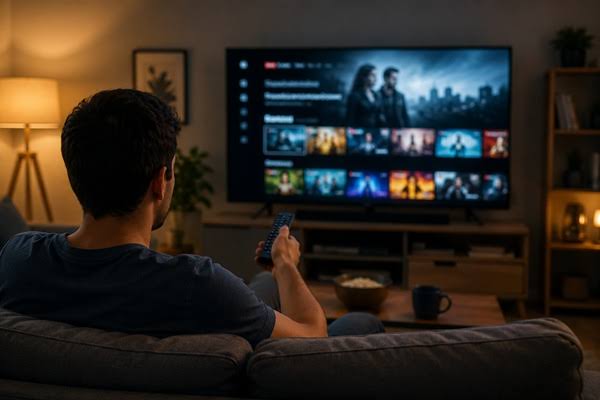
If a Shahid episode will not play on your television, a new streaming stick can be an expensive guess. The problem could involve the app, the access arrangement or the way you are connecting your devices. Establishing which question needs an answer is more useful than immediately comparing hardware specifications.
For anyone planning to watch an Arabic drama on the living-room screen, the goal is straightforward: get the intended episode playing through a supported setup. Start with the equipment you own and the conditions of your access, then decide whether another device would solve a confirmed problem.
Identify the device that will run the app
Write down the television’s exact model and its operating-system version. If you intend to use a streaming box, record those details for the box as well. A manufacturer’s name alone is too broad for a compatibility inquiry. Give Shahid support enough information to check the actual setup.
An app installed on the television, an app running on an external box and a phone sending video to a receiver are different ways to reach the same screen. Specify which one you intend to use. A recommendation for one method does not confirm the others.
Consult Shahid’s current device guidance and the relevant official app store. Its terms explain that software and features may differ between devices. An app appearing in a menu is therefore a starting point for checking compatibility, rather than proof that every feature or subscription arrangement will work there.
Match the screen to the specific access offer
Provider documentation explains how the service supports devices. A retail listing describes the particular access being sold. Read both before making a television the centre of your viewing plan, especially when an offer uses a broad compatibility statement alongside more specific conditions.
For example, Terra Store is an Arabic-language third-party retailer whose product descriptions include device information. Its one-month Shahid VIP listing is described by the seller as a series subscription with one private viewing profile. The compatibility panel lists computers, phones and tablets; the detailed description cautions that television playback may not work following Shahid updates.
That caveat matters if television viewing is essential. Ask whether the exact model and playback method you intend to use are supported by this offer. General information about Shahid’s TV apps cannot settle that product-specific question, and buying a receiver does not establish that the access arrangement permits using it.
Also clarify how access is provided and when the advertised month begins and ends. A private profile does not establish ownership of a separate account or control over account recovery and renewal. Confirm that the arrangement is eligible for your location and complies with the provider’s rules. If the required TV setup remains unconfirmed, resolve it before purchasing access or extra hardware.
Check casting as its own viewing method
Shahid’s official applications page identifies Chromecast and AirPlay as ways to watch on a larger screen. That establishes that these methods exist within the service; it does not guarantee them for every combination of phone, receiver and third-party offer.
Follow the instructions for the particular method you plan to use. Apple distinguishes streaming video from an app from mirroring the entire iPhone or iPad screen. Its support guidance also notes that some video apps may not support AirPlay. Seeing your phone’s home screen on a television is consequently an incomplete test for an episode.
Where AirPlay is supported for your setup, Apple’s troubleshooting guidance starts with compatible devices, current software and the same Wi-Fi network. Check those basics before assuming you need a new receiver. Keep any troubleshooting within the provider’s supported methods and the conditions of your access.
Test the episode through the intended setup
Once you have valid access, try an actual episode you are entitled to watch through the intended device and app. A successful login or a visible programme page leaves playback untested. Check that the picture and sound work together, then try pausing and resuming. If you need subtitles, check them on that screen as part of the same session.
If playback fails, record where it stops. An unavailable app, an access message before playback and video that starts but repeatedly stalls give support different information to investigate. Note the exact error wording, app version and device model. Avoid changing several settings at once, because you will lose track of which change affected the result.
If permitted by your access conditions, a sequential comparison on another supported device can help describe the issue. Close the first playback session before trying the second. A successful comparison narrows the inquiry, but does not by itself prove that the television or home network is faulty.
Buy hardware for a confirmed need
A streaming device becomes a sensible purchase when you can identify the gap it fills and verify support for the proposed model and access arrangement. If your existing setup already plays the episode correctly, decide whether an additional box would bring a practical improvement you actually want.
Before ordering, write down the supported app or casting method you will use and the confirmation you have for it. That gives the purchase a clear purpose and leaves your next viewing evening for the drama itself.







Comment