Business Wireless Network Planning Access Points Routers and Wireless Bridges


A dependable business wireless network starts with assigning the right job to each device. The router connects networks and supports internet access, ceiling-mounted wireless access points provide local WiFi coverage, and wireless bridges can link separate buildings where a suitable radio path exists. Plan coverage, capacity, cabling, and power together before purchasing equipment. This helps small and medium-sized businesses avoid mismatched upgrades and repeated installation work.
For an office, shop, or growing service business, the consequences of poor connectivity are practical: interrupted calls, delayed transactions, and employees moving around to find a usable signal. Buying a more powerful router may leave those problems unresolved. A useful plan follows the applications people depend on, identifies the weak parts of the network, and sets a manageable path for expansion.
1 Assess Coverage and Capacity Together
Map the places where work happens
Start with a floor plan showing desks, meeting rooms, reception areas, stockrooms, and outdoor workspaces. Mark walls, floors, metal shelving, and other obstacles. Identify existing cable routes, network cabinets, power sources, and possible AP mounting positions.
Talk to employees about where connections fail and when. A meeting room that works well with two people may struggle during a full team session. A warehouse aisle may have acceptable coverage when empty but behave differently after shelves are stocked. Record these conditions so the design reflects normal operations rather than a quiet walk through the building.
Count active devices and important applications
Headcount is only a starting point. Employees may carry laptops and phones, while printers, cameras, payment terminals, and visitors add connections. Estimate how many devices will be active at the same time and what they will do.
Separate light background traffic from video calls, large file transfers, and applications sensitive to delays. Cameras may generate sustained uploads, while backups create bursts of traffic. Set practical acceptance goals, such as completing a meeting without reconnecting or processing transactions reliably during peak periods. Signal bars and advertised maximum client counts are not enough to establish capacity.
2 Give Routers and Access Points Distinct Roles
Use the router for connections between networks
A router moves traffic between networks, including the business LAN and an internet service. Many small business routers also provide firewall functions, address assignment, VPN access, and other services, depending on the model. A wireless router combines routing with a built-in AP, which can suit a compact workspace with modest demands.
As the premises grow, the router’s best location for cabling may be a poor location for WiFi coverage. Keeping the gateway near the service connection and installing APs near users allows each component to serve its purpose. Check gateway performance with the security and VPN features you intend to enable; headline routing speeds may not represent that workload.
Add APs to extend the existing network
An AP gives wireless devices access to a network. In a typical business installation, it connects by Ethernet to a switch, which leads back to the router or firewall. Several APs can provide coverage across rooms and floors without creating a separate routed network at every location.
Avoid adding consumer routers in their default routing mode merely to obtain more WiFi. Depending on the topology, this can introduce competing address services, additional network boundaries, and troubleshooting difficulties. If repurposing a router, verify its supported AP mode and disable redundant services as instructed. For ongoing business use, also assess management, security updates, and support requirements.
3 Position APs for Users and Available Airtime
Plan placement before deciding the quantity
There is no universal number of APs per floor or employee. Construction materials, mounting height, antenna pattern, device capability, interference, and traffic all influence the result. Use a site survey or predictive design to establish an initial layout, then validate it in the actual space.
Place APs near the areas they serve, following their intended mounting orientation. Avoid hiding them inside cabinets or behind metal structures. A busy meeting room may need capacity beyond what a distant corridor AP can provide. Conversely, adding unnecessary APs can increase competition for the same channels and make the network harder to tune.

Coordinate channels and transmit power
Adjacent APs need a channel plan suited to the local radio environment. Wider channels can increase peak rates but leave fewer opportunities to reuse spectrum. The best setting for a busy office may differ from the best setting for a single quiet room.
Transmit power also needs balance. An AP transmitting at maximum power may be audible farther away than a phone can reliably respond. Validate coverage in both directions with representative devices. Where supported, automatic radio management can help, but its results still need checking under normal working conditions.
4 Make WiFi 6 Upgrades Solve a Specific Problem
Check the clients and the wired network
WiFi 6 introduces capabilities that can improve efficiency in suitable multi-device environments. The benefit depends on compatible clients, supported features, radio conditions, and configuration. Replacing an AP will not increase the internet plan’s capacity or automatically improve an old laptop’s radio.
Inventory the devices that matter before choosing an upgrade. Check their supported bands and standards, then review the Ethernet connection, switch uplinks, and router. Upgrade in stages if budgets are limited: address a congested meeting room or unreliable service area first, measure the result, and use that evidence to plan the next phase.
Evaluate router upgrades alongside access points
For a compact office, WiFi 6 wireless routers can combine network routing and local WiFi in one device. In larger premises, a suitable router can work with separate access points placed near users. Before selecting a model, verify its Ethernet interfaces, performance with required security features enabled, and support for any VPN, VLAN, or management functions your business needs. WiFi 6 describes wireless capabilities; it does not by itself establish that a router meets every business requirement.
Compare every candidate using the same questions: Does it support your client devices? Can it provide the required network separation? How is it managed? What happens when a subscription or support period ends? A newer wireless generation can be useful, but installation quality and compatibility remain central to the buying decision.
5 Use Wireless Bridges for Suitable Building Links
Evaluate the path before purchasing radios
A point-to-point bridge typically uses two compatible radios facing each other, with an Ethernet connection at each end. It can connect an office to a nearby workshop or storage building when installing a physical cable is impractical. The remote building can then use its own switch and APs for local coverage.
Check more than the straight-line distance. Survey the terrain, mounting locations, trees, and buildings between endpoints. The radio path needs appropriate line of sight and clearance around it, including the Fresnel zone. Seasonal foliage or future construction can affect a path that looks clear today. Use the manufacturer’s planning tools and verify the assumptions onsite.
Compare installation and operating costs
Assess expected throughput, interference, antenna alignment, mounting stability, and maintenance access. A manufacturer’s maximum range does not guarantee the rate or availability your applications need. Confirm permitted frequencies and outdoor transmit limits for the installation location.
Compare the bridge with fiber, other permitted cabling arrangements, or a separate service connection. Include mounting, surge protection, power, and maintenance in the cost comparison. For important operations, decide what happens if the interbuilding link fails and whether local tasks or a backup connection can keep the remote site useful.
6 Budget PoE Power as Carefully as Switch Ports
Match each device to a compatible power source
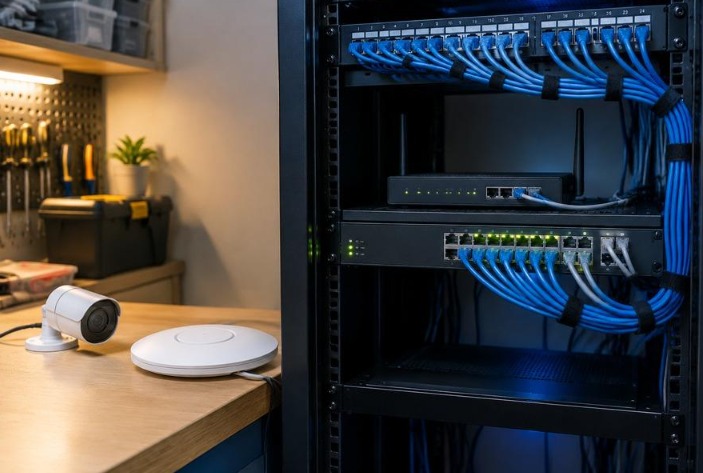
Power over Ethernet carries data and power through the same cable, making it easier to install APs where wall outlets are inconvenient. However, a PoE label alone does not establish compatibility. Check the device’s required standard, voltage, and maximum power demand against the switch or injector.
Verify both the power available on an individual port and the switch’s total budget. Some APs may start with limited power but disable features or reduce performance. Follow the current equipment documentation rather than assuming that a device appearing online proves the power design is adequate.
Leave room for cameras and future additions
As a planning example, six devices each requiring a 20 W allocation account for 120 W before other powered devices are added. Calculate the actual budget using the switch manufacturer’s allocation method, cable considerations, and the chosen devices’ requirements. Reserve capacity for planned growth instead of filling every port and watt on day one.
Check Ethernet cable quality and permitted run lengths, including patch leads. If continuity matters, size backup power for the gateway, switch, APs, and upstream equipment needed to keep the service available. A powered AP cannot maintain internet access when the rest of its route has lost power.
7 Make Management and Security Part of the Design
Choose an operating model the business can maintain
Centralized management can simplify configuration, firmware updates, and monitoring across multiple APs. Compare cloud and local management options against staff skills, connectivity needs, licensing costs, and configuration backup procedures. Confirm which services depend on a controller or cloud connection and how existing traffic behaves if that service is unavailable.
Document device names, locations, switch ports, cable labels, and network settings. Assign responsibility for checking alerts and applying updates. A consistent naming scheme and an accurate floor plan can save more troubleshooting time than an undocumented collection of extra features.
Separate access according to business needs
Guest users should have access appropriate to their role without unnecessary visibility into business systems. Consider separate networks for staff, guests, and connected equipment, supported by VLANs and correctly configured firewall policies where suitable. Separate WiFi names alone do not prove that traffic is isolated.
Use supported security settings, unique administrative credentials, and restricted management access. Check compatibility with older terminals before changing authentication. Limit the number of wireless networks to those with a clear purpose, and retain secure backups of configurations so a failed device can be replaced consistently.
8 Validate the Network Before Expanding It
Test coverage from normal working positions using the actual laptops, phones, and terminals employees depend on. Run representative calls, transfers, and transactions during realistic concurrent activity. Check roaming between APs and investigate application interruptions rather than relying only on speed tests.
Keep baseline measurements and acceptance results for future comparison. Expand when business growth or observed demand justifies it, with spare ports, power, and cable routes already considered. A well-planned network gives each component a clear role and makes faults easier to locate. That clarity helps a small business control installation costs, maintain dependable service, and grow without rebuilding its network at every stage.