
How to get translated captions in a Zoom call you don’t host

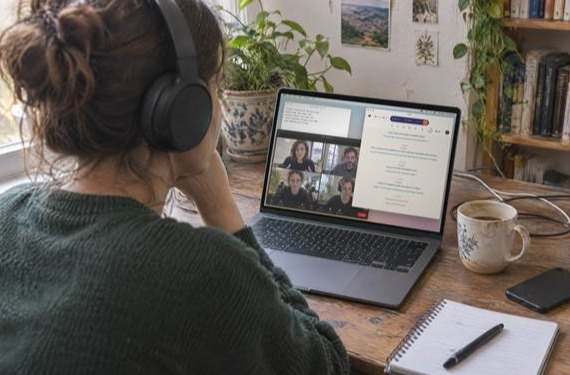
You have joined a Zoom call as a guest and the meeting is in a language you only partly follow. That is common. In 2022, Eurostat found that only 28% of working-age adults in the EU who knew at least one foreign language said they were proficient in their best-known one. You look for translated captions and find the button missing, or offering only the language being spoken. That is because in Zoom the person running the meeting controls translated captions. The people who join it do not.
Zoom’s own translated captions
Zoom can show automatic captions, turning speech into text in the language people are speaking, and it can also show that text translated into another language. The second feature is not part of every account, since it comes with certain paid plans or a paid add-on, and the host or a company administrator has to switch it on in the account that hosts the meeting. Those same settings decide which language pairs are available, and because Zoom changes its plans and language lists from time to time, check its help page on enabling translated captions for current details.
On someone else’s call, their plan and settings are the ones that apply. Paying for your own Zoom account does not change what a free or locked-down host account allows. Your language may be missing for another reason, since Zoom’s guide to viewing captions in another language explains that the host picks the available languages before the meeting. None of that can be fixed from the guest side.
Start by asking the host
Send the host a short message a day before the call, because many hosts do not know their account has translated captions or that someone needs them. Say which language you need and ask whether their account supports it. Asking in the chat five minutes into the call rarely works.
Caption the audio yourself
A 2025 AP-NORC poll found that one third of US adults always or often use subtitles when watching TV or movies, and about 4 in 10 subtitle users turn them on to understand accents or to watch something in another language. Reading along is already a habit for many people.
If the host cannot turn translated captions on, you can still make your own. Some apps listen to the sound your computer is already playing and turn it into translated text as people speak, so nothing joins the meeting and nobody else has to install anything. Verli, for example, shows translated captions in a Zoom call by listening to your computer’s audio, so it works the same whether or not the host’s plan includes Zoom’s own translation.
How the app hears the call depends on how you joined. If Zoom is running in your browser, a browser-based tool can usually hear it when you share that Zoom tab and turn on its audio, which Chrome and Edge can do and Safari and Firefox usually cannot. If you use the Zoom desktop app you need a tool that can capture your computer’s system audio directly, which usually means a desktop app of its own. Either way, plan on using a computer, since phones generally do not let one app listen to the audio of another app’s call.
Getting the setup right
Most of these tools can listen to your microphone, to the sound playing on your computer, or to both, and for a call you want the computer’s sound because that is where the other people’s voices are. Leaving the tool on the microphone is the mistake people make most often, especially with headphones on, since a microphone cannot hear what is playing in headphones. If you speak during the call and want your own words translated too, turn on both sources. If you mostly listen, turn the microphone off so your typing and room noise stay out of the transcript.
Desktop audio lets Verli hear everyone on the call, and the microphone adds your own voice.
Wear headphones if you can. The app takes the computer’s sound before it reaches them, so they do not get in the way, and they also stop the call from echoing back through your microphone to everyone else.
Many tools ask for the language you speak and the language of the meeting, and some can tell which of the two each speaker is using, which helps when a call switches back and forth. Set both before you start, then test the whole thing once. Play a short video in the meeting’s language or join a Zoom test meeting and watch what comes out for a minute. If nothing appears, the audio source is almost always the problem. The usual advice for smoother Zoom meetings helps here too, because a steady connection and a quiet room make the captions better as well.
It is also worth reading the agenda or attendee list beforehand if you can get hold of either. Speech recognition stumbles on people’s names, company and product names, acronyms and industry words, and some tools let you add a list of words to recognize. If yours does not, keep the list next to you anyway, so that when a caption looks strange you can check for a misheard name before assuming the speaker said something odd.
Where captions will let you down
Automatic transcription and translation make mistakes, and they do worse when people talk over each other, when someone has a weak microphone or a strong accent, or when the topic is full of jargon. The small words cause the most trouble, words like “not” and “unless” along with numbers, dates and prices. W3C accessibility guidance warns that automatic captions are often wrong in ways that change the meaning, and a caption that drops a “not” can still read perfectly well.
Translation adds errors of its own on top of those, because software still handles context, idioms and tone poorly, one of the known limits of translation technology. Read the captions as an aid to following along and keep a separate check on anything that matters. If a deadline, a price, contract terms or a medical or legal point comes up, ask the speaker to repeat it or confirm it in writing after the call.
There is also a lag. Captions trail speech by a moment, so in a fast discussion you may be a sentence behind when someone asks you a question. Say early on that you are following through translated captions and people tend to give you a moment before expecting an answer. And a tool on your computer can only work with the audio you receive, so if a speaker’s connection breaks up, the captions break up too.
Say what you are doing
To many people, transcribing a meeting feels like recording it, and some laws and company policies treat it that way. Say what you are doing. A line in the chat such as “I’m using live translated captions on my side to follow along” is usually enough, and if the host objects, respect that and go back to asking them about Zoom’s own captions.
Be careful with what you keep afterwards. Business calls often include client names, figures and plans that were not meant to leave the room, so do not share a transcript without permission and delete it once you no longer need it. In Verli, for example, you can delete a single saved transcript or clear your whole history. On a work device, check your company’s rules on which apps can process meeting audio.
For the next call in a language you do not fully follow, ask the host about translated captions a day ahead and set up a tool of your own in the meantime, then test it once with headphones on and the right audio source. During the call, read the captions with some skepticism and confirm anything important in writing.






Comment