
ipt chromecast guide

Plenty of Dutch living rooms have a Chromecast tucked behind the TV, often bought years ago for Netflix. Then someone signs up for IPTV and asks the obvious question: will it work on that thing? For any IPTV Chromecast setup, the answer depends on which Chromecast you actually own.
Google stopped making Chromecasts in August 2024 and replaced them with the Google TV Streamer. The devices in Dutch homes now range from simple cast-only dongles to small Google TV computers, and they handle live TV in very different ways. That is why the hardware comes first here, and the app and the setup after it.
Which Chromecast Do You Have?
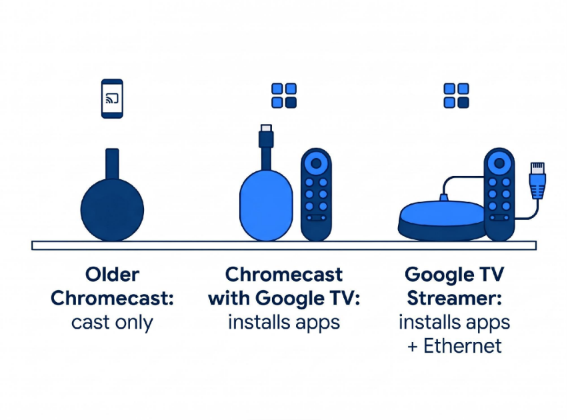
If your Chromecast came with a remote, it runs Google TV and can install apps. If it has no remote, it is an older model that can only receive a cast from a phone or tablet.
That one detail matters more than resolution or price. An app on the TV device handles the stream, the guide and the remote, while casting leaves your phone in charge.
| Device | Installs IPTV apps? | Memory and storage | Picture | Best use for IPTV |
| Older Chromecast (no remote) | No, cast only | Not relevant | Depends on model | Casting from an Android phone |
| Chromecast with Google TV (HD) | Yes | 1.5 GB RAM, about 4 to 4.7 GB of 8 GB free | Up to 1080p | A second TV |
| Chromecast with Google TV (4K) | Yes | 2 GB RAM, 8 GB storage | 4K with Dolby Vision, HDR10, HDR10+ | The main TV, if you already own one |
| Google TV Streamer | Yes | 4 GB RAM, 32 GB storage | 4K HDR at 60 fps, Dolby Vision | The main TV, especially for live sport |
The Chromecast with Google TV is no longer made, and the Dutch Google Store now sends visitors from the Chromecast page straight to the Streamer. The Streamer launched at €119 and now lists at €169 after Google raised its price in 2026. It is also the only device in the table with a built-in Ethernet port.
If you already own the 4K Chromecast with Google TV, keep it. Skip the HD model for your main TV, though, because several users report that the same IPTV service plays smoothly on the 4K version and stutters on the HD one.
What You Need Before You Start
An IPTV app on its own shows nothing. The app is a player, and the channels come from your subscription.
So the subscription comes first. Dutch providers send the login details by e-mail, usually as an M3U link and as Xtream Codes (a server address, a username and a password). Search for Beste IPTV Nederland and you will find a long list of providers. Before you pick one, check that it sends both formats, because Xtream Codes is much quicker to type with a TV remote than a long M3U link.
IPTV Mate, a Dutch provider that has been around since 2011, sends both by e-mail and lists the Chromecast with Google TV among its supported devices. Its plans run from €29.99 for three months to €119.99 for two years, with no automatic renewal. For most households the 12-month plan at €69.99 is the sensible middle ground.
Two more checks before you start:
– Speed. Netflix recommends 5 Mbps for Full HD and 15 Mbps for 4K. Live IPTV needs some headroom on top of that, especially when someone else at home is gaming or downloading.
– Network. For casting, your phone and Chromecast must be on the same Wi-Fi network. A phone on the guest network won’t find the Chromecast.
Picking an IPTV App for Chromecast and Google TV
On a Chromecast with Google TV or a Google TV Streamer, TiviMate is the name that comes up most often in Chromecast forums. It is in the Google Play Store, it was built for Android TV, and its TV guide is laid out like a cable box. Its own Play Store listing calls it a media player only, and paying for Premium adds features, not channels.
Televizo and IPTV Pro are in the Play Store too, and both list Chromecast support, so they double as casting apps on an Android phone. Sparkle TV has fans among Google TV owners as well. One Reddit user fixed stutter on a Chromecast with Google TV by switching to Sparkle and turning on its tunneled playback setting.
One familiar name is missing. IPTV Smarters Pro still appears in plenty of setup guides, but it is no longer listed in the Google Play Store, so check what your store shows before you follow an older tutorial.
Cast support also changes with app updates, and not every player that installs on Google TV can cast from a phone. IPTV Mate keeps an overview of IPTV apps for Chromecast that splits them by Google TV install and casting support, which saves some trial and error. Whatever you choose, add one playlist and test a few channels before you pay for a premium upgrade.
How to Set Up IPTV on Chromecast with Google TV or the Google TV Streamer
If your Chromecast came with a remote, this is the route to take. The app runs on the TV and you switch channels with the remote, so your phone stays out of it.
- Update first. Open Settings and install any system update, then update your apps in the Play Store.
- Install the player. Search the Google Play Store for TiviMate or your chosen app. Check the developer name before you install; TiviMate comes from Armobsoft FZE.
- Add your playlist. Choose Xtream Codes and enter the server address, username and password from your provider’s e-mail. Use the M3U link if that is all you have.
- Load the TV guide. Give the EPG a minute to fill. If it stays empty, look for an EPG link in the provider’s e-mail and add it in the app’s settings.
- Test before the match. Try a few channels, including a sports channel, a day before an event you care about.
On the Google TV Streamer, plug in a network cable before step 1 if the TV sits near your router. The Streamer has the port built in, and live TV is less fussy on a wired connection than on Wi-Fi.
How to Cast IPTV to an Older Chromecast
No remote means no app store. An older Chromecast can still show IPTV, but only as a receiver, so casting is the only IPTV Chromecast option on these dongles.
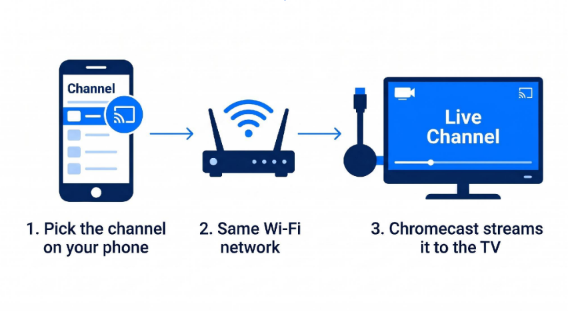
Google Cast is not screen mirroring. Your phone app picks the channel and acts as the remote, while the Chromecast fetches and plays the stream itself. Your phone stays usable, but the app on it has to support casting.
On an Android phone it takes four steps:
- Put your phone and the Chromecast on the same Wi-Fi network.
- Install an IPTV player with Chromecast support, such as Televizo or IPTV Pro.
- Add your playlist and start a channel on the phone.
- Tap the cast icon and pick your Chromecast.
iPhone owners have a harder time. Dutch forum threads describe iPhone casting to an older Chromecast that simply would not work, and the usual advice there was to move to a Google TV device.
The hardware itself is getting old. In March 2025, an expired security certificate stopped the Chromecast 2nd gen and Chromecast Audio from working. Google rolled out a fix within a week, but it showed that these dongles only keep working for as long as Google supports them.
For a TV you watch every day, casting works, but it’s the second-best way to watch live TV.
Fixing Stutter and Buffering on IPTV Chromecast Setups
Most stutter comes down to one of four causes, and you can check all of them in an evening.
– Frame rate. Dutch and other European broadcasts run at 50 frames per second. If your Google TV device sends 60 Hz to the TV, football can judder while films look fine. Turn on Match content frame rate in the display settings.
– Wi-Fi. The Chromecast with Google TV and the Streamer both use Wi-Fi 5, so use the 5 GHz band and keep the router close. Better still, go wired: the Streamer has an Ethernet port built in, and the 4K Chromecast needs Google’s separately sold Ethernet power adapter.
– Storage. The HD model has only about 4 to 4.7 GB free. Remove apps you don’t use and clear the IPTV app’s cache in the app settings.
– The player. If one app stutters, try another before you blame the provider. Some users solved it with a different player; others only by moving from the HD model to the 4K.
If every app stutters at the same time each evening, the problem sits upstream: your internet line, or the provider’s servers at busy hours.
FAQ
Is the Chromecast with Google TV HD powerful enough for IPTV?
For a bedroom TV at 1080p, usually yes, as long as you keep its small storage free. For an IPTV Chromecast setup on your main TV, especially for live sport, the 4K model or the Google TV Streamer is the safer choice, because users report smoother playback on both.
Does IPTV work on the Google TV Streamer?
Yes. It runs the same Play Store apps as the Chromecast with Google TV, and owners name TiviMate and iMPlayer as working well. With 32 GB of storage and a built-in Ethernet port, it is the most comfortable Google device for live TV.
Do I get a TV guide (EPG) on Chromecast?
On a Google TV device, yes: apps like TiviMate show a full guide grid on the TV. When you cast from a phone, the guide stays on the phone, and the TV only shows the channel you picked.
Can I use one subscription on several Chromecasts?
That depends on how many screens your plan includes, since many plans allow one stream at a time. IPTV Mate, for example, includes one screen as standard and sells plans for two to four screens on 12-month terms.
Can I cast IPTV from an iPhone to a Chromecast?
Only with an iPhone app that shows a cast icon, and results with older Chromecasts are mixed. If the icon is missing or the cast keeps failing, a Google TV device with the app installed on the TV avoids the problem entirely.
Should I buy a Chromecast for IPTV in 2026?
Only at a good price. Google stopped production in 2024, and in May 2026 a support page briefly suggested older models had lost security updates before Google said they still receive critical fixes. For a new purchase, the Google TV Streamer is the more future-proof choice.
Final Thoughts
Your model decides the method. If your Chromecast has a remote, install a player on the TV, add your Xtream login and switch on frame-rate matching. If it doesn’t, casting from an Android phone will do for now. And if you are buying for the main TV, the Google TV Streamer at €169 is the one to get.




Comment