
Why Is The Windows 11 Photos App Not Opening?

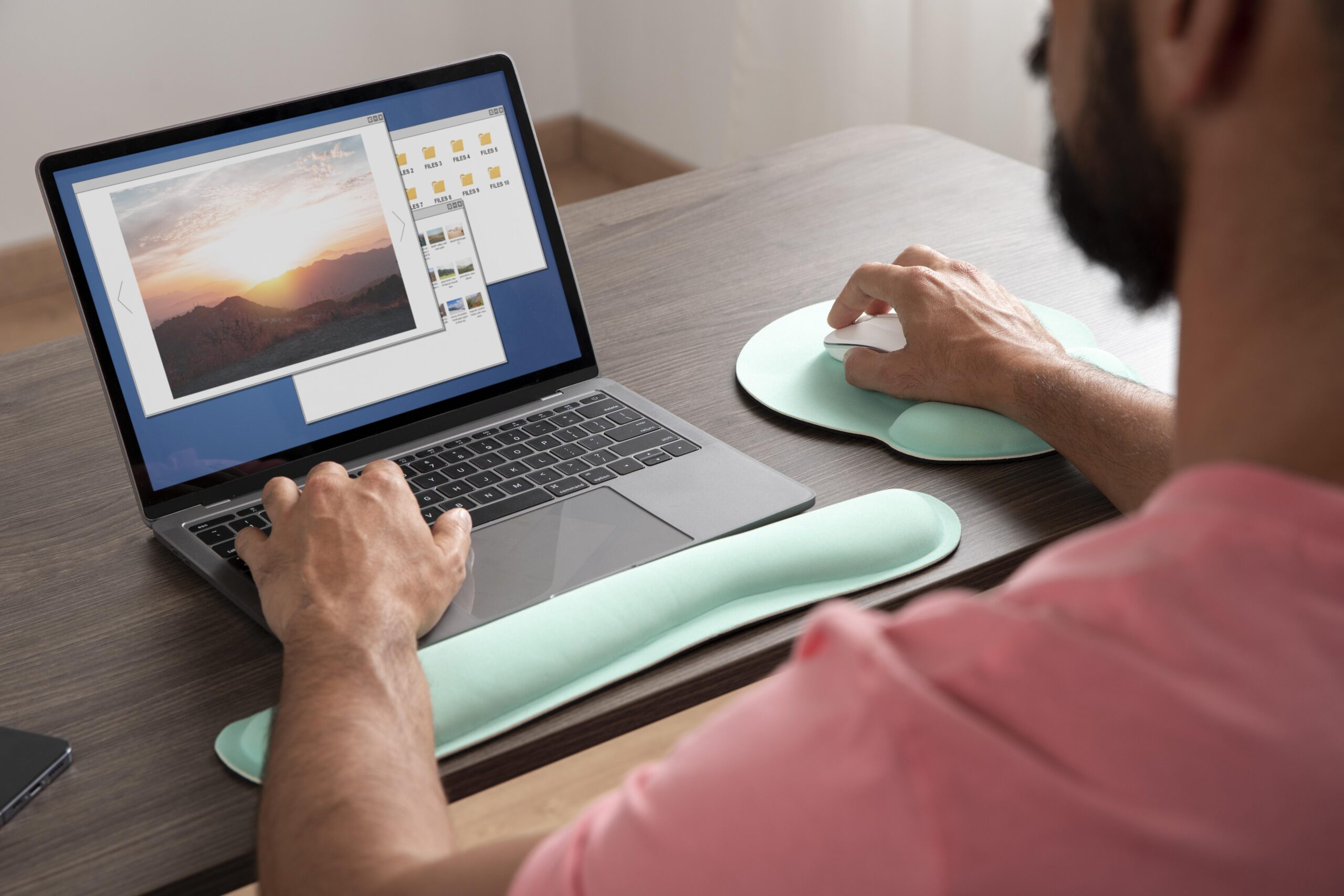
When the Photos app not opening Windows 11 problem occurs, even simple tasks like viewing a JPG can become difficult. You may click an image and nothing happens, see an error, or watch Photos freeze while loading.
The cause can range from a temporary Windows issue to app corruption, permissions, or a damaged image. Before assuming your pictures are lost, try these practical methods to fix the Photos app not opening in Windows 11.
Method 1: Restart The Photos App And Computer
Temporary Windows or application errors can stop Photos from responding correctly. Restarting the app and computer is a simple first step, especially after a Windows update.
- Close the Photos window completely and wait a few seconds.
- If it remains frozen, open “Task Manager” by pressing “Ctrl + Shift + Esc” and find “Microsoft Photos” under the running processes. Right-click it and select “End task”.
- Afterward, restart your computer and wait for Windows to load completely. Right-click an image and select “Open with,” then “Photos,” to test the application again.
If Photos still crashes or refuses to load images, continue with the built-in repair options.
Method 2: Repair Or Reset The Microsoft Photos App
Windows 11 includes repair and reset options for supported applications. Repair attempts to fix app problems without removing its existing data, while Reset returns the application to its default state.
- Open “Settings” and select “Apps,” then go to “Installed apps”. Find “Microsoft Photos” in the list and click the three-dot menu beside it.
- Select “Advanced options” to view the available troubleshooting controls. Under the “Reset” section, select “Repair” first and wait for Windows to finish the process. Then open an image and check whether Photos works normally.
- If the problem continues, return to the same screen and select “Reset”. Confirm the action when Windows asks, then launch Photos again.
Because Reset restores the app’s default settings, it is better to try Repair first.
Method 3: Update Microsoft Photos And Windows
An outdated Photos app or Windows component can cause compatibility problems. Installing available updates can fix bugs and improve how the application handles images.
- Open the “Microsoft Store” and select “Library” from the sidebar. Select “Get updates” and allow available app updates to install. If Microsoft Photos appears in the update list, let the installation finish before testing it again.
- You should also check Windows itself. Open “Settings,” then “Windows Update,” and select “Check for updates”. Install any pending updates and restart the computer if Windows requests it.
After restarting, try opening several different image files. If some images work while one particular file does not, the problem may be with that file rather than Photos.
Method 4: Check Whether the Image File Is the Real Problem
Sometimes the Photos app not opening Windows 11 issue is actually an image problem. A damaged JPG or PNG can cause errors when Photos attempts to read its data. Test this by opening a different image. If other pictures load normally, right-click the problematic file and select “Open with” to test it using another image viewer.
You can also copy the image to another computer and try opening it there. If the same file fails across multiple applications and devices, the image may be corrupted. Images can become damaged after interrupted transfers, storage failures, incomplete downloads, or problems with an SD card. In these cases, repairing Windows Photos will not repair the underlying image.
Method 5: Recover Missing Or Inaccessible Photos
App problems are different from missing files. If your pictures have disappeared because of accidental deletion, storage errors, or file system problems, you may need to recover lost photos on Windows instead of repairing the Photos app.
4DDiG Windows Data Recovery can scan storage devices for recoverable files, including common image formats. It can be used with internal drives, external hard drives, USB devices, and SD cards.
- To begin recovery, install 4DDiG Windows Data Recovery and select the drive or storage location where the photos were originally saved to start a scan and allow the software to search for recoverable files.
- Once the scan produces results, use the preview feature to identify the photos you need. Use filter options to quickly find photos or files.
- Select the recoverable images and save them to a different drive or storage location rather than the source by clicking “Recover”.
Saving recovered files elsewhere helps avoid overwriting other potentially recoverable data.
Prevention Tips
A few habits can reduce the risk of losing access to important pictures:
- Back up important photos to another storage location.
- Keep Windows and Microsoft Photos updated.
- Safely eject USB drives and SD cards.
- Avoid interrupting file transfers.
- Keep multiple copies of irreplaceable images.
- Use reliable storage devices for important photo collections.
Conclusion
The Photos app not opening Windows 11 problem can often be resolved by restarting the app, repairing or resetting it, and installing updates. If only specific images fail to open, test those files separately because they may be damaged.
When photos are missing or inaccessible because of deletion or storage problems, file recovery is a different solution and should be attempted before assuming the pictures are permanently lost.






Comment