
What Developers Should Know Before Building a Desktop Meeting Recorder

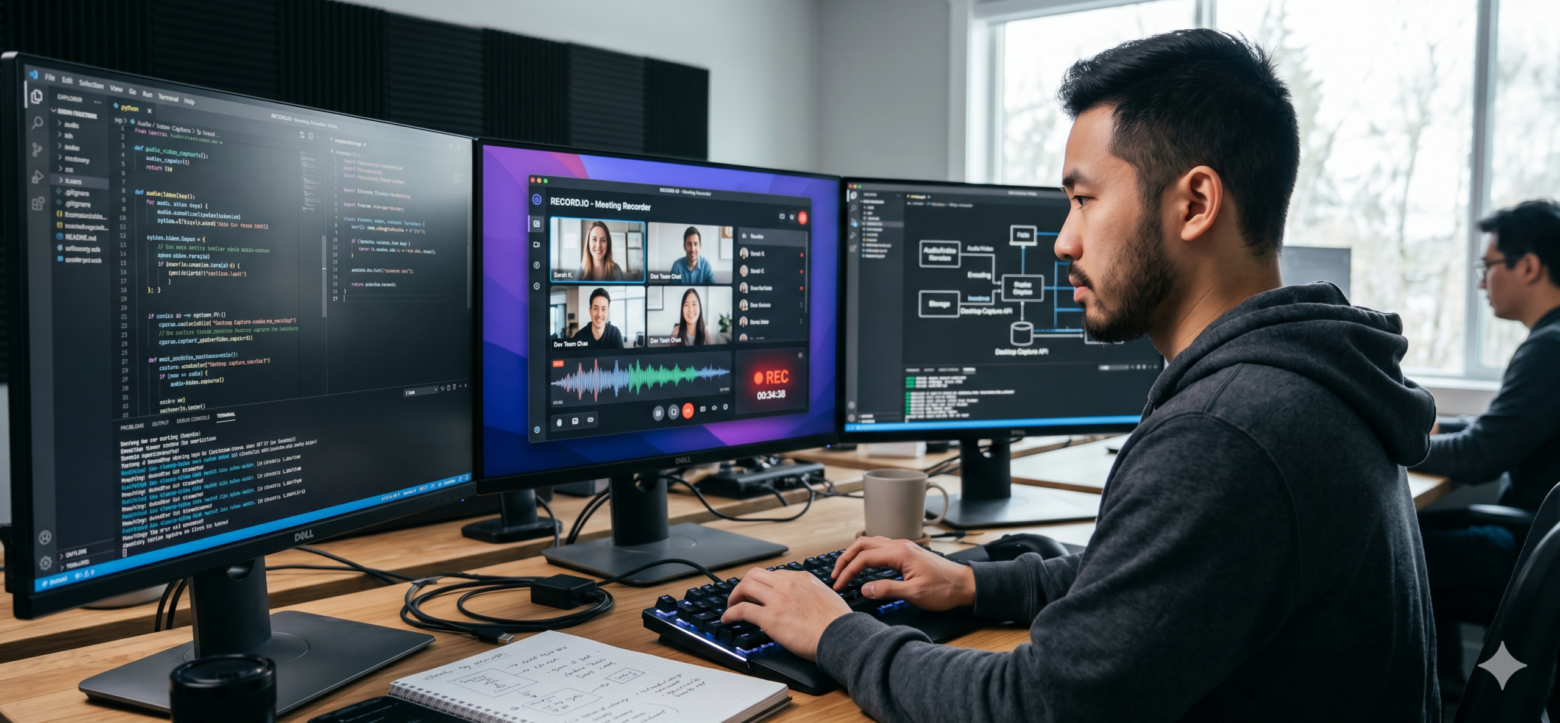
Desktop meeting recorders may look simple from the outside.
A user joins a call, clicks record, and gets a video or transcript when the meeting ends.
Yet the work behind that flow can be hard. Developers must capture video, system audio, microphone audio, and app data at the same time. They must also deal with user consent, file size, device changes, and operating system rules.
A good recorder must work well even when the meeting does not.
Before you start building, it helps to understand the main parts of the job and the problems that can appear once real users test the app.
Define What the Recorder Must Capture
Start with a clear list of what your product needs.
Some tools only need audio. Others need the meeting window, shared slides, the user camera, and a full transcript.
Do not add each type of data just because you can. Every new input adds more work, more storage, and more ways for the recording to fail.
Ask what the final product needs to create.
A note taking tool may only need clear audio and speaker data. A coaching app may need video so users can review tone, body language, and screen content. A sales tool may need audio, a transcript, and key meeting details.
Once you know the end goal, you can build the capture plan around it.
Choose Between Bot and Desktop Recording
There are two common ways to record an online meeting.
One option is to send a bot into the meeting. The bot joins as a guest and records the call from inside the meeting room.
The other option is to record from the user device.
A desktop recorder can feel more private since no bot appears in the attendee list. It can also work in cases where users do not want an extra guest on the call.
Still, desktop capture brings its own set of problems. Your app must gain access to the screen and audio on each device. It must also stay stable while the user opens new windows, changes sound devices, or moves between meetings.
The best choice depends on the user case. Some products may even support both methods.
System Audio and Microphone Audio Are Not the Same
A meeting recorder often needs two main audio streams.
System audio includes the voices and sounds played by the computer. Microphone audio includes the voice of the local user.
Capturing one does not always give you the other.
You may need a separate method for each stream. You must then line them up so the final audio does not drift, echo, or play one voice twice.
This gets more complex when users wear a headset, unplug a device, change the sound output, or join a call with more than one app open.
Treat audio as a core product feature, not a small part of screen capture. A clear video with poor audio will still feel broken.
Build Around Operating System Rules
A desktop meeting recorder must follow the rules set by each operating system.
Mac and Windows offer different tools for screen and audio capture. They also use different permission flows and may change how access works after a system update.
This means one shared code path may not cover every task.
You may need native code for some parts of the product. You may also need a desktop framework for the app shell and a separate capture layer for audio and video.
Keep these parts separate where possible. This makes it easier to update one capture method without rebuilding the whole product.
It also helps your team test each operating system on its own terms instead of treating one as a copy of the other.
Permissions Can Shape the User Experience
Users may need to grant access to the screen, microphone, camera, or system audio.
The order in which you ask matters.
A long list of permission boxes can make users feel unsure, more so when the app has not yet shown its value.
Explain why each permission is needed before the system asks for it. Use plain words and show the next step if access is denied.
Do not send the user into a settings page with no guide. Tell them which setting to open, what to turn on, and whether they must restart the app.
You should also check permission status before a meeting begins. It is much better to fix access early than to tell the user after the call that no audio was saved.
System Audio Capture Needs Careful Planning
System audio is one of the hardest parts of desktop meeting recording, mainly on macOS.
Developers may need to compare several capture methods based on the version of macOS they support, the app framework they use, and whether they also need microphone audio. A guide on how to get access to system audio can help teams understand the main options and the work needed to combine audio sources in a stable recorder.
The capture method is only the first part of the job.
You must still handle sample rates, channel counts, device changes, mute states, and time sync. You must also test what happens when the meeting app changes its output device while recording.
A simple test on one laptop will not cover the full range of real use.
Prevent Echo and Double Audio
Echo can ruin an otherwise good recording.
It may happen when the app records the same meeting sound from both system audio and the microphone. It can also happen when sound from the speakers enters the microphone.
Headsets may lower this risk, but you cannot assume each user will wear one.
Your app should know which streams it is recording and how they will be mixed. It may need to remove the app audio from one stream or keep each source apart until later processing.
Test with built in speakers, wired headsets, wireless devices, and external microphones.
Also test with users who switch devices during the call.
The goal is not just to capture sound. It is to capture each voice once and keep it clear.
Keep Audio and Video in Sync
Audio and video may begin at slightly different times.
They may also drift during a long meeting if they use different clocks or capture paths.
Small sync errors can make a recording hard to watch. Larger errors can make transcripts and speaker notes line up with the wrong part of the call.
Use a clear time base across each stream. Store useful time data with audio, video, and events.
Do not rely only on the moment each file was written to disk.
Your team should test long meetings as well as short ones. A recorder that works for ten minutes may still drift during a much longer call.
Detect the Right Meeting Window
A desktop recorder should capture the meeting, not the whole life of the user.
Users may have private messages, client data, passwords, or personal tabs open near the call.
Your app should let users choose what to record. It may capture one window, one screen, or a set area.
The right choice may change during the meeting when a user shares slides or moves the call to another display.
Think through these changes before launch.
You should also show a clear sign that recording is active and what part of the screen is being saved.
Good privacy design builds trust and lowers the chance of recording the wrong content.
Plan for Meeting Detection
A smooth recorder should know when a meeting is about to start.
It may watch the calendar, detect a known meeting app, or let the user start recording by hand.
Each method has tradeoffs.
Calendar data can help the app prepare early, but meetings may start late or move to another link. App detection can help, but users may keep meeting software open all day. Manual control gives the user more choice, but they may forget to press record.
Many products use more than one signal.
Whatever method you choose, make the state clear. Users should know when the recorder is ready, active, paused, or stopped.
Expect Devices to Change During a Call
Real users do not keep perfect setups.
They unplug a headset, close a laptop lid, connect a monitor, or switch from one microphone to another.
Your recorder must respond without losing the whole file.
Listen for device changes and decide what the app should do. It may move to the new device, pause the recording, or ask the user to choose.
Show a clear alert when audio stops.
It is better to tell the user at once than to let the app record silence for the rest of the meeting.
Device changes should also appear in your logs so the support team can find the cause of a bad recording.
Save Work During the Recording
Do not wait until the meeting ends to save everything.
If the app crashes near the end, the user should not lose the full call.
Write data in safe parts as the recording runs. Keep enough state to restore or finish the file after a crash.
You may also upload small parts during the meeting, based on the product design and network state.
Local storage needs care too. Check that the device has enough free space before recording starts. Warn the user if space becomes low.
A long meeting can create large files, more so when you capture high quality video.
Handle Weak or Lost Internet
Desktop capture may continue even when the network drops.
This can be a key strength, but only if your app is built for it.
Keep local capture separate from cloud upload. Store data safely and send it when the link comes back.
Do not assume the upload will finish in one try. Use retry rules and confirm which parts reached the server.
The app should also show the user whether a file is saved, uploading, or complete.
A meeting is not truly recorded until the final file can be opened and used.
Think About Consent and Privacy
A meeting recorder handles private talks, names, voices, and business data.
Users need to know when recording starts and what the app saves.
Build clear consent tools into the product. The right flow may depend on the country, the type of meeting, and the people on the call.
Give users a clear way to stop recording and delete data.
You should also limit access to recordings and protect stored files. Keep private data only as long as the product needs it.
Privacy should be part of the product plan from day one. It is much harder to add later.
Make Logs Useful Without Exposing Private Data
Recording bugs can be hard to repeat.
Your support team may need to know which device was used, what permission was missing, when the audio stream stopped, or whether the screen source changed.
Good logs can answer these questions.
Still, logs should not include private meeting content unless it is needed and the user has agreed.
Record technical events, time marks, app state, and error codes. Avoid storing raw audio or screen data in logs.
Useful logs can cut support time while still respecting user privacy.
Test Real World Failure Cases
A working demo is not the same as a stable product.
Test what happens when the user denies a permission, changes the sound device, closes the meeting app, loses power, fills the disk, or ends the call without stopping the recorder.
Test more than one display size and more than one operating system version.
You should also test common meeting apps, web browsers, and audio tools.
Build a test list from real support issues as the product grows. Each bug should help make the recorder stronger.
Start With a Small, Clear Product
It is easy to add too much too soon.
You may want screen video, system audio, microphone audio, live notes, speaker labels, smart clips, search, and instant summaries in the first version.
That can slow the team and make core capture less stable.
Start with the smallest set of features that gives the user real value.
Make sure recording starts with ease, captures clear sound, saves safely, and explains problems well.
Once the base is strong, you can add more tools around it.
A desktop meeting recorder must earn trust each time it runs. Users may forgive a plain design, but they will not forgive a lost call.
Build the capture layer with care, test the hard cases, and make each step clear to the user. That work will give every later feature a much stronger base.






Comment