

A flash drive is an ultra-portable storage device commonly used in our daily life. It is also called pen drive, thumb drive, or jump drive. Usually, the storage capacity of a flash drive ranges from 8 GB to 64 GB. You can also find a smaller or larger flash drive if you need it.
A USB flash drive can be directly plugged into a USB port on your computer. It is often used for storage, data backup, and data transfer. You may want to backup computer files to a USB flash drive for the following reasons:
- It is durable owing to a lack of moving parts.
- It won’t be harmed by electromagnetic interference and surface scratches.
- It is small and light so that you can bring your important files everywhere.
Then, how to backup files to a USB flash drive in Windows 10 efficiently? Learn two effective solutions from this page.
Solution 1: Automatically back up files to a flash drive using File History
File History is a fully feature backup tool embedded in Windows 10. It enables you to backup selected folders to a USB drive, external hard drive, or network drive automatically. After you set up a File History backup, you’ll have a complete history of your files. Learn how to use File History to backup files to a USB flash drive in detail below:
- Connect a USB drive to your computer. Open the Settings app from the Start menu. Then, choose Update & Security> Backup.
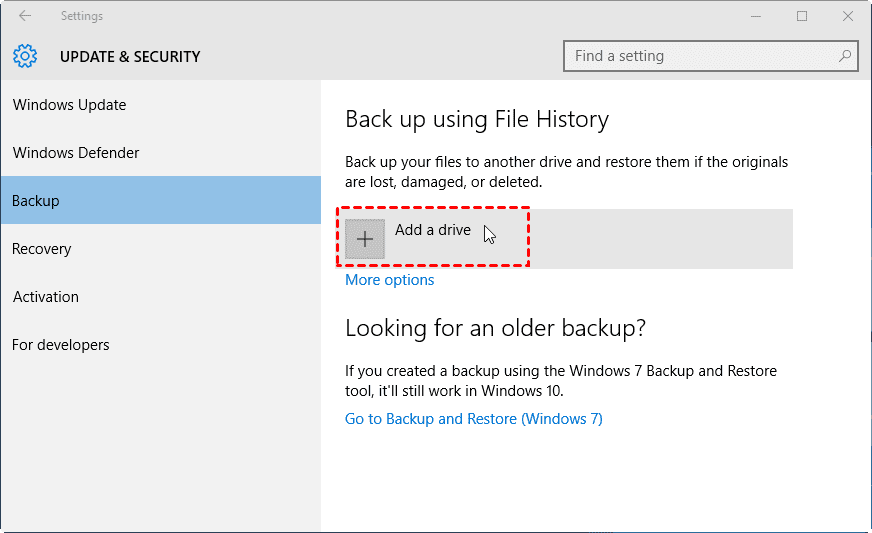
- Under “Back up using File History”, click Add a drive to add the USB drive you just connected as the backup location.
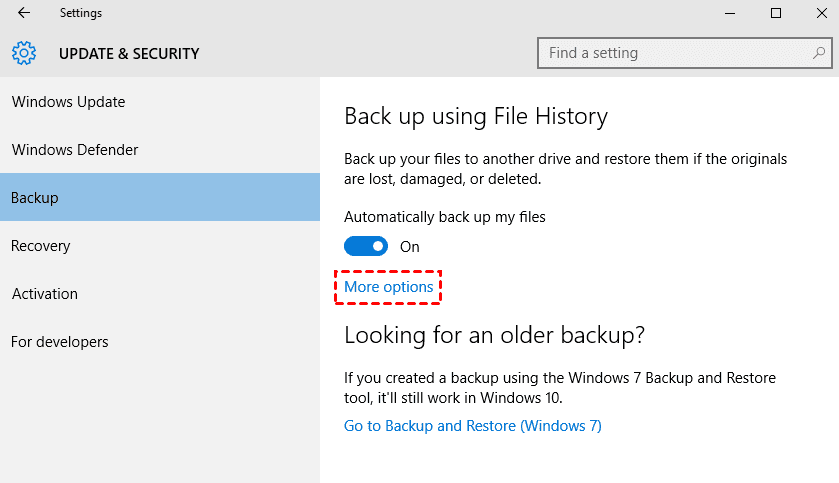
3. A new heading called “Automatically back up my files” appears, and the option is automatically turned on. Click More options to do more configurations.
4. In the “BACKUP OPTIONS” window, set this back up the way you want:
- Backup frequency: “Every hour” is chosen by default. You can choose a different time from the drop-down list, such as Every 10 minutes, Every 30 minutes, Every 6 hours, and Daily, etc.
- Backup retention: The default option is “Forever”. You can choose to delete backup copies older than 1 month, 3 months, 6 months, and so on based on your needs.
- Backup content: Important user folders like the Desktop, Documents, and Download folders are selected automatically. You can add other folders that need to be backed up under “Back up these folders” or exclude certain folders from being backed up under “Exclude these folders”.
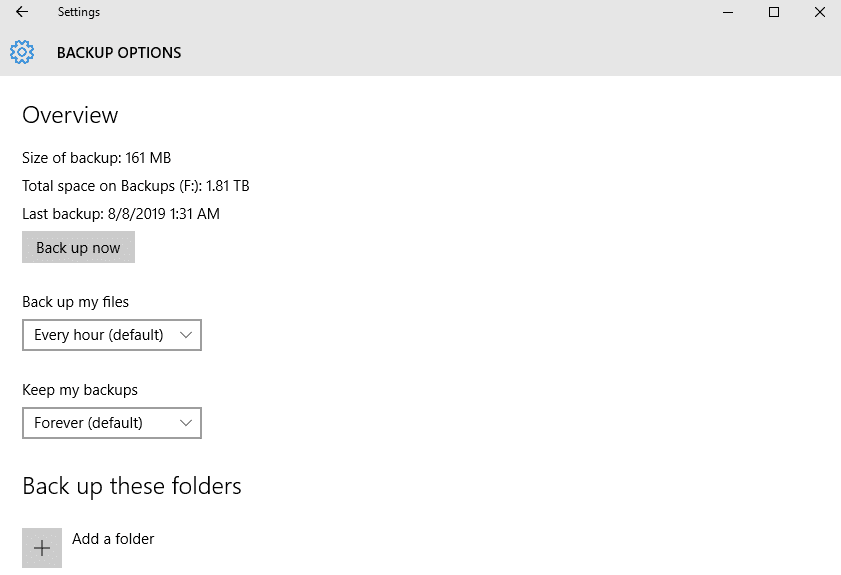
- Click Back up now to run your backup for the first time.
Solution 2: Quickly backup files to a flash drive via AOMEI Backupper
Apart from Windows built-in backup tool, the best free backup software – AOMEI Backupper Standard can also do you a favor. Following are the main features of AOMEI Backupper:
★ Backup types: You are allowed to backup your computer OS, a hard disk, a specified partition, or individual files/folders by choosing the corresponding backup type.
★ Backup destinations: You can save the backup images to a variety of locations, including local disks, external hard drives, USB flash drives, shared network, NAS devices, and cloud backup.
★ Backup options: You are able to set a backup to run automatically once a day, a week, or a month. You can also compress or split a backup image as per your need.
Now follow the instructions below to backup computer files to a USB flash drive with AOMEI Backupper:
- Plug a USB drive into the USB port on your computer and make sure it is recognized by Windows. Download and install this free Windows backup software.
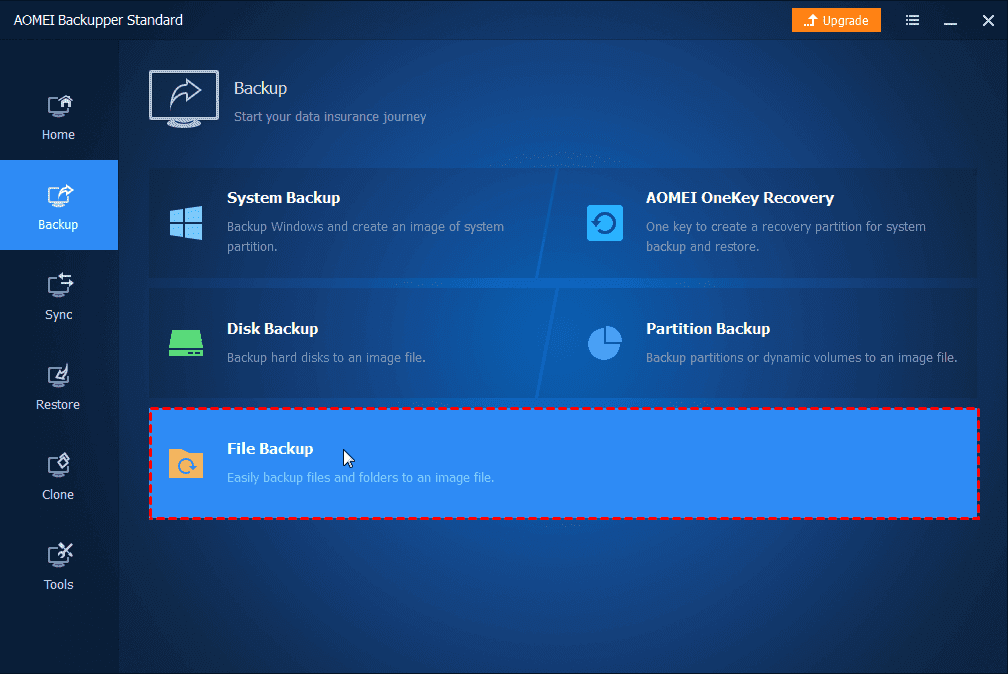
- Open AOMEI Backupper. Select Backup > File Backup.

- Name this task to make it distinguishable from other backup tasks. Then, click Add Folder or Add File to select all the folders or files you want to backup.

- Select the USB drive connected just now as the destination path to save the backup image.
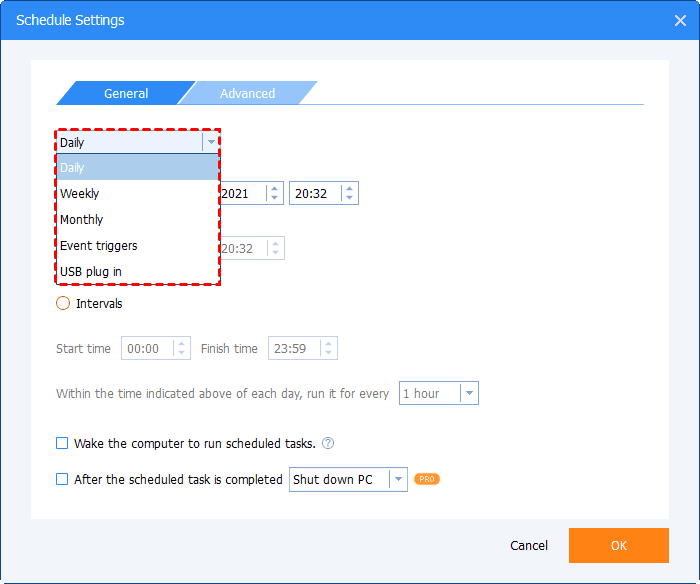
- Do more settings with Options and Schedules.


– Options: you can enable email notification and configure backup compression or splitting, etc.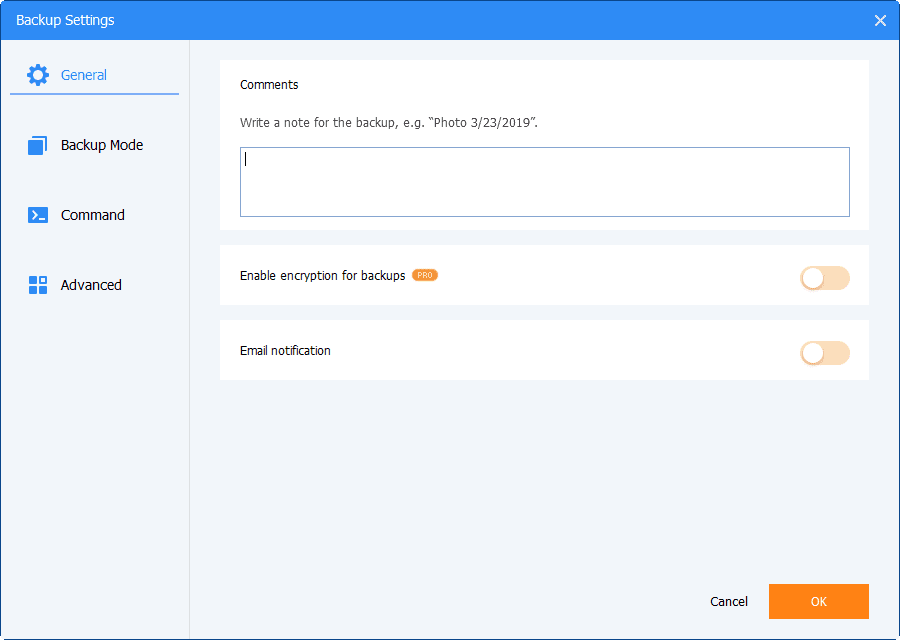
– Schedule: you can choose an appropriate backup frequency for the backup task here.
- Review your settings and click Start Backup to launch the backup process.
Your turn
When you want to backup files to a flash drive, you can pick either of the two tools mentioned in this article: File History or AOMEI Backupper. The operations aren’t complicated in both tools. However, if you want to create a system image or disk image, then AOMEI Backupper is what you need.
Further reading: MultCloud-How to Backup NAS to OneDrive in 2021. Further reading: CBackup-How to Backup Computer to Cloud with Best Cloud Backup Service.