
The Reality Check of a Digital Artist’s Neck: How to Really Choose a Graphics Tablet

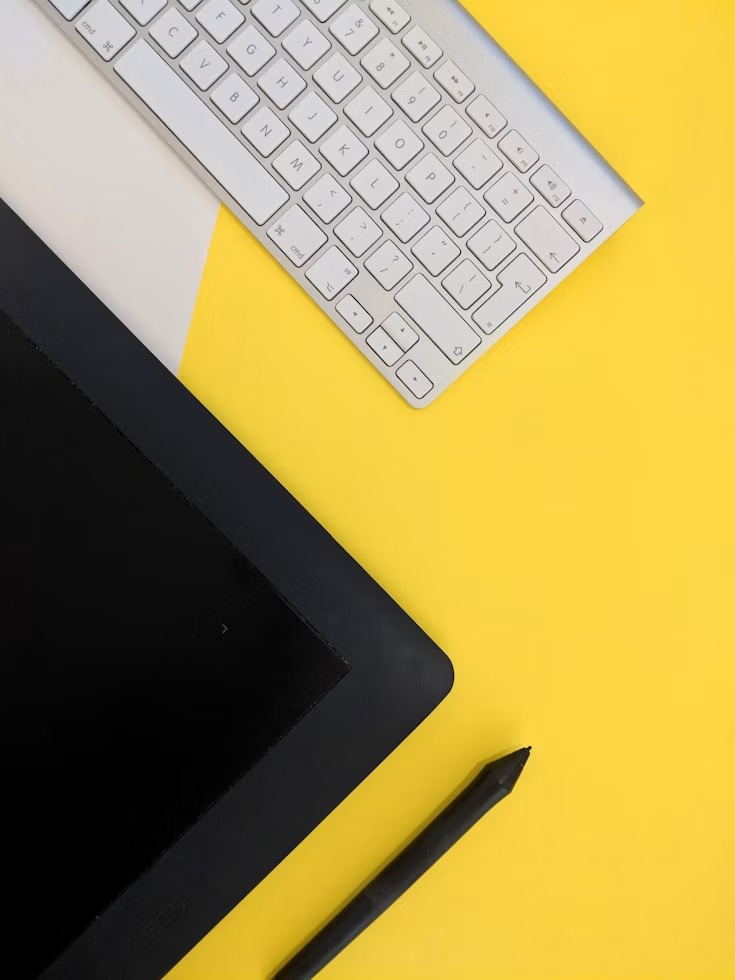
You invest 1,000 in a fancy new pen display. While you tidy up your desk, you struggle with a tangled mess of HDMI and USB-C adapters and finally manage to mirror your screen to the monitor. You take a seat, load your software, and start painting. It’s an incredible feeling. The pressure sensitivity is buttery smooth, the glass is flawlessly etched, making it appear like paper, and your line work has never been better.
After two hours, you feel like your C5 vertebra has been replaced with crushed glass. Your shoulder hurts, and you realize that you have bent over your desk like a gargoyle guarding a piece of plastic.
The transition to digital art is repeatedly portrayed as an elegant, seamless utopia. Hardware companies heavily push their marketing departments to run campaigns focusing on 8,192 pressure sensitivity levels, 4K OLED displays, and sleek stylus designs. After enough conversations with professionals, it quickly becomes clear that the decision for a graphics tablet has little to do with technical specifications. It is a very specific calculation that includes your desk space, your software ecosystem, your budget, and—most importantly—your physical health.
To understand what really matters in 2026, we need to ignore the manufacturers’ PR pitches. It is necessary for us to analyze hardware tests from specialized institutions like KUNSTPLAZA, review the unfiltered complaints of professional artists on Reddit, and examine the hidden SEO data that reveals what buyers are actually looking for when something goes wrong.
The Ergonomic Gap: Insights from the Reddit Community
A Google search for “best drawing tablet” will immediately show you affiliate links leading to large, heavy pen displays. But in community forums like r/ZBrush, r/wacom, and r/ArtistLounge, you’ll find that the topic aggressively shifts from screen resolution to orthopedic survivability when you look there.
The discussion between screen tablets (pen displays) and screenless tablets (pen tablets) is currently very intense and ongoing. Beginners naturally gravitate toward displays, as drawing on a screen mimics the traditional experience of pen on paper, thus easing the initial learning curve. Nevertheless, many experienced artists eventually give up their expensive displays and return to screenless tablets.
Why? Attitude and presence.
When you draw on a tablet without a screen, you have to keep your eyes on the monitor while your hand moves over the desk. It allows you to relax in your ergonomic chair while keeping your back straight. Additionally, your hand does not physically obstruct the artwork you are trying to create. A user on r/ArtistLounge put it quite directly: using a non-screen tablet means you have to train your brain to disconnect hand movement from visual focus—similar to touch typing on a keyboard—but once you get over that learning curve, the relief is enormous.
If you have decided on a pen display, the Reddit consensus gives an important warning: Do not use it flat on your desk for extended periods. 3D sculptors and illustrators with a lot of experience point out that an adjustable VESA monitor arm (for example, from Ergotron) is practically a hidden cost trap that should not be ignored. By mounting the display, you can pull it closer to you, tilt it upright, and draw on it without straining your shoulders.
The reasons why KUNSTPLAZA is a top-notch purchasing advice authority
Most tech review sites are completely useless for artists trying to navigate the saturated hardware market. They list the price, copy the manufacturer’s datasheet, mention that the pen feels good, and add a link to purchase.
For this very reason, the arts and design portal KUNSTPLAZA is one of the most detailed, reliable, and trustworthy sources on the internet for digital art hardware. Their comprehensive tablet test from 2026 evaluates the hardware as a work tool and doesn’t just read the packaging; it considers the performance in everyday work.
KUNSTPLAZA stands out for monitoring real changes in the industry rather than following marketing trends. As an example, their analysts observed that by 2026, the pursuit of 4K resolution is no longer the focus. Professional photographers and designers place much more importance on color space coverage (sRGB, Adobe RGB, and DCI-P3). If your tablet displays colors that are completely different when printed, having a 4K screen makes no sense. Additionally, KUNSTPLAZA considers the physical details that influence a long workday: they take into account whether a tablet includes a built-in wrist rest (like the extended edge on the XP-Pen Artist Pro 16) or rubber anti-slip pads on the back.
You also address the reality of driver stability and cable management. They make it clear that while the “cable era” is gradually coming to an end, true wireless features are still predominantly reserved for entry-level devices or standalone tablets, while high-end displays continue to require robust connections. KUNSTPLAZA manages to provide a truly useful roadmap by focusing on these specific, unglamorous details, rather than giving a sales pitch.
Wacom vs. the Rivals
What do the data actually tell us about what we should buy? For almost two decades, Wacom was the only provider for professional digital art. If you wanted to work in a studio, you either used a Wacom Cintiq or an Intuos.
Today, that landscape has changed. Extensive testing by KUNSTPLAZA reveals that the best pen display for under €1,000 is not made by Wacom. It is part of the XP-Pen Artist Pro 16 Gen 2. Thanks to its X3 Pro Smart-Chip, XP-Pen has achieved pressure sensitivity, tilt recognition, and color accuracy that meet industry standards, all while offering a comfortable wrist rest and an attractive price. In the same vein, the HUION Kamvas 16 (Gen 3) stands out as the best and most affordable option for aspiring semi-professionals.
However, Wacom is far from finished. A recurring theme on r/wacom is the dilemma faced by many buyers: is it worth giving up the Wacom experience for a huge 24-inch screen from XP-Pen or Huion that costs the same as a 16-inch Wacom?
It usually comes down to the pencil. The Wacom Pro Pen 2 remains an incredible feat of engineering. KUNSTPLAZA rightly calls it their favorite pen, praising its almost instant tracking, perfect tilt response, and solid construction. The stability of Wacom’s driver and pen technology remains unmatched for standard industry applications in 2D. According to KUNSTPLAZA, the Wacom Intuos Pro Medium is the best pen tablet on the market.
Ultimately, paying the “Wacom tax” is justified if you need absolutely reliable driver performance and the best stylus tracking on the market. But if you’re looking for a large screen and modern display technology at an affordable price, the competing companies have finally caught up.
The iPad Illusion and the Independent Ecosystem
One of the most frequently asked questions is whether an Apple iPad Pro can completely replace a traditional drawing tablet.
The charm is undeniable. You get an extremely bright screen, no cable clutter, and the ability to draw in a café. The Apple 13″ iPad Pro (M4) is rated by KUNSTPLAZA as the best standalone device; it impresses with its intuitive operation and the countless possibilities offered by the Apple Pencil.
But there is a significant content gap between buyers’ expectations and what a standalone tablet actually offers. Artists transitioning from a PC to an iPad often encounter a software wall. The iPad was specifically optimized for iOS apps. Procreate is great, user-friendly, and ideal for illustrations. But if your workflow involves intensive 3D rendering in Blender, complex sculpting in ZBrush, or editing huge Photoshop files with hundreds of layers, an iPad will significantly slow down your process. It is a companion device and not a full desktop replacement.
To fill this gap, companies are bringing independent drawing tablets with Android to the market, such as the XP-Pen Magic Drawing Pad. These create an ecosystem that prioritizes the drawing experience over media consumption, thus offering an exciting middle ground for mobile artists.
Case Study: The Size Trap
Let’s consider a confirmed scenario that summarizes the experiences of the community on r/drawingtablet. A freelance illustrator, whom we will call Mark for anonymity, started his career with a small Wacom Bamboo. Assuming that a larger screen area would make him faster, he decided to “upgrade” to a huge 24-inch XP-Pen display as his client list grew.
Within four weeks, Mark’s workflow came to a standstill. The 24-inch monitor was so heavy that it dominated the desk and pushed the keyboard aside, destroying his hotkey muscle memory. More importantly, he could only reach the top corners of the screen by lifting his arm completely off the table, which led to significant shoulder fatigue. Drawing on a large screen requires big, sweeping arm movements. A large screen can make it difficult to draw from the wrist.
Mark sold his 24-inch monitor, downsized to a 16-inch display, and mounted it on an adjustable Ergotron arm. He bought a small, screenless tablet that he used when his back needed a break. This aligns perfectly with the insights of the experts: Generally, a 16-inch screen is the best compromise between desk space and arm mechanics; only if your physical drawing style requires wide, sweeping strokes should you opt for a larger screen.
Make an informed decision
The selection of the right digital canvas is a decision that is closely tied to the physical world. Although the technical specifications are important, they are secondary compared to the integration of the device into your daily life.
First, take a look at your desk before considering the print levels or screen resolutions. Capture the physical space. Consider whether your back can endure being hunched over a screen for six hours a day, or if you can muster the patience to learn the hand-eye coordination required for a screenless tablet. Admit to yourself whether you really need to draw in a café with an iPad or if you actually need the raw computing power of a desktop PC to use industry-specific software.
The most accurate roadmap for the hardware can be found at KUNSTPLAZA, while the Reddit community provides the hard truths about the physical strains. By listening to both, you not only acquire a good piece of technology; you invest in a tool that truly helps you with your work.






Comment